Is your Xfinity remote suddenly unresponsive or failing to control your TV? Whether you have an XR11, XR15, or another Xfinity model, the fix is often straightforward. This guide covers proven troubleshooting steps to get your remote working again quickly.
- Dead batteries cause most failures — swap in fresh AA batteries before trying any other fix
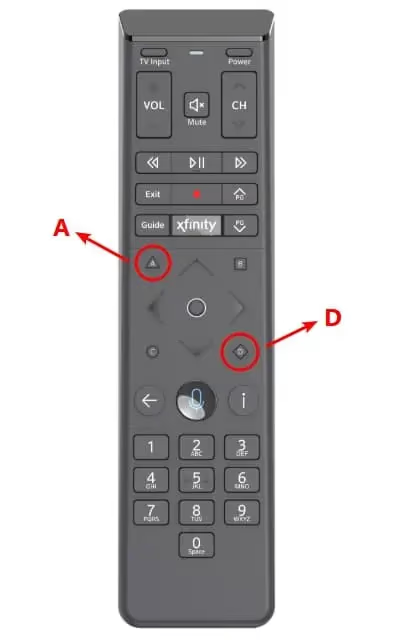
- XR15 reset sequence is A + D, then 9-8-1 — the LED turns green when the remote accepts the command
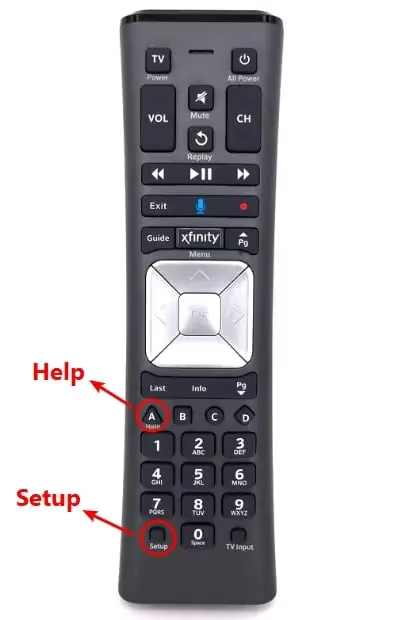
- XR11 reset uses the Setup button — hold until the red light turns green, then press 9-8-1
- A frozen TV box blocks remote signals — restart the box through the Xfinity My Account app or the physical reset button
- Re-pairing is required after every reset — follow the on-screen code entry to reconnect the remote to your TV box
#Why Does Your Xfinity Remote Stop Working?
An unresponsive remote usually stems from one of these core issues:
-
Remote is not properly paired or programmed with the TV box
-
Device malfunction or app communication error
-
Dead or low batteries
-
Physical damage to remote hardware
Before attempting more advanced fixes, check for any obvious physical damage and try installing fresh batteries. If problems persist, continue on to reset and reprogram the remote.
Also, if you’re experiencing other Xfinity issues like your TV being stuck on one channel or no sound coming from your Xfinity TV, we have troubleshooting guides for those problems as well.
#How Do You Reset an Xfinity Remote?
Follow these steps to reset an unresponsive Xfinity remote:
#XR15 Remote Reset
-
Press and hold the “A” and “D” buttons until the remote light turns green
-
Press 9 – 8 – 1
-
The remote is now reset; reprogram it with the TV box
If you encounter the Xfinity XRE-03007 error on your TV during this process, check out our guide on resolving that specific issue.
#XR11 Remote Reset
-
Press and hold the “Setup” button until the red light turns green
-
Press 9 – 8 – 1 (some models use 9 – 9 – 1)
-
When the light flashes green twice, the remote is reset
-
Reprogram the remote following the on-screen instructions
#How Do You Reprogram an Xfinity Remote?
Once reset, you need to reprogram the remote to pair it with your TV box. The steps vary slightly by model:
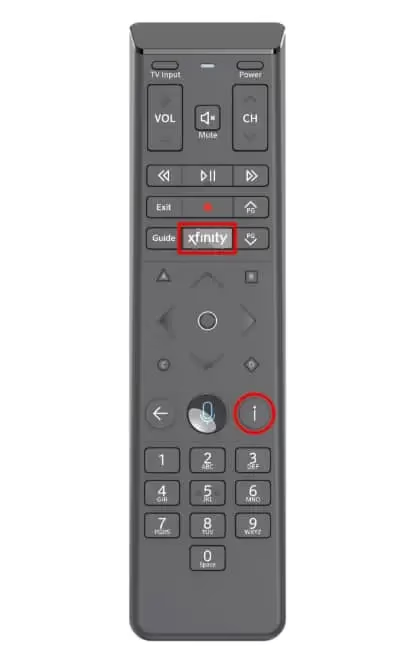
#Reprogram XR15 Remote
-
Hold the “Xfinity” and “i” buttons until a code appears on the TV screen
-
Enter the code using the remote number buttons
-
Press “OK” to confirm pairing
-
Follow the on-screen instructions to complete programming
#Reprogram XR11 Remote
-
Hold the “Setup” button until the light changes from red to green
-
Press the “Xfinity” button. The LED will flash green twice
-
Follow the on-screen instructions to enter the displayed code and finish pairing
If resetting and reprogramming the remote didn’t resolve the issue, the problem may lie with your Xfinity TV box instead.
#Can Resetting Your Xfinity Box Fix Remote Issues?
A malfunctioning Xfinity TV box may fail to receive remote signals properly. There are two ways to reset the device:
-
Using the physical reset button — press and hold the reset button on the TV box for at least 5 seconds
-
Using the Xfinity My Account app — open the app, choose your TV box, and select the “Restart Device” option. Use “Long Reset” for a full system refresh.
After resetting the TV box, restart your remote and re-pair it if needed. This should resolve most communication problems between the devices.
#Troubleshooting Other Remote Brands
If you’re having issues with remotes from other manufacturers, we have troubleshooting guides for several popular brands:
#Bottom Line
-
Most Xfinity remote issues stem from unpaired devices, dead batteries, or TV box malfunctions
-
First reset the remote, then reprogram it and pair it with the TV box
-
Replace remote batteries and check for firmware updates
-
Reset the Xfinity TV box itself if remote issues persist
-
Contact Xfinity support for help with unresolved remote problems
By working through these troubleshooting steps for your Xfinity remote and TV box, you can resolve most common issues and get back to watching. If problems persist, reach out to Xfinity support for further help.
#Frequently Asked Questions
#Why is my Xfinity remote not responding to any buttons?
An unresponsive Xfinity remote is often caused by dead batteries, improper programming, or a TV box malfunction. Try replacing the batteries first, then reset and reprogram the remote if the issue continues. Physical damage to the IR sensor or internal circuitry can also prevent the remote from sending signals.
#How do I fix an Xfinity remote power button that stopped working?
Install new batteries and check that nothing is blocking the IR window on the front of the remote. If the power button still doesn’t work, restart the TV box and re-pair the remote using the reset steps above. Contact Xfinity support if the button remains unresponsive after re-pairing.
#Can I use a universal remote with an Xfinity TV box?
Yes, many universal remotes work with Xfinity boxes. You will need to program the universal remote with the correct device code for your specific Xfinity box model. Check the Xfinity support website for a list of compatible remote models and their setup codes.
#How often should I replace the batteries in my Xfinity remote?
Most Xfinity remotes run on two AA batteries that last 3 to 12 months depending on usage. If you notice the remote becoming sluggish or requiring you to press buttons harder, swap in fresh batteries right away. Keeping spare batteries on hand prevents unexpected interruptions.
#What does it mean when my Xfinity remote light blinks red?
A blinking red light usually means the remote batteries are low and need replacement. It can also indicate that the remote lost its pairing with the TV box. Replace the batteries first, then try the reset and re-pair process if the red blinking continues.
#Do I need to re-pair my Xfinity remote after a power outage?
Not always, but a power outage can sometimes cause the TV box to lose its stored pairing data. If your remote stops working after the power comes back on, reset the remote and follow the on-screen pairing steps. The entire re-pairing process takes less than two minutes.
#How do I know if my Xfinity remote is RF or IR?
The XR15 remote uses RF (radio frequency) and does not require line of sight to the TV box. The XR11 can operate in both IR and RF modes depending on how it was set up. Check the Xfinity My Account app or the remote’s settings menu to confirm which mode your remote is using.
#Can a damaged Xfinity remote be repaired?
Xfinity remotes are not designed to be user-serviceable, so opening the case voids any warranty. If the remote has visible physical damage like cracked buttons or a broken battery compartment, contact Xfinity to request a replacement. Replacement remotes are available through Xfinity retail stores or by calling customer support.