Resetting your Westinghouse TV to factory settings without a remote is one of the fastest ways to fix freezing, sluggish menus, connectivity failures, or a forgotten parental control PIN. Three methods work on most Westinghouse models, and none of them require a working remote control. This guide walks through each option so you can pick the one that fits your TV.
- Reset button method is the fastest — press the recessed button on the back panel for 10 seconds to trigger a full factory restore
- Onboard button combo works on models without a reset button — hold Input Source + Volume for 15-20 seconds until the Westinghouse logo appears
- Power-drain reset clears hardware faults — unplug the TV, hold the power button for 15 seconds, then wait 60 seconds before reconnecting
- All three methods erase saved settings — write down your Wi-Fi password, picture preferences, and app logins before starting
- A factory reset does not fix physical hardware damage — persistent issues like cracked backlights or burned-out T-CON boards need professional repair
#Why Reset Your Westinghouse TV Without a Remote?
A factory reset rolls the TV’s software back to its original state, which clears out corrupted data, broken app caches, and misconfigured settings all at once. Here are the most common reasons people perform one:
- Clears software bugs causing freezing, lagging, or issues like Westinghouse TV screen flickering
- Removes a forgotten parental control PIN that locks you out of channels or apps
- Deletes all personal data and custom settings before selling or giving away the TV
- Restores connectivity when the TV refuses to join Wi-Fi or has Westinghouse TV input source problems
- Brings back normal speed on older Westinghouse models running Android TV
A reset is always worth trying before you contact Westinghouse support or pay for a repair visit. It takes less than five minutes and solves the majority of software-related problems.
#Preparation Before Resetting
Skipping preparation is the number one reason people regret a factory reset. Once the process starts, every custom setting disappears.
- Confirm your power outlet works by plugging in a lamp or phone charger first
- Write down your Wi-Fi network name and password since the TV will forget both
- Note your preferred picture mode (Vivid, Standard, Movie) and any backlight or contrast tweaks you made
- Log out of streaming apps like Netflix and Hulu if you want to deauthorize the TV from your accounts
- Locate the physical buttons on your TV — check along the bottom edge, the right side panel, or the back near the HDMI ports
Having your Westinghouse model number handy also helps. You can usually find it on a sticker near the input panel or on the back of the TV stand. Different model years place buttons in different spots.
#Method 1: How Do You Use the Reset Button on a Westinghouse TV?
Many Westinghouse TVs have a dedicated reset button on the back panel. This is the simplest method and works even when the Westinghouse TV screen is black or the TV has horizontal lines on the screen.
Steps to reset using the button:
-
Make sure your TV is plugged in and powered on. The power LED should be lit, even if the screen shows nothing.
-
Carefully tilt or rotate the TV so you can see the rear input panel. On wall-mounted TVs, use a flashlight to locate the ports.
-
Find the small recessed “Reset” button. It is typically near the HDMI inputs on the lower-right or lower-left edge of the back panel. The button sits inside a tiny pinhole.
-
Insert a straightened paperclip or the tip of a ballpoint pen into the hole. Press and hold for 10 seconds. You may see the screen flicker or go black during this time.
-
Release the button. The TV should restart on its own within 15-30 seconds. If the Westinghouse logo appears, the reset is working.
-
When the TV finishes rebooting, it will show the initial setup wizard asking you to select a language and agree to the Terms of Service. This confirms the factory reset succeeded.
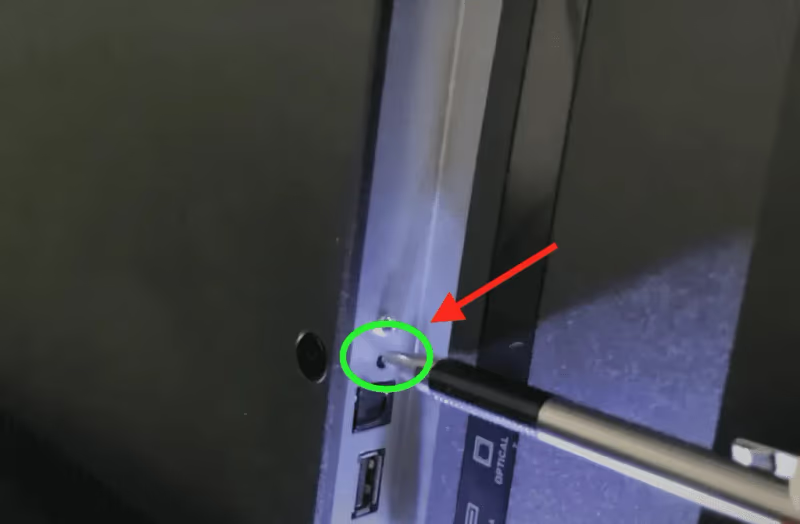
The reset button bypasses the Android operating system entirely, so it works even when the remote is lost, broken, or unpaired. If you have a Westinghouse TV that keeps turning off, try this method first.
#Method 2: Onboard Button Combination
Not every Westinghouse model includes a pinhole reset button. If yours does not, you can trigger a factory reset using the physical buttons built into the TV frame. These buttons typically handle power, input selection, and volume.
Steps for the button combination reset:
-
Confirm the TV is plugged into a working outlet and powered on, even if the screen stays black.
-
Press and hold the Input Source button (usually the second or third button from the power button) for 15-20 seconds. Do not release it yet.
-
While still holding Input Source, quickly press the Volume Down button twice, then release both buttons.
-
Wait 10-15 seconds. The Westinghouse logo should appear as the TV reboots into its factory state.
-
If the logo does not appear, try the same sequence with Volume Up instead. Button layouts differ between model years, so both variations are worth testing.
-
Complete the on-screen setup wizard to confirm the reset worked. You will need to reconnect to Wi-Fi and sign back into your streaming apps.
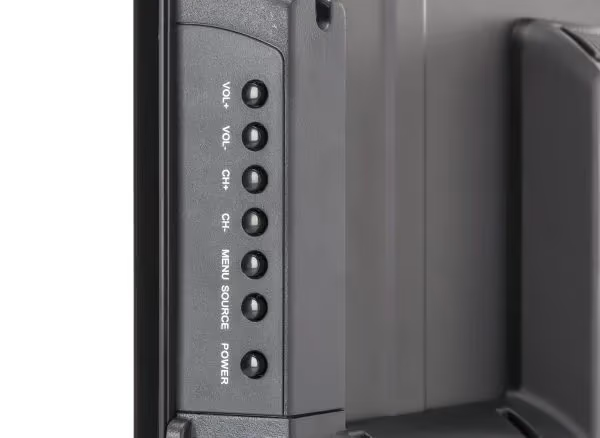
This combination triggers the reset sequence from the TV’s bootloader, which loads before the Android system starts. That is why it still works when the Westinghouse TV is stuck on a black screen or the menu is frozen.
If you cannot identify which button is Input Source, press each non-power button one at a time while watching the screen. The Input Source button will cycle through HDMI 1, HDMI 2, AV, and other inputs.
#Method 3: How Does Unplugging Reset a Westinghouse TV?
When neither the reset button nor the onboard button combination is available, a power-drain reset is the last resort. This method forces the TV to discharge all stored electricity, which clears temporary memory and resets certain hardware components.
Steps for a power-drain reset:
-
Turn the TV on so all internal components are active and drawing power.
-
Unplug the power cord from the wall outlet (not just from the back of the TV). Also disconnect any surge protectors or power strips.
-
Press and hold the power button on the TV frame for 15 seconds. This drains residual capacitor charge inside the TV’s power supply board.
-
Release the power button and wait a full 60 seconds. Waiting is important because some components take longer to fully discharge.
-
Plug the power cord firmly back into the wall outlet and press the power button to turn the TV on.
-
If the TV boots directly to the setup wizard, the reset worked. If it boots to your normal home screen, the power-drain only performed a soft reboot rather than a full factory reset.
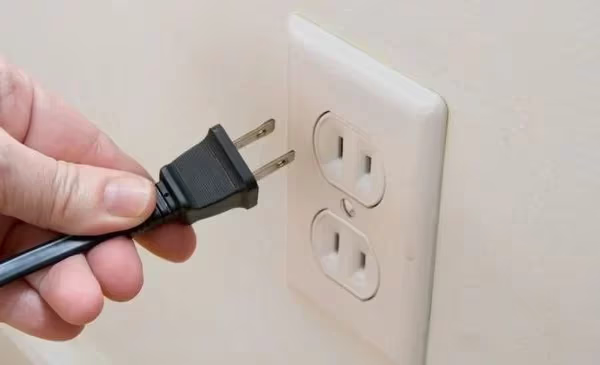
A power-drain reset does not always erase all settings the way the first two methods do. It is most effective at clearing temporary glitches like a frozen screen, audio sync problems, or a TV that won’t turn on. If you need a full factory wipe, try Methods 1 or 2 first.
#What If Resetting Doesn’t Resolve the Issue?
A factory reset fixes software problems, but it cannot repair physical hardware failures. If your Westinghouse TV still misbehaves after all three reset methods, the issue likely sits deeper.
Try these next steps:
- Test with a different HDMI cable and port. A bad cable or damaged port can mimic software glitches like a black screen or no signal error.
- Try a universal remote using Westinghouse TV universal remote codes to rule out button-related issues. You can also troubleshoot your Westinghouse Roku TV remote if it stopped pairing.
- Connect external speakers through the optical audio port to test whether the Westinghouse TV has no sound due to a speaker failure or a software bug.
- Inspect HDMI and USB ports for bent pins, dust buildup, or scorch marks that indicate electrical damage.
- Check for a firmware update by visiting Westinghouse Support and entering your model number. Outdated firmware can cause persistent bugs that survive a factory reset.
- Contact Westinghouse directly if the TV is still under warranty. Their support team can authorize a repair or replacement.
If the TV is out of warranty and the repair estimate exceeds 50% of a new TV’s price, replacing it is usually the smarter financial decision.
#Bottom Line
Resetting a Westinghouse TV without a remote takes under five minutes with the right method. Start with the pinhole reset button on the back panel since it is the most reliable. If your model does not have one, use the Input Source plus Volume button combination. Fall back to the power-drain method only for temporary glitches. Write down your Wi-Fi password and picture settings before you begin, because all three methods erase your customizations.
#FAQ
#How long does a Westinghouse TV factory reset take?
The reset itself finishes in about 30-60 seconds. After the TV reboots, the initial setup wizard adds another 2-3 minutes for language selection, Wi-Fi connection, and agreeing to the Terms of Service. The entire process from start to finish takes less than five minutes.
#Will a factory reset delete my streaming apps?
Yes. A factory reset removes all installed apps, saved passwords, and account logins. You will need to reinstall apps like Netflix, Hulu, and Disney+ from the app store after the reset completes. Your actual streaming subscriptions are tied to your online accounts, not the TV, so those remain active.
#Can I reset a Westinghouse TV if the screen is completely black?
You can. Both the pinhole reset button (Method 1) and the onboard button combination (Method 2) work without any screen display because they operate at the hardware level. Just follow the button-press timing and wait for the TV to reboot.
#Does unplugging a Westinghouse TV count as a factory reset?
Not always. Unplugging the TV and draining residual power (Method 3) performs a hard reboot that clears temporary memory. It may fix frozen screens or boot loops, but it does not always erase saved settings and apps the way a true factory reset does.
#Why won’t my Westinghouse TV reset even after trying all three methods?
The most likely cause is a hardware failure in the main board or power supply board. If the TV does not respond to the reset button, button combination, or power-drain method, the internal circuitry may be damaged. Contact Westinghouse support or take the TV to a certified repair technician for diagnosis.
#Is there a way to reset a Westinghouse TV using a phone app?
Some Westinghouse Android TV models support the Google Home app or the Android TV Remote Control app as a virtual remote. If you can pair your phone to the TV over Wi-Fi, you can navigate to Settings, System, and then Factory Reset through the app. This only works if the TV is connected to Wi-Fi and responsive to commands.
#Do I need to update firmware after a factory reset?
You should. A factory reset rolls the TV back to whatever firmware version it shipped with, which may be months or years old. After completing the setup wizard, go to Settings, System, and About to check for updates. Installing the latest firmware patches known bugs and can improve app compatibility.
#Will a factory reset fix a Westinghouse TV with no sound?
A reset fixes sound problems caused by incorrect audio settings, corrupted app data, or a software bug in the audio output routing. It will not fix sound issues caused by a blown internal speaker or a damaged audio output port. If the TV still has no sound after resetting, test with external speakers through the optical port to isolate the problem.