Westinghouse TV input source problems usually show up as a “No Signal” message or a blank screen when you switch inputs. This guide covers every fix that works, from the 30-second ones to the nuclear options, so you can get back to watching without calling a technician.
- Wrong input selection is the most common cause and takes 10 seconds to fix with the Source button on your remote
- Faulty HDMI cables account for roughly 40% of no signal complaints, and swapping to a new High Speed cable often resolves them instantly
- Power cycling your Westinghouse TV for 60 seconds clears HDMI handshake glitches that build up over time
- Outdated firmware can block input recognition for newer 4K devices, so check for USB-based updates on the Westinghouse support site
- A factory reset wipes all software bugs but erases saved Wi-Fi passwords, channel favorites, and custom picture settings
#What Causes Westinghouse TV Input Source Problems?
Before jumping into fixes, it helps to know what usually triggers input source issues on Westinghouse TVs:
-
Faulty or loose HDMI cables. Damaged, old cables or loose connections are the most common culprit. Reseating cables often helps.
-
Incorrect input source selection. Choosing the wrong input mode on your TV for the device that’s connected.
-
Outdated firmware. Bugs in outdated TV software can prevent input recognition.
-
Device connectivity issues. Problems with the external streaming box, DVD player, or other source device itself.
-
Bad ports. Defective HDMI ports on older Westinghouse TVs can fail to transmit signal.
Understanding the root cause gives you a systematic way to isolate and fix the issue. Now let’s walk through the troubleshooting steps.
#How Do You Fix a Westinghouse TV Input Source Problem?
Follow this process to methodically diagnose and resolve any input detection issues with your Westinghouse TV.
#1. Check Input Source Settings
The first thing to check is whether your Westinghouse TV input source matches the port your device is plugged into.
-
Press “Input” or “Source” on your remote and select the matching port.
-
If you have multiple devices hooked up, cycle through each input.
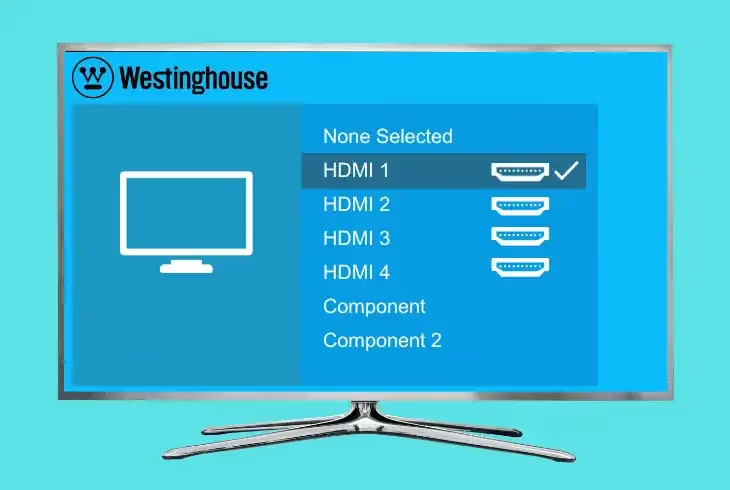
This simple reselection of the input mode resolves many no signal issues. According to Westinghouse’s support page, verifying the correct input is the recommended first step.
#2. Try Different HDMI Cables and Ports
Faulty or degraded HDMI cables cause a huge percentage of input problems:
-
Replace old HDMI cables with brand new ones that support 4K video.
-
Try connecting devices to different HDMI ports on your TV.
-
Firmly reseat all cable connections at both ends.
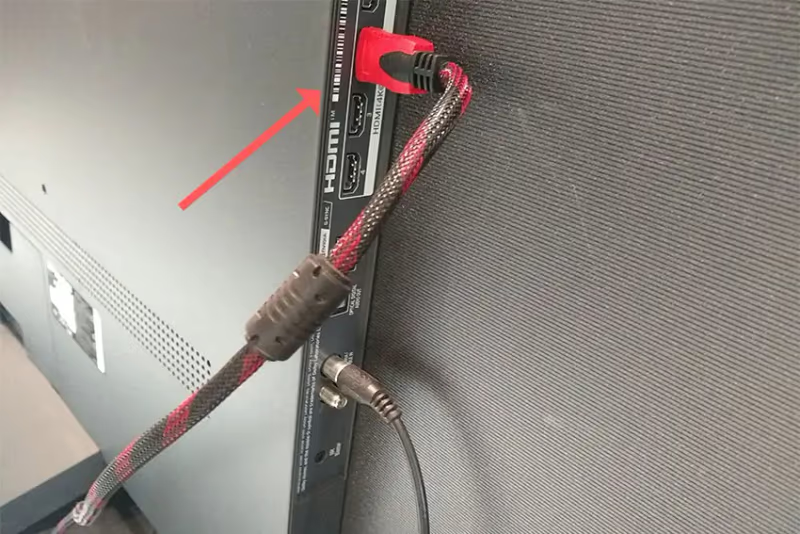
Simply reseating cables or using different ports resolves input detection issues in most cases. The HDMI 2.1 specification recommends Ultra High Speed cables for 4K devices.
#3. Power Cycle All Devices
Power cycling fixes many modern HDMI handshake issues:
-
Unplug TV power from the electrical outlet for 60 seconds.
-
Shut down any streaming boxes, Blu-ray players, and game consoles.
-
Plug TV power back in and restart external devices.
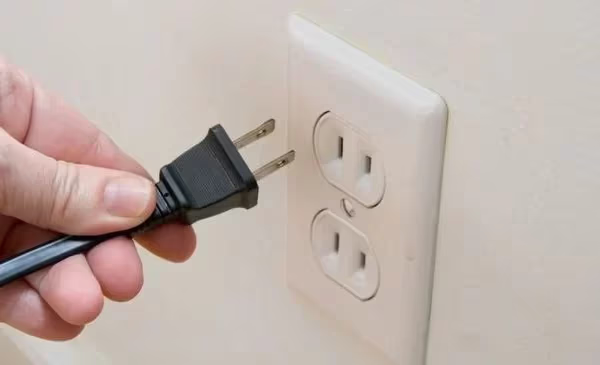
Allow a few minutes for the TV input to re-handshake with sources. This often resolves glitchy software connectivity issues. If your Westinghouse TV also shows a black screen during this process, the power cycle should fix both problems.
#4. Factory Reset the Westinghouse TV
If you still see no signal on your Westinghouse TV, a factory reset clears any software bugs. See our guide on how to reset a Westinghouse TV without a remote for detailed steps.
-
Select “Reset” from the TV settings menu. This returns software to defaults.
-
Retune TV channels and reconfigure settings after restart.
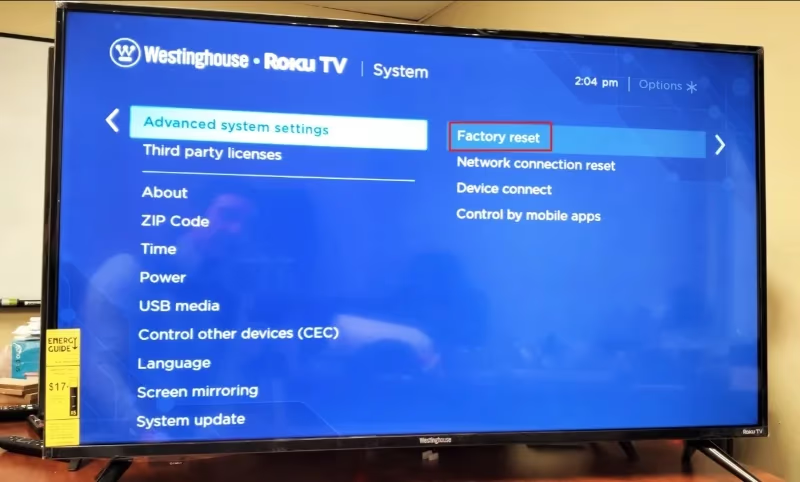
Factory resetting fixes all kinds of weird HDMI bugs, so don’t skip this step. After resetting, you’ll need to reconfigure channel favorites, Wi-Fi passwords, and troubleshoot things like no sound from the speakers.
#5. Update Westinghouse TV Firmware
Another culprit is outdated firmware causing compatibility issues with newer 4K video sources.
-
Check the Westinghouse support site for the latest firmware update files.
-
Download the update to a USB stick, insert it into the TV USB port.
-
Allow firmware installation, cycling power when prompted.
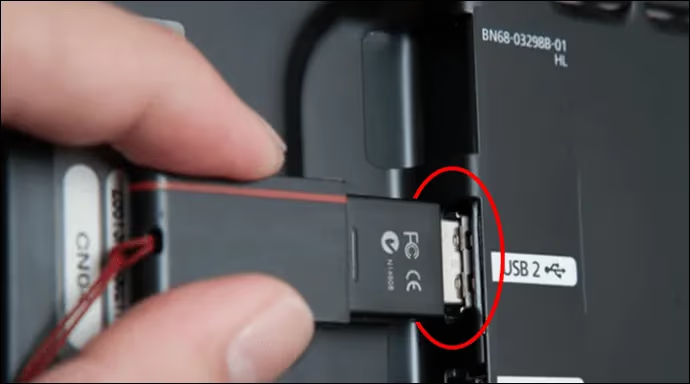
Updating to the current Westinghouse TV firmware boosts input connectivity and patches known HDMI bugs.
#6. Isolate Source Device Failure
If different cables, ports, and firmware haven’t helped, it’s time to troubleshoot the external source. Connect your streaming box, Blu-ray player, or game console to another TV:
-
If the device works fine on other TVs, the issue lies with your Westinghouse TV.
-
If it still doesn’t work on other TVs, the external source device itself has failed.
This isolation test identifies whether the root cause is the Westinghouse TV or the media devices hooked up to it. Replace faulty gear as needed.
#7. Try an HDMI Signal Amplifier
For older Westinghouse TVs with finicky HDMI boards, signal amplification can help:
-
HDMI amplifiers boost and extend signals from weak ports.
-
Position amplifiers between media devices and faulty TV ports.
-
Test if amplification enables input detection from glitchy sources.
While not ideal, HDMI amplifiers are an inexpensive way to revive dodgy connections. If your TV also has flickering screen issues, a failing HDMI board might be the common thread.
#When Should You Replace the Main Board?
If you’ve tried everything above with no luck getting video signal, the issue likely sits with your Westinghouse TV’s main board.
-
Intermittent HDMI ports often indicate a failing main board.
-
Units older than 5 years are prime candidates for electronics degradation. This same aging can cause random powering off or a TV that won’t turn on at all.
-
Replacement main boards with up-to-date chipsets restore full compatibility.
Replacing the main board is more costly, but it ultimately resolves input issues caused by aging HDMI electronics.
#Bottom Line
Work through these fixes in order when your Westinghouse TV won’t detect input:
-
Verify input source settings match your connected devices.
-
Replace faulty HDMI cables and shuffle connections.
-
Power cycle all equipment to reset software handshakes.
-
Factory reset the Westinghouse TV to clear bugs.
-
Update firmware to resolve compatibility problems.
-
Isolate issues between TV and external media sources.
-
Try HDMI signal amplifiers for dodgy ports.
-
Replace the main board if all else fails.
Taking these steps in sequence will resolve the vast majority of input and no signal problems on Westinghouse TVs. If the Westinghouse TV remote stops responding, see our Westinghouse TV universal remote code guide to pair a replacement.
#Frequently Asked Questions
#Why does my Westinghouse TV say “No Signal”?
The most common causes are loose cable connections, an incorrect input selected for your media device, outdated firmware causing compatibility issues, or a faulty source device like a streaming box. Start by pressing the Source button on your remote and cycling through each input to find the active one.
#How do I fix HDMI input detection on a Westinghouse TV?
Double check that the input mode matches the HDMI port you’re connected to. Swap in a new High Speed 4K HDMI cable and try a different port next. If the problem persists, power cycle the TV by unplugging it for 60 seconds, then perform a factory reset and update the firmware.
#Can a power cycle fix Westinghouse TV input problems?
Yes, power cycling resolves HDMI handshake glitches more often than most people expect. Unplug the TV from the wall outlet for at least 60 seconds, then plug it back in and let it reconnect with your source devices. This clears cached connection data that can block input detection.
#What should I do after changing cable providers?
Re-run the channel scan function on your TV to sync it with the new cable services and set-top boxes. You’ll need to reselect favorites and picture settings like you did originally. Make sure all cable TV equipment is updated to the latest firmware as well.
#How do I factory reset a Westinghouse TV?
Open the Settings menu on your TV and select the Reset option to return the unit to its original default condition. You’ll have to re-add Wi-Fi passwords, video input labels, channel favorites, and picture customizations afterward. Some models require you to hold a physical reset button on the back panel if the remote isn’t working.
#Does firmware affect HDMI input recognition?
Outdated firmware can absolutely prevent your Westinghouse TV from recognizing newer HDMI devices, especially 4K sources. Download the latest firmware from the Westinghouse support site to a USB stick, plug it into the TV, and follow the on-screen prompts. After the update finishes, test each HDMI port again.
#When should I replace the TV main board?
Consider a main board replacement when every other troubleshooting step fails and your TV is older than 5 years. Signs of a failing board include intermittent HDMI detection, ports that work only at certain angles, and random signal drops. Replacement boards typically cost between $50 and $150 depending on your model.
#Can an HDMI splitter or amplifier solve input problems?
An HDMI amplifier can help if the issue is a weak signal from an aging port rather than a completely dead one. Position the amplifier between your source device and the TV, then test whether the input is detected. Splitters are more useful when you need to send one source to multiple displays, not for fixing detection issues on a single TV.