Having trouble with your Westinghouse Roku TV remote? You’re not alone. Many users deal with unresponsive or faulty remotes, and the frustration of losing control over basic TV functions is real.
This guide covers the top reasons your Westinghouse Roku remote may stop working and actionable tips to get it fixed so you can get back to streaming your favorite shows.
- Dead batteries cause 80%+ of remote failures — always swap in fresh alkaline batteries before trying anything else
- Re-pairing fixes most post-battery-change issues — hold the pairing button on both remote and TV until the status light goes solid
- IR remotes need clear line of sight — move objects blocking the path between remote and TV sensor within 10 feet
- The free Roku mobile app works as a backup remote — connects over Wi-Fi and helps isolate whether the problem is the remote or the TV
- A factory reset is the last resort — it wipes all settings, but clears firmware glitches that block remote connectivity
#What Causes Westinghouse Roku Remotes to Stop Working?
There are a few common culprits for an unresponsive Westinghouse Roku TV remote:
-
Low Batteries. Like any remote, dead batteries are the #1 reason your remote stops working. Rechargeable batteries lose capacity over time.
-
Sync Issues. The remote loses its pairing with your TV, preventing communication. This often happens after battery changes.
-
Physical Damage. Dropping or spilling on the remote can damage the hardware inside. Buttons can become stuck and sensors disabled.
-
Signal Interference. Other nearby electronic devices may cause signal interference by outputting similar infrared wavelengths.
-
Faulty Hardware. Some internal components of the remote may become defective over time and fail to send signals properly. Issues like Westinghouse TVs not turning on can also prevent the remote from functioning.
If your Westinghouse Roku remote isn’t responding, don’t panic. The solutions below can often get remotes working again in just a few minutes without needing expensive repairs or replacements.
#Fix #1: Check and Replace Batteries
The first thing to check whenever your remote starts acting up is the battery level. Weak batteries account for the vast majority of remote control issues.
Here are steps for checking and replacing Roku remote batteries:
-
Verify the remote light flashes when you hit buttons. No light indicates dead batteries.
-
Check that batteries are correctly oriented matching (+) and (-) terminals.
-
Try removing and reinserting batteries in case of a poor connection.
-
If using rechargeable batteries, fully recharge them to restore capacity.
-
When replacing batteries, always use new alkaline batteries for longest life.
-
Still not working? The problem likely isn’t your batteries. Move on to next fixes.
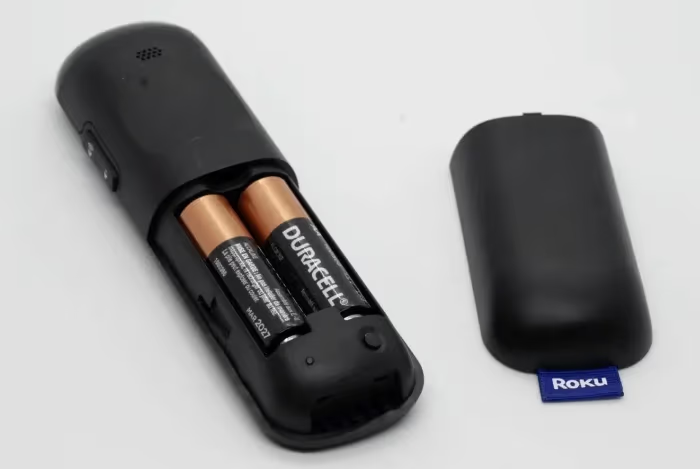
Replacing dead batteries brings most unresponsive remotes back to life quickly and cheaply. If new batteries don’t resolve your issues, keep going with the next steps.
#Fix #2: How Do You Re-Pair a Westinghouse Roku Remote?
Connection or syncing issues between your remote and Roku TV are also common. After replacing your Westinghouse Roku batteries, the remote can lose its pairing with the TV.
Here are steps to re-pair your remote:
-
First press the pairing button located near the headphone jack on Roku TV. The status light will blink.
-
On your remote, press and hold down the pairing button (located on back) until Roku TV status light stops blinking.
-
Both devices should now be paired. Check if remote is controlling TV functions.
-
If red flashing continues, repeat steps again while closer to Roku TV.
The process for syncing a Roku remote and TV is virtually identical across most models. If the pairing process doesn’t resolve connectivity issues, you may need to physically re-orient devices or troubleshoot interference problems.
If you continue struggling to get a wireless connection, the Roku mobile app can serve as a remote without any pairing while you troubleshoot or try solutions like Westinghouse TV factory resets without a remote.
#Fix #3: Clean Remote and Check for Damage
Examine your non-working remote to check for any physical explanation for the issues:
-
Visually inspect for cracks, malfunctions or stuck buttons impeding signals.
-
Check sensor light still activates when buttons pressed.
-
Clean remote surface thoroughly eliminating grease, dirt or spills blocking sensors.
-
Use compressed air to dislodge any debris stuck under buttons.
-
If replacing batteries, use rubbing alcohol and q-tips to gently clean the compartments.
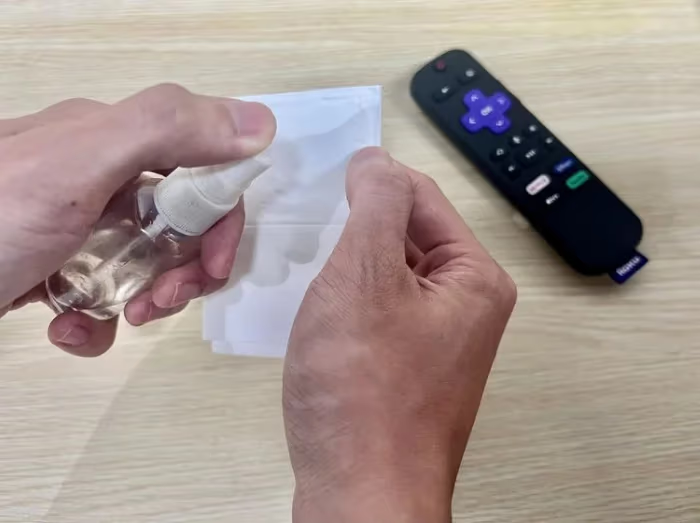
Be very gentle around any internal hardware to avoid permanent damage. Harsh cleaning products should be avoided as they could worsen issues like Westinghouse TV screen flickering.
If the remote sensor fails to light up no matter what troubleshooting you try, hardware damage may be to blame. A wireless keyboard or mobile app can often compensate for a remote with defective sensors.
#Fix #4: Update Roku TV Firmware
Outdated Roku TV firmware can sometimes cause remote connectivity issues after Roku releases updates.
Here’s how to update your Westinghouse Roku:
-
From home screen go to Settings > System > System update
-
Check if updates are available to download. Install any pending updates.
-
If up to date, try selecting “Check now” to manually check for newly released firmware.
-
After firmware updates, you may need to re-pair remote for connectivity.
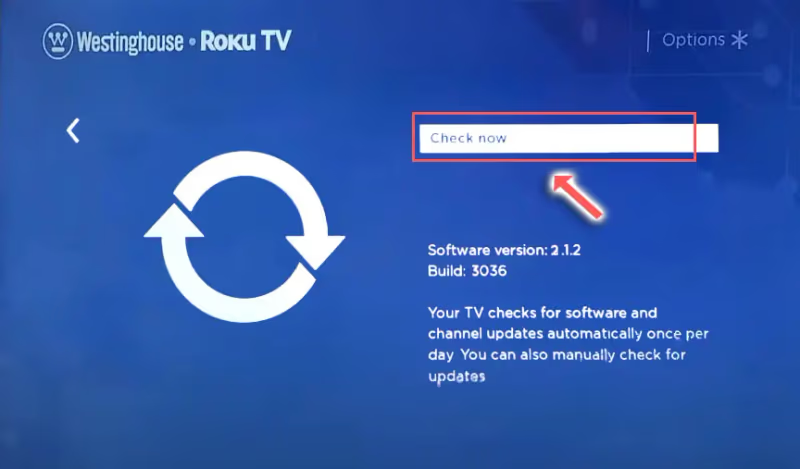
Keep your Roku TV firmware updated whenever notifications appear to prevent sync issues and take advantage of latest fixes for problems like no sound from Westinghouse TVs.
#Fix #5: Can the Roku Mobile App Replace a Broken Remote?
The free Roku mobile app can serve as an alternative remote control if you’re still facing issues after troubleshooting the physical remote.
Advantages of the Roku mobile app include:
-
Pairs using home Wi-Fi with no infrared frequencies required
-
Lets you control TV with a familiar touchscreen interface
-
Includes keyboard for faster text entry
-
Acts as headphone jack replacement for private listening
-
Controls multiple Roku devices instead of just one
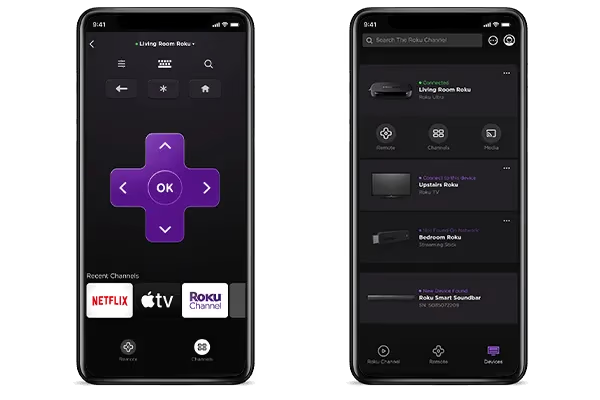
Controlling your Westinghouse Roku TV from your mobile device can help determine whether hardware issues lie with the physical remote before replacing it. It’s also a handy backup to keep on your phone.
#Fix #6: Purchase a Replacement Remote
If you’ve tried the troubleshooting steps above without success, hardware damage may make your remote permanently unusable. At that point, replacing the remote is likely needed unless you are comfortable using only the mobile app.
You can purchase replacement Westinghouse Roku TV remotes from these sources:
-
Buy the exact replacement remote from the Westinghouse parts store. Input your TV model # to match.
-
Search Amazon or eBay for replacement “Westinghouse Roku TV remote”. Generic options with different branding are available.
-
Buy a universal Roku remote that will sync with most Roku devices. Aftermarket options start around $15.
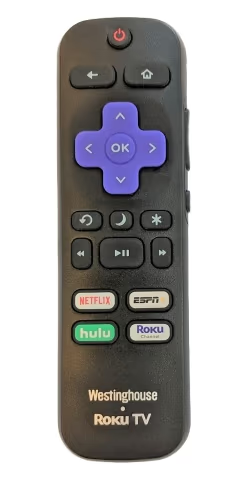
Replacement remotes from Westinghouse or universal third-party models generally sync without issues. Prices for brand name vs third-party replacements can vary widely, so find an affordable option that ships to your location. You can also check our Westinghouse TV universal remote codes guide for programming help.
#Fix #7: Perform Factory Reset on Roku TV
If no above solutions bring back remote functionality, performing a factory reset restores Roku TVs to original out-of-the-box state. The reset will wipe all your data and settings.
Back up any channels, history, or other Roku data you wish to keep before resetting. You'll have to re-enter login information afterwards.
To factory reset:
-
From the Roku home screen head to Settings > System > Advanced Systems Settings
-
Select Factory Reset Everything to wipe device
-
Follow on-screen prompts to confirm factory restore
-
Finish initial device setup steps like accepting terms and connecting to Wi-Fi
-
Re-pair remote to sync and test for functionality
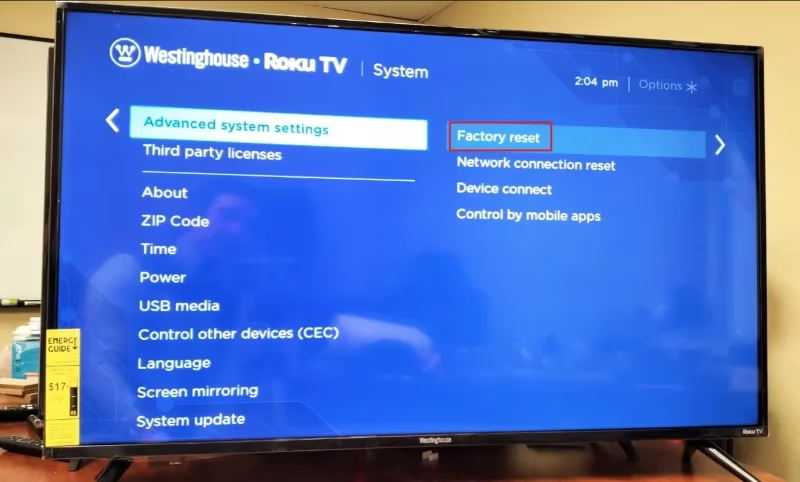
Resetting the Westinghouse Roku gives you a fresh start, clearing any firmware glitches that could be preventing remote connectivity. Restore your apps and settings afterwards through your Roku account during setup.
#Bottom Line
Getting a non-responsive Roku remote working again is usually achievable through basic troubleshooting without complicated tools or programming knowledge.
Start with fresh batteries and correct orientation. Then re-pair the remote, clean the sensor area, and check for firmware updates. If the physical remote is beyond repair, the Roku mobile app keeps you in control while you shop for a replacement.
Be proactive too:
-
Avoid dropping the remote to prevent sensor damage
-
Check battery levels and keep extras on hand
-
Download the Roku app as a backup before problems occur
-
Keep TV firmware updated for latest fixes
If your Westinghouse Roku remote ever stops responding as expected, work through these steps in order and you’ll be streaming again within minutes.
#Frequently Asked Questions
#My replacement Westinghouse Roku remote doesn’t work, what should I try?
Double check you are pairing the remote with the correct TV model. Roku remotes sometimes don’t sync properly with unsupported or older Westinghouse models. Make sure you hold down the pairing button longer than expected to initiate pairing mode, and stay within 3 feet of the TV during the process.
#Why did my remote stop working after I changed the batteries?
Removing batteries resets the wireless pairing between the remote and TV. You need to re-pair by pressing the pairing button on both devices. Also verify the new batteries are fresh and correctly oriented with the (+) and (-) terminals matching the compartment markings.
#Can I use a universal remote with a Westinghouse Roku TV?
Yes, universal Roku remote controls from Logitech, Sony, and other brands will generally work. You may need to manually pair using different button combinations defined in the replacement remote instructions. Check our Westinghouse TV universal remote codes for specific programming steps.
#Why does the Roku app work but the physical remote doesn’t?
If the TV responds through the Wi-Fi-based app but not the physical remote, the problem is specifically with IR signal transmission. This usually points to hardware damage like a cracked sensor or stuck internal component. Inspect the remote closely for physical damage, and try pointing it at a phone camera to see if the IR LED flashes when you press buttons.
#Can I control my Roku TV without Wi-Fi using the mobile app?
No. The Roku mobile app requires an active Wi-Fi connection on both the smartphone and Roku TV to communicate. Without Wi-Fi, you’ll need to use the physical remote or the buttons on the TV itself. This limitation makes it useful for diagnosing whether the issue is the remote hardware or the TV.
#How do I know if my Roku remote uses IR or RF?
Standard Roku remotes (included with most Westinghouse Roku TVs) use IR and require line-of-sight to the TV sensor. Enhanced “voice” remotes use RF via Wi-Fi Direct, which works without direct line of sight. Check Roku’s remote comparison page to identify your model. IR remotes have a visible LED at the tip.
#What should I do if none of these fixes work?
If you’ve replaced batteries, re-paired, cleaned the remote, updated firmware, and even factory reset the TV without success, the remote itself is likely defective. Order a replacement from the Westinghouse parts store or Amazon. In the meantime, use the Roku mobile app or the physical buttons on the TV to navigate menus. If the TV doesn’t respond to any input at all, the issue may be with the TV itself rather than the remote.