Whether you want to stream the latest YouTube videos or access YouTube TV for live television, there are several ways to watch YouTube on your Roku streaming player or smart TV. This guide will walk you through everything you need to know.
- YouTube app is free on all Roku devices — download it from the Roku Channel Store or find it pre-installed
- YouTube TV costs $64.99/month — includes 85+ live cable channels and unlimited DVR storage
- Casting from your phone works instantly — tap the Cast icon in the YouTube app to send video to your Roku
- AirPlay streams from any Apple device — iPhone, iPad, and Mac can mirror YouTube directly to Roku
- YouTube Premium removes all ads — paid subscription also adds background playback and offline downloads
#Overview of Watching YouTube on Roku
Roku devices provide easy access to YouTube and YouTube TV through dedicated channel apps. Key options include:
-
The free YouTube app streams regular YouTube videos and offers a Premium subscription for ad-free viewing and access to original content. Roku also offers apps for streaming other video platforms like Vimeo.
-
YouTube TV is a paid live TV streaming service with over 85 popular cable channels including Fox, MSNBC, ABC, and more, plus unlimited DVR storage.
-
Screen mirroring lets you cast or “fling” YouTube video playback from a mobile device to your Roku. This casting method also works for Twitch.
-
AirPlay lets you stream YouTube or YouTube TV video from an iPhone, iPad, or Mac directly to a Roku streaming device, similar to watching Apple TV+ on Roku.
Below we’ll explore these methods in more detail, including steps for getting set up, pricing information, and pro tips for the best YouTube and YouTube TV experience on Roku.
#How Do You Get the YouTube App on Roku?
The official YouTube app comes pre-installed on some Roku devices, while on others you may need to manually download it from the Roku Channel Store.
#To Add the YouTube App:
-
From the Home screen, select Streaming Channels.
-
Search for “YouTube” using the Channel Store search bar.
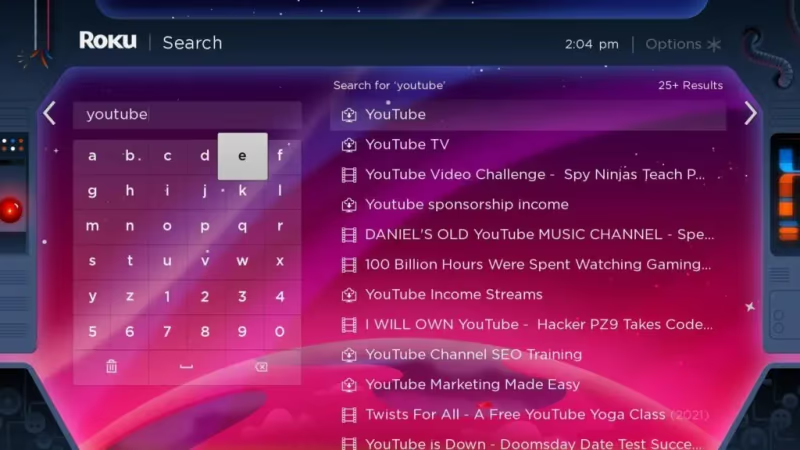
- Select the YouTube app option.
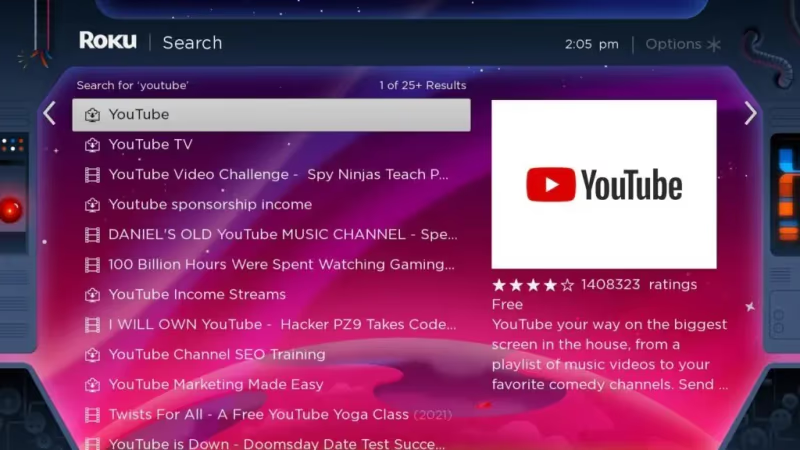
- Choose “Add Channel” to install it.
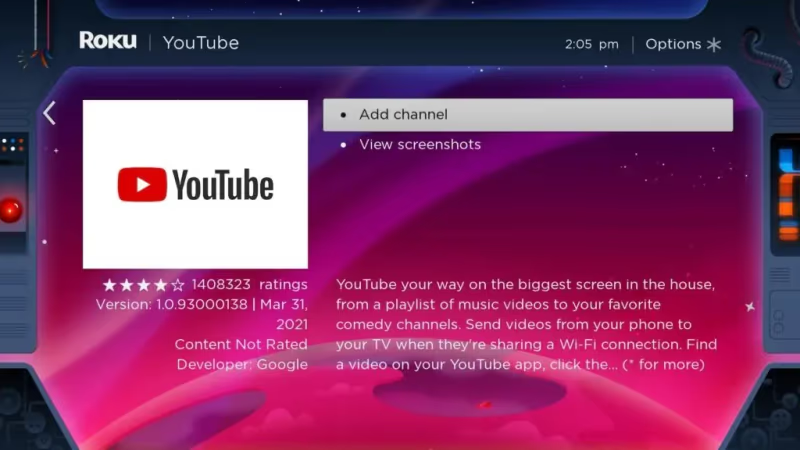
- Once the app is installed, select to open it.
You can browse and watch videos right away without logging in. To access additional features, sign into your Google account.
#YouTube Premium and Purchases
The YouTube app for Roku supports YouTube Premium subscriptions (formerly called YouTube Red) for ad-free viewing. Additional options include:
-
YouTube Premium: Paid subscription includes ad-free viewing, background/offline playback, and access to YouTube Original series and movies.
-
Purchases & Rentals: Buy or rent movies and TV shows from within the YouTube app and access video purchases from Google Play.
-
Family Sharing: Share subscriptions and purchased content with family members.
#How Do You Set Up YouTube TV on Roku?
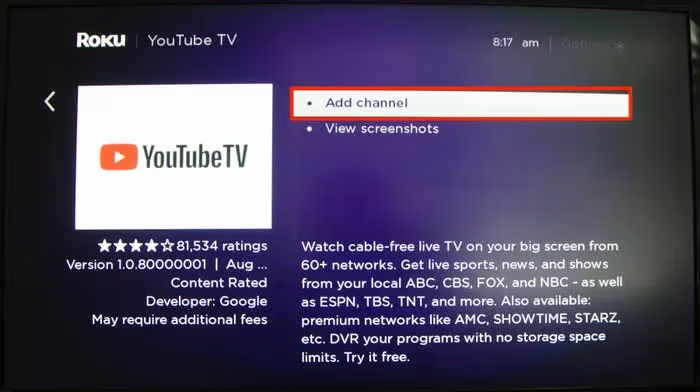
YouTube TV is Google’s live TV streaming service for accessing over 85 popular cable channels like ESPN, Disney, Fox, NBA TV and more. Here is how to set it up:
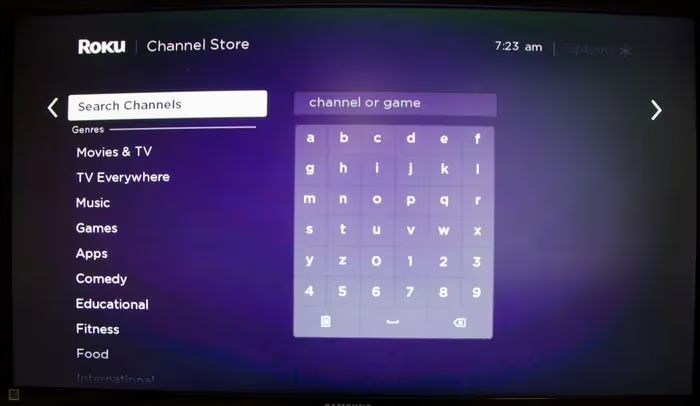
- From the Roku Home screen, select Streaming Channels.
-
Search for “YouTube TV” and select the app from results.
-
Choose “Add Channel” to install YouTube TV.
-
Select to open the app when installation is complete.
-
Choose to login or sign-up for a free trial membership.
YouTube TV costs $64.99/month after any free trial ends. Check for available trial lengths in the app’s settings. Add-ons like HBO Max and unlimited screens can be purchased for additional fees.
#Cast YouTube from Your Phone to Roku
Using the YouTube app on your iPhone or Android device provides an easy option for wirelessly casting and controlling video playback on your Roku player.
To cast YouTube from phone to Roku:
-
Open the YouTube app on your phone and start playing a video.
-
Tap the Cast icon (appears like a TV with WiFi signal bars).
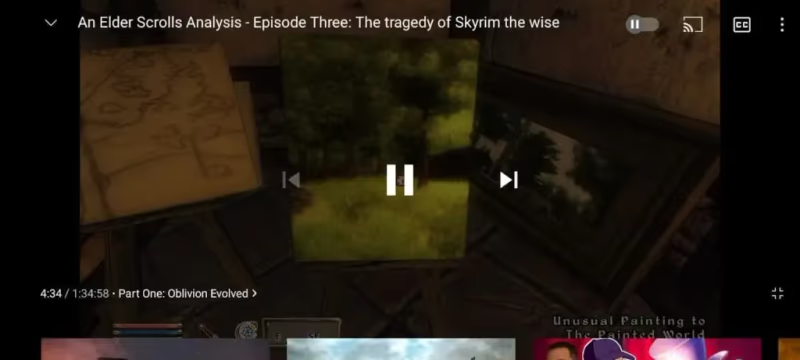
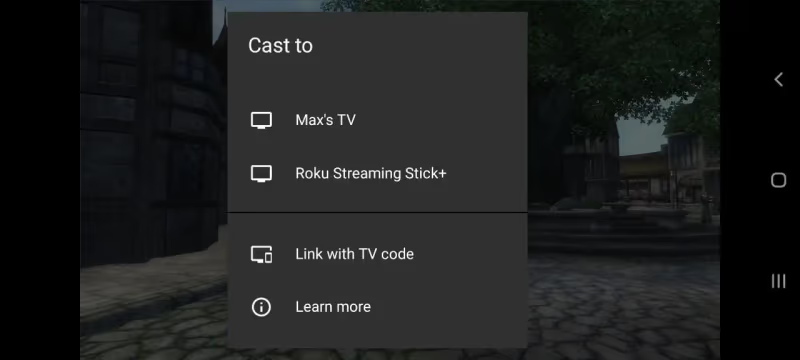
- Choose your Roku device to connect to from the list.
-
The video will immediately start playing on your TV through the Roku.
-
Use the YouTube mobile app to control playback, search, etc.
This casting method makes searching and discovering new videos quicker than using the Roku remote.
#How Do You Stream YouTube from Apple Devices Using AirPlay?
If you have an iPhone, iPad or Mac, AirPlay is an option for wirelessly streaming YouTube and YouTube TV video to your Roku streaming player or smart TV.
To use AirPlay to Roku for YouTube viewing:
-
Connect both devices to the same wireless network.
-
Open the YouTube app on your Apple device.
-
Start playing a video and tap the AirPlay icon (rectangle with triangle below).
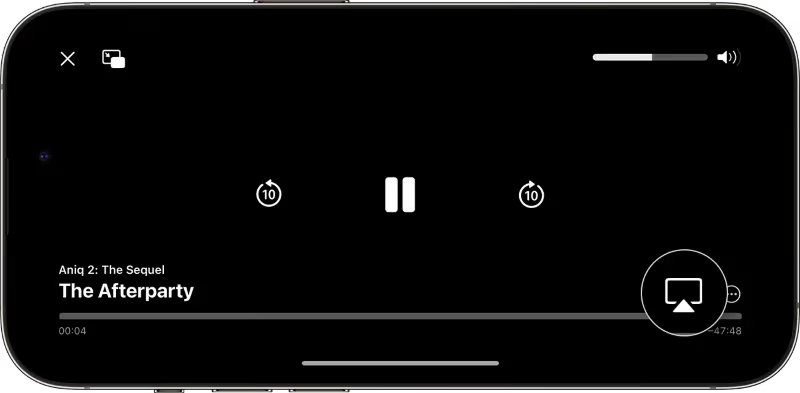
- Select your Roku device to stream to.
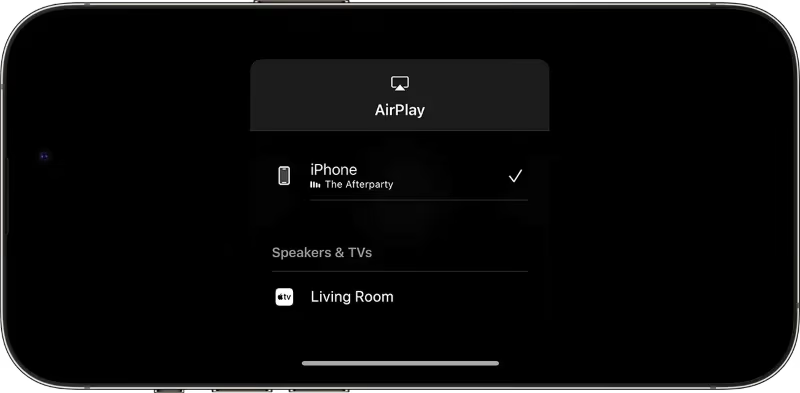
The YouTube video or live stream will immediately start appearing on your TV screen through the Roku while retaining playback controls on iPhone/iPad.
#Tips for the Best YouTube Experience on Roku
Here are some handy pro tips for getting the most out of YouTube through Roku devices:
-
Take advantage of voice search on Roku remotes to quickly find videos or even access other Roku channels like MeTV.
-
Login to YouTube to access video playlists and recommendations.
-
Use YouTube TV during initial free trial period to evaluate channel lineups.
-
Cast from mobile devices for faster search and channel surfing.
-
Try AirPlay from Apple products for direct streaming to Roku, similar to streaming Apple TV+ content.
-
Use YouTube Premium for commercial-free viewing (paid subscription).
#Frequently Asked Questions
#What is the best way to search for videos on YouTube through Roku?
Voice search on your Roku remote is the fastest option. Hold the microphone button and speak your search term to pull up results instantly without typing letter by letter.
#Can you sign into your YouTube account on Roku?
Yes, you can sign in with your Google account within the YouTube app. This gives you access to your personalized video subscriptions, playlists, and recommendations.
#Does YouTube TV offer a free trial on Roku devices?
YouTube TV does offer new subscribers a free trial period. Trial lengths can vary over time, so check the YouTube TV app settings on your Roku to see the current offer duration.
#Can you watch YouTube video purchases on Roku?
If you’ve purchased or rented movies or shows through YouTube or Google Play, you can access this content by logging into your YouTube purchase account on Roku. All past purchases sync automatically.
#Why do ads play on YouTube videos on Roku?
Ads on YouTube videos play by default for all free-tier users. To remove ads, you need to subscribe to YouTube Premium, which costs $13.99/month and also includes background playback and offline downloads.
#Can you watch YouTube on Roku without an internet connection?
No, an internet connection is required for the Roku device to stream any YouTube or YouTube TV content. Roku does not support offline video playback for any of its channels.
#What should you do if the YouTube app won’t load videos on Roku?
Start by checking your internet connection speed to make sure you have enough bandwidth for streaming. If your speed is fine, try uninstalling and reinstalling the YouTube app from the Roku Channel Store. Restarting your Roku device can also resolve temporary glitches.
We hope this guide gives you clarity on the best ways to access YouTube video content on your Roku TV or streaming player. Let us know in the comments if you have any other questions!