Private Vimeo videos don’t show up in the Vimeo app’s search on Apple TV. That’s by design. The workaround takes about five minutes: you add each video to your Watch Later list from a computer, then stream it from the Vimeo app on your TV.
This guide walks through the full process, including account setup, adding password-protected videos, and troubleshooting playback on Apple TV, Roku, and Fire TV Stick.
- Private Vimeo videos are unsearchable — you can only access them through a direct link and password
- Watch Later is the workaround — adding a private video to this list makes it available on all your devices
- A free Vimeo account works — no paid plan needed to use Watch Later or stream to Apple TV
- First-time setup requires a computer — you cannot add private videos from the Vimeo mobile or TV app
- Passwords are still required — Watch Later bookmarks the video but does not bypass password protection
#Why Can’t You Search for Private Vimeo Videos on Apple TV?
Vimeo’s privacy system blocks private videos from appearing in any search results, including the app on Apple TV and other streaming devices. The video owner sets a password, and only people with both the link and the password can view it.
This is different from unlisted videos. Unlisted videos don’t appear in search either, but they don’t require a password. Private videos need both the direct URL and the correct password every time.
The Vimeo app on Apple TV has no way to paste a URL or enter a video link directly. That’s why you need the Watch Later workaround.
#How Does the Watch Later Method Work?
When you add a private video to your Watch Later list on Vimeo.com, it creates a bookmark tied to your account. That bookmark syncs across every device where you’re logged into Vimeo, including the Apple TV app.
Here’s the basic flow:
- Create a free Vimeo account
- Open the private video link on a computer and add it to Watch Later
- Open the Vimeo app on Apple TV and find it in your Watch Later list
The video stays private. Other Vimeo users still can’t find or access it. Your Watch Later list just gives you a shortcut to reach it without needing to paste a URL.
#Step 1: Create a Free Vimeo Account
You need a Vimeo account to use Watch Later. The free tier is enough.
- Go to Vimeo.com and select the Basic plan.
- Enter your name, email, and a password.
- Check your inbox and click the confirmation link.
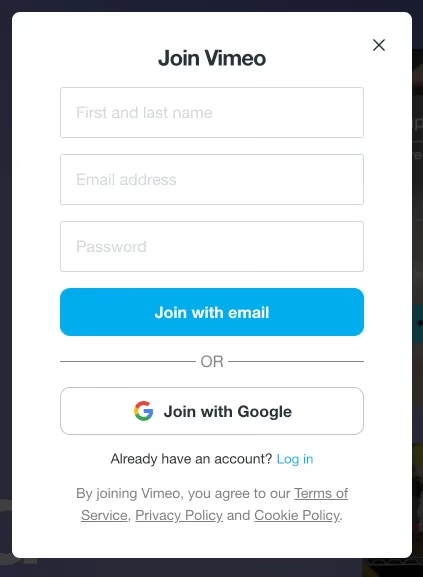
The free account lets you upload up to 3 private videos of your own. But for watching other people’s private videos through Watch Later, there’s no limit on how many you can bookmark.
#Step 2: Add Private Videos to Your Watch Later List
This step must be done on a computer. The Vimeo mobile apps and TV apps don’t support adding private videos to Watch Later.
- Log in to your Vimeo account at vimeo.com.
- Open the private video link from the email or message you received.
- Enter the password when the prompt appears.
- Click the clock icon in the top-right corner of the video player. This adds it to Watch Later.
- Repeat for each private video you want to stream on your TV.
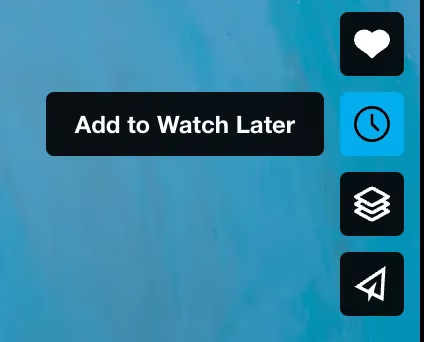
Bookmark private Vimeo links in your browser. If you need to re-add them to Watch Later after clearing your list, you won't have to dig through old emails.
Once a video is in your Watch Later list, it stays there until you remove it. You only need to do this step once per video.
#Step 3: Stream Private Videos on Apple TV
Now open the Vimeo app on your Apple TV and sign in with the same account you used on the computer.
- Open the Vimeo app on your Apple TV. If you don’t have it, download it from the App Store.
- Sign in with your Vimeo account credentials.
- Select Watch Later from the left-side menu.
- Choose the video and enter the password when prompted.
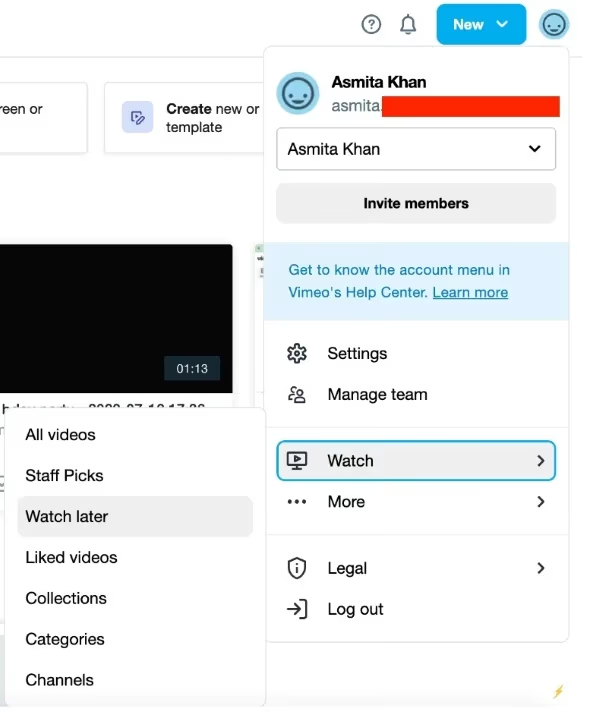
You still need the video's password to play it. Watch Later does not bypass password protection.
If you’re having trouble typing the password with the Apple TV remote, use the Apple TV Remote app on your iPhone. It gives you a full keyboard, which makes entering passwords much faster.
#Does This Work on Roku and Fire TV Stick?
Yes. The same Watch Later method works on any device that has the Vimeo app, including Roku and Amazon Fire TV Stick.
The steps are identical: download the Vimeo app, sign in, and open your Watch Later list. The only difference is how you navigate the menus, which varies slightly between Roku, Fire TV Stick, and Apple TV.
If you’re using an older Smart TV without the Vimeo app, you can use AirPlay on Roku TV or screen mirroring from your iPhone to cast the video from your phone to the TV instead.
#What to Do if Vimeo Keeps Buffering on Apple TV?
Buffering during private video playback is usually a Wi-Fi issue, not a Vimeo issue. Private videos stream at the same quality as public ones.
Try these fixes:
- Restart your Apple TV. Go to Settings > System > Restart. This clears temporary cache that can cause playback issues.
- Check your internet speed. Vimeo recommends at least 5 Mbps for 720p and 10 Mbps for 1080p. Run a speed test on your phone while connected to the same Wi-Fi network.
- Move your router closer or connect your Apple TV with an Ethernet cable. Wired connections are more stable for streaming.
- Lower the video quality. In the Vimeo player on Apple TV, tap the gear icon and select a lower resolution.
If your Apple TV is frequently disconnecting from Wi-Fi, that’s a separate issue worth fixing first. Unstable Wi-Fi will cause buffering on every streaming app, not just Vimeo.
#Bottom Line
Getting private Vimeo videos onto your Apple TV takes one extra step that most people miss: adding them to Watch Later from a computer first. After that, they show up in the Vimeo app on your TV just like any other saved video.
The whole setup takes less than five minutes. Once your videos are in the Watch Later list, you can stream them anytime without repeating the process.
#Frequently Asked Questions
#Can I access Watch Later on my smartphone?
Yes. The Watch Later list syncs across all devices where you’re logged into your Vimeo account, including the iOS and Android apps. You can browse and play videos from your Watch Later list on your phone the same way you would on Apple TV.
#How many private videos can I add to Watch Later?
There’s no limit. Even on Vimeo’s free plan, you can add as many private videos to your Watch Later list as you want. The 3-video limit on free accounts only applies to videos you upload yourself.
#How do I remove a video from Watch Later?
Open your Watch Later list, click the three-dot menu next to the video, and select “Remove.” This only removes the bookmark from your list. It does not delete the original video or affect anyone else’s access.
#Can I use Watch Later for public videos too?
Yes. Watch Later works with any Vimeo video, public or private. It’s useful for saving videos you want to stream on your TV later without having to search for them again.
#Why can’t I add private videos from my phone?
Vimeo restricts adding private videos to Watch Later to the desktop website at vimeo.com. This is a privacy safeguard. Once added, you can watch them on any device, but the initial bookmark must happen on a computer browser.
#Do I need a paid Vimeo account to use Watch Later?
No. The free Basic plan includes full access to Watch Later. You only need a paid plan if you want to upload more than 3 of your own videos or need advanced privacy controls like domain-level restrictions.
#Will the video owner know I added their video to Watch Later?
No. Adding a video to your Watch Later list is private. The video owner can see view counts and basic analytics, but they cannot see which users have bookmarked their video. Your Watch Later list is visible only to you.
#Can I cast Vimeo from my phone to Apple TV instead?
Yes. If you’d rather not use the Vimeo app on Apple TV, you can play the private video on your iPhone and use AirPlay to send it to your TV. Open the video in Safari or the Vimeo app, tap the AirPlay icon, and select your Apple TV. This works as long as both devices are on the same Wi-Fi network.