Looking to watch your favorite Twitch streams on the big screen? Despite Twitch removing their official Roku channel years ago, there are still several great options to access Twitch on Roku. In this guide, we cover everything you need to know, from re-adding the old Twitch app to using third party channels and screen mirroring.
- Official Twitch app still works — re-add it using the channel code “twitchtv” at my.roku.com
- Twoku is the top third-party option — install it with code C6ZVZD or TWOKU for free Twitch access
- Screen mirroring works on both iOS and Android — no app installation needed on the Roku itself
- Roku and Amazon compete directly — this rivalry is why Twitch was pulled from the Roku store in 2019
- Connection stability matters most — use WiFi 6 routers or ethernet adapters to reduce buffering
#Why Isn’t Twitch Officially on Roku?
Back in 2019, Twitch abruptly removed their official channel from the Roku store. This came as a disappointment to many Roku owners who used the channel to watch streams on their television.
The exact reasons are unclear, but it likely relates to competition between Roku and Amazon, who owns Twitch. Amazon wants Fire TV to be the preferred way to watch Twitch, while Roku doesn’t want to promote a competitor’s streaming service.
Fortunately, where there’s a will there’s a way. With a bit of effort, Roku users can still access Twitch using the methods below:
-
Re-install the old Twitch channel
-
Add unofficial third party channels
-
Screen mirror from a phone or computer
So while not as smooth as before, watching Twitch on Roku is still very possible in 2026. You can also watch other great streaming services on Roku, like YouTube, Vimeo, ESPN, and more.
#Method 1: Re-install the Official Twitch Channel
If you previously installed the Twitch channel prior to it being removed, you can still re-add and use it. Roku simply hides it from new users.
Here’s how to get back the official Twitch app:
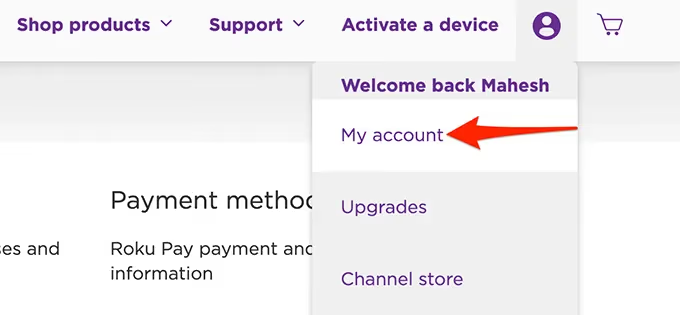
- On a web browser, visit my.roku.com and log into your Roku account
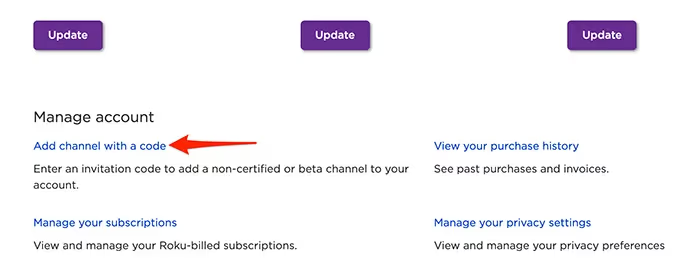
- Click “Add Channel with a Code”
-
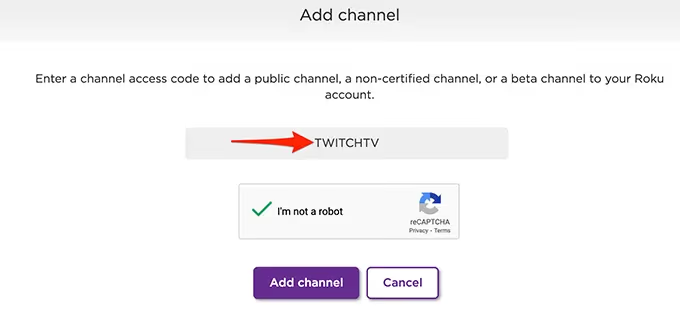
Enter the code: twitchtv
-
Click Add Channel
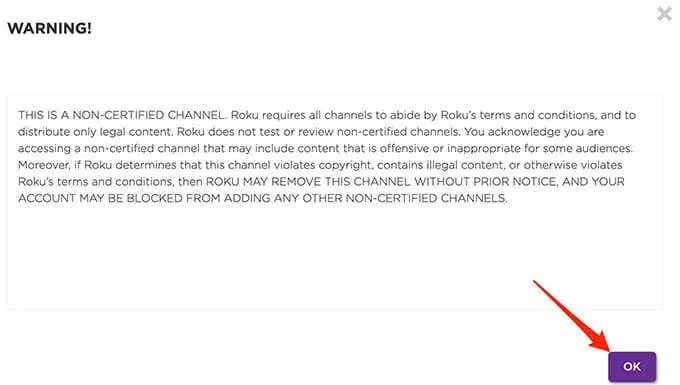
- Accept the warning message and confirm adding the channel
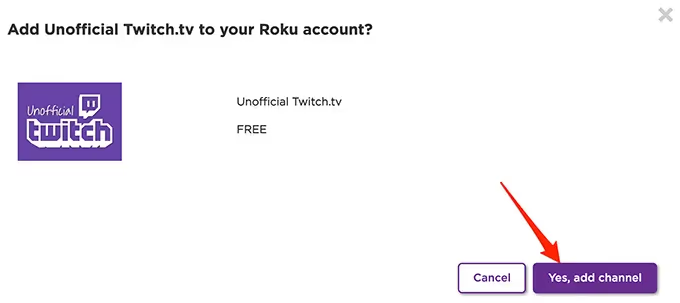
- On your Roku device, go to Settings > System Update > Check Now to trigger a refresh
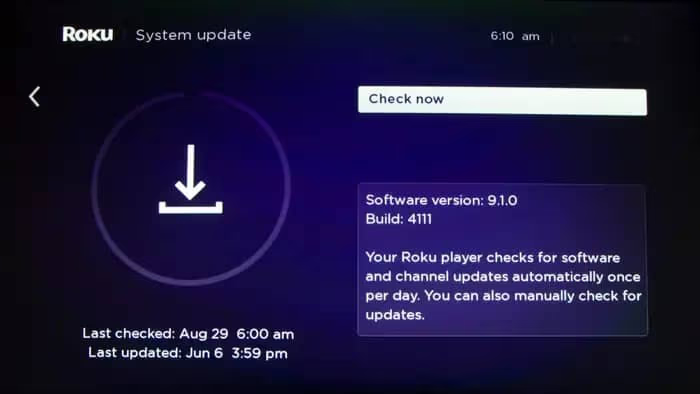
- Wait for an update to complete, then look for the Twitch icon on your home screen!
This will re-install the last iteration of the official Twitch channel that Roku had on its platform.
Key Benefit: It’s the official app with full capabilities.
Downside: As Roku warned, the app is no longer supported or updated. So expect a dated interface and potentially buggy performance.
But for simply watching streams, it still gets the job done! You can use similar methods to watch MeTV on Roku or watch FS1 on your Roku device.
#How Do You Install Third-Party Twitch Channels?
If you’ve never installed Twitch before on your Roku, the above method won’t work. But fear not! There are unofficial third party Twitch channels you can add instead.
The most popular is called Twoku. Here’s how to get it:
-
On a browser, visit my.roku.com and log into your account
-
Click “Add Channel with a Code”
-
Enter the code: C6ZVZD or TWOKU
-
Click Add Channel
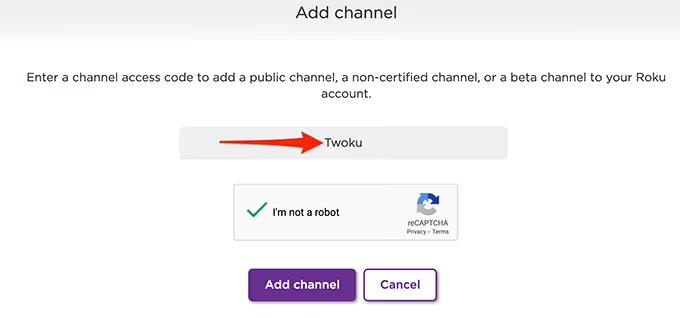
- Accept the warning message and confirm adding the channel
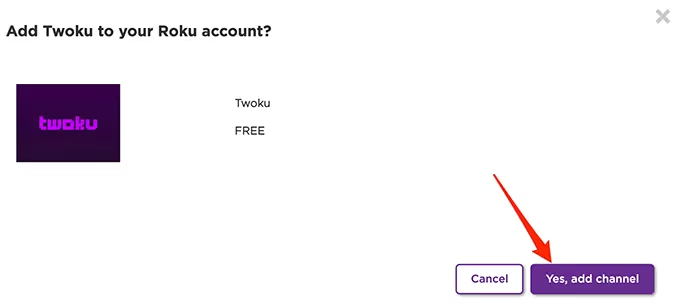
-
On your Roku device, go to Settings > System Update > Check Now to trigger a refresh
-
Wait for an update to complete, then find the Twoku icon on your home screen
Key Benefit: It’s a quick, easy way to enable Twitch streaming on any Roku device.
Downsides: Twoku is not an official Roku channel, so it lacks some features and polish. Performance can be buggy. Roku could also ban the app in the future if they crack down on unofficial channels.
But for most users’ needs, it provides a solid Twitch streaming experience on Roku. This also works for adding TikTok, NBA, MotoGP, and other channels Roku doesn’t officially support.
There are a couple other unofficial Twitch apps like TwitchTV that work the same way using channel access codes. But we’ve found Twoku to be the most reliable.
#How Do You Screen Mirror Twitch onto Roku?
The final option is to “cast” the Twitch mobile app from your smartphone or tablet directly onto your Roku. This uses screen mirroring technology to project and sync up another device’s display.
Roku has built-in mirroring protocols that allow smooth streaming from iOS and Android devices.
Here’s how to set it up:
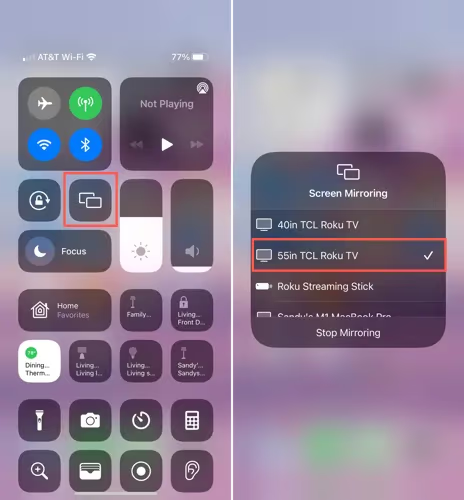
From an iPhone or iPad:
-
Make sure both devices are connected to the same WiFi network
-
Open Control Center and tap Screen Mirroring
-
Select your Roku device to initiate pairing
-
Allow the prompt enabling screen mirror permissions
-
On your iOS device, open the Twitch app and start a stream
-
The broadcast will now display on your TV screen!
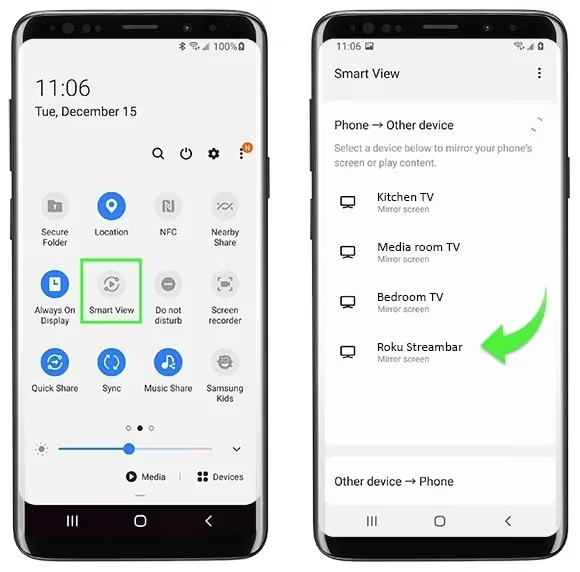
From an Android device:
-
Connect both devices to the same WiFi
-
Open your Android’s quick settings and tap Smart View or Cast
-
Choose your Roku model to initiate pairing
-
Allow the prompt to permit screen casting
-
Open the Twitch app and select a stream
-
The broadcast will now display on your Roku!
This works well and delivers lag-free streaming. Just note that it does drain your phone or tablet battery faster to maintain the constant video feed.
Key Benefit: Easy wireless streaming without any app installation needed.
Downside: You must keep another device powered on and actively streaming. Some connection issues may still occur.
But it’s a fast way to get Twitch working without restrictions.
#Fixing Twitch Streaming Issues on Roku
Despite Roku making it difficult to directly access Twitch these days, workarounds exist to make it happen. But sometimes technical issues interfere with ideal streaming.
Here are some common problems and how to troubleshoot them:
Can’t discover or pair Roku for screen mirroring?
-
Ensure WiFi is enabled on both devices and connected to the same network.
-
Reboot the Roku box and restart mirroring discovery.
-
Check for AirPlay/Smart View toggling issues on the streaming device.
-
Make sure screen mirroring is enabled in Roku settings.
Unofficial channel not working properly?
-
Try uninstalling and re-adding the channel code.
-
Check for channel updates on the device.
-
Monitor Roku forums for status updates.
Connections dropping or stuttering?
-
Reboot the Roku to refresh system processes.
-
Disconnect/reconnect paired devices and ensure strong WiFi signals (or use ethernet if possible for more stability).
-
Lower Twitch stream quality settings if internet bandwidth is constrained.
In most cases, refreshing linked devices, toggling Bluetooth/WiFi, or trying alternate network ports resolves temporary software glitches.
#Bottom Line
To recap the top pointers for watching Twitch on your Roku box:
-
Re-install the old official app with a special access code
-
Use third party channels like Twoku if you’ve never added Twitch before
-
Cast Twitch streams from your mobile device using screen mirroring
-
Adjust quality and troubleshoot connectivity issues
-
While hacked together, Twitch can work very well on Roku devices
No single method is perfect or guaranteed if Roku further restricts things. But combining the techniques above offers reliable Twitch streaming in 2026 and beyond!
#Frequently Asked Questions
#Is Twitch ever coming back officially to Roku?
This is highly unlikely. Twitch is owned by Amazon, a competitor to Roku, so neither company seems interested in collaboration. Roku has also been cracking down on many unofficial streaming channels, further dimming hopes.
#What are the best Roku devices for watching Twitch?
For the most stable Twitch streaming, we recommend Roku Ultra, Roku Streaming Stick 4K+, or newer Roku Express 4K+ models. Their higher processing power and memory improve mirroring reliability. Upgrade routers to WiFi 6 models to also strengthen connections.
#Why was the Twitch app removed from Roku originally?
Amazon strategically pulled Twitch from Roku to boost their own Fire TV platform. Catering to Roku users didn’t serve Amazon’s business interests, and Roku balked at promoting a rival’s service. The removal happened in 2019 with no official explanation from either company.
#Is Twoku safe to install on Roku?
Unverified third party channels always carry some risk of privacy issues or sudden removal. Twoku appears reasonably safe based on community feedback and analysis of app permissions. Still, install at your own discretion until Roku brings back an official Twitch channel.
#Can you watch Twitch on Roku without WiFi?
An internet connection is required to access Twitch’s live streaming. You could connect via ethernet to improve stability compared to WiFi. Some adapters even enable ethernet on WiFi-only devices like Roku Streaming Sticks.
#Does screen mirroring cause lag when watching Twitch?
Screen mirroring usually works fine for casual viewing, but fast-paced gaming streams may show slight input delay. Using a 5GHz WiFi band and keeping both devices close to the router helps reduce latency. Wired ethernet on the Roku side eliminates most lag issues entirely.
#Can you log into your Twitch account on Roku?
Yes, both the old official Twitch app and Twoku support Twitch account login. You can access your followed channels, subscriptions, and chat features. The login process works through a device activation code displayed on your TV screen.