TikTok has become a global phenomenon, with its short yet captivating videos keeping users hooked for hours on end. As TikTok continues its meteoric rise in popularity, more people are looking to access its endless stream of entertainment on their TV screens. While there is currently no official TikTok channel in the Roku store, that doesn’t mean Roku users can’t enjoy TikTok. With the power of screen mirroring, you can display the TikTok app from your smartphone or tablet onto your Roku.
This guide will walk you through the various methods of watching TikTok on Roku, the benefits, limitations, and some helpful troubleshooting tips.
- No native TikTok app exists for Roku — you must use screen mirroring from a phone, tablet, or laptop instead
- Android and iOS both support free screen mirroring — no extra software needed for mobile devices
- Windows and Mac users need AirBeamTV — a third-party app that mirrors your desktop browser to Roku
- 5 GHz Wi-Fi reduces lag and buffering — keep both devices on the same network for the best streaming quality
- Byte and Xumo Shorts offer similar short-form video — these Roku-native alternatives work without mirroring
#An Overview of TikTok

For context, let’s briefly run through what has fueled TikTok’s success and what it offers users:
-
Short-form vertical videos – Videos are restricted to a maximum of 3 minutes, with most videos being under a minute long. This bite-sized format makes content easily consumable.
-
Powerful recommendation algorithm – TikTok’s “For You” feed quickly learns viewer preferences through interactions and serves up custom recommendations catered to each user.
-
Variety of content – From comedy skits to dancers showing off the latest trends, cooking demos to fitness motivation, there’s something for everyone on TikTok. Even educational content across numerous niches can be found.
-
Tools for content creation – TikTok provides a suite of editing tools and effects to help creators produce compelling short videos. Functions like Duets and Stitches help expand on trending content.
-
Virality – Catchy dance challenges, meme sounds, hashtag challenges — it’s all designed for shareability. TikTok makes it easy for quirky and talented creators to get discovered and gain immense popularity.
Now let’s get into how you can access this engaging platform through your Roku device.
#Can You Get TikTok on Roku?
There is currently no official TikTok channel in the Roku Channel Store. So a dedicated TikTok app cannot be installed directly onto your Roku device like other streaming apps (e.g. Netflix or Hulu).
However, this doesn’t mean enjoying TikTok on your TV is impossible. By using screen mirroring, you can display or “cast” your smartphone screen (where TikTok app is installed) onto your Roku. This effectively mirrors the TikTok app from your phone or tablet onto your big screen.
Both Android and iOS devices have built-in screen mirroring functionality. For desktop and laptop computers, third party apps like AirbeamTV can enable screen mirroring Roku.
So while not native, TikTok can be streamed to your Roku with a simple screen mirroring setup.
#What Are the Benefits of Watching TikTok on Roku?
Here are some of the advantages of viewing TikTok on your TV via Roku:
-
Bigger and better display – Short-form videos truly shine on a large screen with greater clarity and immersion. You’ll gain a richer viewing experience vs watching on a small phone screen.
-
Enhanced audio – Your TV speakers or home theater system will help you hear sounds more clearly, which is critical for appreciating musical and dance trends.
-
More inclusive viewing – Gathering in the living room with family and friends makes watching, discussing, and reacting to trends far more fun as a shared experience.
-
Control playback with remote – Using your Roku remote to manage playback is easier than relying on a phone’s touchscreen interface.
In short, accessing TikTok through Roku allows you to enjoy content on a superior audio-visual setup for a shared, living room experience.
#How to Get TikTok on Your Roku TV
While a native TikTok Roku app doesn’t exist, getting it on your Roku is quite straightforward using built-in casting features on mobile devices or third party screen mirroring apps on laptops.
Here are the step-by-step guides for the most common devices:
#Screen Mirror TikTok from an Android Phone/Tablet
-
Confirm both your Android device and Roku are connected to the same Wi-Fi network.
-
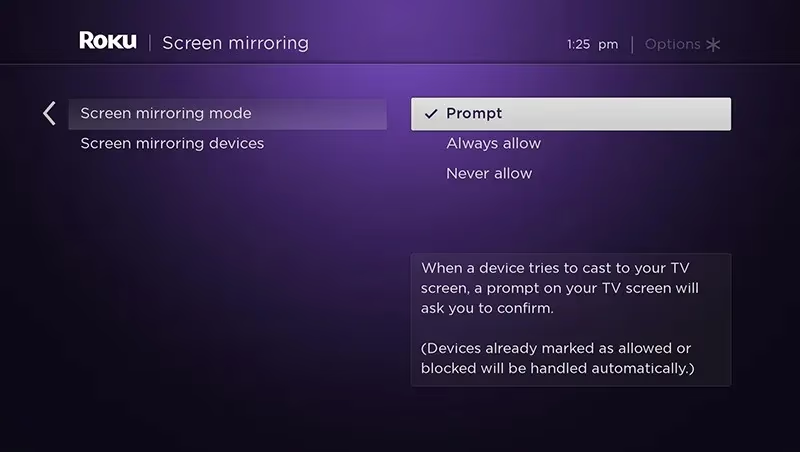
Go to Settings > System > Screen Mirroring on your Roku and ensure it is switched on.
-
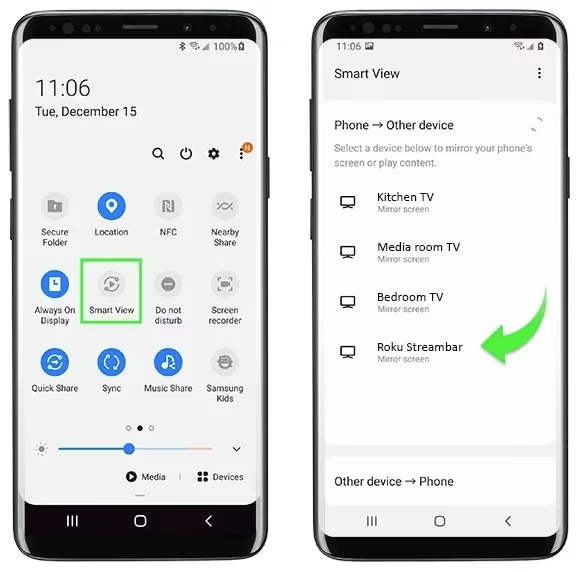
Open your Android notification panel and tap the Screen Cast icon (appears like a rectangle with wireless signals).
-
Select your Roku device name from the target device list.
-
Your Android screen will now be mirrored onto your Roku after accepting the prompt on your TV.
-
Launch the TikTok app on Android. The app screen will display on your Roku in real-time as you navigate the app and play videos.
#Screen Mirror TikTok from an iPhone/iPad
The process for iOS devices is very similar just with AirPlay instead of Google Cast:
-
Ensure your iPhone/iPad and Roku are both connected to the same Wi-Fi network first.
-
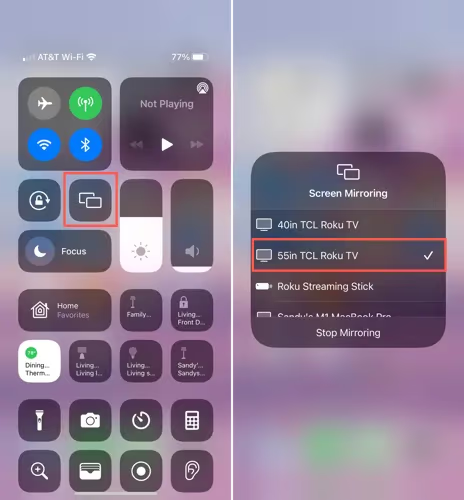
Swipe down from the top right corner of your iPhone to reveal the shortcuts menu.
-
Tap on the media mirroring icon (labeled with rectangle and up arrow).
-
Select your Roku from the target device list.
-
Accept the prompt for connection on your TV screen.
-
Open TikTok on your iPhone/iPad — you’ll now see the iOS screen mirrored onto Roku.
For more details on mirroring from iOS devices, see our guide on using AirPlay to stream TikTok to your TV.
#Display TikTok from Windows PC
Windows lacks native casting so third party software like AirBeamTV is needed:
-
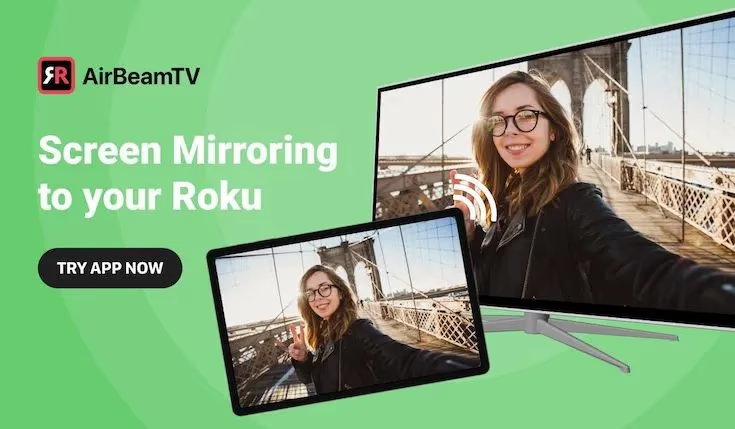
Install and open the AirBeamTV app on Windows.
-
Connect both your PC and Roku to the same network.
-
Select your Roku model when prompted inside the AirBeamTV app.
-
Click start mirroring – your PC screen will show on Roku.
-
Open the TikTok mobile site in any browser and play videos!
The same steps apply for MacBooks using AirBeamTV with some differences in initiating the screen mirroring.
And that’s all there is to it! Within a few taps, you can cast the TikTok app from your phone or mobile site on a computer to your Roku TV for viewing.
#Tips When Watching TikTok on Roku
To get the best viewing experience through screen mirroring TikTok onto your Roku, keep these tips in mind:
-
Maintain a strong Wi-Fi connection between devices for smooth video streaming. Use 5 GHz networks where possible.
-
Update your Roku and connecting device software to the latest versions to prevent compatibility issues.
-
Disable sleep settings so devices don’t disconnect during long viewing sessions.
-
Adjust audio output settings – lower volume on connecting device and raise TV speaker volume for enhanced sound.
-
Any drop in video quality is likely due to network bandwidth issues rather than Roku or TikTok themselves.
While not as smooth as a native app, with the right setup mirrored TikTok through Roku adds convenience and enhances the viewing experience.
#What TikTok Alternatives Are Available on Roku?
At this time, there are no official TikTok channels available natively within the Roku store. However, the following apps provide a similar short-form video experience:
Byte – This app is designed to directly take on TikTok with its own growing community of creators and digestible video format powered by machine learning recommendations.
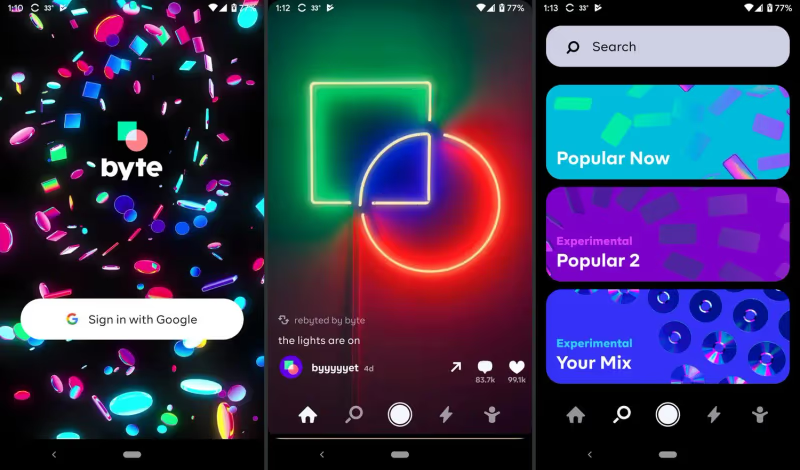
Alpha Exploration Co. and Xumo Shorts – Both these channels offer TikTok-style short videos across viral trends, fail comps, comedy sketches, music videos and more. Worth checking out while the official TikTok app remains unavailable.
If you’re looking for more streaming options on your Roku, check out our guides on watching YouTube, Disney Plus, Twitch, Vimeo, CW Live, and Samsung TV Plus on Roku.
So while not TikTok itself, these alternative short-form video apps can still provide plenty of entertainment. Hopefully an official Roku TikTok app launches soon!
#Troubleshooting Tips
Despite the convenience of screen mirroring, sometimes issues crop up preventing you from enjoying TikTok via Roku. Here are some common problems and suggested fixes.
Can’t connect devices – Ensure your Roku and smartphone/computer are on the same Wi-Fi network. Alternatively connect your Roku directly to the Wi-Fi router via ethernet for a more reliable wired connection.
Choppy playback – Choppy or buffering videos indicate network connectivity issues between devices. If on Wi-Fi, move closer to the router or connect via ethernet cable. Disable other heavy bandwidth activities across the network.
Lost connection – Screen mirroring sessions can unexpectedly disconnect, especially during long streams as devices enter sleep mode. Adjust power settings and enable ‘keep awake’ options.
Low quality video – Compression from mirroring can degrade quality. But this can be improved by using a 5 GHz Wi-Fi band and keeping devices in close proximity with minimal barriers in between.
In most cases, TikTok mirroring issues come down to network connectivity and bandwidth limits. Roku and TikTok themselves do not impose the hindrances.
#Frequently Asked Questions
#Can I download the TikTok app directly onto my Roku?
No, there is no official TikTok channel in the Roku store to install. You need to mirror TikTok from another device such as a smartphone, tablet, or laptop. Roku has not announced any plans to add a native TikTok app.
#Do I need to pay for screen mirroring to Roku?
Built-in casting on smartphones and tablets is completely free. Third party apps like AirBeamTV offer free versions with some limitations, and paid versions unlock full functionality.
#Why can I not find my Roku for screen mirroring?
Make sure your Roku and smartphone/tablet/laptop are connected to the same Wi-Fi network. Also check that mirroring is enabled on your Roku under Settings > System > Screen Mirroring. Restarting both devices can also resolve discovery issues.
#Does screen quality decrease when mirroring to Roku?
Some compression can occur depending on your network strength, but it is typically minor. A strong 5 GHz Wi-Fi connection with both devices near the router minimizes any visible quality loss.
#Can I sign into my TikTok account through Roku?
You sign into your TikTok account on the device doing the mirroring, not on the Roku itself. The Roku simply displays whatever appears on your phone or laptop screen, including your logged-in TikTok feed.
#Why is my mirrored TikTok video lagging on Roku?
Lag usually results from wireless interference or limited bandwidth during mirroring. Try using a wired ethernet connection for the Roku, moving your phone closer to the router, and closing other bandwidth-heavy apps on your network.
#Can I mirror TikTok LIVE streams to Roku?
Yes, screen mirroring shows everything displayed on your smartphone or laptop in real-time. This includes LIVE streams, stories, and any other TikTok content. Just make sure you have strong enough upload and download speeds to support both the stream and the mirror simultaneously.
#Bottom Line
While Roku devices currently lack native TikTok support, that doesn’t have to stop you from gathering around the TV and enjoying the platform’s signature short videos. With the built-in screen mirroring functionality across mobile devices and laptops, beaming TikTok onto your Roku is quick and convenient.
Follow the setup guides above and you’ll be watching all trends, memes, viral sounds, and talented creators on the big screen in no time. Pay attention to the tips and troubleshooting notes to keep streaming smooth and reduce video buffering.
Mirrored TikTok through Roku isn’t quite the same as a dedicated app, but it still brings that addictive, endless scroll of entertainment to your living room. Keep an eye out for updates on official Roku integration as TikTok continues to grow.
#Related Roku Guides
Interested in getting more out of your Roku? Check out these other helpful tutorials: