Casting Netflix to your TV with a Chromecast takes just a few taps. Whether you’re using a phone, tablet or laptop, the process is straightforward once both devices share the same WiFi network.
This guide walks you through setup, casting steps and fixes for the most common streaming problems.
- Chromecast plugs into your TV’s HDMI port and mirrors content from your phone, tablet or laptop over WiFi
- Netflix casting requires 3 things — the Netflix app, a Chromecast on the same WiFi network, and the Cast button in the app
- Three Chromecast models exist — standard (1080p), Ultra (4K HDR), and Chromecast with Google TV (smart TV interface)
- Most casting problems trace back to WiFi — both devices must be on the same network with a strong signal
- Offline viewing bypasses WiFi entirely — download Netflix content with FlixiCam and connect via HDMI cable
#What is Chromecast and How Does it Work?
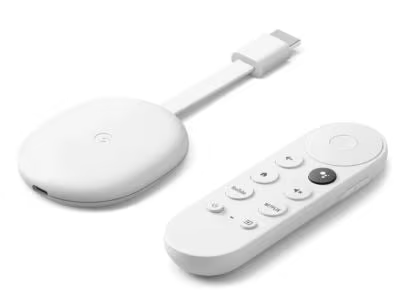
Chromecast is a digital media streaming adapter developed by Google that lets you cast videos, music and more from your phone, tablet or laptop to a TV or speakers.
The small dongle plugs directly into your TV’s HDMI port. It then connects to your home WiFi network and mirrors content playing on your mobile device or computer.
You use apps on your phone, tablet or laptop to control playback. Tap the Cast button from within compatible apps like Netflix or YouTube to fling videos, music and images to your TV.
Chromecast comes in 3 main varieties:
-
Chromecast – Streams up to 1080p HD video
-
Chromecast Ultra – Streams 4K HDR video
-
Chromecast with Google TV – Runs a smart TV interface similar to Fire TV and Roku
One major benefit of Chromecast is that it works with both Android and iOS devices. As long as your phone, tablet or computer is on the same WiFi network as your Chromecast, you can cast to your TV.
#How to Set Up Chromecast: A Step-By-Step Guide
Ready to get started beaming Netflix across the living room? Follow these steps to set up Chromecast and configure it to work with your WiFi network.
#What You Need
-
A Chromecast device
-
TV with HDMI port
-
Smartphone or tablet with latest Google Home app
-
WiFi network connection
-
Google account
#Instructions
-
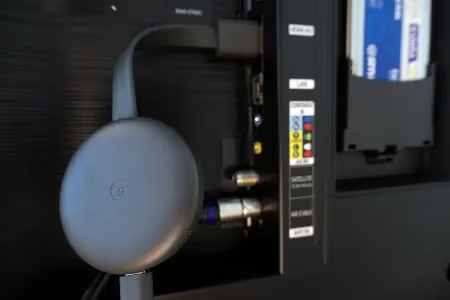
Plug the Chromecast into an open HDMI port on your TV.
-
Connect the USB power cable to your Chromecast and an outlet.
-
Download the Google Home app on your mobile device from the Play Store or App Store.
-
Open the Google Home app and tap “Set Up Device”.
-
Select “Set up new devices” then choose your Chromecast model.
-
Follow on-screen setup instructions to connect Chromecast to your WiFi network and Google account.
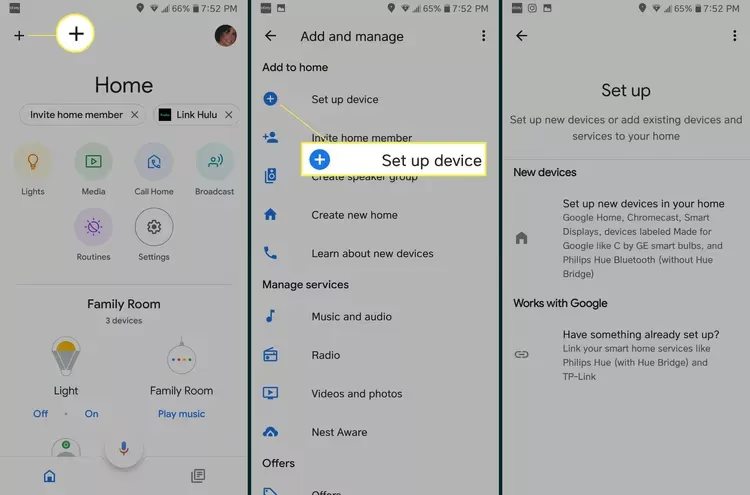
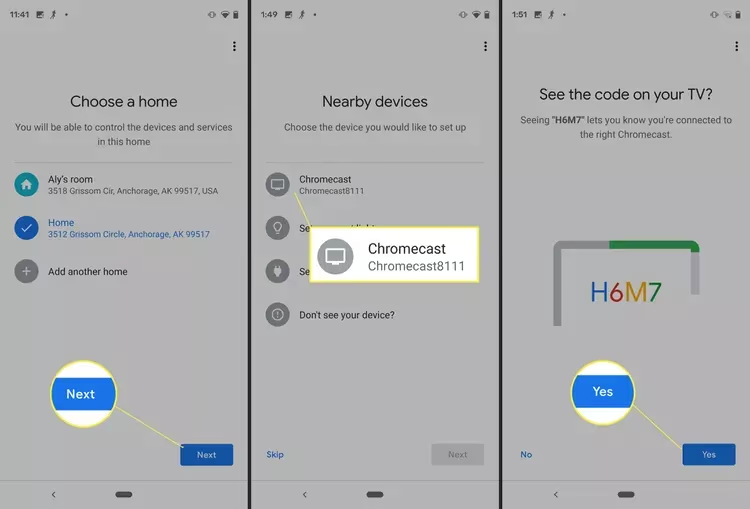
Once connected, you’ll see your Chromecast listed as a cast target in compatible apps.
#Set Up Chromecast with Google TV
Google’s latest streaming dongle runs a smart TV interface called Google TV. Setup is similar with a few extra steps:
-
Plug Chromecast into HDMI port and power outlet as normal.
-
Turn on TV and wait for remote to pair via Bluetooth.
-
Follow guided setup in Google Home app to connect Chromecast to WiFi and Google account.
-
Select streaming services to add and sign into each one.
Google TV puts all your entertainment options together in one place. You can access on-demand catalogs from Netflix, Disney+, HBO Max and more.
Plus there’s integrated Google Assistant for voice search and smart home control.
#How to Cast Netflix from Mobile to TV
Once you complete the setup process, you’re all ready to start beaming Netflix wirelessly across the room.
To cast Netflix from your phone or tablet to TV with Chromecast:
-
Make sure your mobile device and Chromecast are connected to the same WiFi network.
-
Open the Netflix app and log into your account.
-
Tap the Cast button in the bottom toolbar.
-
Select your Chromecast from the target device list.
-
Pick a title to play. Streaming will begin on your TV.
-
Use playback controls in the Netflix app to pause, skip, adjust volume and more.
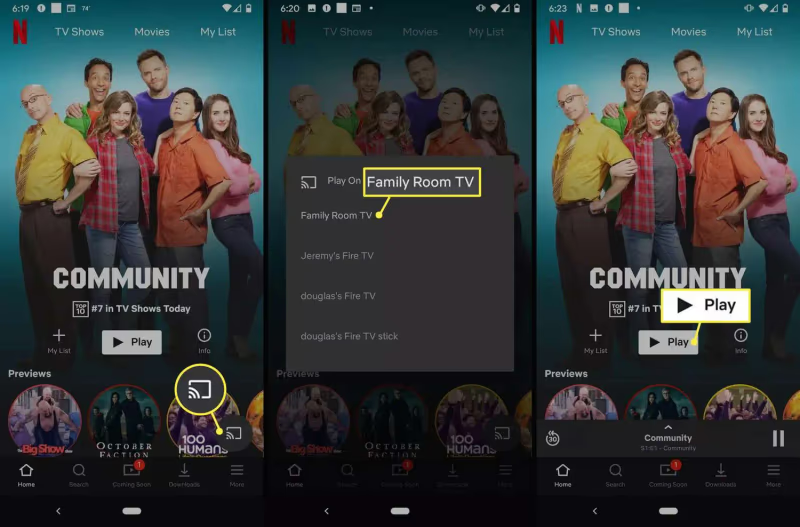
And that’s it! Only takes few taps to transform your mobile Netflix experience to the big screen.
To stop casting:
-
Tap the Cast button again and select Disconnect.
-
OR close the Netflix app on your phone or tablet.
Casting Netflix from your computer works the same way…
If you’re done watching for the night, here’s how to properly turn off your Chromecast to save energy.
#How to Cast Netflix from Laptop to TV
Don’t limit yourself to just your mobile device. You can also cast Netflix perfectly from your Windows or Mac laptop.
To cast Netflix from computer to Chromecast:
-
Make sure both devices are on the same WiFi network.
-
Open the Google Chrome browser and go to www.netflix.com.
-
Log into your Netflix account.
-
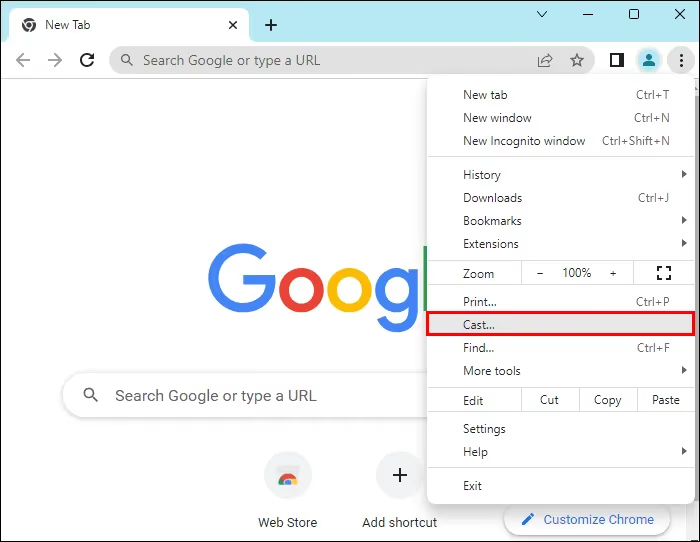
Click the More button (3 vertical dots) in the top right of Chrome.
-
Select Cast from the dropdown menu.
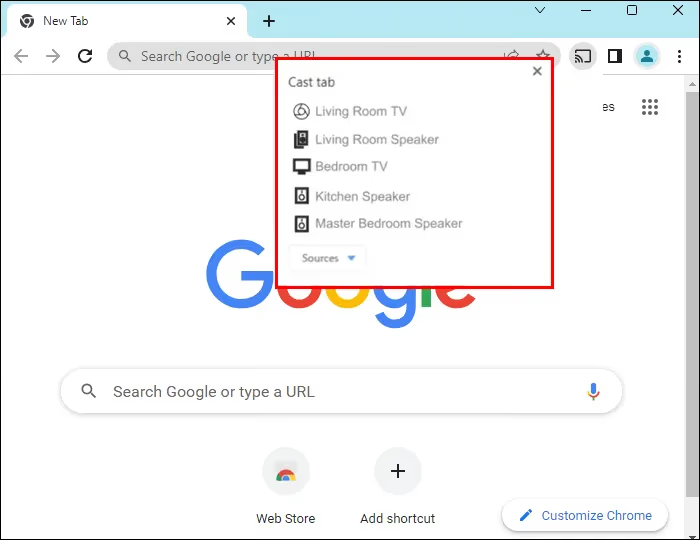
- Choose your Chromecast target device.
-
Pick a video to play. Streaming starts on your connected TV.
-
Use playback controls in the Chrome browser to control Netflix on your TV.
Google Chrome makes it easy to flip Netflix viewing from laptop to living room.
This method also works for streaming NHL games on Chromecast if you have them downloaded to your computer.
Now that you know how to cast Netflix like a pro, let’s go over some common issues and quick fixes.
#Why Is Netflix Not Casting to My Chromecast?
Despite how easy Chromecast makes casting Netflix look, you may occasionally run into problems getting videos to play on your TV.
Here are some of the most common Chromecast issues with Netflix and how to resolve them…
Can’t Cast Netflix from Mobile or Computer
First make sure your Chromecast is powered on and connected to the same WiFi network as your phone or computer.
Also confirm your Chromecast, Chrome browser and Netflix mobile app are updated to the latest versions. Outdated software often breaks casting capabilities.
Restarting your router can also help if Internet connectivity is the culprit. Unplug your router for 30 seconds then plug back in to reboot your home network.
Cast Icon Missing from Netflix App
If the Cast button suddenly disappears from your Netflix mobile app, restarting your phone is the quickest fix. Fully power down your device then turn back on after 30 seconds.
You can also reinstall the Netflix app from the Play Store or App Store. Make sure to fully close the app from your recent apps list before reinstalling.
Can’t Find Chromecast on Network
Double check WiFi settings on both your Chromecast and the mobile device you’re trying to cast from.
Manually reconnect both to the same wireless network. Also make sure you’re running the latest firmware on Chromecast for maximum compatibility.
In some cases, factory resetting your Chromecast to clear out any bugs fixes connection issues. Just re-run the setup process to get back up and running.
Choppy Netflix Streaming Quality
Patchy WiFi connectivity is usually the culprit for intermittent buffering and low video quality. Try moving your Chromecast closer to the router or connect via ethernet cable for faster, more reliable speeds.
Also confirm your Internet plan provides sufficient bandwidth for HD Netflix streaming. Slow DSL or capped mobile hotspot data can’t handle high bitrates.
If you’re experiencing other streaming issues, we have additional guides on fixing Netflix not working on TV and MLB.TV problems with Chromecast.
#Ultimate Solution – Download Netflix for Offline Viewing
If you continue struggling to directly cast Netflix from your device, there is another option that solves streaming issues once and for all…
Download videos for offline viewing!
Instead of relying on casting over WiFi, you can use a tool like FlixiCam to save Netflix movies and shows locally on your device.
Then simply connect your laptop or mobile device directly to your TV using an HDMI cable. No buffering, no lag!
Here’s a step-by-step guide to watching offline Netflix video files on TV:
#Download Netflix Videos
-
Install and open FlixiCam video downloader on your computer.
-
Log into your Netflix account through the app.
-
Use the built-in search to find movies and TV shows.
-
Select the video quality and subtitle language.
-
Click the download button to save Netflix videos locally.
FlixiCam gives you complete control over your Netflix download quality, including full HD 1080p if available.
#Connect Device to TV
Once your Netflix downloads finish, there are two options to play videos directly on your TV:
1. Cast Local Files from Laptop
-
Find Google Cast extension on Google Chrome.
-
Click Cast icon > Cast tab > Select your video file > choose TV.
2. Connect with HDMI Cable
-
For mobile devices, use adapter to connect charging port to HDMI.
-
For laptops, plug HDMI cable directly into HDMI output.
And that’s it! Now you can bypass Internet glitches and stream your favorite Netflix movies and shows in gorgeous HD quality.
#Bottom Line
I hope this guide helps you master streaming Netflix via Chromecast. With a few simple tweaks, you can troubleshoot most casting issues. And if problems persist, downloading videos for offline playback delivers high-definition content on your home theater without WiFi dependency.
#FAQ
#What is the difference between the Chromecast models?
The standard Chromecast streams up to 1080p HD and works well with regular HDTVs. Chromecast Ultra handles 4K HDR video for sharper picture quality. Chromecast with Google TV runs a full smart TV interface with Google Assistant, app store access, and a dedicated remote.
#Can I use Chromecast without WiFi?
No, Chromecast requires an active internet connection for streaming. You can download Netflix content to your phone or laptop first, then cast the local files or connect via HDMI cable to watch without WiFi.
#What causes the Cast icon to disappear in the Netflix app?
The most common cause is your phone and Chromecast being on different WiFi networks. Netflix’s ad-supported plan also blocks casting entirely. Restarting your phone or updating the Netflix app usually brings the Cast button back.
#Why does my video quality drop when casting Netflix?
Weak WiFi signal between your router and Chromecast is the top cause. Netflix recommends at least 25 Mbps for 4K streams, so slower connections force lower resolution. ISP throttling of video traffic can also cause consistent quality drops regardless of your network speed.
#Can I cast Netflix from a Chromebook?
Yes, Chromebooks use Google Chrome which has built-in casting support. Log into Netflix through Chrome, click the three-dot menu, select Cast, and pick your Chromecast from the list. The experience is identical to casting from any Windows or Mac laptop.
#Does Chromecast work with other streaming apps besides Netflix?
Chromecast supports hundreds of casting-compatible apps. Popular services include Apple TV+, Disney+, ESPN, YouTube, Hulu, HBO Max, and Sky Sports.
#How do I factory reset my Chromecast?
Hold the small button on the back of the Chromecast for about 25 seconds until the LED light begins flashing. The device will restart and return to factory settings. You will need to run through the Google Home setup process again after resetting.
#Can multiple people cast to the same Chromecast?
Anyone on the same WiFi network can cast to your Chromecast. There is no pairing or permission step required. If someone else starts casting, it will override whatever is currently playing on the TV.