Disney+ works on every Chromecast model Google has made, from the original 2013 dongle to the latest Chromecast with Google TV. The casting process takes under two minutes once your devices are connected to the same network. This guide walks through the full setup for both standard Chromecast and the Google TV version, plus fixes for common Disney+ streaming problems.
- All Chromecast generations support Disney+ — including Chromecast HD, Ultra, and Chromecast with Google TV
- Casting requires the same Wi-Fi network — your phone or laptop and Chromecast must share one network for the Cast button to appear
- Chromecast with Google TV runs Disney+ natively — no phone needed, install the app from the Google TV home screen
- 4K HDR streaming needs Chromecast Ultra or Google TV model — older HD Chromecasts cap out at 1080p
- Disney+ supports up to 4 simultaneous streams — cast to one Chromecast while others watch on phones or tablets
#Which Chromecast Models Work with Disney+?
Disney+ is compatible with every Chromecast device currently available. The experience differs depending on which model you own.
Standard Chromecast (1st, 2nd, 3rd gen): These are casting-only devices. You control playback from the Disney+ app on your phone, tablet, or Chrome browser. The Chromecast itself has no interface or remote. Video tops out at 1080p.
Chromecast Ultra: Same casting setup as the standard models, but supports 4K UHD and HDR content. If you have a 4K TV and a Disney+ plan that includes 4K, this model delivers the full quality.
Chromecast with Google TV: This is a different experience entirely. It runs its own operating system, comes with a remote, and has a built-in app store. You can install Disney+ directly and browse content on your TV without touching your phone. It supports 4K, Dolby Vision, and Dolby Atmos.
Vizio SmartCast TVs and most Android TVs also have Chromecast built in. If your TV has the Cast icon in the settings menu, you can cast Disney+ to it without a separate dongle.
#How Do You Cast Disney+ from Your Phone?
The casting process is identical on iPhone and Android. Here is the step-by-step setup.
#1. Plug In Your Chromecast
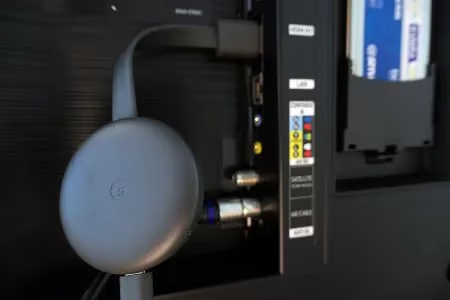
Connect the Chromecast to an HDMI port on your TV and power it using the included USB cable. Switch your TV input to the correct HDMI source.
#2. Connect to Wi-Fi
Use the Google Home app to connect your Chromecast to your home Wi-Fi network. Your phone must be on the same network for casting to work.
#3. Open the Disney+ App
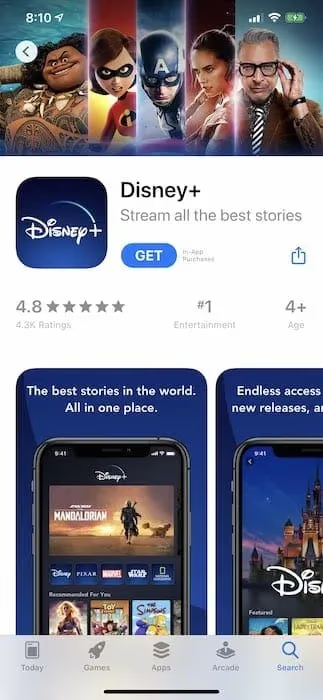
Download Disney+ from the App Store or Google Play Store if you have not already. Sign in to your account.
#4. Tap the Cast Icon
Find the Cast icon in the top-right corner of the Disney+ app. It looks like a rectangle with Wi-Fi waves in the lower-left corner. Tap it, then select your Chromecast from the device list.
#5. Pick Something to Watch
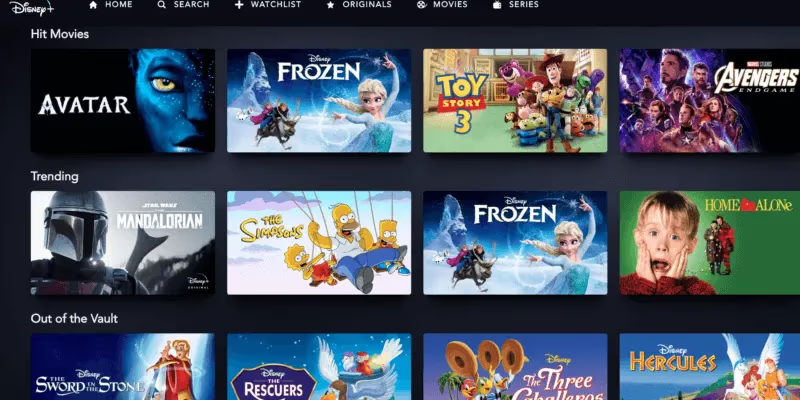
Browse the catalog, select a title, and press play. The video will appear on your TV within a few seconds. You can control playback (pause, rewind, volume) from your phone.
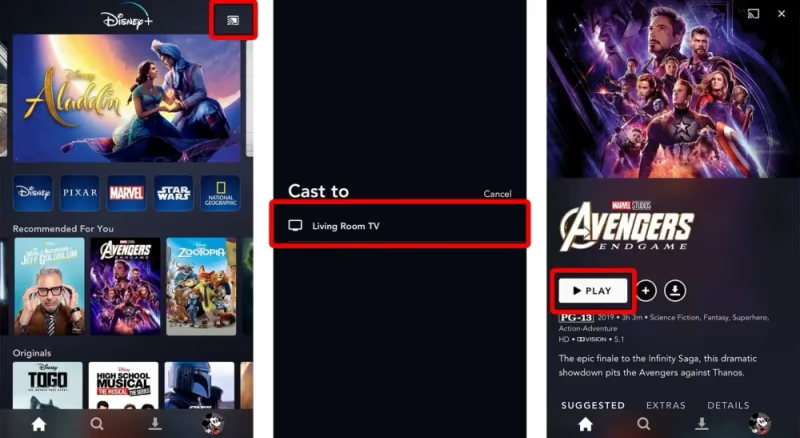
Once casting starts, you can lock your phone or switch to other apps. The stream continues independently on the Chromecast.
#How to Set Up Disney+ on Chromecast with Google TV
If you own the Chromecast with Google TV model, skip casting entirely. This device runs apps on its own.
Press the Home button on the Google TV remote. Navigate to the Apps tab, search for Disney+, and install it. Once installed, open the app, sign in, and start watching. The remote handles all playback controls.
Google TV also supports voice search. Hold the Google Assistant button on the remote and say “Play Moana on Disney Plus.” The app launches and starts the movie automatically.
This model supports Dolby Vision and Dolby Atmos when your TV and sound system support those formats. Check your TV’s HDMI settings to confirm the port is set to enhanced mode for 4K HDR passthrough.
#What to Do When Disney+ Won’t Cast?
Casting failures usually come down to network issues. Work through these fixes in order.
Cast icon missing: Your phone and Chromecast are on different Wi-Fi networks. Open the Google Home app, check which network the Chromecast is using, and match it on your phone. Dual-band routers sometimes put devices on 2.4 GHz and 5 GHz separately.
Stream buffers or freezes: Move your router closer to the Chromecast, or connect via 5 GHz Wi-Fi for faster speeds. Disney+ needs at least 5 Mbps for 1080p and 25 Mbps for 4K. Close other bandwidth-heavy apps on your network.
Black screen with audio: This often happens after a firmware mismatch. Unplug the Chromecast for 30 seconds, plug it back in, and try again. If you see this black screen issue frequently, check for a Chromecast firmware update in the Google Home app.
App crashes on phone: Force-close the Disney+ app, clear its cache (Settings > Apps > Disney+ > Clear Cache on Android), and reopen it. Outdated app versions can break casting compatibility.
Audio out of sync: If the dialogue does not match the video, check your TV’s audio delay settings. Some soundbar setups introduce latency. For more fixes, see our guide on Disney+ audio out of sync.
#Can You Cast Disney+ from a Laptop?
Yes. Open Chrome on any Mac or PC, go to disneyplus.com, and sign in. Click the three-dot menu in Chrome, select “Cast,” and choose your Chromecast device.
There are two casting modes from Chrome. “Cast tab” sends just the browser tab to your TV. “Cast screen” mirrors your entire desktop. For Disney+, tab casting works best because it offloads video decoding to the Chromecast and uses less battery on your laptop.
One limitation: Chrome browser casting maxes out at 1080p regardless of your Chromecast model. For 4K playback, use the mobile app with Chromecast Ultra or the native app on Chromecast with Google TV.
#Disney+ Features That Work over Chromecast
Most Disney+ features carry over when casting. GroupWatch lets you sync playback with up to 6 friends, and it works through the cast session. Subtitles and audio language settings transfer from the app to the TV. You can also set up Disney+ subtitles before you start casting.
Profiles work normally. Select your profile in the app before casting, and parental controls, watchlists, and recommendations all follow.
Downloaded content does not cast. Offline downloads are locked to the device they were saved on. You need an active internet connection and a streaming session to cast to Chromecast.
#Bottom Line
Chromecast remains one of the easiest ways to get Disney+ on a TV that does not have the app built in. For standard Chromecast models, open the app on your phone, tap Cast, and select the device. For Chromecast with Google TV, install the Disney+ app directly and use the remote. If casting fails, start by checking that both devices share the same Wi-Fi network. For more streaming device comparisons, check our Chromecast vs Roku breakdown.
#FAQ
#Does Disney+ work on the original Chromecast?
Yes, Disney+ works on every Chromecast generation, including the original 2013 model. The first-gen Chromecast is limited to 1080p and may buffer more than newer models due to older hardware, but it handles Disney+ content without problems.
#Can you watch Disney+ in 4K on Chromecast?
4K streaming requires a Chromecast Ultra or Chromecast with Google TV. You also need a Disney+ Premium plan and a 4K TV. Standard Chromecast models only output 1080p regardless of your subscription tier.
#Why is the cast icon not showing in Disney+?
The Cast icon only appears when your phone detects a Chromecast on the same Wi-Fi network. Restart both devices, confirm they share the same network name, and make sure your router is not isolating devices with AP isolation or a guest network.
#Do you need a phone to use Disney+ on Chromecast?
Only for standard Chromecast models. The Chromecast with Google TV has its own remote and app store, so you can install and use Disney+ without a phone. You can also cast from a laptop using Chrome browser.
#Can you cast Disney+ from an iPad?
Yes. The iPad uses the same Disney+ app as iPhone. Open the app, tap the Cast icon, and select your Chromecast. The iPad version gives you a larger screen for browsing content before casting to your TV.
#Does Chromecast support Disney+ downloads?
No. Downloaded Disney+ content is restricted to the device it was saved on. Chromecast requires an active internet connection and a live stream from the Disney+ app. There is no way to transfer downloaded episodes to the Chromecast.
#How much internet speed do you need to cast Disney+?
Disney+ recommends 5 Mbps for 1080p Full HD and 25 Mbps for 4K UHD. If multiple people share your network, add bandwidth accordingly. A wired Ethernet connection using the Chromecast Ultra’s built-in port eliminates Wi-Fi interference entirely.
#What is the difference between Chromecast and Chromecast with Google TV for Disney+?
Standard Chromecast is a receiver only. It plays whatever your phone sends to it. Chromecast with Google TV is a standalone streaming device with its own interface, remote control, and app store. Google TV gives you direct access to Disney+ without needing a second device.