Watching Apple TV on Chromecast is easy with some handy workarounds. This guide covers everything you need to know, from using Chrome browser casting to installing the Apple TV app directly onto Chromecast with Google TV. Whether you want to mirror Severance or Ted Lasso from your iPhone to the big screen, or watch See and The Morning Show right on your Chromecast, this guide has you covered.
I’ll walk through the various methods step-by-step, along with 7 Apple TV tips & tricks to improve your viewing experience. By the end, you’ll have mastered how to get Apple’s exclusive shows streaming on Chromecast.
- No native support — Apple TV uses AirPlay while Chromecast uses Google Cast, so a workaround is required
- Chromecast with Google TV — download the Apple TV app directly from the Google TV app store for the simplest setup
- Chrome browser casting — open tv.apple.com in Chrome and cast the tab to any Chromecast model
- Third-party mirroring — apps like AirDroid let you mirror your iPhone screen (including Apple TV) to Chromecast
- Account first — you must sign up for Apple TV+ on another device before using it on Chromecast
Want to watch other popular streaming services on Chromecast? Check out my guides for Disney+, Netflix, ESPN, MLB.TV, NHL, and Sky Sports.
#Can You Cast Apple TV to Chromecast?
The short answer is yes! But not natively.
See, Apple TV utilizes AirPlay technology, while Chromecast runs on Google Cast. These two protocols don’t directly communicate.
So streaming Apple TV Plus on Chromecast requires a workaround. The good news is that it only takes a few easy steps to get it working.
Below I’ll cover three main methods:
-
Casting from Chrome browser
-
Installing the Apple TV app on Chromecast with Google TV
-
Mirroring with a third-party app like AirDroid
The easiest by far is using a Chromecast with Google TV, since you can just download the Apple TV app directly.
But even without Google TV, you can still enjoy Apple originals on Chromecast using the Chrome browser or AirPlay workarounds.
No matter your setup, this guide will walk through how to watch Apple TV shows, movies and more on that big beautiful Chromecast screen. 📺
#How Do You Cast Apple TV from Chrome Browser?
If your Chromecast doesn’t have Google TV (just regular Chromecast or Chromecast Ultra), this is the method for you.
We’ll stream Apple TV Plus by:
-
Opening the Apple TV+ website in Chrome
-
Casting the tab to Chromecast
Here’s how:
#Step 1: Connect Chromecast & Open Apple TV Website
First, make sure your Chromecast is powered on and connected to the same Wi-Fi as your computer.
Note: This also works on iPhone if you have Chrome installed. Just open the site in mobile Chrome.
Now open tv.apple.com in your Chrome desktop browser.
#Step 2: Sign into Your Apple TV+ Account
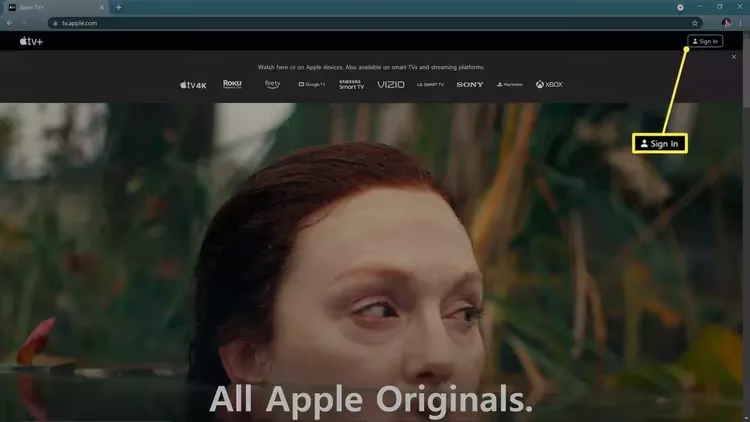
Click Sign In and enter your Apple ID credentials.
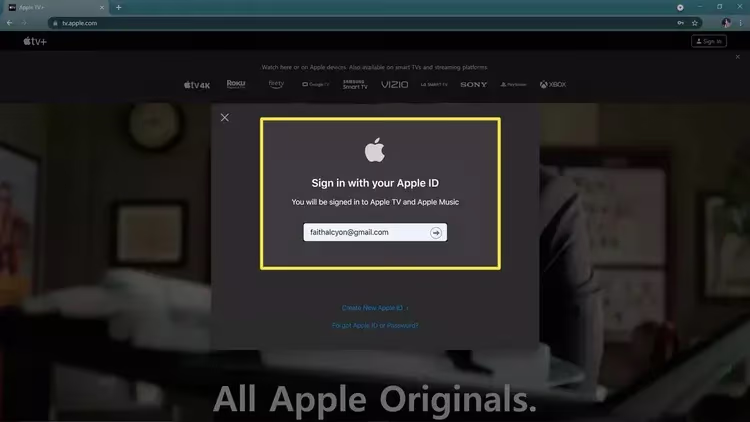
Verify with two-factor authentication if prompted.
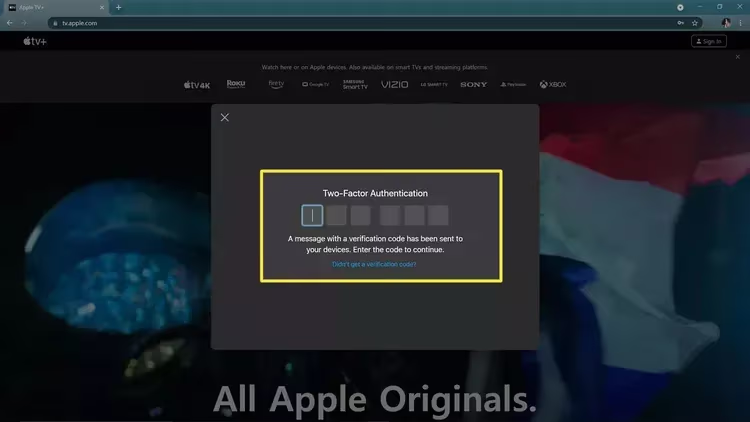
This logs you into Apple TV Plus directly through Chrome.
#Step 3: Play a Show & Open Chrome Menu
Browse and select something to watch, then click the play button.
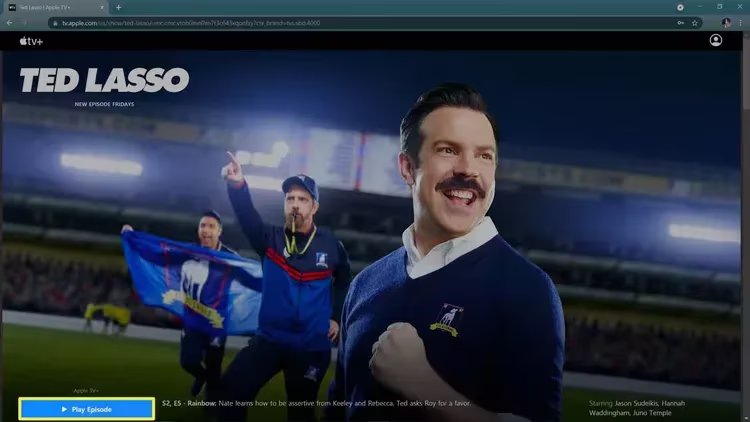
I’m going to start season 2 of Severance. Such a thrilling mind-bender!
Once your show starts playing, open the Chrome menu by clicking the 3-dot icon in the top right.
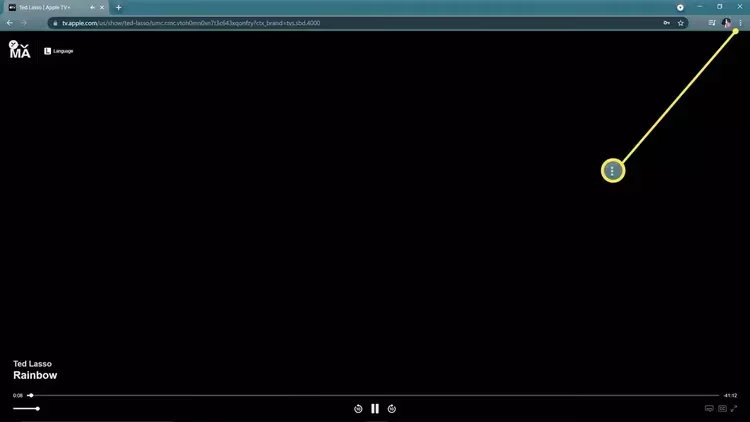
#Step 4: Select “Cast”
In the dropdown menu, choose Cast.
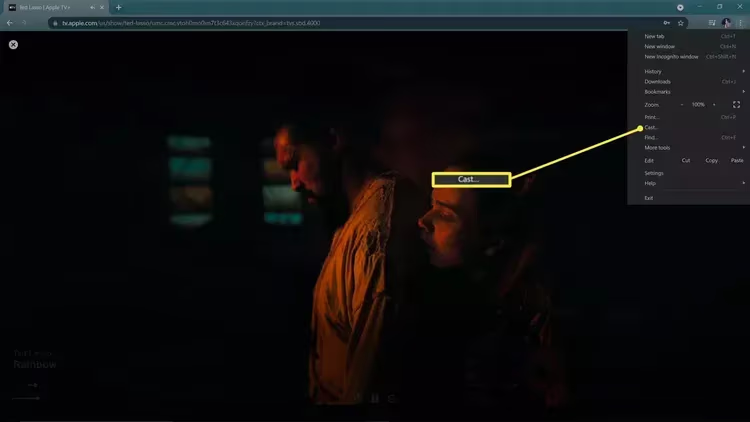
This allows you to cast the Apple TV+ tab from Chrome directly to your Chromecast device.
#Step 5: Pick Your Chromecast & Enjoy!
A popup will appear showing available Chromecast devices on your Wi-Fi network.
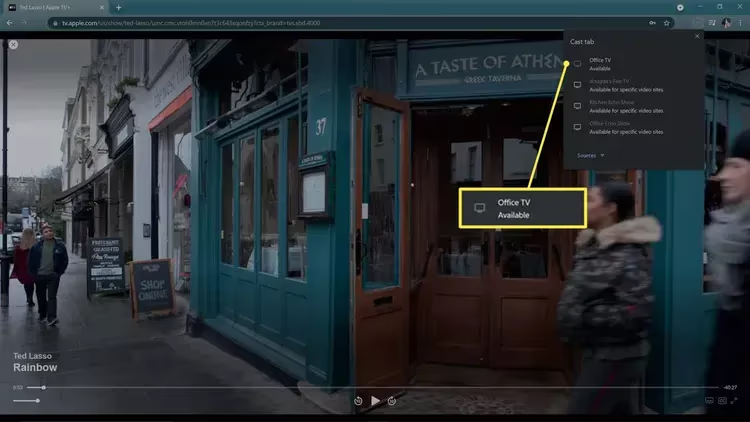
Select the Chromecast you want to cast to, and voila! Apple TV Plus starts streaming on your TV via Chrome.
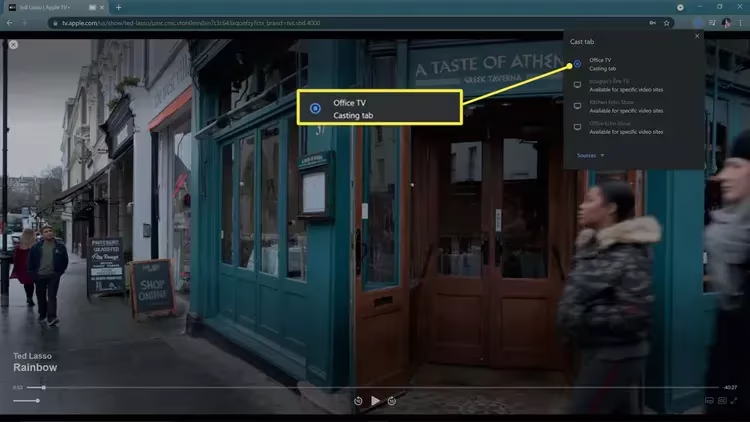
It works well once connected. You can even control playback using Chrome, or via the Chromecast remote once you’ve started watching.
And that’s it! By using Chrome as the middleman, you can wirelessly mirror Apple TV Plus onto any Chromecast model.
Quick tip: To stop casting, simply reopen the Chrome menu and select Stop Casting. Or press the Google Home/Stop button on newer Chromecast remotes.
Now kick back and enjoy Apple originals on the big screen!
#Method 2: Install Apple TV App on Chromecast with Google TV
If you have a Chromecast with Google TV, you’re in luck. You can download and watch Apple TV Plus directly on the device. No other gadgets required.
Here are the simple steps:
#Step 1: Register for Apple TV+ Account
Unlike the Chrome method above, you can NOT sign up for Apple TV Plus directly on the Chromecast.
First, you need to register for an Apple TV+ account in one of these ways:
-
On an iPhone/iPad via the Apple TV app
-
On a Mac/Windows PC at tv.apple.com
-
Through Android mobile Chrome or an Apple TV 4K device
If you just bought certain Apple devices (like iPhone, iPad, Apple TV), your Apple TV+ subscription should activate automatically.
Once registered, then you can sign in and access Apple TV+ on Chromecast Google TV.
#Step 2: Find & Install Apple TV
On your Chromecast home screen, select the Apps tab.
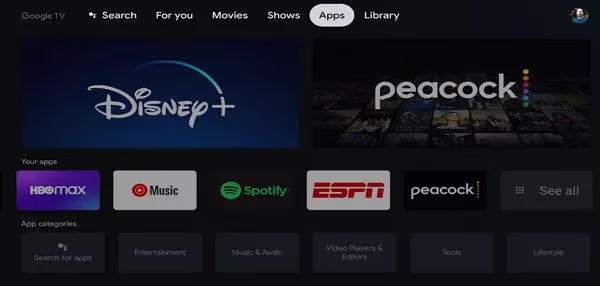
Next choose Search for Apps and type in “apple tv”. The Apple TV app should pop up in results.
Select it, then click Install.
Once finished, the Apple TV app icon will appear on your Chromecast Apps row.
#Step 3: Sign in & Start Watching!
Open the Apple TV app and enter your Apple ID credentials to sign in.
Browse to find something you want to watch, then kick back and enjoy Apple originals directly on your Chromecast!
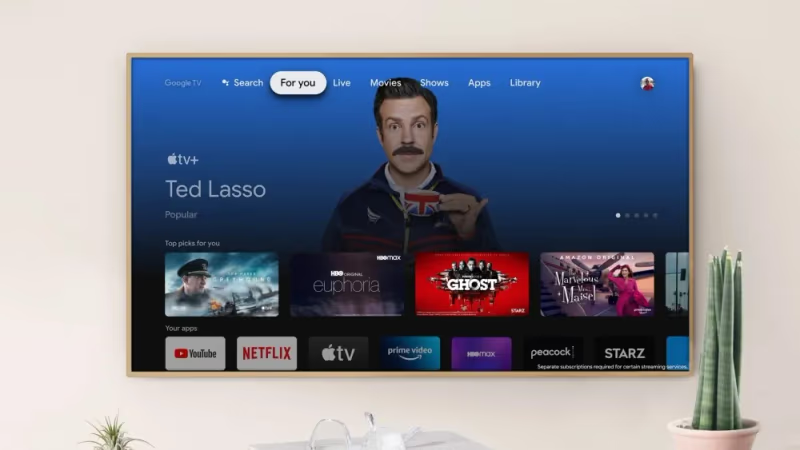
And that’s really all there is to it. The Apple TV app fits right into Google TV, almost like it was meant to be there all along!
#Can You Mirror Apple TV with Third-Party AirPlay Apps?
If for some reason the Chromecasting method isn’t working, another option is to mirror your iPhone screen to Chromecast.
This displays everything on your phone onto the bigger screen. So when you start an Apple TV+ show on iPhone, it plays via Chromecast as you mirror.
Don’t have Apple TV but still want to mirror iPhone to your TV? These apps work great for that too.
Apps like AirDroid make mirroring to Chromecast easy:
The steps would be:
-
Download AirDroid on your iPhone
-
Open the AirDroid web app on your computer browser
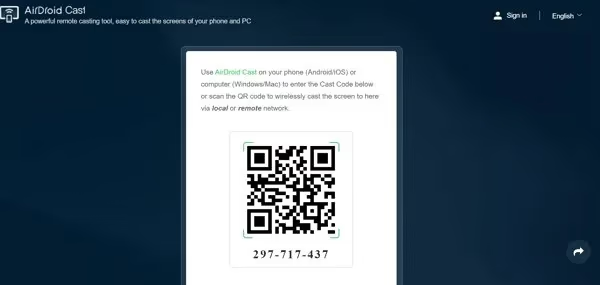
- Scan the QR code or enter pin from web app into your iPhone
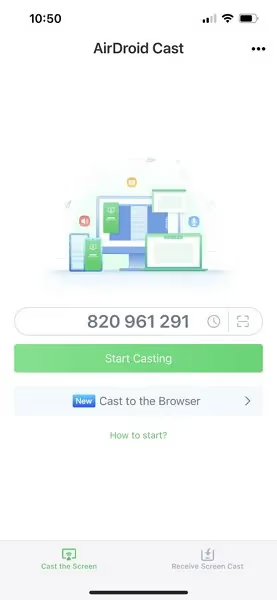
- Enable mirroring to cast your full iPhone screen (including Apple TV app) to Chromecast
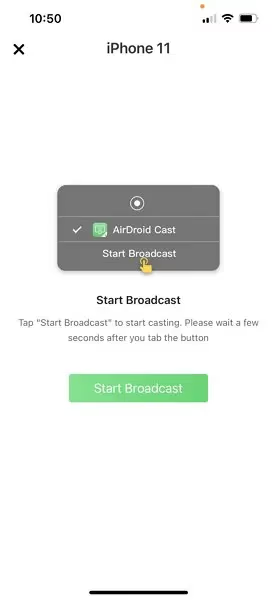
It adds an extra app into the mix, but gets the job done mirroring Apple TV Plus when other methods fail.
There are also apps like Reflector that work similarly for iPhone + Chromecast mirroring.
And with that, you officially have all the tools needed to watch Apple TV shows, movies and more on any Chromecast device! 🥳
#7 Apple TV Tips & Tricks for Chromecast
Now that you know how to watch, here are some handy tips to improve your Apple TV viewing experience on Chromecast:
#1. Use Ethernet for Smoother Streaming
For best performance, plug your Chromecast into Ethernet instead of relying on WiFi. This prevents buffering or pixelation issues.
#2. Rearrange Apps Row for Quick Access
On Chromecast with Google TV, you can long press the Apple TV app icon then drag & drop to customize placement in your apps row.
#3. Enable Surround Sound Through Chromecast
Make sure Surround Sound or Dolby Atmos settings are enabled on your TV and sound system. Chromecast supports 5.1 and Atmos audio for an immersive experience.
#4. Stream Apple Fitness+ Workouts
Once signed into Apple TV, you can also cast Apple Fitness+ workout classes to Chromecast. Get your sweat on big screen!
#5. Use Google Assistant to Launch Shows
On Google TV models, just hold the voice remote and say things like “Hey Google, play Ted Lasso on Apple TV”. So handy!
#6. Enable Autoplay for Nonstop Marathons
Through iPhone/iPad settings, you can turn on Autoplay so the next episode starts automatically when credits roll. Perfect for binging Apple series!
#7. Check Out Apple TV+ Exclusives
Don’t forget to enjoy hot Apple originals you can only stream on their platform. Severance, Slow Horses, and Black Bird are current must-sees!
Want to watch Apple TV on other popular streaming devices? Check out my guide for streaming Apple TV+ on Roku.
And there you have it! Everything you need to know about watching Apple TV Plus on Chromecast models.
#Bottom Line
-
Casting Apple TV Plus natively to Chromecast does NOT work since Apple uses AirPlay technology. You need to utilize a workaround.
-
Easiest method is downloading the Apple TV app directly onto Chromecast with Google TV.
-
Without Google TV, cast via laptop Chrome browser or use a 3rd party mirroring app like AirDroid.
-
Make sure to sign up for Apple TV+ access first before connecting Chromecast (can’t subscribe directly on Chromecast).
-
Once connected, streaming is smooth. Use ethernet for best performance with no buffering.
-
Take advantage of Apple TV exclusives plus original shows and movies you can only see there.
#Frequently Asked Questions
#Why doesn’t Apple TV cast directly to Chromecast?
Apple uses proprietary AirPlay technology, while Chromecast relies on Google Cast. These two protocols don’t communicate natively, so a workaround is needed to bridge the gap.
#Can I mirror my iPhone to Chromecast?
Yes! Using mirroring apps like AirDroid, you can display your iPhone screen (including the Apple TV app) onto Chromecast. This streams Apple content indirectly through screen mirroring rather than native casting.
#What is the best free way to stream Apple TV on Chromecast?
If your Chromecast doesn’t have Google TV, the free Chrome browser method works great. Just open tv.apple.com in Chrome and cast the tab to your Chromecast.
#Does Apple TV+ support shared profiles?
Yes. Apple TV allows up to 6 shared profiles per account. Each profile gets its own watch history and recommendations, making it great for families or roommates splitting the cost.
#What shows are Apple TV+ exclusives?
Some Apple Originals you can only stream on their platform include Ted Lasso, Severance, The Morning Show, Slow Horses, and Shrinking. Apple releases new originals every month.
#Do I need an Apple device to use Apple TV+ on Chromecast?
No. You can create an Apple ID and subscribe to Apple TV+ through the website at tv.apple.com from any computer or Android phone. Once subscribed, sign in on your Chromecast with Google TV or cast from Chrome.
#Will casting Apple TV from Chrome affect video quality?
Tab casting through Chrome typically maxes out at 1080p and depends on your Wi-Fi speed. For the best picture quality, install the Apple TV app directly on a Chromecast with Google TV, which supports 4K HDR playback.
#Is Apple TV+ available in all countries on Chromecast?
Apple TV+ is available in over 100 countries and regions. As long as your Apple ID is registered in a supported country, you can access the service through any of the Chromecast methods described above.