Having no sound on your Vizio TV? It’s a common problem that can be fixed in many ways. In this article, we’ll walk through several solutions for fixing the problem of Vizio TV with no sound.
- Mute and volume settings are the most common cause of Vizio TV no sound issues
- Power cycling your TV for 60 seconds resets the audio hardware and fixes most temporary glitches
- HDMI cable problems account for roughly 30% of sound failures on external device inputs
- Firmware updates from Vizio patch known audio bugs and should be checked under Settings > System > Device Info
- Factory reset is the last resort and restores all audio settings to default, fixing persistent software issues
#Why Does Your Vizio TV Have No Sound?
Vizio television sets are some of the best on the market. They offer great picture quality and excellent sound. But in some cases, you may run into trouble with volume control and experience Vizio TV no sound issues. If your Vizio TV’s volume isn’t working as expected, it can be frustrating!
Luckily, there are several ways to troubleshoot Vizio TV sound not working issues at home.
This article will cover how to fix the volume not working on a Vizio TV by checking common issues like loose wires or remote problems. You should try these troubleshooting tips before opting for expensive repair work.
#How Do You Fix Vizio TV No Sound?
Here are several ways to fix the issue of the Vizio TV volume not working.
If you also wonder how to add apps to Vizio Smart TV, we explain the process in the simplest way possible.
#Check if the Remote Control Is Working
Check to make sure that the remote control is working. If you can’t get the volume up and down, check the batteries in your remote control. Be sure you are pointing the remote control directly at your TV.
Sometimes the remote causes problems controlling the TV from long distances. You may also want to consider replacing the batteries if they have been used for a prolonged period. Extreme cold or heat exposure can also drain batteries faster than normal.
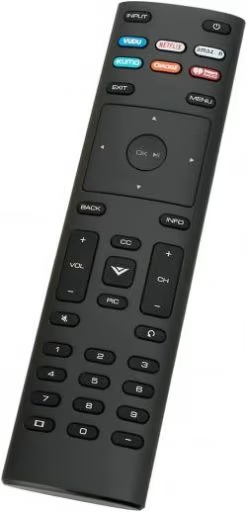
If you need help with your Vizio remote not working, we cover the causes and fixes that stop remotes from working properly.
#Make Sure the TV Volume Is Not on Mute
Try fixing the issue by going to your TV’s settings and turning off the mute function. If this doesn’t work, try resetting your remote control. Press Mute on your Vizio remote control and confirm that it isn’t on mute. Then check whether the volume is set correctly in your Vizio TV settings menu.
Also, check if there is a lock on one of the buttons. If your Peacock TV is not working, here are the fixes to try.
#Check the Volume Control Lock
The Volume Control Lock may be enabled if you’re experiencing Vizio TV sound not working problems. This feature can be found under Settings > System > Advanced > Volume Control Lock.
If you find that this setting is turned on, try turning it off and then restarting your device. You can also try resetting your TV by unplugging it from its power source for 30 seconds before plugging it back in again.
You can toggle this lock off if you wish to control sound levels directly from within apps or other inputs without going into a separate menu to adjust volume levels.
Are you seeing a black screen with no picture on your Vizio TV? Here are some possible causes and fixes for the Vizio TV black screen issue.
#Update the Vizio TV Firmware
To check that your Vizio TV is up-to-date, press the Menu button on your remote. Then select Settings > System > Device Info. If a recent date appears in Software Version, you are good to go. Otherwise, you’ll need to update the firmware manually. Vizio releases firmware updates that often fix known audio bugs.
#Check That the HDMI Cable Is Functioning Correctly
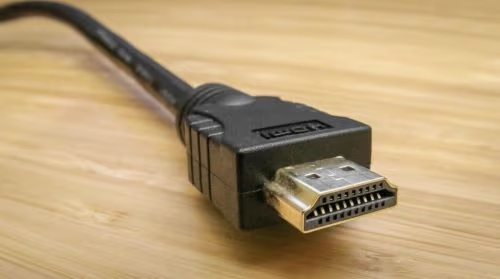
Another method to fix the Vizio TV volume not working involves ensuring that the HDMI cable is functioning correctly.
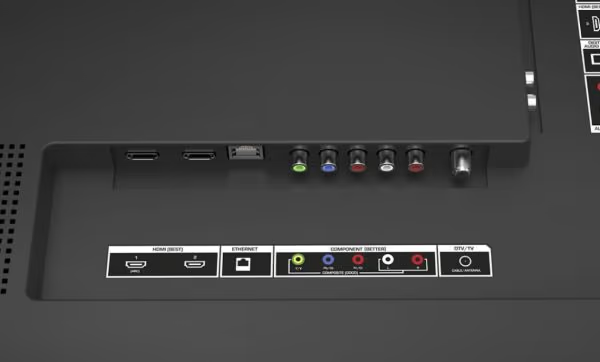
Check for any damage in the cable or at its ends and replace it if there is any. If it’s not damaged, check that the wires’ ends are fitted correctly into their ports on both devices. Next, test whether each port works individually with another device, such as a laptop or gaming console.
If this does not work, try switching your HDMI port for another one. Some devices require specific ports, so check first before changing yours.
#Check if SAP or MTS Is Enabled on Your TV
If you see the SAP or MTS message on your TV screen, there is a problem with the HDMI protocol. The SAP and MTS features are enabled by default, but they can be disabled if necessary.
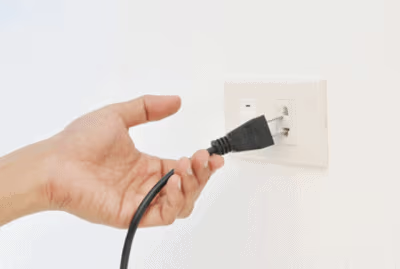
To check this setting, turn off your Vizio TV. Then unplug its power cord from the electrical outlet. Reconnect it to power and unplug all connected devices except one HDMI cable connecting to your Vizio TV. Plug in only one HDMI cable at a time until you find which port works best.
#Check the Volume on the Satellite Box
If your Vizio TV sound is not working, you should check the volume on your satellite box. Make sure it’s not muted or set at zero.
If it is, try to reset it. You can contact your cable provider for help with this problem if that doesn’t work.
#Check That No Headphones Are Plugged In
Check to see if headphones are plugged into the port on your TV’s headphone jack. If they are, unplug them. If they’re not plugged in, check that the sound is not muted and unmute it using your remote or by pressing a button on a universal remote.
If that doesn’t work, check your volume control lock. This setting can prevent accidental changes to your volume level.
#Try Unplugging Everything
Unplugging the TV and letting it sit for a few minutes can often work to reset and fix the Vizio TV volume not working issue. This will help reset your Vizio TV and clear any problems causing the audio failure.
If you have multiple devices plugged into your Vizio TV, try unplugging everything except the power cord and see if the volume still doesn’t work.
#Factory Reset Vizio TV
A factory reset runs through the setup process again and may fix any software issues causing the Vizio TV no sound problem.
First, make sure your TV is turned off. Press and hold the power button for 10 seconds. Then press the power button once more to turn your Vizio TV back on. Enter a password if prompted. The default password for all Vizio SmartCast™ devices is “0-0-0-0”.
Also read: How to turn on Vizio TV without remote with easy steps.
#Bottom Line
There are many reasons a Vizio TV wouldn’t have audio. The most common cause of no sound is the cable being disconnected from the TV or not plugged in correctly.
If your Vizio TV has power but no sound when turning on or changing channels, there could be several issues. These include bad connections at home, cable damage or disconnection, or a damaged speaker inside the device itself. Start with the simple fixes first and work your way toward a factory reset only if nothing else works.
#FAQ
#Why is there no sound coming from my Vizio TV?
The lack of sound on your Vizio TV can be caused by various factors such as incorrect settings, faulty connections, outdated firmware, or hardware malfunctions. Muted volume or a disconnected HDMI cable are the most frequent culprits.
#How can I fix Vizio TV no sound without professional help?
Start by checking the volume and mute settings on both the TV and any connected devices. Verify the audio input source, then restart your TV and external devices. You can also try updating the TV’s firmware, resetting the audio settings, or adjusting the audio output format.
#Why is my Vizio TV sound intermittent?
Intermittent sound on your Vizio TV is often due to loose or faulty audio cables. Software glitches that come and go can also cause this behavior. Compatibility issues with external audio devices like soundbars are another common reason for inconsistent audio output.
#How do I perform a factory reset on my Vizio TV?
Access the TV’s menu, navigate to the settings section, and look for options like “Reset to Factory Defaults” or “Restore Default Settings.” Follow the on-screen instructions to initiate the reset. Keep in mind that this erases all custom settings including Wi-Fi passwords and app logins.
#What should I do if none of the troubleshooting methods work?
If none of the troubleshooting methods mentioned in this article work, contact Vizio support or seek professional repair services. Your TV may have a hardware issue with the speakers or audio board that requires physical inspection.
#Can a soundbar fix the Vizio TV no sound issue?
A soundbar won’t fix the root cause if the problem is a software glitch or incorrect setting. However, if your Vizio TV’s built-in speakers are damaged, connecting an external soundbar through HDMI ARC or optical cable bypasses the internal speakers entirely and restores audio output.
#Does a power cycle fix Vizio TV audio problems?
Yes, a power cycle fixes many temporary audio glitches. Unplug your Vizio TV from the wall outlet, wait 60 seconds, then plug it back in. This clears the TV’s temporary memory and resets the audio hardware. It’s the single most effective quick fix for sound issues.
#How do I check if my Vizio TV speakers are blown?
Turn the volume to a low level and listen for crackling, buzzing, or distortion. If you hear these sounds, one or more speakers may be damaged. Try connecting headphones or an external speaker to confirm whether the issue is with the built-in speakers or the TV’s audio processing.