Experience video buffering, choppy playback, slow response times, or input lag on your Vizio TV? You’re not alone. As a popular smart TV brand, Vizio sets often develop performance issues over time that lead to a subpar viewing experience. Fortunately, there are several quick troubleshooting steps you can take to get your Vizio television running smoothly again. In this guide, we’ll cover the top reasons for Vizio TV lag and freezing while providing actionable solutions to resolve them.
- Power cycling fixes most lag — unplug your Vizio for 2 minutes and hold the power button for 10 seconds to clear cached errors
- Wi-Fi speed matters — you need at least 15 Mbps for HD streaming, and 5GHz bands perform better than 2.4GHz
- Background apps drain RAM — press the V button on your remote to close unused apps and free up system resources
- Firmware updates prevent bugs — go to Settings > System > Check for Updates and enable auto-updates
- Factory reset is the nuclear option — it wipes all data but resolves persistent software-related lag that other fixes miss
#Why Is My Vizio TV Lagging?
Before jumping into fixes, it helps to understand what’s causing the lagging and input delay on your Vizio in the first place. Here are the most common culprits:
#Outdated Firmware
Like any technology product, Vizio smart TVs require periodic software and firmware updates for optimal performance. Outdated firmware can not only cause lagging, but also introduce bugs and glitches.
#Connectivity Issues
Since Vizio TVs rely on an internet connection for streaming capabilities, weak Wi-Fi signals or intermittent connectivity can lead to buffering and input delays. This is especially true when using bandwidth-heavy apps like Netflix, Hulu, Disney+ etc.
#Storage Overload
As you install more and more apps on your Vizio television, the storage quickly fills up. Insufficient storage space leads to severe system slowdowns and lagging video playback.
#Too Many Background Apps
Multiple apps running simultaneously in the background take up RAM and slow things down. Closing unused apps frees up system resources for a smoother experience. You can close apps by pressing the Vizio TV remote’s V button.
#Hardware Problems
In rare cases, the lagging and freezing may point to a hardware components failure. This is more probable on older Vizio models.
Now that you know why your Vizio lags, let’s discuss how to troubleshoot and fix these problems.
#How Do You Fix a Laggy Vizio TV?
Follow these 10 troubleshooting tips in order until your Vizio television starts performing normally again:
#1. Check Your Internet Connection
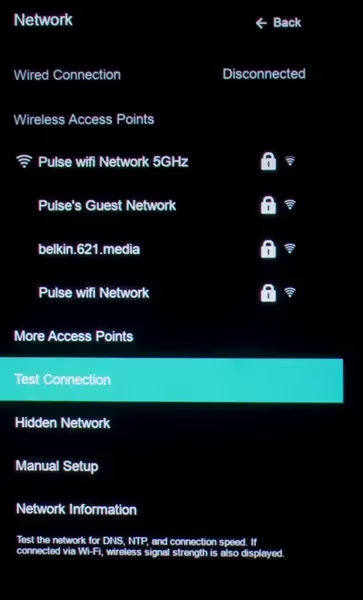
Since Vizio smart TV functionality relies heavily on internet connectivity, start by ensuring your Wi-Fi connection is strong and stable.
-
Run an internet speed test on your Vizio to test connectivity. You need at least 15 Mbps speeds for streaming HD content without buffering.
-
If speeds are low, try resetting your modem and router.
-
Connect your TV to the 5GHz Wi-Fi band if available, as it offers higher throughput compared to 2.4GHz.
-
Consider using an ethernet cable for the most reliable wired connectivity.
#2. Close Background Apps
Apps running in the background take up system resources. Close unused apps by:
-
Pressing the V button on your Vizio remote.
-
Selecting the running apps thumbnail.
-
Choosing the ‘Close App’ option for apps not currently in use.
Closing background apps forces your TV to allocate resources to foreground tasks only for faster performance.
#3. Check Storage Usage
If your apps are lagging or freezing often, inadequate storage could be the reason. To free up storage space:
-
Go to Settings > System > Storage.
-
Review used/free space breakdown.
-
Uninstall unused apps freeing up storage.
-
Consider adding external storage if available for your model.
Also clear caches and temporary app files for additional space.
#4. Update Firmware
Outdated firmware can riddle your set with bugs and performance issues.
-
Navigate to Settings > System > Check for Updates
-
Install any available updates found.
-
Allow your Vizio TV to automatically fetch and install updates when possible by toggling auto-updates to ‘on’.
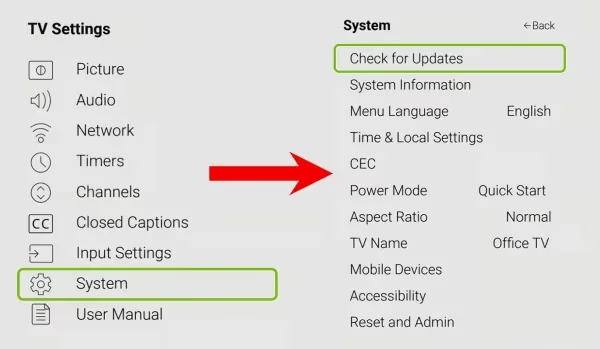
Keep firmware version up-to-date for best results. Updates fix existing bugs, improve stability, and add new features.
#5. Restart Apps
Before reinstalling apps altogether, try restarting problematic apps individually:
-
Highlight the lagging app.
-
Press down on the directional pad until options appear.
-
Select the Restart App option.
Restarting forces apps to reload properly eliminating odd glitches.
#6. Reinstall Faulty Apps
If an app starts malfunctioning despite updates and restarts, uninstall and reinstall as follows:
-
Delete the problematic app from your Vizio TV.
-
Redownload a fresh version from the app store.
-
Log back into the app to see if issues persist.
Reinstalling can fix corrupted files associated with certain apps that cause them to lag or freeze.
#7. Power Cycle the TV
Power cycling forces a hard reboot, clearing away software gremlins contributing to lagging:
-
Turn off your Vizio TV and unplug power cable.
-
Press and hold power button for 10 seconds (drains fleeting capacitance).
-
Leave unplugged for 2 minutes (allows hardware to reset).
-
Reconnect and turn on your television.
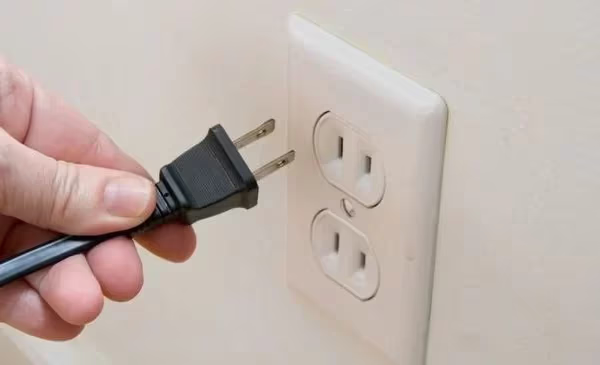
Power cycling your Vizio works as a reset, letting components properly reinitialize for faster functionality.
#8. Reset Your Vizio to Factory Settings
If simpler troubleshooting does not resolve lag and freezing issues, try factory resetting your television:
-
Head to Settings > System > Reset & Admin > Reset TV to Factory Defaults
-
Confirm factory reset request.
-
Your Vizio TV will reboot and be restored to original out-of-box settings.
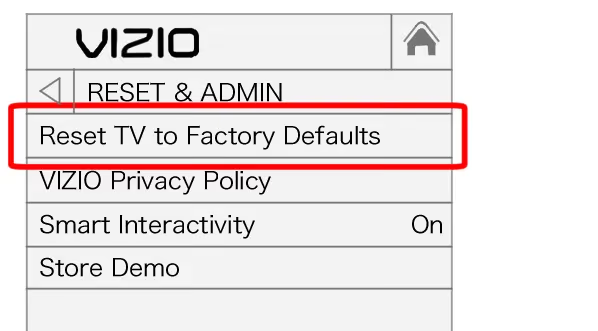
Factory resets wipe your customizations but often eliminate persistent performance issues that survive other measures. Note you may need to reprogram your Vizio TV universal remote after.
#9. Contact Vizio Support
If lag persists after trying the above fixes, contact Vizio support:
-
Open a chat session, call 1-844-254-8087, or text an issue summary to 205-301-3729.
-
Provide your Vizio TV’s model number, purchase date, and summary of troubleshooting performed.
-
Ask about eligibility for in-home repairs before your warranty expires.
Vizio agents can diagnose tricky bugs and recommend solutions tailored to your set.
#10. Consider Replacing the TV
For older generation Vizio TVs, severe lagging and input delay may be signs of internal hardware failures. At that point, your best recourse is to:
-
Backup settings and personal data via USB drive.
-
Recycle the irreparable television properly.
-
Purchase a newer Vizio television model. Transfer backed up files to new TV.
While unfortunate, upgrading to a newer model with the latest hardware and software is inevitable over time as technology progresses. Before replacing, try fixes like power cycling the Vizio first.
#Bottom Line
-
Start troubleshooting by testing your internet speeds and connectivity first. Lags increase exponentially with unreliable Wi-Fi signals and slower internet plans.
-
Clear background apps and storage overload. Insufficient RAM and disk space slows everything down.
-
Keep your Vizio TV firmware up-to-date to fix existing bugs and boost performance. Allow auto-updates to fetch the latest fixes.
-
For older generation Vizios, replacing outdated hardware components may ultimately be required if lag issues persist through troubleshooting.
#FAQ
#Why does my Vizio TV lag when gaming or using Smartcast?
Game consoles and Smartcast place heavy bandwidth demands on your network. Connect your Vizio to 5GHz Wi-Fi, try wired ethernet, or upgrade internet speeds for smoother gaming and navigation. Enabling Game Mode in your TV’s picture settings also reduces input delay by turning off extra image processing.
#What should I do if only specific apps lag on my Vizio?
App-specific lags usually indicate corrupted files associated with those apps. Uninstall then reinstall the problematic apps to resolve isolated lagging instances on your Vizio.
#Is it normal for my Vizio to lag after several hours of use?
Overheating can cause Vizios to lag from extended continuous usage. Make sure your TV has proper ventilation with at least 4 inches of clearance on all sides. Take breaks to allow your set to cool down and avoid heat-induced performance issues. If the problem happens daily, check whether a nearby heat source like a radiator or direct sunlight is raising the ambient temperature.
#Should I get my Vizio TV repaired under warranty if fixes don’t work?
Yes. If you’ve made a reasonable effort to resolve lagging with software-side fixes, request repairs from Vizio for persistent hardware-rooted problems before your warranty expires. Keep a record of all troubleshooting steps you’ve tried, as support agents will ask for this information.
#Does a slow internet connection cause Vizio TV lag?
Absolutely. Vizio smart TVs need a stable connection of at least 15 Mbps for HD streaming and 25 Mbps for 4K content. Run a speed test directly on your TV under Settings > Network > Test Connection. If speeds fall below these thresholds, restart your router or switch to a wired ethernet connection for more consistent performance.
#Can too many installed apps make my Vizio TV slow?
Yes, installing too many apps fills up your TV’s limited storage and forces the system to work harder. Go to Settings > System > Storage to check available space. Remove apps you no longer use and clear cached data to free up resources.
#Will a factory reset fix Vizio TV input delay?
A factory reset resolves most software-related lag by wiping all apps, settings, and cached data back to the original state. Keep in mind that you’ll need to reinstall your apps and sign back into all streaming accounts afterward. Try power cycling first since it fixes the same issues without erasing your data.