Have you noticed an annoying blue hue on your Vizio TV? This blue tint is common on LED TVs after extended use.The good news? In many cases, you can fix a Vizio TV blue tint in less than 15 minutes without an expert or trip to the repair shop.
As a tech specialist and longtime Vizio TV owner, I’ve helped dozens of users fix their Vizio blue tint issue over the years. In this guide, I’ll walk you throughthe best troubleshooting steps for blue tints on Vizio TVs.
Whether your Vizio TV blue tint is under warranty or not, you’ll learn how to resolve it quickly, safely and without spending hundreds on repairs or replacement.
- Power cycling fixes most blue tint cases — unplug for 60 seconds and hold the power button for 30 seconds to drain residual energy
- Loose HDMI cables cause display tinting — reseat all connections and try different ports before assuming a hardware fault
- Resetting picture settings takes under 2 minutes — go to Menu > Picture > Reset Picture Mode to restore factory color values
- Firmware updates patch known display bugs — check Menu > System > Check for Updates and allow 10-15 minutes for installation
- LED backlight replacement costs under $150 — new strips with improved phosphor coatings permanently fix blue discoloration on older Vizio TVs
#Why Do Vizio TVs Get a Blue Tint?
Before fixing the issue, it helps to understand exactly why and how some Vizio TV models end up with a blue-ish tint across the display.
A blue tint on a TV usually indicates an issue with the backlights or LEDs.
If you’re having wider issues with your Vizio Smart TV, check out this guide on troubleshooting common Vizio SmartCast issues.
Here’s a quick breakdown of the common culprits:
LED and Backlight Deterioration
TV screens don’t produce their own light. They rely on LED lights behind the screen, known as the “backlight”, to illuminate the display. Over time, the phosphor coating on these backlights can deteriorate, causing a blue hue.
Loose HDMI and Component Cable Connections
If the connection between your devices, streaming sticks or game consoles to your TV isn’t secure, this can trigger display issues, chromatic aberration and blue tinting.
Outdated Firmware
Failing to keep your Vizio TV’s software updated can also lead to display glitches like blue tinting. Updates often contain bug fixes for common issues.
Faulty Circuit Boards
Problems with the LCD panel, video processor or internal wires in your TV can result in color distortion. While rare, it requires repair by a technician.
Now that you know why Vizio TVs end up with a blue tint, let’s walk through the top troubleshooting tips and fixes.
#Fix 1: Power Cycle Your Vizio TV
Power cycling (or a “soft reset”) is an effective first fix for any LED TV glitches. It can resolve temporary software issues and clear out excess power from your TV’s circuits.
If you need help locating the power button on your specific Vizio TV model, check where to find the power button on your Vizio TV.
Follow these steps:
-
Unplug the power cord from your Vizio TV. Wait at least 1 full minute before plugging it back in. This ensures all components discharge fully.
-
Press and hold the power button on the Vizio TV itself for 30 seconds to drain residual energy from the capacitors.
-
Plug your Vizio TV power cord back in and turn the device on as normal by pressing the power button once.
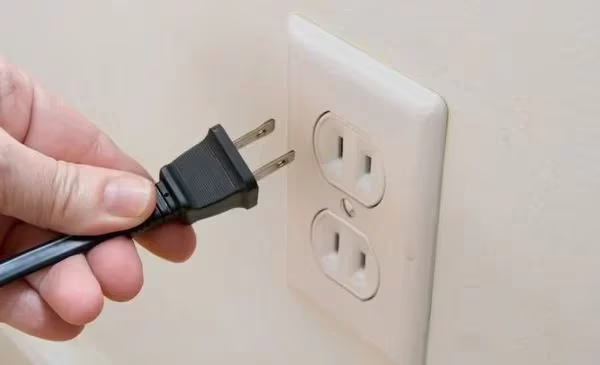
In most blue tint cases, a simple power cycle fixes the issue. If problems continue, ensure your Vizio TV remote is working before rechecking connections.
#Fix 2: Reseat Your Vizio TV’s HDMI Cables and Connections
Another easy fix is to check the physical connection points between your Vizio TV and all external devices like game consoles, streaming boxes or BluRay players.
Follow these troubleshooting tips:
-
Inspect all HDMI and input cables for any signs of damage like cracked connectors or bent pins. Replace damaged cables immediately.
-
Firmly plug each HDMI cable into the port. Sometimes cables work themselves loose over time. Apply gentle pressure when reinserting to create a snug connection.
-
Try different HDMI ports on your Vizio TV if possible. For example, swap from HDMI 1 port to HDMI 2 port.
-
Set your Vizio TV source to match the input and port you’re using. Press “Source” or “Input” on your remote to cycle through options if you’re unsure which input corresponds to a specific HDMI port.
-
Eliminate splitters or intermediary devices between your Vizio TV and external devices. Connect everything directly when possible.
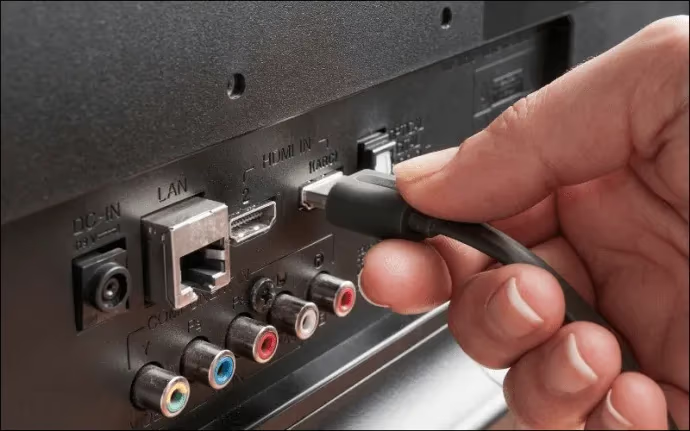
Reseating connections often resolves input problems that can appear as blue tint or other display abnormalities. Continue to the next fixes if the issue remains.
#Fix 3: Reset Your Vizio TV Picture Settings
Improperly configured brightness, contrast, color temperature and other picture settings can alter the way colors and images render on-screen—sometimes resulting in blue or purple-ish tones.
Luckily, it’s easy to reset your picture configuration:
-
Using your Vizio remote, press Menu.
-
Select Picture then navigate to Picture Mode Edit options.
-
Choose Reset Picture Mode to restore default values.
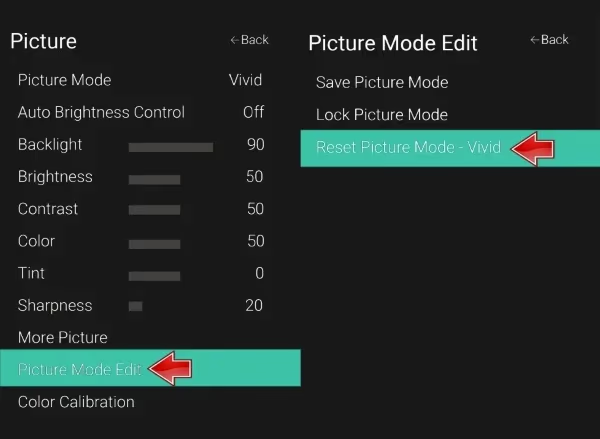
You can also manually adjust values under Backlight, Brightness, Contrast and other menus – lowering these substantially (or minimizing energy usage settings) often resolves software-based display issues.
#Fix 4: Check for Firmware Updates
Updating your TV’s firmware guarantees you have the latest fixes, patches, and compatibility improvements from Vizio.
Outdated firmware is a common contributor to temperamental glitches like blue screens or image distortion.
To update, choose:
-
Menu > System > Check for Updates
-
Download and install any available updates. Your Vizio TV will automatically scan for these updates whenever it’s powered off and connected online overnight.
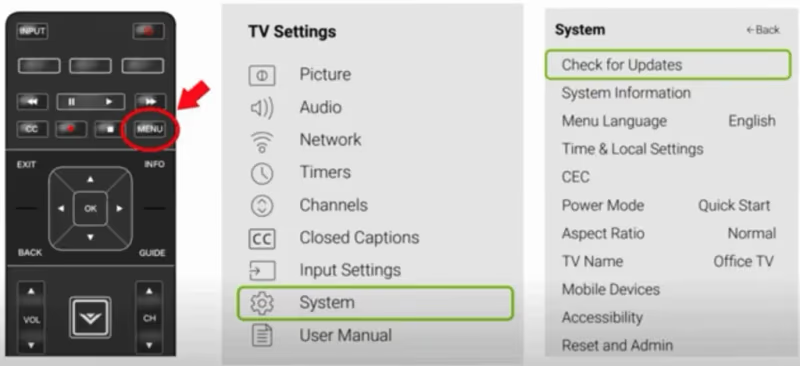
Firmware updates require patience – they can take 10-15 minutes to complete. Resist the urge to unplug the TV or interrupt the update process once initiated. Wait for your device to fully install the patch, optimize apps and reboot twice to ensure revisions went through.
#Fix 5: Perform a Factory Reset
If simple resets and updates haven’t eliminated the blue tint, a factory reset (restoring factory default values) should do the trick.
This erases your custom picture modes, paired devices and settings—resolving any software quirks causing the tinting issue.
#Factory Reset a Vizio with Remote
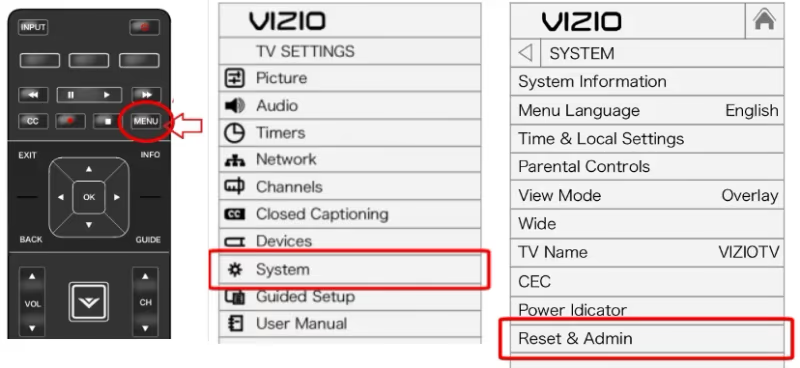
On newer Vizio TVs or smart displays:
- Select Menu > System > Reset & Admin
- Choose Reset TV to Factory Defaults
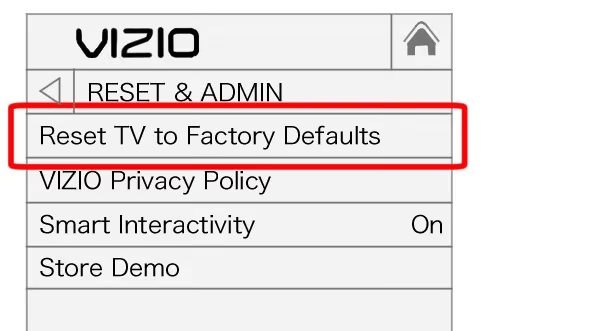
You’ll be asked for a parental passcode which is 0000 by default on most Vizio TVs.
#Hard Reset a Vizio TV Without Remote
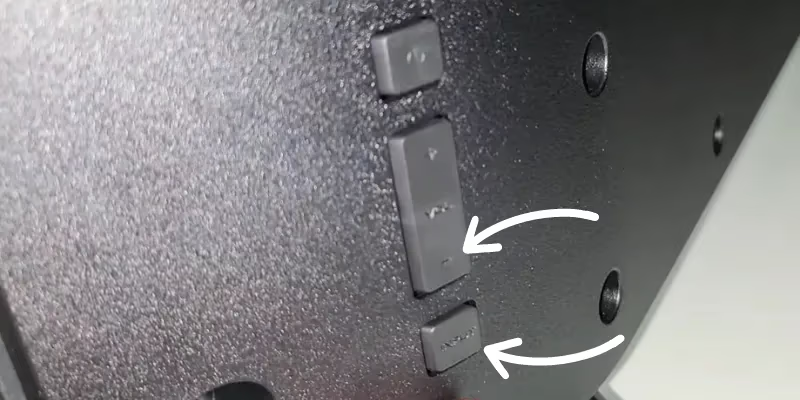
If you’ve misplaced the remote, use the buttons on your TV:
-
Turn on your Vizio TV
-
Press and hold the Volume Down and Input button simultaneously
-
When prompted on-screen, press and hold the Input button again for 10+ seconds
-
Your Vizio will now restart and reset itself.
In just a few minutes, your factory restore will be complete and TV should start up with factory picture settings.
#Fix 6: Replace Faulty LED Backlights
The most expensive yet effective permanent fix is replacing the LED strips inside your TV.
As mentioned earlier, blue discoloration implies an issue with the LEDs/backlights due to natural wear, burnout or phosphor deterioration.
If your Vizio TV is older, replacing the backlights can restore color uniformity and picture accuracy. Newer strips utilize better LED coating technology less prone to blue hues over time.
Here’s an overview:
-
Determine correct LED strips based on your Vizio TV model. Record the number and positions of strips needed.
-
Purchase replacement strips and necessary tools online from Vizio or retailers like ShopJimmy.
-
Disassemble the TV frame and casing to access internal boards and LEDs. This requires care, patience and proper tools. Consider hiring an experienced repair technician if you lack electronics experience.
-
Unplug the TV and follow anti-static best practices.
-
Once strips are exposed, detach the old LEDs and swap in new strips. Take photos during the process to ensure correct installation positioning.
-
Secure all connections, re-assemble devices and switch your TV back on.
Replacing aging, defective backlights isn’t easy DIY work but it can restore your Vizio to full image quality.
Weigh costs compared to upgrading your entire TV if replacement sounds complex.
#When Should I Contact Vizio Customer Support?
Exhaust all of the troubleshooting tips above before contacting Vizio support regarding a blue tint issue.
To start a support ticket:
-
Call 1-877-698-4946
-
Initiate a live online chat
-
Email [email protected]
Document the issue thoroughly along with all steps you’ve tried.
Support specialists may walk you through advanced diagnostics, replacement parts ordering or discuss warranty / repair options depending on case specifics.
#Does My Vizio TV Warranty Cover Blue Tint Issues?
Vizio provides a 1-year limited warranty on most new TVs. This protects against defects in materials and workmanship only – it generally doesn’t cover accidental damage or age-related decay of LED backlights.
That said, if your problematic blue tint emerged rapidly or shortly after purchasing your Vizio TV:
-
Call support immediately regarding warranty service and repairs
-
Have your original receipt, model and serial number handy as proof of purchase
-
Highlight issues emerged without a specific cause during the coverage period
-
Push for a replacement or complete LED backlight strip replacement given the sudden nature
You likely have strong grounds for a free repair or replacement TV if the blue discoloration appeared without reason during your 1-year Vizio warranty.
#Why You Should Fix Vizio TVs Instead of Replacing
Before abandoning your Vizio over a pesky blue distortion, consider:
-
Cost savings: Fixing LED backlights or cables costs under $150 in most cases – extending a reliable TV’s lifespan vs. spending $500+ on a new one.
-
Improved LEDs: Today’s LEDs last longer and avoid blue hues thanks to better yellow phosphor coatings. New backlights can restore your aging Vizio TV without other issues.
-
Environmental benefits: E-waste is an increasing threat as more TV owners replace instead of repair. Fixing your Vizio benefits the planet long-term.
#Bottom Line
You now have several proven approaches to eliminate an annoying blue tint on Vizio TV models safely in under 15 minutes.
Here are the key takeaways:
-
Power cycle Vizio TVs to discharge residual energy and clear errors
-
Reseat and replace faulty HDMI connections between devices
-
Reset picture modes or adjust values manually
-
Install latest firmware updates immediately when available
-
Factory reset Vizio TVs to erase bad configurations
-
Replace worn out LED backlight strips for permanent fix
-
Contact Vizio support for advanced troubleshooting
-
Utilize 1-year limited warranty if available
With persistence across these easiest solutions first, I’m confident you’ll rid your Vizio TV of the blue hue quickly. The last resort of replacing backlights still carries lower costs than buying another HDTV.
#Frequently Asked Questions
#What causes a blue tint on a Vizio TV screen?
A Vizio TV blue tint typically comes from decaying LED backlights where the yellow phosphor coating has worn off. Loose HDMI connections, outdated firmware and incorrect color temperature settings can also trigger blue hues.
#How do I remove a blue tint on my Vizio TV?
Start by power cycling your TV for 60 seconds, then reseat all HDMI cables and restore default picture settings. If the blue tint persists, check for firmware updates or perform a factory reset. Replacing aging LED backlight strips (usually under $150) is the permanent fix for older models.
#Does a factory reset fix blue tint on Vizio TVs?
A factory reset resolves blue tint when the cause is a software glitch or misconfigured picture settings. It restores all display values to their original defaults. If the tint returns after a factory reset, the issue is likely hardware-related and requires LED backlight replacement.
#How much does it cost to fix a Vizio TV blue tint?
Most software fixes like power cycling, reseating cables and factory resets cost nothing. Replacing LED backlight strips runs between $50 and $150 for parts, though hiring a technician adds $100-$200 in labor fees. Compare this to $500+ for a new TV before deciding.
#Will Vizio warranty cover a blue tint issue?
Vizio offers a 1-year limited warranty that covers defects in materials and workmanship. If your blue tint appeared suddenly during the warranty period without physical damage, contact Vizio support at 1-877-698-4946 with your receipt and serial number. Age-related LED decay is generally not covered.
#Can outdated firmware cause blue tint on a Vizio TV?
Yes, outdated firmware can introduce display glitches including blue tinting and color distortion. Go to Menu > System > Check for Updates to install the latest patch. Allow 10-15 minutes for the update to complete and avoid unplugging the TV during installation.
#Should I repair or replace a Vizio TV with blue tint?
Repairing is usually the better choice when backlight replacement parts cost under $150. New LED strips use improved phosphor coatings that resist blue hue buildup over time. If your TV has multiple failing components beyond just the backlights, replacing the entire unit may make more financial sense.