Vizio TVs are known for being easy to use, and there are many reasons to love this television brand. Vizio TVs have tons of features, so you can find something that suits your needs.However, sometimes there are problems with these televisions. And you might need help when trying to fix them.
You will now read a list of common reasons people experience Vizio TV with no picture. And then, you will also learn how to resolve the issue of the Vizio black screen.
- Power cycling fixes most cases — unplugging your Vizio TV for 60 seconds clears temporary glitches that cause a black screen
- HDMI cables are a top culprit — a loose or damaged HDMI connection accounts for roughly 30% of Vizio black screen reports
- Sleep timer triggers unexpected blackouts — disabling the sleep timer under Settings > Sound & Display prevents the screen from going dark on a schedule
- Factory reset is a last resort — holding Volume Down + Input for 30 seconds restores factory defaults but erases all saved settings
- A faulty T-CON board requires professional repair — if software fixes fail, the LCD timing controller board inside the panel may need replacement
#What Causes a Vizio TV Black Screen?
If you’re seeing a Vizio TV screen black, here are some reasons behind it:
-
Your TV is in sleep mode. Your Vizio may have shut off after being idle for an extended period. Press any button on the remote or front panel to wake it up.
-
There are loose connections between the backlight and the main board. If so, reinstall them properly with one hand while keeping an eye on your work. You don’t want them coming apart again! You should also ensure that all cables are tightly connected to their ports. If they come loose, you could fry other components or even ruin your display altogether!
-
Outdated firmware. Has a software update recently that might have caused problems with your Vizio? Update it again if necessary—but only after checking out our tips below first!
Along with sleep mode, faulty connections, and outdated firmware, there can be many other reasons why you are seeing a Vizio TV screen black.
And some more such reasons are software bugs in your Vizio TV, screen mute, and faulty backlight.
Besides, if you want to fix the Vizio remote not working, let’s know the causes, and then fix the stopping your remote from working issue properly.
#How Do You Fix a Vizio TV Black Screen?
To troubleshoot a Vizio black screen issue, you’ll need to determine what may be causing the problem. If your Vizio TV’s screen has gone black and is displaying nothing but a blank screen, this can occur for many different reasons, as mentioned above.
But you do not need to worry. Because now, we will help you to fix the problem of the Vizio TV screen being black with some troubleshooting tips.
The troubleshooting tips mentioned below are likely going to work for you. So, try them one by one and see which one fixes the black screen issue.
Also, if your Vizio SmartCast is not working and you wish to fix it, you can follow the guide here with every practical solution to address this issue easily.
#1. Power Cycle the Vizio Smart TV
-
Turn off the TV by pressing and holding the power button on your remote until you see a pop-up menu.
-
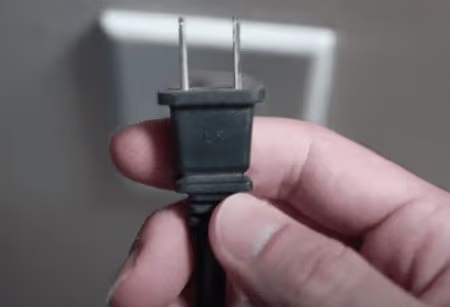
Unplug your TV for 30 seconds before plugging it back in and turning it back on again after this time has elapsed. This will reset the device, clearing out any temporary issues that may have caused a Vizio black screen problem on Vizio smart TVs. Wait for the Vizio smart TV to boot up before proceeding with further troubleshooting tips.
- Check for firmware updates on the Vizio website if available; update if necessary.
#2. Hard Reset the TV
-
If you have a Vizio TV that has a blank screen, don’t worry! It is possible to fix this issue. Here are the steps to take:
-
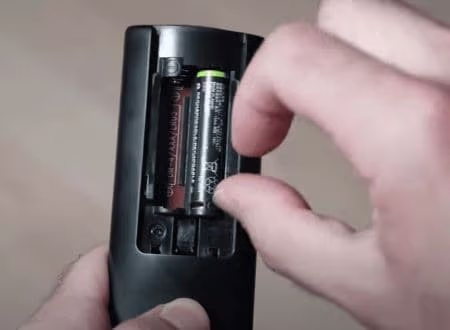
Turn off your TV. Unplug it from its power source and wait 30 seconds before plugging it back in. You may also want to remove any batteries from the remote control if you can do so quickly. Such as by lifting their battery compartment.
-
Press and hold the power button for at least 30 seconds.
-
After that, wait for 10 minutes, plug the power cord back into the socket, and reconnect all the devices with your TV.
-
Lastly, turn on your Vizio TV and check whether the Vizio TV screen black of death is gone.
#3. Disable Sleep Timer
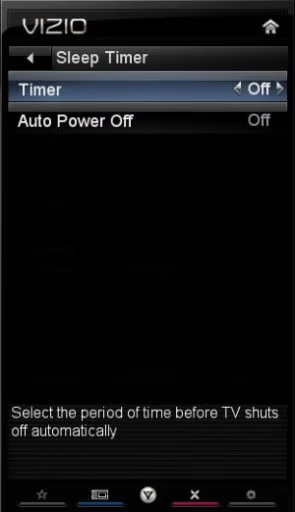
If the Vizio black screen doesn’t go away, it could be your sleep timer. First, disable the sleep timer on your Vizio TV. To do this:
- Go to Settings > Sound & Display > Sleep Timer.
-
Set the Sleep Timer to Off by pressing it once until it blinks and then again until it lights up. You may have to press it for several seconds. Your TV will no longer go into standby mode after a set amount of time has passed after you stop watching or listening to content from your Vizio TV. Instead, you can manually turn off your Vizio TV at any time by pressing its power button.
-
Suppose you don’t see a “Sleep Timer” option in Settings or Sound & Display on your screen. Or if the option isn’t labeled correctly – check with Vizio customer service for help. Ask them for help in finding where that setting is located in your model’s menu structure.
#4. Change Picture Mode Settings
-
First, make sure that you’re using the correct input. There are many different ways to connect your Vizio TV to a source, and each can have its list of image settings. If you don’t see your desired picture mode listed, try cycling through the other inputs until you find it.
-
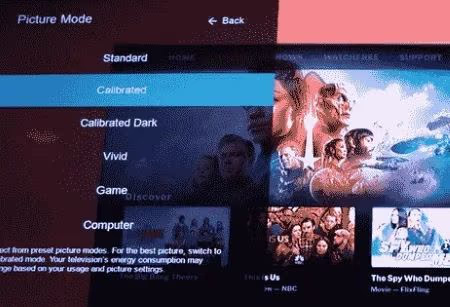
Next, go into the Picture Mode Settings menu. This is usually found by going into the Main Menu and selecting Picture Mode Settings.
-
Then select the Picture Mode that you want to use for watching movies or TV shows. Some TVs have separate settings for these two types of content. Once selected on this screen, press “OK” on your remote control.
#5. Check the Cables
-
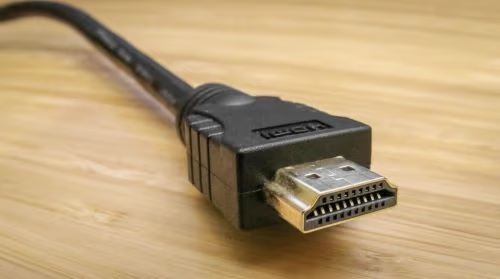
Check the HDMI cable. Ensure the HDMI cable is connected to both the back of your TV and your device. Make sure it’s in all the way and not damaged at all.
-
Check the HDMI cable connection. If you’ve got a Vizio TV, make sure you’re using an input on your TV (not another device). For example, if you’re trying to connect a PS4, use one of its HDMI ports. Do it instead of connecting it to an input labeled “Blu-Ray Player” or something similar.
-
Check that the port is working properly. Do that by testing other cables with devices connected directly. If those devices aren’t working, it might be time for new cables!
#6. Check the Wall Outlet
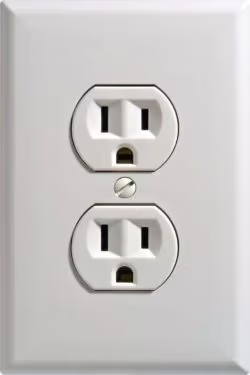
If your TV is connected to a wall outlet, first check it for power.
-
If you have another device that uses the same type of cord, try plugging it into the wall outlet. If the device powers on, then there is no problem with your TV and its cord or power supply. You’ll need to contact Vizio’s customer service department about getting a replacement cord. If the other device doesn’t turn on, continue reading below!
-
Next, try plugging another working device into this same outlet and see if it works properly. This can help eliminate any issues with your house’s wiring. Once again, if it works, we know that there’s nothing wrong with either of our devices except maybe how ugly they are. But anyway, let’s keep going!
#7. Check for the Latest Updated Version
If your Vizio TV is displaying a Vizio black screen and you’ve already checked the power cable, it’s time to check for the latest OS version. The most recent models should have an update available for download on their support website.
You can find this by going to https://support.vizio.com/s/firmware-search in a web browser. And then using one of these supported browsers:
-
Internet Explorer 11 or higher
-
Chrome 54 or higher
-
Firefox 50 or higher
Are you using a model released before 2016? Then it’s likely that there aren’t any firmware updates available for your TV when browsing through Vizio’s support site.
In this case, you’ll need to install an update from another source. Such as through Windows Update. Is there anything listed on Vizio’s website yet?
In addition, are you experiencing issues with your Vizio sound bar? Let’s learn how to reset the Vizio sound bar, as it will solve any ongoing issues with the device.
#8. Factory Reset the Vizio TV
If your Vizio TV has a Vizio black screen, you may want to try resetting the TV. Resetting the TV will restore its factory settings. And it will remove any personal content you’ve saved on it.
This is a last-resort solution, but it’s worth trying if nothing else seems to work.
#To Reset Your Vizio TV:
-
Power off the Vizio TV by unplugging it from power or turning off its main switch (if there is one). Please wait at least 30 seconds before plugging back in/turning it on again. Don’t press any buttons while waiting. Or you may accidentally change something while resetting!
-
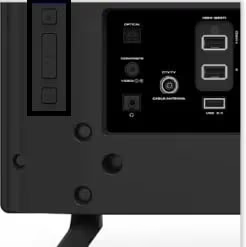
Press and hold down both Volume Down and Input buttons until a blue screen appears. Then release both buttons simultaneously after about 3 seconds. This should take about 20-30 seconds, depending on the model. Some models have different steps.
#9. Replace the T-CON Board
The T-CON board is a part of the LCD panel. It is responsible for the screen display, power supply, backlight, and brightness. You can replace it if it is defective or damaged due to some reason.
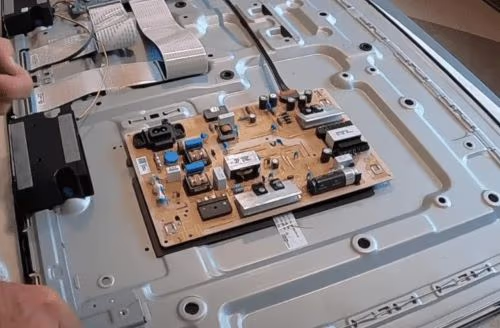
Before replacing the T-CON board, you should check whether there is any problem in other parts of your TV. Such as the power supply board or inverter board, because they can cause Vizio TV screen black issues.
If you are unsure how to replace the T-CON board, it is better to get help from a professional technician.
Also read: 10 ways to fix ‘Vizio TV no sound’ issue and how to add apps to Vizio TV.
#FAQ
#Why is my Vizio TV screen black but still has sound?
This usually points to a backlight failure or a problem with the T-CON board rather than the main board. Try a flashlight test: shine a flashlight at the screen while the TV is on, and if you can faintly see an image, the backlight has failed and needs replacement.
#Can a bad HDMI cable cause a Vizio black screen?
Yes, a damaged or loose HDMI cable is one of the most common causes. Swap in a different HDMI cable and try a different HDMI port on the TV. If the picture returns, the original cable or port was the problem.
#How do I power cycle my Vizio TV correctly?
Unplug the TV from the wall outlet, then press and hold the power button on the TV itself for 15 seconds to drain residual power. Wait at least 60 seconds before plugging it back in. This full drain is more effective than simply turning the TV off with the remote.
#Does a factory reset fix the Vizio black screen of death?
A factory reset resolves the issue when corrupted software or a bad settings change caused the black screen. Keep in mind that it erases all your apps, Wi-Fi passwords, and picture preferences, so treat it as a last resort after power cycling and cable checks have failed.
#How often should I update the firmware on my Vizio TV?
Check for updates every 2 to 3 months, or immediately after you start experiencing display glitches. Vizio pushes firmware patches that fix known backlight and HDMI handshake bugs. You can update through Settings > System > Check for Updates on most models made after 2016.
#What does it mean when the Vizio TV power light blinks but the screen stays black?
A blinking power light with no picture often signals a main board or power supply board failure. Try unplugging the TV for 60 seconds first. If the blinking pattern continues after a power cycle, the internal board likely needs professional diagnosis or replacement.
#Is it worth replacing the T-CON board on an older Vizio TV?
A replacement T-CON board costs between $20 and $80 for most Vizio models, making it a reasonable repair if the TV is otherwise in good shape. If your TV is under 5 years old, the repair cost is far less than buying a new set. For TVs older than 7 years, upgrading may be the better investment.
#Can a surge protector prevent Vizio black screen issues?
A quality surge protector guards against voltage spikes that can damage the power supply board and backlight driver. It will not prevent software-related black screens, but it significantly reduces the risk of hardware failure caused by electrical surges during storms or power outages.
#Bottom Line
When using your Vizio TV, it’s essential to know what to do when the Vizio black screen problem occurs.
The Vizio TV has a wide range of capabilities and features that can sometimes cause problems when misused or combined. When this happens, the screen goes black or appears frozen.
As mentioned in this article, you can try several things to fix this problem before calling customer service for assistance.