A Vizio remote not working might cause a heap of annoyance when you want to watch your favorite TV show. You cannot use any other remote for the time being, as the Vizio remote can only run the TV through its SmartCast control features that let you navigate through various applications.
We are going to help your Vizio remote in this article. Be patient and read on.
- Dead batteries cause most failures - replace both AAA or AA cells and clean corroded contact points with rubbing alcohol
- IR sensor blockages are the second most common cause - remove any objects within the direct line of sight between remote and TV sensor
- Power cycling the remote drains residual charge - pull the batteries, hold the power button 5 seconds, then press every button once
- Universal Vizio remotes can freeze on one device - enter reset code 977 or 981 after pressing SETUP to clear the memory
- Electronic interference disrupts IR signals - move other gadgets away from the TV sensor or apply masking tape over the receiver to filter stray signals
#What Can Be the Reason for a Vizio Remote Not Working?
The users have most reported the following causes:
-
Empty batteries - These make the remote totally disabled.
-
TV sensor blocked - Any blockage might stop the IR ray from reaching the TV and cause the remote to malfunction.
-
Unstable power supply - A dirty power supply to the TV may also be one potential cause.
-
Power residues in the remote or TV - These affect the transmission of the IR rays and lead to the Vizio remote not working.
-
Frozen remote memory - The issue may also be a result of the remote memory getting stuck at a particular device or point.
-
Malfunctioning TV - This points to an error from the other end.
-
Clash of electronic radiations - Too many of them interrupts the remote’s IR ray from reaching the TV.
#How Do You Test if Your Vizio Remote Is Sending IR Signals?
If you are using an IR emitting remote, you must perform this check before diving into fixes. You need to confirm that IR light is leaving the remote, and an easy camera test can help you with that. A digital camera or a mobile camera will work.
Now follow these steps:
-
Open the camera and look at the remote through the screen.
-
Point the main end of the remote towards the lens of the camera.
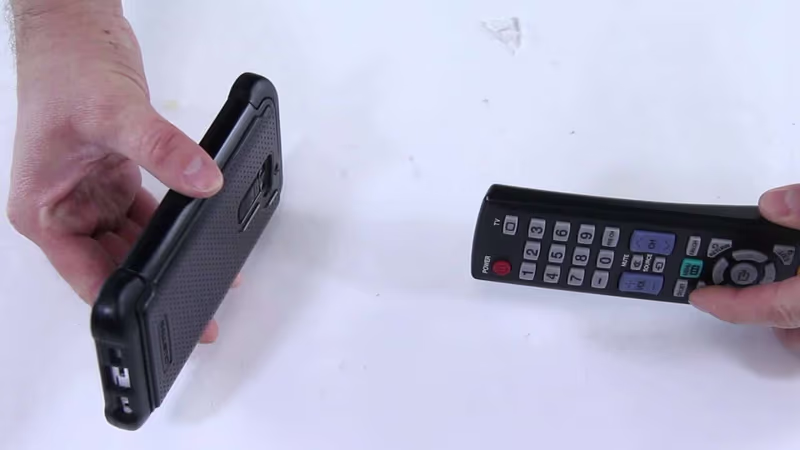
- Now press any button on the remote and hold it. Notice if you can see the light emitting out of the LED IR on the remote end.
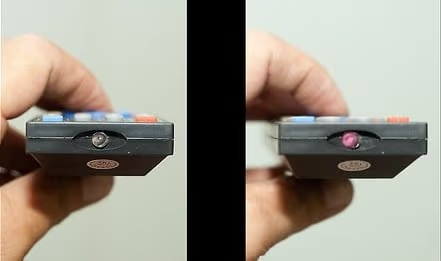
- Do this for every remote button, especially the Volume and Power button.
If no button works, then the remote itself is faulty. And if some buttons can’t work, then you may just get the remote repaired.
If all remote buttons are good, then a proper fix is what your remote needs.
Besides, learn more about how to fix issues like Vizio SmartCast not working.
#Methods for Fixing the Vizio Remote Not Working
We are giving you a list of tested methods that you can try to troubleshoot the remote.
#1. Check the Remote Batteries
Batteries are the source of power for the remote to function. The two AAA or AA batteries are most commonly used in the Vizio remotes.
If the power of the battery gets drained out, rust covers the contact points, or carbon accumulates on the batteries, it leads to the Vizio remote not working.
Also, if you wonder how to add apps to Vizio Smart TV? Let’s explain the process in the easiest possible way for you here.
#This Is What You Need To Do With the Batteries:
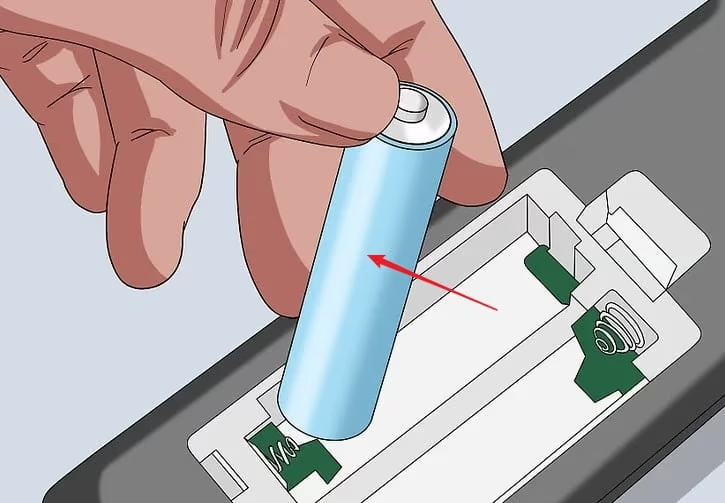
- Take out the batteries. You can find them in a slot, usually on the back or the bottom of the front.
-
Look at the contact terminals or points and see if they have any rust or carbon coating. If yes, then clean them with an alcoholic solution.
-
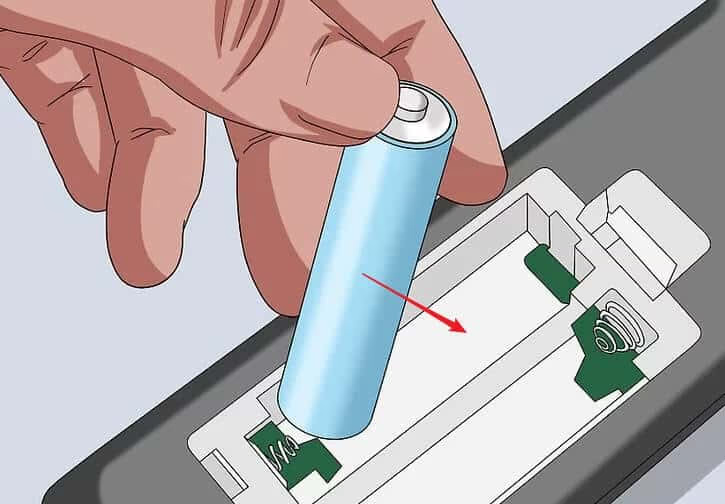
Put these new refreshed batteries or another new pair into the remote. Ensure that you install them correctly into the negative and positive ends.
See if the method has recovered the Vizio remote not working.
#2. Clean the TV Sensor for Any Blockages
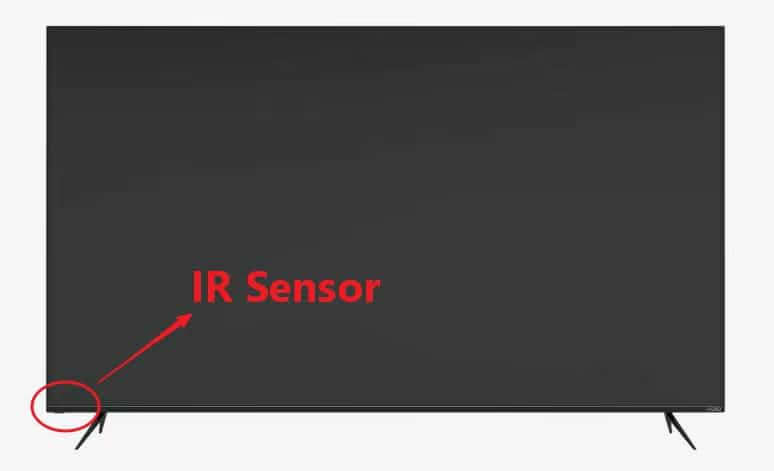
The TV remote might be getting troublesome because its IR sensor is blocked and unable to receive the IR signals. The IR sensor is usually found on the left or right side of the TV at the bottom.
When the blockage happens, anything might have caused that, including even transparent objects. It can be something like the plastic film that covers the remote when it is newly shipped along with the TV.
#Let’s See How To Remove Any Blockage:
- Find the IR sensor on the TV.
-
Move any object that might be lying right in the face of the TV.
-
Check for any visible smudges that might be on the sensor. You can easily clean these with any alcoholic solution.
-
Now direct the remote towards the sensor and then press the Power button. Ensure that the distance between you and the TV is not more than 10 feet, as the IR signals operate within a limited range only.
-
If you can turn the power of the TV on and off easily now, then the reason for the Vizio remote not working was a blockage in the IR signal.
If your Vizio TV has other display problems, check out our guide on Vizio TV black screen fixes.
#3. Use Another Power Source To Fix Vizio Remote Not Working
When the power quality that is being received by the device goes abnormal, it is known as ‘Dirty Power.’ Anything can cause this abnormality, like low power factors, voltage variation, power surges, or frequency variations. If you plug the TV into a dirty power outlet, it may lead the Vizio remote to malfunction.
#What You Then Need To Do Is:
-
Plug the Vizio TV out from the main power source.
-
Move the TV and plug it into a different power outlet, which will give a normal power supply to the TV.
#4. Power Cycling the Vizio Remote
It often happens that some power remains or power residue may get left in the Vizio remote, causing it to malfunction or stop working altogether.
To remove this issue, you can try power cycling the Vizio remote. It gets reset this way, and the entire power residue left back, even when the remote is inactive, gets drained out.
The main purpose of power cycling is to ensure the complete resetting of all the configurations of the remote that was done temporarily. This fixes the error-causing configurations, if any, in the remote.
This also loosens those buttons of the Vizio remote not working that may have gotten wedged down out of your notice.
#Let Us Tell You How To Perform Power Cycling:
- Take the batteries out of the remote.
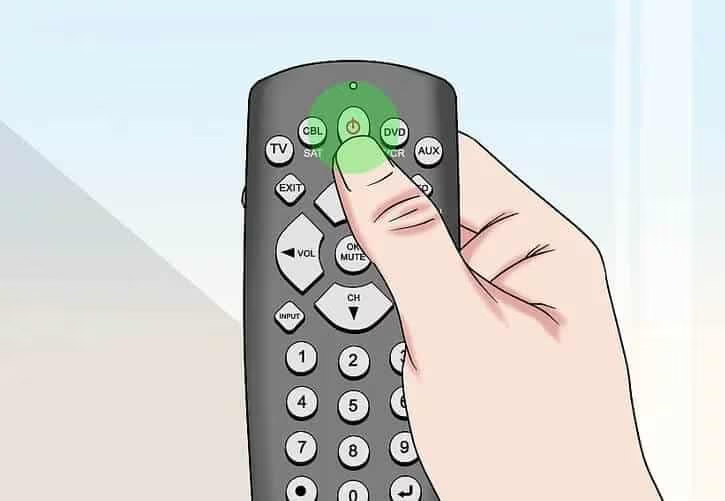
- Press the power button of the remote and then hold it down. This button is normally situated on the top of the body.
-
After 5 seconds, let go of the power button. This will remove the entire power residue from the remote.
-
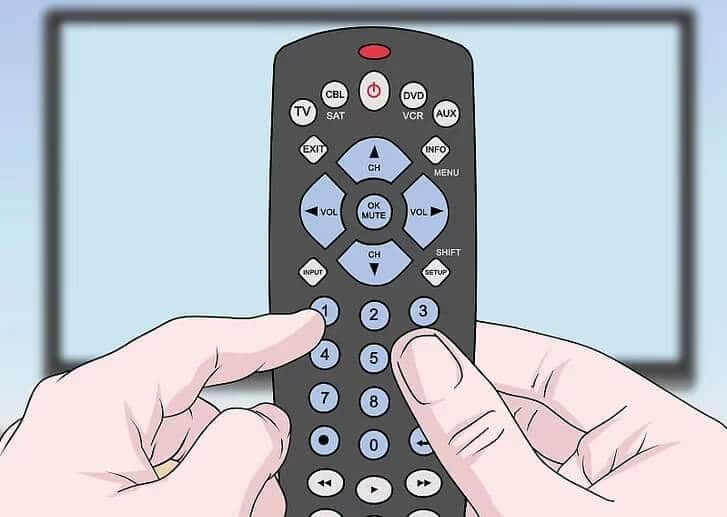
Now, one by one, press all the remote buttons for a single time or two. This will loosen out any button that might have gotten stuck.
Make sure to do this to every button to pluck out the pushed button, which got locked in that position only. If you try to input any other command, the remote will not accept it.
- Insert batteries back into the Vizio remote.
#5. Power Cycle Your TV
Sometimes the problem may happen with the TV and not the remote. It may not respond to any input by the users like remote control trying to change the channels, because it has some fault in its parameters itself.
You might also want to look at our guide on what to do when your Vizio TV won’t turn on.
#You Can Solve This Issue by Power Cycling Your TV Too. The Process Is the Same as That of Power Cycling for a Remote.
-
Remove the TV plug out of the power outlet.
-
Press the power button of the TV and then hold it down for around half a minute. This button is normally situated on the side of the body. This will remove the entire power residue from the TV and solve all the other issues if any.
-
Wait for the next minute.
-
Plug the TV into the main power outlet and then turn it on.
-
Use the remote control to operate the TV.
#6. Clearing the Memory by Resetting the Remote
This method is exclusively meant for the Universal Vizio remote not working. The Vizio Universal Remotes had reportedly faced memory errors many times when they got stuck at a particular stage or a device. This can be settled by performing a reset of these remotes.
Once you clear the memory of the remote successfully, you will have to reconnect it to all the devices that you have used before, like DVD players and others, as the connection info will be lost in the process.
For a full list of codes, see our Vizio TV universal remote codes guide.
#Let’s See How To Do It:
- Press the SETUP button of the remote and keep it held. This button is on the left side of the remote at the top.
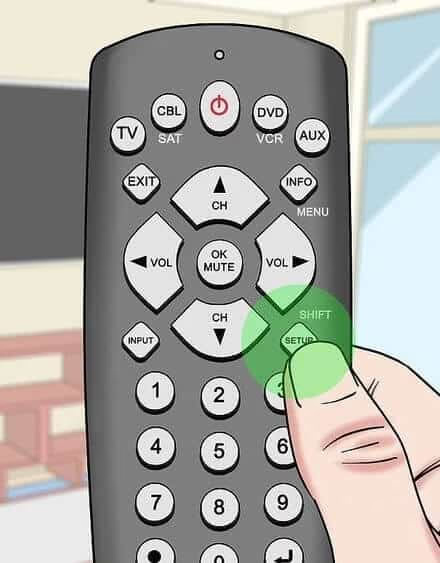
- When you see the LED beam blinking two times, then release the SET button. You can find this light near the top side of the Vizio remote.
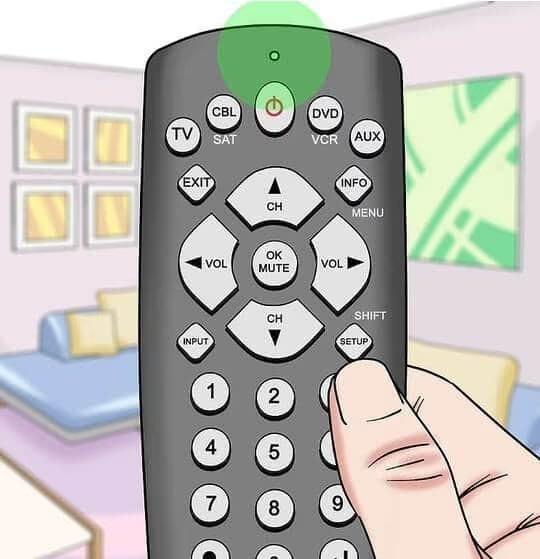
- Now, you have to enter the reset code. Most Universal remotes of Vizio have reset codes like 977 or 981. If you are unsure about your remote’s reset code, look for it in the user manual.
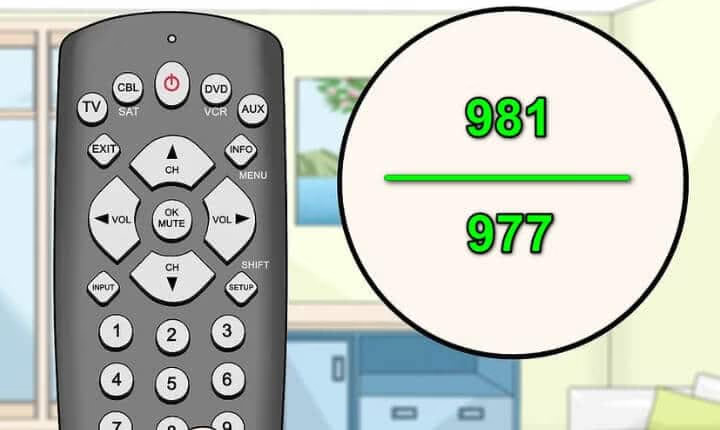
- The LED light will flash twice again. Once you see that happening, know that the memory of your Vizio remote has been wiped out successfully. It will even solve any firmware issue that might have been there. Now reconnect the remote with the TV.
- For reconnecting, you have to be careful about the button that you need to press. The button that switches the remote for controlling the appliance is located in two places: one at the top and the other at the bottom. You have to press the one at the bottom of the remote to switch back the TV.
See if the Vizio remote is not working or is running again or not.
#7. Electronic Radiation Interference
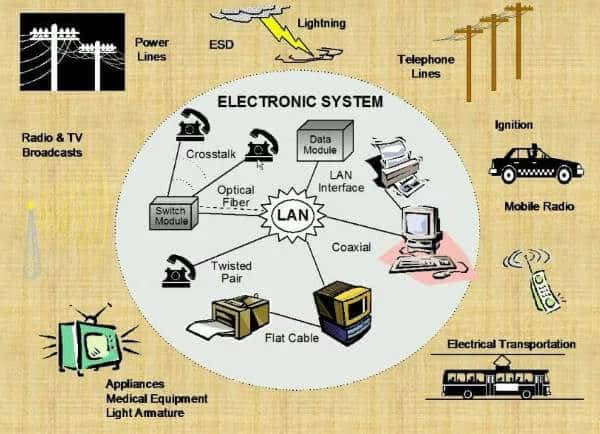
We use so many electronic gadgets at the same time, and each of them emits a different kind of radiation.
Sometimes these radiations clash with each other, like they may be disrupting the IR signal. Such a phenomenon may also be causing the Vizio remote not to work.
#Let Us Tell You How To Deal With This Situation:
-
Identify all the electronic devices that are on, even the normal lights too, and lying within the direct field of view range of the window of the remote sensor.
-
You may need to either move these devices to someplace else or switch them off completely.
-
You can also put masking tape or a Blue painter’s strip of tape on the sensor at the front side of the receiving end. The tape puts a hindrance between the IR and radiations of the other devices and allows only the remote signal to pass through.
#8. Try Remote Application for Mobile
There are so many mobile applications made to utilize a mobile device as a TV remote. You can try any of them, and they make the job very convenient.
Also read: Firestick Remote Volume Not Working - 14 Solutions Here!
#Bottom Line
If you were not able to fix the Vizio remote not working, then you may just get a new one or replace it with another Vizio remote, as most of the remote models are compatible with most of the Vizio TVs.
If no remote is working for the TV, then probably the TV is the culprit. You can also get your remote repaired for any damage.
We hope that the article helped you to get the issue fixed!
#FAQ
#Why is my Vizio remote not working even with new batteries?
While new batteries usually solve the problem, there could be other causes such as a remote pairing problem or a faulty remote. Try resetting the remote and re-pairing it with the TV. If the IR camera test shows no light from any button, the remote hardware itself may need replacing.
#Can I use a universal remote as a replacement for my Vizio remote?
Yes, you can use a universal remote as a replacement. You will need to program the universal remote to work with your Vizio TV using the correct device code. Check the universal remote’s manual for Vizio-specific codes, which are usually listed under the TV brand section.
#How often should I clean my Vizio remote?
Clean your Vizio remote every two to three months to prevent the buildup of dirt and debris around the buttons. Use a slightly damp cloth on the exterior and a cotton swab dipped in rubbing alcohol for the battery contacts.
#Do I need an internet connection to update the firmware on my Vizio TV?
Yes, you need an internet connection to download and install firmware updates on your Vizio TV. Connect the TV to Wi-Fi, then go to Settings > System > Check for Updates.
#How long does it usually take for Vizio support to respond?
Vizio support typically responds to customer inquiries within 24 to 48 hours. For faster help, try their live chat option on the Vizio support website during business hours.
#What should I do if only some buttons on my Vizio remote work?
If certain buttons respond while others do not, a stuck button is likely the cause. Remove the batteries, then press every button on the remote firmly two or three times to release any that may be physically jammed. Reinsert the batteries and test again.
#How far away can I use my Vizio remote from the TV?
Most Vizio IR remotes work within a range of about 10 feet from the TV sensor. If you sit farther than that, the signal may not reach. Make sure there is a clear line of sight between the remote and the sensor with no obstructions in between.
#Can a Vizio remote stop working because of a TV software glitch?
Yes, a software glitch on the TV side can make it stop responding to remote inputs entirely. Power cycle the TV by unplugging it for 60 seconds, then plug it back in. This clears temporary software errors and often restores remote functionality.