Popcorn Time is a popular free streaming app that lets you watch movies and TV shows without paying for subscriptions. By connecting Popcorn Time to Chromecast, you can stream this content on your TV for a better viewing experience. This guide walks you through exactly how to set it up, troubleshoot common issues, and find alternatives.
- Both devices need the same Wi-Fi network — Chromecast and your Popcorn Time device must share one wireless network or casting will fail
- Popcorn Time uses BitTorrent — the app streams pirated content, which is illegal in most countries and can result in ISP warnings
- A VPN is strongly recommended — services like NordVPN or ExpressVPN hide your streaming activity from your ISP
- Casting takes five steps — install the app, join the same network, pick content, tap Cast, and select your Chromecast
- Legal alternatives exist — Stremio, Plex, Kodi, and Jellyfin offer similar functionality with less legal risk
#What Is Popcorn Time?
Popcorn Time is an open-source, multi-platform BitTorrent application that includes an integrated media player. It provides a free alternative to subscription-based video streaming services like Netflix and Hulu. The interface presents movies and shows in an easy-to-browse layout that feels similar to paid platforms.
#Is Popcorn Time Legal?
While using Popcorn Time to stream free movies and shows is convenient, the app operates in a legal grey area. Popcorn Time accesses pirated content, which is illegal in most countries. Many internet service providers (ISPs) track and may issue warnings for using Popcorn Time. Use a VPN to hide your streaming activity if you decide to use Popcorn Time.
#Popcorn Time Alternatives
There are some legal Popcorn Time alternatives that provide free or low-cost streaming:
-
Stremio: clean interface to organize your media from various sources
-
Plex: media server to stream your local content collection
-
Kodi: customizable open-source home theater software
-
Jellyfin: free media server alternative to Plex and Emby
#How Do You Set Up Popcorn Time with Chromecast?
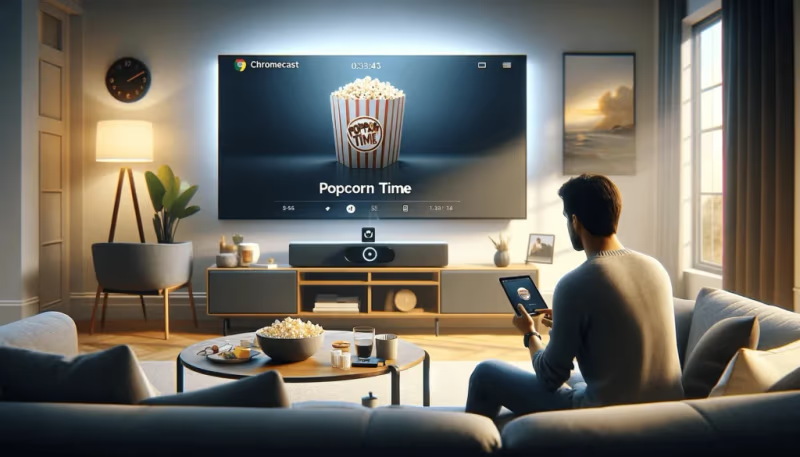
Requirements:
-
Laptop, smartphone, or tablet with Popcorn Time installed
-
Reliable Wi-Fi connection
#Step 1: Download Popcorn Time
Go to popcorntime.app and download the correct version for your device, then install the app. Note that Popcorn Time is not available on official app stores.
#Step 2: Connect Devices to Same Wi-Fi Network
Your Popcorn Time device and Chromecast must be connected to the same wireless network. Make sure both have a strong Wi-Fi signal.
#Step 3: Open Popcorn Time and Select Content
Open the Popcorn Time app and browse to find a movie or TV show to watch. Click on the title you want.
#Step 4: Click the Cast Icon
With your content selected, click the Cast icon in the top right of the Popcorn Time player window. If you don’t see the Cast icon, your devices may not be on the same network.
#Step 5: Select Your Chromecast Device
In the pop-up that appears after clicking the Cast icon, choose the name of your Chromecast device from the list. Popcorn Time will connect to Chromecast and begin streaming your movie or show on the connected TV.
#Troubleshooting Tips
#Popcorn Time Not Connecting to Chromecast
-
Make sure devices are on the same Wi-Fi network
-
Reboot your router and/or Chromecast
-
Update to the latest version of Popcorn Time
-
Try a different version of Popcorn Time
#Buffering or Playback Issues
-
Make sure you have a strong Wi-Fi signal
-
Pause the video and allow it to load for a few minutes
-
Try a different content source
-
Lower the video quality settings in Popcorn Time
-
Increase your device’s cache size in Popcorn Time settings
#Popcorn Time Alternatives for Chromecast
-
Videostream: Chrome extension to stream videos to Chromecast
-
LocalCast: Android app for streaming videos/music to Chromecast
-
Stremio: organize and stream media, supports Chromecast
-
Plex: cast from your Plex media server
#Bottom Line
-
Popcorn Time provides a free way to stream movies and TV shows
-
Popcorn Time exists in a legal grey area since it accesses pirated content
-
To use Popcorn Time with Chromecast, devices must connect to the same Wi-Fi network
-
Click the Cast icon in Popcorn Time and select your Chromecast to start streaming
-
Frequent issues include connectivity problems and buffering
-
Several Popcorn Time alternatives exist for Chromecast users
#Frequently Asked Questions
#Is Popcorn Time safe to use?
Popcorn Time works well for most people, but it can expose you to malware since it relies on peer-to-peer file sharing. Always run antivirus software alongside it. A VPN adds another layer of protection by hiding your IP address from other users in the torrent swarm.
#How do I update Popcorn Time?
You will see a notification when you open the app if a new version is available. You can also download the latest version directly from popcorntime.app. Keeping the app updated fixes bugs and improves Chromecast compatibility.
#Can I download content from Popcorn Time to watch offline?
Yes, Popcorn Time has a download option for watching movies and shows without an internet connection. Keep in mind that downloading copyrighted material is illegal in most jurisdictions and can result in fines or legal action.
#What is the best VPN to use with Popcorn Time?
Top VPNs for Popcorn Time include NordVPN, ExpressVPN, and CyberGhost. Look for a VPN with a strict no-logs policy and fast speeds, since slow VPN connections cause buffering during Chromecast playback. Avoid free VPNs because they often sell your browsing data.
#Does Popcorn Time work on iPhone or iPad?
Popcorn Time is not available on the Apple App Store. You would need to jailbreak your iOS device and sideload it from a third-party source, which voids your warranty and opens security risks. Stremio or Plex are safer alternatives that work natively on iOS and support Chromecast.
#Why does Popcorn Time keep buffering on Chromecast?
Buffering usually happens because your Wi-Fi signal is too weak or too many devices share the same network. Move your router closer to your Chromecast, or switch to a 5 GHz band for faster throughput. You can also lower the video quality inside Popcorn Time settings to reduce the bandwidth requirement.
#Can I use Popcorn Time without a Chromecast?
Yes. Popcorn Time plays content directly on your laptop, phone, or tablet without any extra hardware. If you want to watch on a TV without Chromecast, you can connect your laptop via HDMI or use screen mirroring through AirPlay or Miracast.
#Is Chromecast with Google TV better for Popcorn Time than the original Chromecast?
Chromecast with Google TV runs Android TV, so you can sideload Popcorn Time directly onto it instead of casting from another device. This removes the dependency on a second device and often reduces buffering. The original Chromecast only supports casting, which means you always need a phone or laptop running the app.