It can be frustrating when you turn on your television only to discover that while you have sound, the screen remains black with no picture. A TV with sound but no picture is a common issue that can often be resolved with some simple troubleshooting steps. As a TV repair technician with over 10 years of experience, I’ve helped countless customers diagnose and resolve issues with their televisions. A black screen on a TV that still has audio is one of the most frequent problems I encounter. In the vast majority of cases, a few quick checks are all that’s needed to get the TV picture back.
- Wrong input source is the #1 cause — cycling through HDMI inputs fixes the problem in about 40% of cases
- Loose HDMI cables cause intermittent black screens — reseating all connections takes under a minute and often restores the picture
- A 60-second power cycle clears most software glitches — unplug the TV, wait a full minute, then plug it back in
- A dim image under flashlight means backlight failure — this hardware issue requires professional repair or panel replacement
- Sleep timers and energy saving modes can blank the screen — check your TV settings menu to disable any auto-off features
#What Causes a TV to Have Sound but No Picture?
#Loose or Damaged Cables
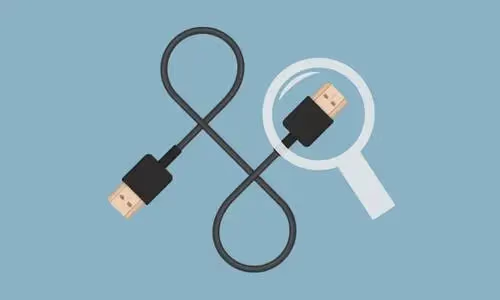
One of the first things to check is the cables connecting your TV to power, your cable box, game console, or other devices. HDMI cables in particular can work loose over time. Inspect all wires for any visible damage like fraying or exposed wires. Even a small break can disrupt the video signal.
#Incorrect Input Source
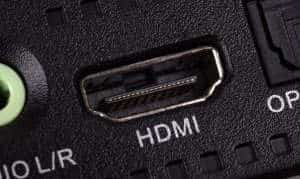
If your TV has multiple HDMI ports or input sources, the TV may simply be set to the wrong one. Check that the TV input matches the port your external device is plugged into (HDMI 1, HDMI 2, etc.). You can cycle through the inputs using the “Source” button on your TV remote.
#Defective Backlight or Display Panel
In some cases, the backlight that illuminates the LCD screen or the display panel itself can fail while the audio circuitry still works. To check for a faulty backlight, shine a bright flashlight on the screen and see if you can make out a very dim picture. A damaged display requires professional repair or replacement.
Common TV brands that can experience this issue include:
#Power Supply Issues
Your TV’s power supply unit provides different voltages to various components. If the power supply board develops a fault, it may still provide power to the speakers but not to the video processing board or backlight. In this case, only a professional should attempt a power board repair or replacement.
#Sleep Timer Enabled
Some TVs have an automatic sleep timer that will shut off the screen after a period of inactivity but leave the audio on. Check your TV’s settings menu and turn off any sleep timer or power saving modes that may be enabled. A settings reset can also help if a software glitch is the culprit.
#How Do You Fix a Black Screen TV with Sound?
#Check All Cables and Connections
-
Firmly reseat any loose cable connections, especially HDMI cables
-
Inspect wires for damage and replace as needed
-
Make sure your surge protector is working properly
#Select the Correct Input Source
-
Press the “Input” or “Source” button on the TV or remote
-
Cycle through the inputs until your picture reappears
-
Check that the correct device is connected to the selected input
#Perform a Power Cycle
-
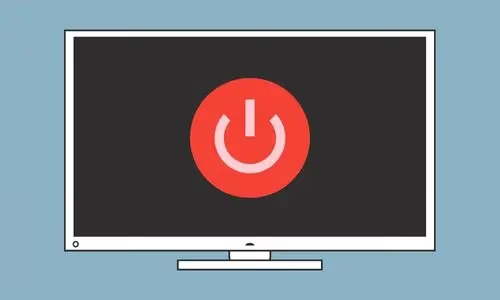
Turn off the TV and unplug it from the wall outlet
-
Wait at least 60 seconds, then plug the TV back in
-
This clears any temporary glitches that may be disrupting the video
#Disable Energy Saving or Sleep Timer Settings
-
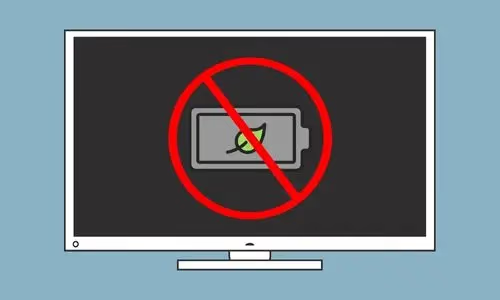
Open your TV’s “Settings” or “Setup” menu
-
Look for any “Energy Saving”, “Power Saving”, or “Sleep Timer” options
-
Disable these settings if they are turned on
-
Perform a full settings reset if the problem persists
#Test with Another Device
-
Connect a different device like a streaming stick or game console to the same input
-
If the other device’s picture shows up, the issue is with the original device, not the TV
-
If you still get no picture, try a different input port on the TV
-
Apple TV Black Screen issues can also cause this problem
#Update TV Firmware
-
Check if your TV has a pending firmware update available
-
Firmware updates can often resolve software bugs and glitches
-
Download the update file from the manufacturer’s website and install via USB
#Factory Reset the TV
-
Fully reset your TV’s settings to factory defaults
-
This restores the original software and settings, rolling back any changes or glitches
-
Note that you will need to re-enter any custom picture settings after the reset
#Inspect for Physical Damage
-
Check the TV for any cracks, dead pixels, or dark spots on the screen
-
Shine a flashlight on the screen to check for a dim picture, indicating backlight failure
-
If you see signs of physical damage, professional repair or replacement may be needed
Specific TV models prone to physical screen issues include:
#When to Call a Professional for TV Repair
While many black screen issues can be fixed at home, some require specialized tools and knowledge. If you’ve tried the troubleshooting steps above and still have a TV with sound but no picture, it’s time to call in a professional TV repair technician.
Issues requiring professional repair include:
-
Physical damage to the screen or backlight
-
Failure of the power supply board
-
Defects on the main circuit boards
Attempting these repairs yourself can be dangerous due to the high voltages inside TV sets. You also risk causing further damage to delicate components. A qualified technician can safely diagnose the issue and perform the necessary repairs to get your TV working again.
#Preventing Black Screen Issues on Your TV
To keep your TV in top shape and avoid black screens and other problems, follow these tips:
-
Ensure proper ventilation to prevent overheating
-
Install a surge protector to safeguard against electrical spikes
-
Routinely clean dust from the TV vents and ports
-
Be gentle when connecting and disconnecting cables
-
Keep the firmware updated to prevent software glitches
-
Avoid placing heavy objects on top of the TV
By taking good care of your television, you can enjoy a crystal-clear picture and sound for years to come. If you do run into a black screen or other issue, the expert tips in this guide can help you troubleshoot it quickly.
#Frequently Asked Questions
#Why does my TV have sound but no picture?
The most common causes are using the wrong source input, loose or faulty cables, a defective backlight, or the sleep timer being activated. More serious hardware failures like a damaged power supply or main board can also be responsible.
#What should I do first when my TV screen goes black?
Check that all cables are firmly connected and you are on the correct input source. Try a different HDMI port or cable to rule out a faulty connection. If that does not help, unplug the TV for 60 seconds and plug it back in.
#How do I tell if my TV backlight has failed?
Shine a bright flashlight directly at the screen while the TV is on. If you can see a very faint image, the backlight has failed but the panel still works. This type of repair usually requires a professional technician to replace the LED strips or backlight inverter board.
#Can a firmware update fix a black screen?
Yes, outdated firmware can cause display glitches including black screens. Check the manufacturer’s support website for your TV model and download the latest firmware to a USB drive. Install the update and restart the TV to see if it resolves the issue.
#Does a factory reset fix a TV with no picture?
A factory reset can fix black screen problems caused by corrupted settings or software bugs. Keep in mind that a reset erases all your custom picture settings, Wi-Fi passwords, and app logins. Only use this option after simpler fixes like power cycling and cable checks have failed.
#When should I call a professional for a black screen TV?
Call a technician if the screen shows physical damage, the backlight has failed, or the power supply board is faulty. These repairs involve high voltages and delicate components that are unsafe to handle without proper training. In some cases, the repair cost may exceed the value of an older TV, making replacement the better option.
#Is it worth repairing a TV with a black screen?
It depends on the cause and the age of your TV. Cable issues, wrong inputs, and software glitches cost nothing to fix at home. Backlight or power board replacements typically run $100 to $300 for parts and labor, so weigh that against the price of a new TV.
#Bottom Line
-
Check that all cables are securely connected and free of damage
-
Make sure the TV is set to the correct input source for the desired device
-
Perform a power cycle by unplugging the TV for at least 60 seconds
-
Disable any sleep timer or power saving settings that may turn the screen off
-
Update the TV firmware to resolve any software bugs
-
Test with a different streaming device or game console on the same input
-
Factory reset the TV to eliminate any custom settings that may be causing issues
-
Call a professional for TV repair if the screen is physically damaged or the power supply has failed
By following these troubleshooting steps, you should be able to fix most cases of a TV with sound but no picture. The fix is often simpler than it seems at first. With a methodical approach and a little patience, you can resolve this common television problem and get back to enjoying your favorite shows.