Samsung Smart TVs ship with multiple voice features that talk over your shows, respond to accidental commands, and raise privacy questions. Bixby, Voice Guide, and voice wake-up each serve different purposes, but they all share one trait: most people want at least one of them turned off. This guide covers every method for every Samsung TV generation from 2014 to 2026.
- Voice Guide and Bixby are separate features — disabling one does not turn off the other
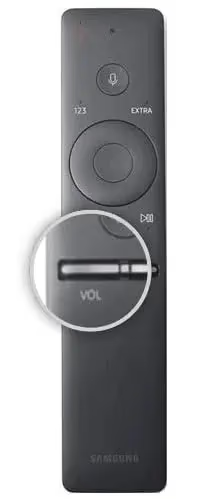
- The fastest method takes under 10 seconds — hold the volume button for 5 seconds, then press Select
- Older Samsung TVs (2008-2013) use Audio Description instead — the setting is under Sound > Audio Language
- Turning off voice features does not affect remote functionality — your microphone button and smart search still work normally
- Samsung added a dedicated Voice toggle in 2020+ models — found under Settings > General > Voice
#What Voice Features Does a Samsung TV Have?
Samsung Smart TVs include three distinct voice-related features, and each one needs its own setting to disable. Confusing them is the most common reason people think the “voice assistant won’t turn off.”
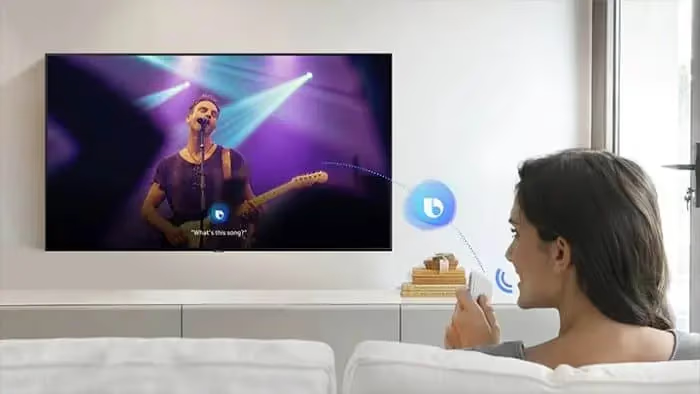
Bixby is Samsung’s AI assistant. It activates when you press (or hold) the microphone button on your remote. On 2020+ models, Bixby can also wake up when it hears “Hi Bixby” through the TV’s built-in microphone. This is the feature that records and processes voice commands through Samsung’s servers.
Voice Guide is an accessibility screen reader. It narrates on-screen menus, channel names, and volume levels out loud. Voice Guide runs entirely on the TV with no internet connection required. If your TV is “talking to you” every time you press a button, Voice Guide is the culprit.
Audio Description appears on older models (2008-2013). It reads descriptive narration over broadcast content for visually impaired viewers, and it lives under a completely different menu path than Voice Guide.
#How Do You Turn Off Voice Guide on Samsung TV?
Voice Guide is the feature most people want disabled first. Here are three methods ranked by speed.
#Method 1: Volume Button Shortcut
- Press and hold the volume button on your Samsung TV remote for 5 seconds.
- A menu appears on screen. Press the Center/Select button to toggle Voice Guide off.
That’s it. This shortcut works on all Samsung Smart TVs from 2016 onward and takes about 10 seconds total.
#Method 2: Accessibility Settings Menu
- Press the Home button on your remote.
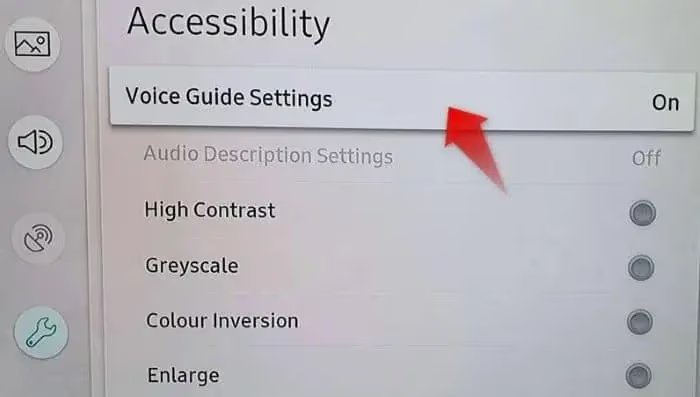
- Navigate to Settings > General > Accessibility > Voice Guide Settings.
- Select Voice Guide and set it to Off.
On 2022+ Samsung TVs running the new Tizen interface, the path is Settings > All Settings > General & Privacy > Accessibility > Voice Guide Settings.
#Method 3: Use a Voice Command
If Bixby is still active, press and hold the microphone button until “Listening” appears. Say “Turn off Voice Guide.” The TV confirms the change immediately. This method is useful when you can navigate menus but the constant narration makes it hard to find the right setting.
#How Do You Disable Bixby on Samsung TV?
Bixby requires a separate process from Voice Guide. There are two things to disable: the button trigger and the wake-up word.
#Turn Off the Bixby Button
- Press the Home button on your remote.
- Go to Settings > General > Voice.
- Set Voice Assistant to None or toggle it off entirely.
On some 2019-2020 models, this menu shows options for Bixby, Amazon Alexa, and Google Assistant. Select None to disable all voice assistants.
#Turn Off “Hi Bixby” Wake-Up
Samsung TVs with built-in microphones (most 2020+ QLED and Crystal UHD models) can listen for “Hi Bixby” even when you haven’t pressed any button. To stop this:
- Go to Settings > General > Voice > Voice Wake-up.
- Toggle Voice Wake-up to Off.
Samsung’s official support page confirms that disabling Voice Wake-up stops all background listening on the TV’s microphone. For extra peace of mind, some models include a physical microphone switch on the bottom bezel of the TV.
If you are having other issues with your Samsung TV remote, our guide on the Samsung TV power button covers physical button locations and troubleshooting for all recent models.
#Turning Off Voice Features on Older Samsung TVs
Older Samsung Smart TVs use different menu structures. The steps below are organized by model year.
#2014-2018 Models
- Press the MENU/123 button on the remote.
- Navigate to Menu > System (or Settings) > Accessibility > Voice Guide.
- Select Off.
Some 2014-2015 models label the setting as Voice Notification instead of Voice Guide. The function is identical.
#2008-2013 Models
These TVs do not have Bixby or Voice Guide. The voice narration you hear is Audio Description, a broadcast feature:
- Press Menu on your remote.
- Go to Sound > Broadcast > Audio Language.
- Change from English AD to English.
Audio Description is content-specific. It only activates on broadcasts that include a descriptive audio track, so changing channels may also stop the narration.
#What Happens After You Disable Voice Features?
Turning off voice features does not remove any TV functionality beyond voice control itself. Your remote buttons, smart hub apps, and search features all work normally.
Here is what changes with each setting:
| Feature Disabled | What Stops | What Still Works |
|---|---|---|
| Voice Guide | Menu narration, channel announcements | Remote, apps, Bixby |
| Bixby | Voice search, AI commands | Remote, Voice Guide, apps |
| Voice Wake-up | Background microphone listening | Bixby via button press |
| Audio Description | Narrated broadcast descriptions | All TV functions |
If your Samsung TV keeps freezing after disabling voice features, the issue is unrelated. A frozen TV usually points to a firmware or memory problem, not a voice setting.
#Privacy Considerations for Samsung TV Voice Features
Samsung’s voice features transmit data to external servers for processing. According to Samsung’s privacy policy, voice recordings are sent to third-party speech-to-text services when Bixby is active. Disabling Bixby and Voice Wake-up stops this data transmission.
Voice Guide, by contrast, runs locally on the TV hardware and does not send any data externally. There is no privacy concern with Voice Guide beyond the annoyance of constant narration.
For those concerned about smart TV data collection in general, rtings.com publishes independent testing results on smart TV privacy behavior across all major brands.
If your Samsung TV is experiencing Wi-Fi connectivity problems after changing voice settings, the two issues are not connected. Network settings are under a different menu branch entirely.
#Bottom Line
Disable Voice Guide through the volume button shortcut (hold 5 seconds, press Select) for the fastest fix. Turn off Bixby separately under Settings > General > Voice. If your TV is from 2013 or earlier, switch Audio Description off under Sound > Audio Language. Each voice feature operates independently, so check all three if your Samsung TV is still talking when it should not be.
#FAQ
#Can you turn voice features back on after disabling them?
Yes. Follow the same menu paths described above and toggle the settings back to On. No data is lost and no reset is required. Samsung preserves your voice assistant preferences through firmware updates as well.
#Does disabling Bixby affect third-party voice assistants?
No. Amazon Alexa and Google Assistant integrations on Samsung TVs use separate settings under Settings > General > Voice. You can disable Bixby while keeping Alexa or Google Assistant active, or turn off all three by selecting None as your voice assistant.
#Why does my Samsung TV keep talking even after I turned off Voice Guide?
You likely have Audio Description enabled on a broadcast channel, or Bixby is still responding to accidental remote presses. Check both settings. On some models, a factory reset may be needed if the Voice Guide toggle appears Off but narration continues, which Samsung attributes to a rare firmware bug in 2019 TU series models.
#Do all Samsung TV remotes have a microphone button?
No. The standard IR remote included with lower-end Samsung models (like the TU7000 series) does not have a microphone. Only the Samsung Smart Remote (the slim, dark remote with minimal buttons) includes a built-in microphone for Bixby. If your remote lacks a mic button, Bixby voice commands are not available on your TV.
#Will a factory reset turn voice features back on?
Yes. A factory reset restores all settings to their defaults, which means Voice Guide and Bixby return to their enabled state. You will need to disable them again after the reset completes. Write down your Wi-Fi password before resetting since network settings are also cleared.
#Is Samsung always listening through the TV microphone?
Only if Voice Wake-up is enabled. When Voice Wake-up is off, the TV microphone is inactive until you physically press the microphone button on the remote. Samsung confirmed this in their 2023 privacy update. Models with a physical mic switch on the TV body provide a hardware-level guarantee that no audio is captured.
#How do you check which voice features are currently active?
Go to Settings > General > Voice on 2020+ models. This screen shows your current voice assistant selection, wake-up trigger status, and microphone permissions in one place. On older models, check Accessibility > Voice Guide separately from the Bixby settings, since they live in different menu branches.