Has Tubi TV stopped working on your Samsung, LG, Sony, or other smart TV? Don’t worry – this guide walks you through every fix to get Tubi back up and streaming your favorite movies and shows in no time.
- Restart first — closing Tubi and rebooting your TV fixes most temporary glitches in under 2 minutes
- Internet speed matters — Tubi needs at least 3-5 Mbps, so test your connection before trying other fixes
- Clear cache or reinstall — corrupted app data causes crashes, and a fresh install resolves it on all platforms
- Check Tubi server status — outages at status.tubi.tv confirm the problem is on Tubi’s end, not yours
- Factory reset is the last resort — resetting your TV wipes all settings, so try every other step first
#Why Does Tubi TV Stop Working on Smart TVs?
Before jumping into solutions, it helps to understand what typically causes Tubi to have issues on smart TV platforms:
-
Connectivity Problems: From WiFi connection issues to problems with specific devices like Firesticks, connectivity problems are one of the most common reasons Tubi TV stops working.
-
Software Bugs: Bugs or glitches in the Tubi app, your smart TV firmware, or mobile OS updates can all cause Tubi functionality problems.
-
App Caching Issues: Too much cached data in the Tubi app builds up over time, leading to crashes, freezes, or playback failures.
-
Account Problems: Incorrect login credentials or problems on Tubi’s user authentication servers can prevent you accessing your account.
-
Regional Restrictions: Licensing limitations may block Tubi TV content if you are traveling or using a VPN located in a restricted area.
That covers why your Tubi TV app may have stopped working. Next, let’s go through the top troubleshooting fixes.
#10 Ways to Get Tubi Working Again on Your Smart TV
If you encounter problems streaming Tubi on your smart TV, try these troubleshooting solutions in order:
#1. Check Tubi TV Server Status
Before troubleshooting anything on your end, confirm Tubi TV’s servers are actually up and running properly by checking their official status page. This lets you rule out any widespread outages.
#2. Restart the Tubi App
Like with most apps, try closing and reopening the Tubi TV app on your smart TV. This clears any temporary glitches. Head to your home screen, locate Tubi, then select Close. Reopen it after 20-30 seconds – this simple restart resolves many intermittent issues.
#3. Restart Your Smart TV
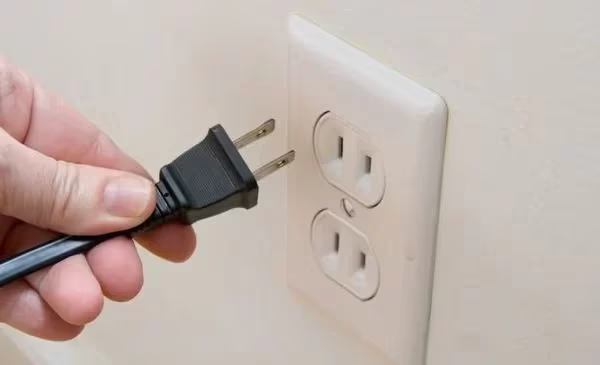
If restarting Tubi didn’t help, do a full reboot of your smart TV. Turn off your TV, unplug it from power for 60 seconds, then plug back in and turn on your TV. Rebooting flushes any software quirks, connects network devices, and reloads the Tubi app properly on startup.
#4. Check Your Internet Connection
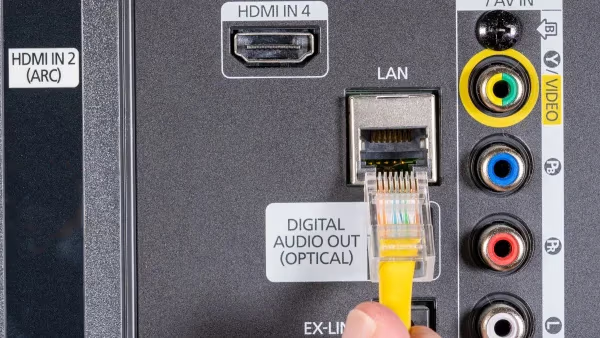
Tubi requires a minimum 3-5 Mbps internet speed for smooth streaming. Using your smart TV browser or a speed testing app, confirm your download speeds meet or exceed this. If not, connect your TV via Ethernet or troubleshoot your WiFi issues – Tubi problems inevitably occur on slow internet connections.
#5. Update Tubi TV and Smart TV Firmware
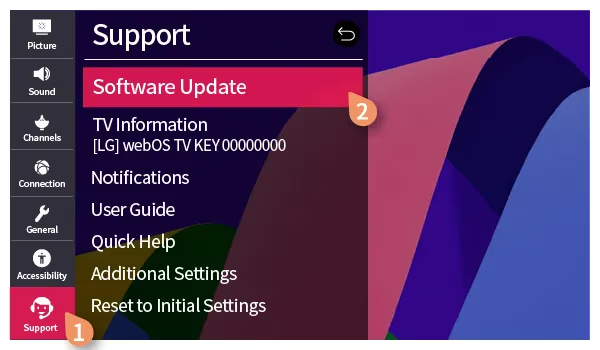
Outdated apps and firmware often lose compatibility with services like Tubi over time. On your smart TV, find the Updates section and install the latest firmware. Also go into Apps and check for Tubi TV app updates. Installing new updates fixes software bugs preventing Tubi from working properly.
#6. Reinstall the Tubi TV App
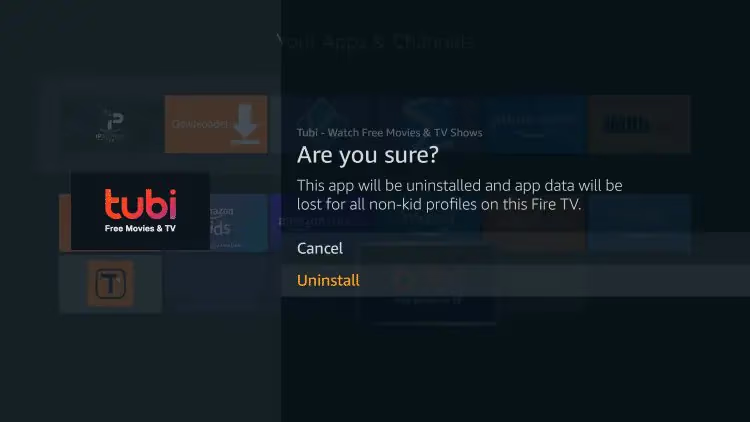
Corrupted app installs can stop Tubi working, even after app restarts. On your smart TV, go to Settings > Apps > Tubi TV and choose Uninstall. Wait 1 minute, then search “Tubi” in the app store and reinstall Tubi TV on your smart TV. This forces a clean app install fixing quirks making Tubi crash or freeze.
#7. Power Cycle Networking Equipment
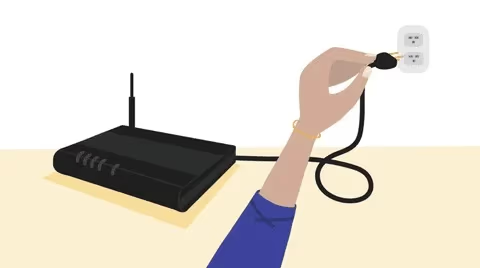
Issues with routers, modems, or WiFi connections often manifest as problems in streaming apps. Power cycle your networking equipment by unplugging them for 20 seconds then plugging them back in. Once your WiFi network is back up, try loading Tubi. This clears up network conflicts so Tubi can reconnect.
#8. Check Firewall and Port Block Settings
Some corporate, hotel, school, and custom home networks block streaming media ports by default. Use your smart TV to connect with your router admin interface and check any blocked services lists or firewall settings. If ports 5223 or 443 are blocked, Tubi cannot function properly – you’ll need to request they are opened.
#9. Reset Tubi and Smart TV to Defaults
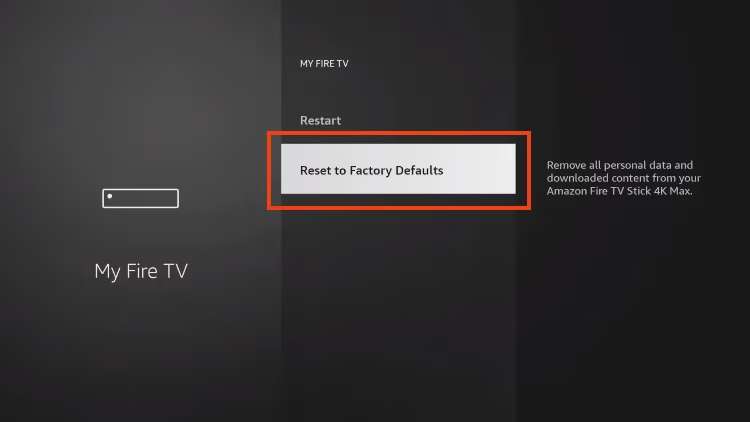
Failing the other troubleshooting steps for getting Tubi working again, reset your devices. For smart TVs, reset your device to factory default settings in the Advanced Options menus. Also delete and reinstall Tubi to fully refresh your configuration. Resetting devices forces Tubi to run a clean setup reducing conflicts.
#10. Contact Tubi TV Support
If Tubi continues failing even after trying all troubleshooting, email [email protected] explaining your smart TV model, OS version, and the issues experienced. Provide any error messages received. Tubi support can then investigate issues specifically affecting your device and provide specialized troubleshooting advice or escalate serious system issues.
#How Do You Fix Tubi on Specific Smart TV Platforms?
Beyond general troubleshooting steps, here are some Tubi fixes tailored to particular smart TV operating systems:
#Fixing Tubi on Samsung Smart TVs
-
On Samsung TVs, use Smart Hub to confirm Tubi app certification is still active (expired certificates can block playback).
-
Enable Game Mode to potentially resolve streaming problems caused by post-processing effects.
-
Clear persistent Tubi data in Samsung’s Device Care > Storage settings.
#Fixing Tubi on LG Smart TVs
-
Check LG Content Store for any available Tubi app updates to install.
-
Try switching audio output from Optical to HDMI or TV Speaker, as optical can lose signal.
-
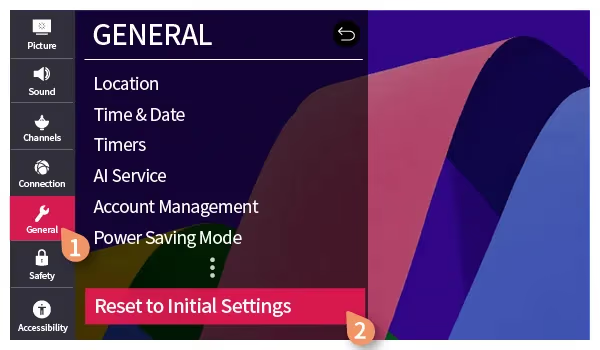
Perform a full Factory Reset under LG General > Reset Options to start fresh.
#Fixing Tubi on Sony/Android TVs
- Under Sony TV settings, disable Auto Picture Modewhich optimizes streams incorrectly.
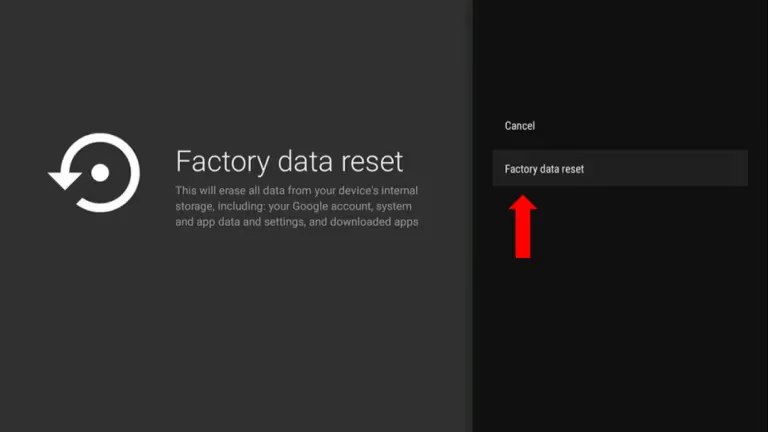
Perform a Factory Data Reset under Sony Settings > Storage & System > Factory Data Reset.
- Open TV network ports or enable UPnP/DLNA functionality for app connectivity.
#Fixing Tubi on VIZIO SmartCast TVs
-
Launch My Verizon app and confirm correct device registration for streaming authorization.
-
Cast Tubi from phone to confirm problems limited to smart TV app, not overall connectivity.
-
Factory Reset under VIZIO System > Factory Reset everything which can fix B-grade apps like Tubi.
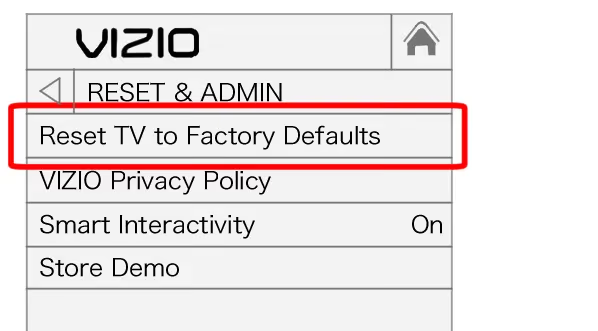
So in summary – restarting devices, installing updates, reinstalling Tubi, checking restrictions, and factory resetting as a last resort should get your Tubi TV service functioning again on most smart TVs.
#Frequently Asked Questions About Tubi Issues on Smart TVs
#Why does Tubi keep buffering on my smart TV?
Buffering usually comes from a slow internet connection. Use a speed test app on your smart TV to confirm your network delivers at least 5 Mbps. Restarting your modem and router can also help, and connecting via Ethernet instead of WiFi gives you a more stable signal.
#How do I uninstall and reinstall Tubi on my smart TV?
Go to your smart TV settings, select Apps or Application Manager, choose Tubi, then pick Uninstall. Wait about a minute, then search “Tubi” in your TV’s app store and reinstall it. This forces a clean install that clears corrupted data.
#Why does Tubi keep freezing and crashing?
Outdated Tubi or TV firmware is the most common cause. Update both your TV’s system software and the Tubi app through your TV’s settings menu. If crashes continue after updating, reboot your TV and check that your network hardware is working properly.
#How do I log out and back into Tubi on my smart TV?
Open Tubi and navigate to the left-side menu, then go to Settings and select Log Out. After logging out, choose Log In and re-enter your credentials to refresh your authentication session.
#Does a VPN stop Tubi from working on smart TVs?
Yes, Tubi blocks access when it detects VPN connections or IP addresses from unsupported regions. This happens because of licensing restrictions. Turn off your VPN and connect from a supported area to restore access.
#How does Tubi compare to Netflix and YouTube TV?
Tubi is a free, ad-supported service, while Netflix and YouTube TV require paid subscriptions. Tubi’s library focuses on older movies and TV shows rather than original content. Check our Tubi TV review for a full feature breakdown.
#Does Tubi show ads during streaming?
Yes, Tubi runs video ads to keep the service free. You can expect about 2-3 ad breaks every 10-15 minutes of viewing. Learn more about how Tubi ads work compared to paid services.
#Can I watch Tubi on older smart TV models?
Tubi supports most smart TVs released after 2014, but very old models may lose compatibility over time. If your TV no longer supports the Tubi app, consider using a streaming stick like a Fire TV Stick or Roku plugged into your TV’s HDMI port.
#Bottom Line
Getting Tubi working again on your smart TV is crucial for enjoying free shows, movies, and live news. Now you’re equipped to troubleshoot Tubi TV on Samsung, LG, Vizio, Sony, and all other platforms.
-
Start with simple resets before factory methods.
-
Keep TVs and Tubi app updated.
-
Check network connectivity and speeds.
-
Clear app cache and reinstall if issues continue.
-
Contact Tubi support to escalate unresolved problems.
Bookmark this guide as reference to help avoid lengthy Tubi downtime. Share it with friends and family who run into Tubi smart TV issues so they can get streaming again faster. For Roku-specific troubleshooting, see our guide on fixing Tubi not working problems on Roku TVs.