Having issues with no sound or audio on your Toshiba TV? Even reliable Toshiba televisions on par with top brands like Hisense can sometimes develop sound issues like:
-
No audio whatsoever
-
Intermittent sound cutting in and out
-
Poor sound quality or distortion
-
Problems with volume control
Not being able to hear the audio properly can be immensely frustrating. But in most cases, you can get your Toshiba TV’s sound working again on your own without needing expensive repairs.
This guide walks through 12 troubleshooting tips for fixing Toshiba TV no sound problems, from simple solutions like checking connections to advanced fixes like factory resets. We’ll also look at preventative steps to help avoid sound issues in the future.
- Muted volume or low settings — the most overlooked cause, check the mute button and volume level first
- Loose or damaged cables — HDMI and optical TOSLINK connections account for roughly 30% of TV audio failures
- Power cycling fixes software glitches — unplug the TV for 30 seconds to clear temporary audio bugs
- Incorrect digital audio output — switching from Bitstream to PCM in settings restores sound on many Toshiba models
- Factory reset is a last resort — it erases all custom settings but resolves most software-related no sound issues
#What Are the First Steps to Fix Toshiba TV Audio?
Before moving into more involved troubleshooting, start with these basic Toshiba TV audio fixes:
#1. Check Volume Settings
An obvious but sometimes overlooked first step – make sure the volume isn’t muted or turned down too low!
-
Press the mute button on your Toshiba TV remote and make sure mute is disabled.
-
Try increasing the volume to an audible level using the volume up button.
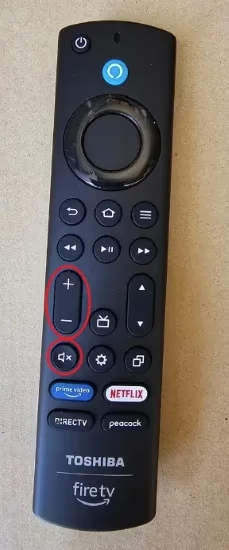
You can also try pressing the menu button and ensuring all audio settings are enabled and set to appropriate levels via the settings menus.
#2. Inspect All Connections
Loose cables or ports can cause loss of audio signal.
-
Check that cables connecting external devices like a cable box, DVD players, or game consoles are fully plugged into the ports on the back of the TV.
-
Reseat connections by unplugging and firmly plugging cables back in.
-
Inspect cables for any damage which could disrupt sound.
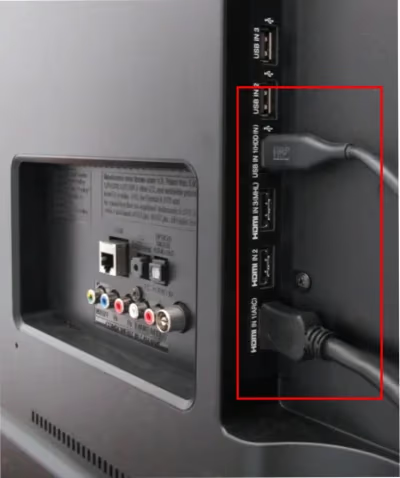
HDMI and optical/TOSLINK cables are commonly used for TV audio. If possible, swap suspect cables for a reliable spare.
#3. Power Cycle the TV
A quick power cycle can clear any temporary software glitches causing sound problems.
-
Unplug TV power cable from electrical outlet.
-
Wait 30 seconds.
-
Firmly plug power cable back in.
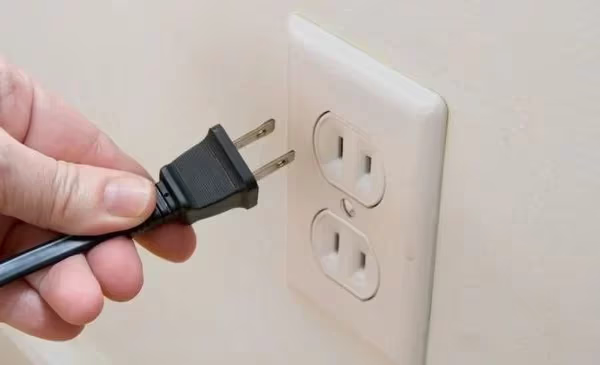
After restarting, check if sound returns. If not, continue troubleshooting.
#How Do You Troubleshoot Persistent Toshiba TV Sound Issues?
If you’ve tried the basics with no luck, working through these steps methodically can help identify and resolve the root cause.
#4. Run Audio Tests
Determine specifically where the audio failure is occurring – the internal TV speakers or external home theater system.
-
Try alternate audio sources like built-in streaming apps, Blu-ray player or gaming console to isolate the issue.
-
For external home theater connections like a sound bar, disconnect and rely on native TV speakers alone.
-
If TV speakers aren’t working but external audio is, internal speakers may be damaged and need service.
Narrow down the source of no sound to guide your troubleshooting.
#5. Adjust Audio Settings
Incorrect TV audio configurations can cause various problems.
-
From TV settings menu, reset Sound options like mode, balance and digital output to default factory settings.
-
Disable any advanced adjustments like virtual surround or equalizers.
-
Check secondary audio options for unwanted settings – audio should be set to main program language.
-
For external speakers, enable options like HDMI-ARC and S/PDIF optical outputs.
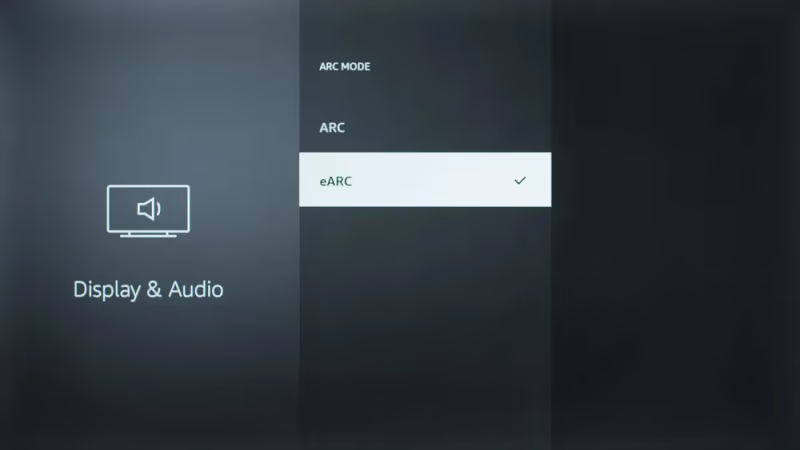
Restore simple, base functionality first before testing more involved configurations again.
“After my Toshiba TV suddenly had no sound, going into audio settings and changing digital output from Bitstream back to PCM output instantly fixed it.”
#6. Update TV Firmware
Outdated firmware can introduce bugs leading to loss of sound.
-
Navigate to About > System Update menu.
-
Check for any available updates online and install latest firmware for TV model.
-
Allow update to complete and reboot TV.
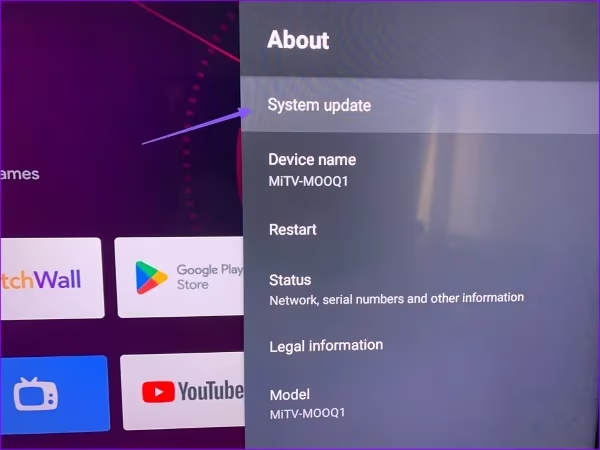
This resolves software-related no sound situations if the TV doesn’t recognize new audio standards or has coding issues.
#7. Switch Input Sources
The simplest connectivity issues can have serious impacts.
-
If using a secondary device like a Roku or Blu-ray player, check it is powered on and paired correctly.
-
For cable or satellite boxes, verify all feeds and outputs to TV function properly.
-
Swap HDMI inputs and cables connecting devices to TV to test different ports.
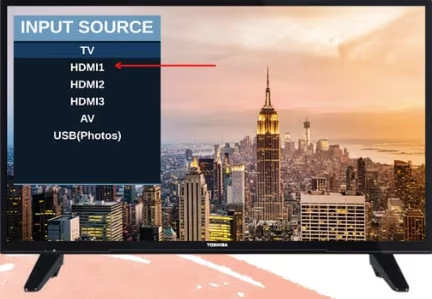
Source input successfully transmitting video but no audio points to a bad connection or faulty port.
#8. Factory Reset TV
Resetting Toshiba TV settings to factory default can fix sound problems stemming from damaged software or incorrect configurations.
-
Power on and access TV settings menu.
-
Select Preferences > Factory Reset everything.
-
Confirm reset and allow TV to reboot.
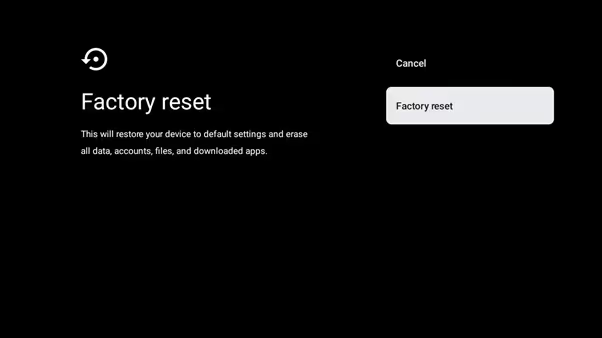
This completely reinstalls TV software assets which resolves many audio issues. Note you will have to reprogram any custom settings afterwards.
“No sound on my new Toshiba TV was fixed after I performed factory reset from settings menu in less than 5 minutes without calling for service.”
#9. Replace Damaged Cables
Inspect wiring connecting external audio equipment like sound bars for any damage.
-
Swap HDMI or optical TOSLINK cables connecting your sound system.
-
Try cables on another device setup first to confirm them as working.
-
Secure cables to prevent pets or children chewing on them.
Cabling issues can appear randomly even after functioning normally previously. Substitute any questionable cables.
#10. Rearrange Devices
Electrical interference from nearby equipment can disrupt audio signals.
-
Try moving TV away from potential sources like wireless routers, microwaves, or baby monitors to improve transmission.
-
Position audio devices like wireless speakers or sound bars closer with fewer obstructions between components.
-
Angle antenna to optimize signal strength.
Carefully relocating your setup can improve stability of all connectivity.
#11. Install a Signal Amplifier
In cases where no sound persists even after addressing other issues, a signal booster can enhance the audio input.
-
HDMI audio extractor splits HDMI signal, converting video input to HDMI output to TV while passing audio via RCA or optical output to speakers.
-
Signal boosters for coaxial audio cables can also bump sound to an optimal level.
-
Amplified splitters for antenna feeds likewise keep audio transmission strong.
While not an ideal long-term fix, quality in-line amps can quickly get audio functioning again in a pinch.
#12. Get Professional Service
For recurring sound problems or complications after trying these fixes, seek expert help. Qualified service technicians have specialized knowledge and resources to fully diagnose no sound causes.
-
Contact manufacturer support to troubleshoot or avail warranty repairs if TV under coverage.
-
Take set into electronics repair shop for hands-on assessment by service staff.
-
Schedule in-home visit from TV repair pros if unable to transport large set.
Though home troubleshooting resolves many audio issues, professionals can test components like power supplies, mainboards and screen backlights unavailable to consumers to pinpoint faults.
“After my Toshiba TV’s speakers failed, the repair shop discovered a blown capacitor on the mainboard was the culprit. A $60 part swap by their technician got the sound working perfectly again.”
#Preventing Future Toshiba TV Audio Problems
While even reliable Toshiba televisions can suffer from sound disruptions on occasion, following best practices helps avoid problems:
-
Leave adequate ventilation space around TV to prevent overheating.
-
Use surge protectors to safeguard sensitive electronics from voltage spikes.
-
Keep TV and connected equipment free of dust, moisture and contaminants.
-
Position components securely to avoid cable strain and accidental movement.
-
Update firmware and apps to maintain compatibility with evolving standards.
Stay proactive with basic preventive maintenance steps for a smoothly functioning home theater setup.
#Bottom Line
-
Start troubleshooting with simple fixes like volume adjustments and cable checks before resetting TV.
-
Determine whether audio issue lies with internal speakers or external home theater connections.
-
Incorrect audio configurations can disable sound – reset settings to factory defaults.
-
Outdated firmware often introduces sound bugs – install latest software updates.
-
Factory reset TV if settings changes don’t restore audio capability.
-
Interference and cabling faults are common causes – substitute connections and rearrange gear.
-
For stubborn audio problems, seek professional TV repair services.
With sustained effort methodically working through these tips, you can successfully regain full working sound on your Toshiba TV.
#Frequently Asked Questions
#What are the most common reasons for no sound on a Toshiba TV?
The most frequent causes are muted sound settings, loose cabling, outdated software needing firmware updates, or incorrect audio configurations needing a factory reset. Power cycling the TV resolves temporary software glitches in many cases.
#How do I fix distorted sound on my Toshiba TV?
Distorted, static or muffled sound typically stems from interference with either the audio signal or TV components. Try repositioning nearby electrical devices, installing a signal amplifier, replacing damaged cables or updating TV software. If the distortion only affects one input, the issue is likely with that specific source device.
#What should I do if troubleshooting doesn’t restore Toshiba TV sound?
Schedule professional TV repair service for advanced diagnostic testing. Underlying hardware problems like blown capacitors or damaged speaker drivers require specialized tools and parts that most homeowners don’t have access to.
#How can I prevent sound problems on my Toshiba TV?
Allow ample ventilation around the TV, use surge protection, and keep all ports dust-free. Firmly secure all cable connections and stay updated on the latest firmware releases. These habits greatly reduce future audio disruptions.
#Will a factory reset delete all my settings on a Toshiba TV?
Yes, factory reset returns the TV to its original out-of-the-box state, deleting all customized preferences. Back up any desired settings or app logins before resetting. You will need to reprogram channels, Wi-Fi, and picture preferences afterwards.
#What if new HDMI or optical cables don’t fix Toshiba TV audio?
If swapping cables fails to restore sound, the problem likely sits with the HDMI ports or internal audio processing. Try a factory reset as the next step. Persistent issues after a reset point to hardware failure requiring professional repair.
#Why does my Toshiba TV have sound but the volume buttons don’t work?
Faulty remote controls are often the cause when volume buttons stop responding. Try the original remote or a universal replacement. You can also reset the remote by holding the Power button for 10 seconds, or get a replacement remote if the issue persists.
#Can I use external speakers if my Toshiba TV speakers are broken?
Yes, connect a soundbar or external speaker system through HDMI-ARC, optical TOSLINK, or Bluetooth if your model supports it. Change the TV audio output setting to “External Speakers” or “Audio System” in the sound menu. This bypasses the internal speakers entirely and often provides better sound quality.