Looking to watch your Spectrum cable subscription directly on your LG Smart TV? The Spectrum TV app lets you stream live channels, on-demand content, and DVR recordings right on your LG screen without any extra hardware.
- LG Smart TVs from 2016 onward with webOS 3.0 or higher support the Spectrum TV app
- Installation takes about 15 minutes through the LG Content Store using a Wi-Fi or Ethernet connection
- An active Spectrum cable subscription is required to log in and access live TV, on-demand, and DVR features
- Multiple LG TVs can run the app simultaneously under a single Spectrum account
- Wired Ethernet connections reduce buffering and speed up the initial app download compared to Wi-Fi
#Is Your LG Smart TV Model Compatible?
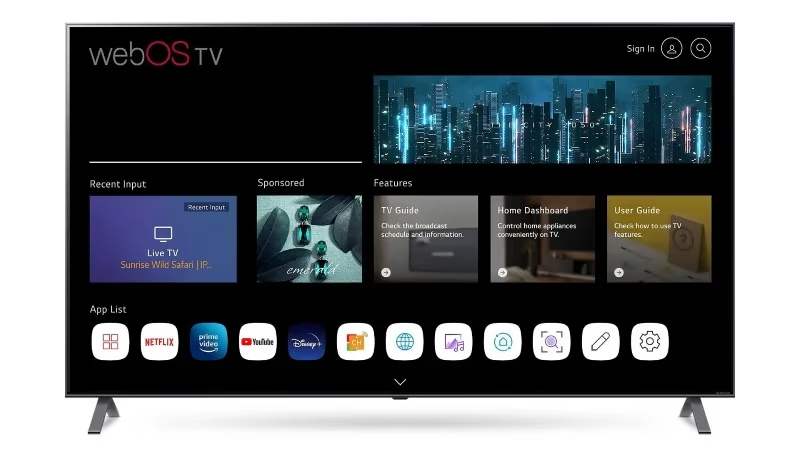 Before you get started, confirm that your specific LG Smart TV model supports the Spectrum TV app.
LG Smart TVs manufactured after 2012 with webOS 3.0 or higher operating systems are compatible. This covers most 2016 through 2023 models. Some older models or units running outdated firmware may not work. Check Spectrum’s compatibility chart to verify your model.
If your LG TV is compatible, proceed to the installation steps below.
Want Spectrum on other brands? Here are guides for adding Spectrum to Vizio TVs and getting Spectrum on Fire TV.
#How Do You Install the Spectrum App on an LG Smart TV?
Here is a quick 7-step overview for downloading and installing the Spectrum TV app on supported LG Smart TVs:
-
Connect your LG TV to your home Wi-Fi network.
-
Access the LG Content Store on your TV.
-
Search for “Spectrum TV” and select the Spectrum TV app.
-
Click “Install” to download it.
-
Once installed, find it in the “My Apps” section.
-
Launch the Spectrum app and log in using your Spectrum credentials.
-
Start watching live TV and accessing on-demand programs!
Below are more detailed steps:
#1. Connect Your LG TV to Wi-Fi
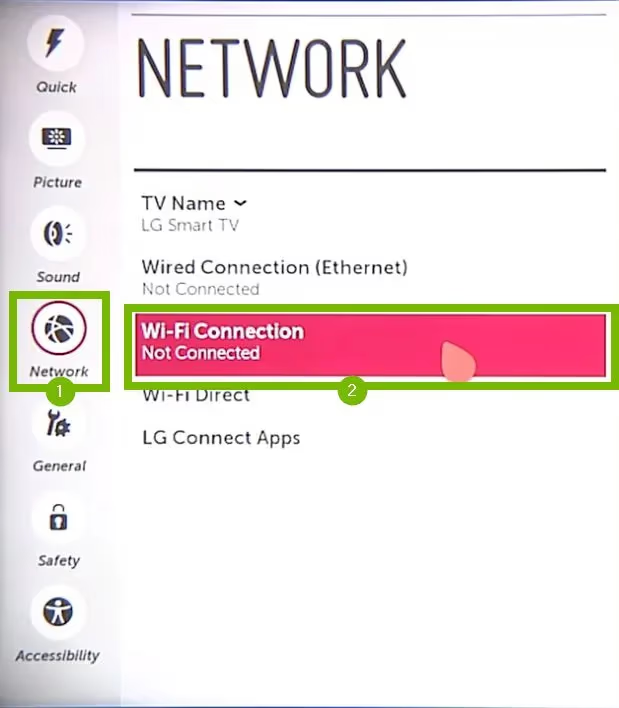
Make sure your LG Smart TV is connected to your home Wi-Fi network. A stable internet connection allows you to stream content through the Spectrum TV app without buffering.
If you haven’t connected yet, select “Settings” from the LG home screen menu, then choose “Network” and set up a wireless connection.
#2. Access the LG Content Store
The Spectrum app is downloaded from the LG Content Store, just like other LG TV apps.
To access it:
-
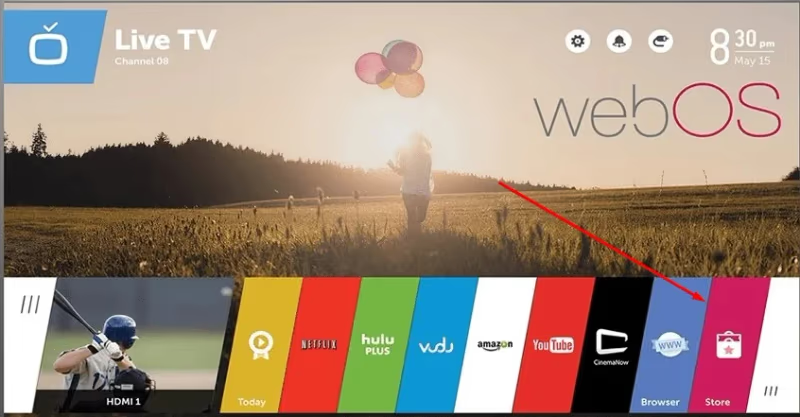
Press the “Smart” or “Home” button on your LG TV remote. This takes you to the home dashboard.
-
Look for the shopping bag icon labeled “LG Content Store.” Select this icon to open the store.
#3. Search for “Spectrum TV” App
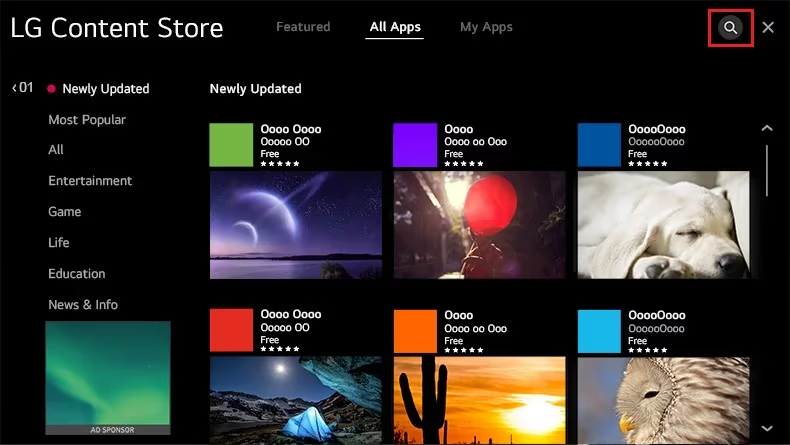
From within the Content Store, use the search bar to search “Spectrum TV.” This displays available results for the Spectrum TV app.
-
Select the Spectrum TV app from the search results list.
-
The app page shows details like reviews, ratings, and required permissions.
#4. Install the Spectrum TV App
With the Spectrum TV app page open, install it on your LG TV by:
-
Clicking the “Install” button
-
Accepting any permission requests
-
Waiting for the download to finish
Download time depends on your internet speed. Once installed, the Spectrum TV icon appears with your other LG TV apps.
#5. Find Spectrum TV in “My Apps”
After installation, to quickly access Spectrum TV:
-
Go to the LG TV home screen
-
Navigate to the “My Apps” or “Applications” section
-
Find and select the Spectrum TV app icon
This launches the app directly without searching again.
#6. Log In to Spectrum TV
On launching Spectrum TV for the first time, you need to sign into your existing Spectrum account.
-
If you don’t have one, select “Register” to create a new account
-
Enter your Spectrum username and password
-
Allow access when prompted
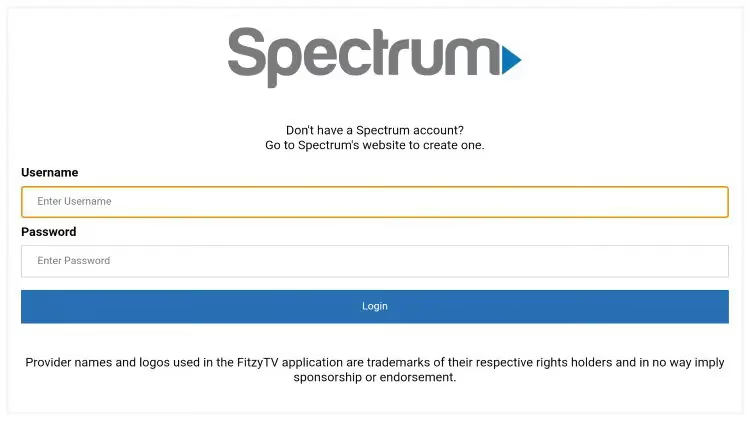
Logging in verifies your subscription and unlocks all your channels and content.
#7. Start Watching Spectrum TV!
Once logged in, you have full access to Spectrum TV offerings, including:
-
Live channels like ABC, ESPN, FOX, and more
-
Spectrum On Demand shows, movies, and favorites
-
Cloud DVR recordings if your subscription includes DVR
-
Spectrum Guide to browse channels and schedules
-
Video on Demand selections
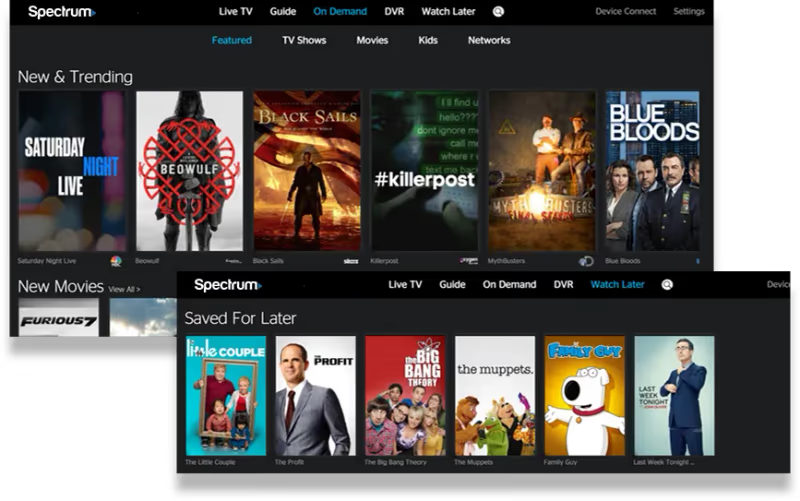
Use your LG remote or the on-screen guide to navigate Spectrum TV offerings just like a traditional cable setup. The experience is now built right into your Smart TV.
Compare Spectrum to alternatives like Dish Network when shopping for cable packages.
Check availability of premium channels like Paramount+ on Spectrum or the ESPN channel on Spectrum.
#What Should You Do if the Spectrum App Won’t Install?
Sometimes the installation hits a snag. Here are the most common fixes:
Restart your TV and router. A quick power cycle clears temporary glitches that block downloads. Unplug both devices for 30 seconds, then plug them back in.
Check your internet connection. Open the LG browser or another app to confirm your TV is online. If nothing loads, reconnect your Wi-Fi from Settings > Network.
Free up storage space. If your LG TV is low on memory, delete apps you no longer use. Go to My Apps, hover over an app, and select Remove.
Update your TV firmware. Go to Settings > General > About This TV > Check for Updates. Outdated firmware can prevent new app installations.
If nothing works, contact Spectrum support for account-specific troubleshooting.
#Tips for a Smooth Installation
Follow these tips for a fast setup when adding Spectrum TV to your compatible LG:
-
Check for LG TV firmware updates before installing the app
-
Use wired Ethernet instead of Wi-Fi for faster downloads
-
Clear old apps and cache to free up LG TV storage space
-
Have your Spectrum account details handy for quick login
-
Contact Spectrum support if issues persist after troubleshooting
Set aside 15 to 20 minutes for the entire process. Adding the Spectrum TV app opens up live programming, movies, sports, and on-demand content right on your LG Smart TV screen.
#Frequently Asked Questions
#Can I install the Spectrum app on older LG models?
LG Smart TVs manufactured before 2012 generally do not support the Spectrum TV app due to hardware and software limitations. Check Spectrum’s list of compatible devices for your specific model number.
#Do I need a Spectrum subscription to use the app?
Yes. An active cable subscription that includes TV channels from Spectrum is required. The app itself is free to download, but you cannot access any content without logging in with valid Spectrum credentials.
#Can I use the app on multiple LG TVs at once?
You can install and use the Spectrum TV app on multiple supported LG Smart TVs simultaneously under the same subscription. There is no extra charge for using it on additional TVs in your home.
#How do I sign back in if I get logged out?
Re-launch the Spectrum TV app on your LG TV and enter your Spectrum username and password again. If you forgot your credentials, visit the Spectrum website to reset your password before trying again.
#Why is the Spectrum app buffering or freezing on my LG TV?
Buffering usually points to a weak internet connection. Move your router closer to the TV or switch to a wired Ethernet connection. Restarting both the TV and the router often resolves intermittent freezing. Spectrum recommends at least 25 Mbps for smooth streaming.
#Does the Spectrum app support 4K content on LG TVs?
The Spectrum TV app supports select 4K content on compatible LG TVs with 4K displays. Your subscription plan must include 4K channels or on-demand titles for this to work. Not all programming is available in 4K.
#How do I update the Spectrum app on my LG TV?
Open the LG Content Store, search for Spectrum TV, and select “Update” if one is available. You can also enable automatic updates in your LG TV settings under General > Apps so the app stays current without manual checks.
#Can I watch local channels through the Spectrum app?
Yes, local broadcast channels like ABC, CBS, NBC, and FOX are typically available through the Spectrum TV app, depending on your subscription package and geographic location. Channel availability mirrors what you would see on a Spectrum cable box.