What is the most effective solution to use when your Smart View not working?
What can be the main cause for such an error?
Is it because of something wrong with the TV or the phone?
We will answer all those questions in this article.
- Same Wi-Fi network is mandatory — Smart View requires both your phone and Samsung TV to be connected to the identical Wi-Fi network to establish a connection
- Outdated firmware causes 60%+ of failures — updating your phone’s OS and TV software resolves most Smart View connection drops
- VPN services block screen mirroring — disabling any active VPN on your phone immediately restores Smart View connectivity
- Permission resets fix sudden disconnects — re-enabling Smart View access through the Quick Panel resolves permission-related failures in under 30 seconds
- Factory reset is the last resort — this erases all settings and apps, so try the other 4 fixes first before wiping your devices
#What Is Smart View and How Does It Work?
You may reflect your smartphone screen directly onto a Smart TV with the help of the feature “Smart View.” It’s a great way to access and consume media on larger displays. That includes photos, films, games, or anything else.Unfortunately, there are times when Smart View won’t connect to a phone or mirror its screen. Common causes of this issue include using many different Wi-Fi networks, an out-of-date operating system, VPN usage, etc.And the good news is that there is an easy solution to this problem. In fact, this solution will take only a couple of minutes, and it is very easy. Let’s not waste any more time & find out how to get the feature called smart view functioning again.
#How Can You Fix Smart View Not Working?
The aforementioned solutions to the problem of a malfunctioning smart view can be implemented quickly and easily. The troubleshooting techniques outlined in this tutorial are among the simplest and most effective available.Some solutions are restarting devices, permitting access to Smart TV, installing new software, double-checking Wi-Fi, and so on. Let’s dive deeper into those strategies. Besides, let’s figure out what causes the Samsung TV Not Connecting to the WiFi issue and the top solutions to fix it quickly.
#Solution 01: Allow Permission
There is a possibility that your Smart TV has become disconnected in certain circumstances.As a consequence of this, the mirroring procedure on your device may be terminated as a result. For this reason, you might be required to allow permission once again in this scenario.To do that, you should access the Quick panel on your phone to use mirroring once more.Also, you will find it annoying when your Samsung TV volume is stuck. Here, let’s figure out how to fix the Samsung Smart TV Volume Stuck issue.
#Please Follow Up Below Guide Step by Step:
-
First, you should open the Quick Panel. You can do it by swiping the screen down.
-
Now, you should locate the “Smart View” option and tap on it.
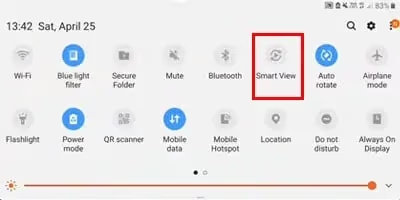
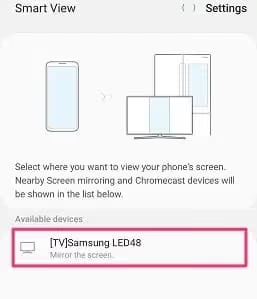
- After that, you can tap on your “Smart TV.”
-
Once you have done that, you can follow the instructions displayed on the screen. That will allow the smart TV to gain access to your smartphone’s multimedia content, including videos.
-
If not, you can simply go to the Smart View app. Then, you can change the configurations of the permission setting.
#Solution 02: Check Your Wi-Fi Connection
The next solution is to check if there’s something wrong with the Wi-Fi connection. In many cases, individuals face various issues due to poor or unstable network (Wi-Fi) connections.Also, it will obviously not work if your phone and TV are connected to two different networks. So, be sure that your devices are on the same network and that they have strong enough signals.In addition to that, streaming from sources such as Netflix or YouTube requires a solid, powerful internet connection. There should be enough data left in your quota. So, if you face issues related to your Wi-Fi connection or the internet connection, there are some solutions.
#Mentioned Below Are Those Solutions You Should Try
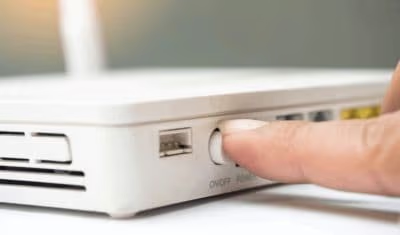
- First, you should restart your router or even go for a quick reboot as a solution.
-
Switching to a different Wi-Fi connection with better stability and strength is another good solution.
-
You should ensure that both devices are located closer to your internet router.
-
If you have installed any VPN services, make sure that they are disabled.
So, those are the basics you should try if your Smart View is not working as expected.
#Solution 03: Update the OS
Are you using old operating software? If so, there is a good chance that you will experience compatibility problems with the devices you use. They may also have widespread faults and system failures.And both of which may be contributing to Smart View’s functionality concerns. Now, in order to update the OS on both of your devices, please follow these instructions.
#If You Are Using a Samsung TV
Here are the steps you should try if you are using a Samsung TV.
-
First, you should open your “Settings” app to proceed.
-
Then, you should go to the left panel and find the option “Support.” After that, you can click on it.
-
After that, you should tap on the option “Software Update.”
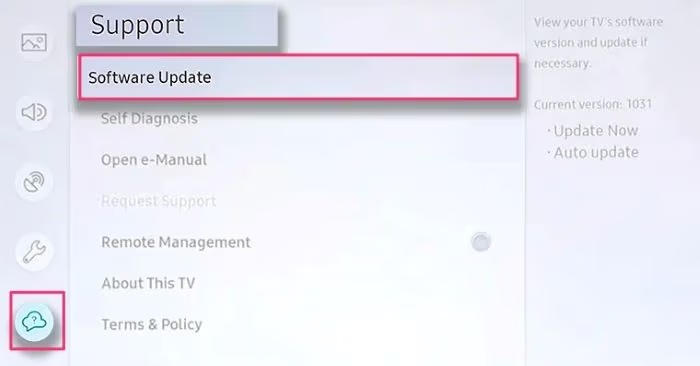
- Select the option called “Update Now.”
#On Your Android Device
-
Open your “Settings” app from your Samsung smartphone.
-
After that, you should tap on the “Software Update” option.
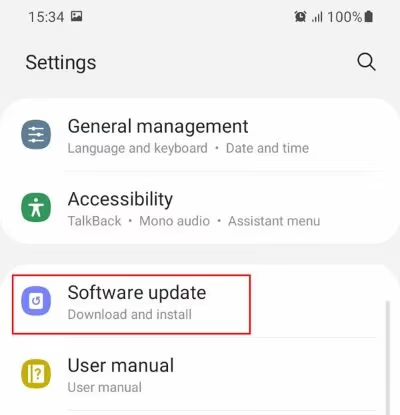
- Now, you should click on the “Download & Install Now” option to proceed.
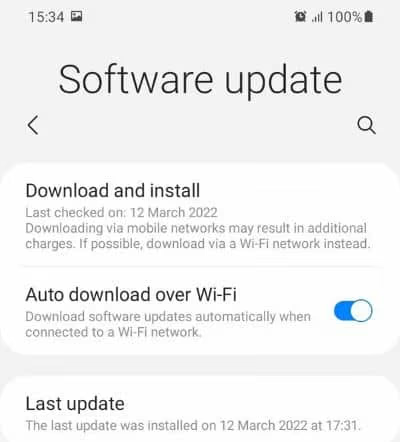
-
As the final step, you should click on the option “Install Now.”
-
That’s basically it.
#Solution 04: Perform a Factory Reset
You should consider performing a factory reset on each of the devices as a last-ditch effort. It gives you the ability to reset your device to the settings it had before.Therefore, check if you’ve downloaded any potentially dangerous applications or if it has corrupted cache residue. If yes, you can use this procedure to remove them completely. The following is a list of step-by-step instructions that you are supposed to follow.
#To Reset Your Samsung TV
First, let’s learn how to reset your Samsung TV.
-
Switch on your Samsung TV and go to the icon that appears as a cogwheel. This will open the option called “Settings,” where you can change different settings of the TV.
-
Once you have done that, you should go to the left panel and select “General.”
-
After that, you should tap the button called “Reset.” At this stage, you are supposed to enter the PIN of the TV. As a default value, it should be 0000.
-
After that, you should tap on the option called “Reset.”
-
Or, in some TV units, you might be able to see a reset option in a different place. You should go to “Support” and select “Self-Diagnosing” in this case.
-
You will see a prompt now. Just tap on the option called “OK” and confirm the action.
Please note that the above steps can vary slightly based on the model of the Samsung TV.
#To Reset Your Phone
Now, let’s learn how to reset your phone.
-
First, you should open the “Settings” app on your device.
-
After that, you can tap on the option called “General Management.”
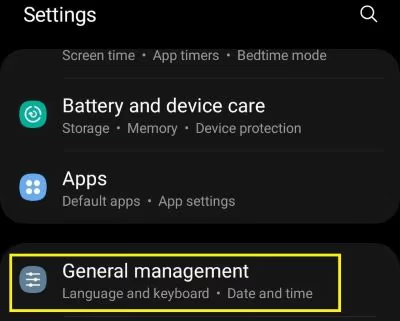
-
Then, you should tap on the option called “Reset.”
-
After that, you should tap on the “Factory Data Reset” option to proceed to the next step.
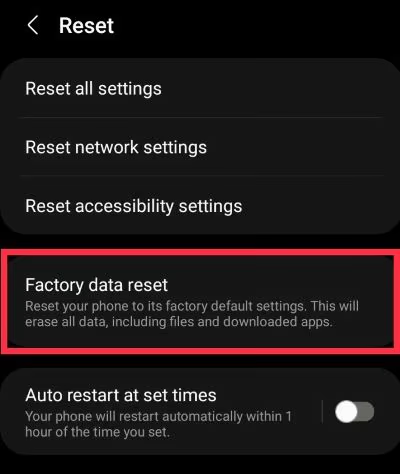
-
You can now scroll down, tap on the “Reset” option, and reach the next step.
-
Once prompted, you can enter the device’s passcode to permit the action. Then, you should tap “Next.”
-
As the final step, you should tap “Delete All.” That will apply the changes to your device.
#Solution 05: Get in Touch With Their Customer Support Service
If you are still experiencing a Smart View not working issue, you are left with the last resort. In this case, you have to do nothing other than contact their customer support. You should visit the official website of Samsung and contact its customer support team. Then, explain what has happened probably with proof (like screenshots).
#Frequently Asked Questions
#Why is my Smart View not connecting to my TV?
The most common reason is that your phone and TV are on different Wi-Fi networks. Smart View requires both devices to share the same network. Check your Wi-Fi settings on both devices and reconnect them to the same router if needed.
#How do I fix Smart View after a software update?
Software updates can reset Smart View permissions on your TV. Open the Quick Panel on your phone, tap Smart View, and select your TV again. If the TV prompts you for access, tap “Allow” to re-establish the connection.
#Does Smart View work with non-Samsung TVs?
Smart View primarily supports Samsung Smart TVs manufactured from 2015 onward. Some Miracast-compatible TVs from other brands can receive Smart View signals, but performance varies. Samsung removed broad Miracast support in newer One UI versions, so a Samsung TV delivers the most reliable experience.
#Can a VPN prevent Smart View from working?
Yes, active VPN connections on your phone route traffic through external servers, which prevents local network discovery. Smart View relies on local Wi-Fi communication between your phone and TV. Disable your VPN before attempting to mirror your screen, and the connection should work immediately.
#What Samsung phone models support Smart View?
Samsung Galaxy phones running Android 6.0 or higher with One UI support Smart View natively. Older models with Android 4.1 to 5.1 used a standalone Smart View app that Samsung discontinued in 2022. If your phone runs One UI 2.0 or later, Smart View is built into the Quick Panel.
#Will a factory reset delete my Samsung TV apps?
Yes, a factory reset erases all downloaded apps, saved Wi-Fi passwords, and custom settings from your TV. You will need to sign back into your Samsung account and reinstall apps like Netflix and YouTube after the reset. Back up your TV settings through Settings > General > System Manager before proceeding.
#Bottom Line
At least one of the above solutions should work if you experience Smart View not working error. If nothing works, just contact their customer support team.If not, you can even take your device to the local authorized Samsung service center. They will fix your TV. If they cannot fix it and your device is under warranty, they may even offer a replacement.