Has your Skyworth TV ever seemed to turn itself on randomly? You may be sitting peacefully without the television even being touched when suddenly you hear the sound of the TV switching on. This strange problem can be jarring, confusing and downright irritating. But there are solutions. With a few troubleshooting steps, you can figure out why your Skyworth TV is powering on automatically and stop it from happening.
- HDMI-CEC is the most common culprit — connected devices like Blu-ray players or soundbars can send unintended power-on signals to your Skyworth TV
- Built-in Chromecast or screen mirroring — a phone or tablet attempting to cast can wake the TV without any manual input
- Misconfigured timers and eco modes — sleep schedules or power-saving settings may trigger automatic power-on at unexpected times
- Faulty or low-battery remotes — stuck buttons or weak batteries can send random IR signals that turn the TV on
- Firmware bugs cause phantom startups — updating to the latest Skyworth firmware resolves known glitches that trigger spontaneous power-on
#What Causes a Skyworth TV to Turn On By Itself?
There are a few known issues that can trigger a Skyworth TV to power on for no reason:
-
HDMI-CEC (Consumer Electronics Control): This feature allows devices connected via HDMI to control one another. So something like your Blu-ray player could turn on your TV when powered on. But faults in the CEC signaling can cause the TV to power up even when no command was sent.
-
Built-in Chromecast/Screen Mirroring: If your Skyworth TV has built-in casting capabilities, a phone or other device trying to start screen mirroring can inadvertently switch the set on.
-
Wi-Fi Network Connectivity: Smart TV functions that connect your television to the internet (like apps and streaming platforms) can sometimes glitch and send an ‘on’ command.
-
Incorrect Power Settings: There may be incorrectly configured timers, sleep settings or other power options toggled that are powering up your device.
-
Faulty Remote: If liquid was spilled or the remote is low on batteries, it could be sending irregular signals to the TV.
-
Interference From Nearby Devices: Strong wireless signals or IR interference from other gadgets close to your TV can potentially activate it.
Now that you know why this annoying issue happens, here are some step-by-step troubleshooting tips to get your Skyworth TV to stop turning itself on.
#How Do You Fix a Skyworth TV That Turns On Randomly?
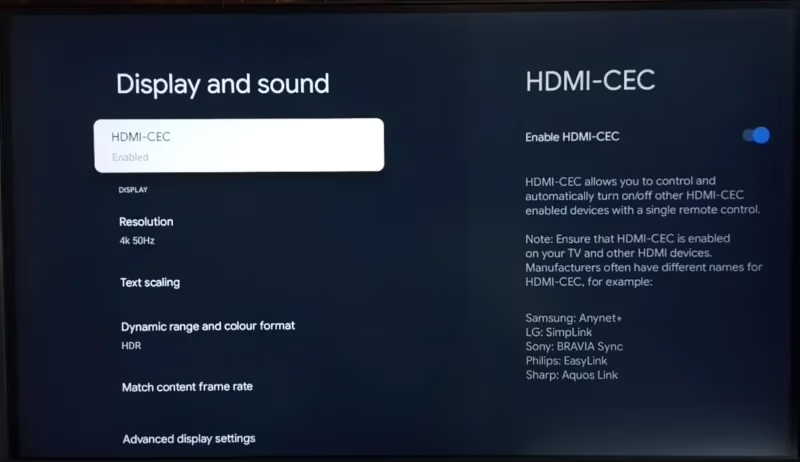
#1. Check HDMI-CEC Settings
The number one culprit for a television set powering up for no reason is HDMI-CEC getting accidentally triggered. Here is how to check if this is the cause:
-
Access your Skyworth TV settings menu and locate HDMI-CEC. This may be labeled as AnyNet+, SimpLink or another variant by the manufacturer.
-
Disable HDMI-CEC completely. See if this stops your TV from automatically powering on over the next few days.
-
If this solves it, you can narrow down the source by selectively enabling HDMI-CEC on connected devices one-by-one.
For example, rule out your Blu-ray player, gaming console, sound bar etc. Turn HDMI-CEC back on for one device at a time to detect where the interference is coming from.
- Alternatively, disable HDMI-CEC on source devices first if accessible in those products’ settings. For example, dig into settings menus on your Blu-ray player, gaming console, sound bar etc. Consult device support sites if unsure. Steps can vary greatly between brands like Vizio TV or Samsung TV.
#2. Disconnect From Wi-Fi
Smart functionality can sometimes interfere with normal power operation. The next troubleshooting step is:
-
Open settings on your Skyworth TV and disconnect it from your Wi-Fi network.
-
Monitor over the next few days whether the television still turns itself on randomly without an internet connection.
If this stops the auto-powering on, you know a smart TV feature is the culprit. You can then dig into apps, streaming platforms and smart home assistants to disable network connectivity and determine the problematic source.
Reconnecting devices like Amazon Fire TV sticks or Chromecasts directly rather than via Wi-Fi may also resolve this.
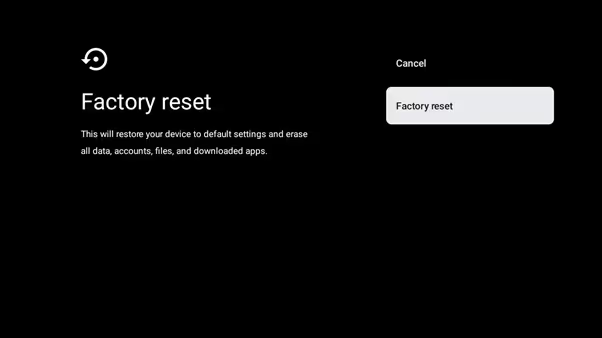
#3. Factory Reset Your Skyworth TV
If you have changed a lot of configurations and settings on your television recently, a factory reset will eliminate this as a possibility:
-
Find the reset option in your Skyworth TV’s settings. This should restore original factory condition, undoing any customizations.
-
Test if randomly powering up stops after the reset. This points to something you had configured being the trigger.
-
If the factory reset does NOT have an effect, it likely is not a settings issue causing the problem.
#4. Update Skyworth TV Firmware
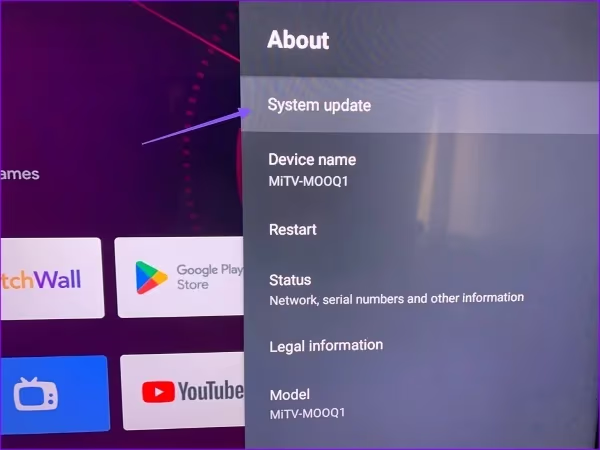
Outdated firmware can also be a contributor to glitchy behavior like turning itself on. Here’s how to rule out a firmware fix:
-
Navigate to your Settings > About > System Update to check for the latest firmware
-
Download and install if one is available. Monitor for 1 week whether issue is resolved.
-
If no updates available, check Skyworth’s support site for other firmware not yet pushed to your television set.
Updating the software and eliminating this as a possibility will help get closer to stopping the auto on triggers. Other models like Hisense TV may have similar firmware update fixes for spontaneous powering up issues.
#5. Adjust Eco/Power Saving Modes
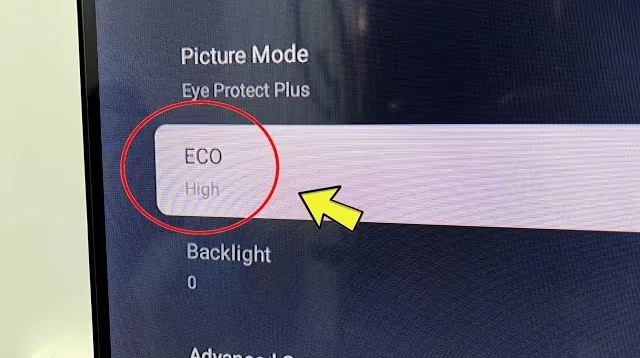
Your Skyworth TV may have power saving settings that are backfiring and actually powering up the device accidentally:
-
Find the Eco Mode/Power Saving options in Settings and disable completely.
-
Also double check for and turn off any ‘Timer’ or ‘Schedule’ functions that could be powering on at unwanted times.
-
Observe if turning off things like Eco Mode or Schedules eliminates the spontaneous powering up.
#6. Rule Out Remote Control Issues
An aged remote control can also end up sending unwanted infrared or Bluetooth signals. Here’s how to test whether that’s the case:
-
Replace remote control batteries with brand new ones. Dry any moisture and ensure no buttons are stuck.
-
Disconnect and store original remote far away from TV for 1 week. Instead, use Skyworth mobile app to control TV and see if it still occurs.
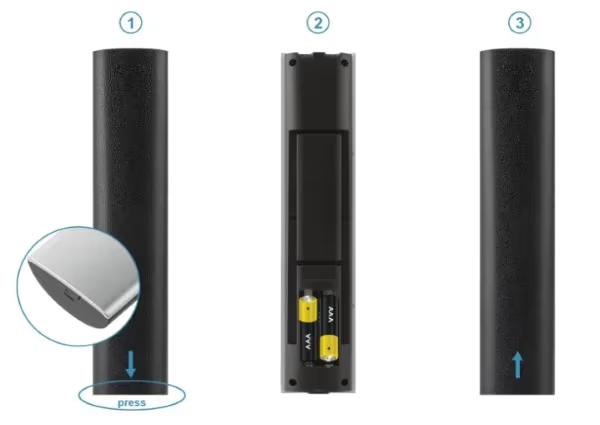
This verifies if some malfunction with your physical remote is triggering the television to turn itself on due to crossed signals.
#7. Adjust External Device Locations/Settings
Nearby gadgets and electronics that rely on wireless connectivity or infrared may also be responsible:
-
Make sure external devices like gaming consoles, streaming boxes, cable boxes and sound bars aren’t placed too close together on the media console. Separate further apart.
-
Check settings on connected gadgets to disable anything like external device auto-power on, HDMI-CEC or automatic inputs that could be turning on your TV.
This will clarify if crosstalk or configurations on those external accessories paired with your Skyworth television set are creating the spontaneous powering on.
#8. Isolate From Other Wireless Signals
Strong wireless router beams, mobile hotspots or other cluttered radio frequency signals can potentially activate CEC.
Try arranging entertainment setup away from or perpendicular to Wi-Fi routers, mobile phones, laptops and other wireless device hotspots.
This may mitigate any potential interference turning on CEC signaling.
#9. Get Your Skyworth TV Serviced
If you have thoroughly tried all troubleshooting tips above to no avail, an underlying main board hardware issue may be causing the glitchy power on events:
-
Perform visual inspection of capacitors and fuses on the main board and power supply inside television. Look for any damaged components.
-
Use voltmeter to check for unusual power draws or signals during startup that may indicate a component defect.
-
If physical damage spotted or unusual measurements detected, television likely needs main board replacing/repair by certified Skyworth technician.
Seeking professional TV service should accurately diagnose and resolve a hardware-level fault triggering constant automatic powering on.
#10. Contact Skyworth Support
After exhausting all manual fixes, Skyworth customer service agents can provide additional tailored troubleshooting advice:
-
Call Skyworth TV hotline and explain random power on issue step-by-step to representative. Provide model number details.
-
There may be known issues with the TV model manifesting for customers needing a patch or replacement parts shipment.
Getting dedicated Skyworth support can uncover larger quality control problems prompting glitches, if present in your television unit. The company can directly replace or repair accordingly.
#Why Does My Skyworth TV Turn Itself On?
The main triggers causing Skyworth TVs to power on spontaneously include:
-
HDMI-CEC control signals between connected devices
-
Integrated Chromecast/screen mirroring functions
-
Buggy Wi-Fi connectivity to streaming platforms
-
Faulty configurations in power settings like timers and schedules
-
Interference from other gadgets in close vicinity
-
Issues with remote control such as low batteries
-
Outdated firmware needing updated
Thorough troubleshooting to rule out each cause one-by-one is key to stopping your Skyworth television from switching itself on randomly.
#Frequently Asked Questions
#Why does my Skyworth TV turn on by itself at night?
HDMI-CEC is the most common reason. A connected device like a game console entering rest mode can send a wake signal to the TV. Check your HDMI-CEC settings and disable the feature to test. A misconfigured sleep timer or on-schedule could also trigger a middle-of-the-night startup.
#How do I stop my Skyworth TV from turning on randomly?
Disable HDMI-CEC in your TV settings first. Then disconnect from Wi-Fi, turn off any power-saving modes or scheduled timers, and update your firmware. If the problem continues, remove the batteries from your remote and monitor for a few days.
#Why does my Skyworth TV turn off and on repeatedly?
Repeated power cycling usually points to overheating or a failing power supply board. Make sure the vents are clear and the TV has at least 4 inches of clearance on all sides. If it keeps happening, a certified technician should inspect the internal components for damaged capacitors or blown fuses.
#Can a Skyworth TV turn on by itself even when unplugged?
No. A fully unplugged TV cannot power on. If the TV seems to turn on right after you plug it back in, residual charge in the capacitors or a “power on after outage” setting is responsible. Disable the auto-restart option in your power settings.
#Does turning on by itself damage the TV?
Occasional spontaneous startups will not harm your TV. However, frequent power cycling over weeks or months can wear down voltage regulators and fuses inside the power supply. Getting the root cause fixed early prevents long-term component damage.
#Will a factory reset fix a Skyworth TV that turns on by itself?
A factory reset resolves the issue when a misconfigured setting is the trigger. It restores all power schedules, HDMI-CEC preferences, and eco mode options to their defaults. If the TV still turns on randomly after a reset, the cause is likely hardware-related rather than a settings problem.
#Can nearby devices cause my Skyworth TV to turn on?
Yes. Strong IR signals from other remotes, wireless router interference, or Bluetooth crosstalk from nearby gadgets can all trigger a false power-on command. Move your TV away from Wi-Fi routers and other electronics, and store unused remotes in a drawer to rule out stray signals.
#Bottom Line
A Skyworth TV that seems to switch itself on randomly can be disruptive and confusing. But systematically going through known causes using the troubleshooting tips outlined can help identify and resolve this problem.
Pay special attention to HDMI-CEC, smart functionality glitches and interference from nearby devices. And don’t hesitate to contact Skyworth support if you remain unable to stop your television from powering up automatically after trying all manual fixes.