Has your Samsung TV volume started decreasing on its own lately? You’re not alone. Many Samsung smart TV owners face this frustrating issue, and the fix is often simpler than you’d expect. In this guide, we’ll cover the top 7 reasons why your Samsung TV volume goes down randomly and how to fix them for good.
- Automatic Volume Limiter (AVL) — this built-in feature is the most common cause of unexpected volume drops on Samsung TVs
- Adaptive Sound and Active Voice Amplifier — sensor-based audio features can misread your environment and lower volume incorrectly
- Audio settings reset — restoring sound to factory defaults clears misconfigured parameters in under 30 seconds
- External device conflicts — soundbars, Bluetooth speakers, and AV receivers can override your TV’s internal volume control
- Firmware updates — outdated software causes audio glitches that Samsung patches in regular firmware releases
#What Causes Samsung TV Volume to Decrease Randomly?
There are several factors, both software and hardware related, that can trigger your Samsung TV’s volume to fluctuate, dip, or even get stuck at low levels unexpectedly.
#Software Issues
Outdated firmware, corrupted system files, HDMI handshake problems, and buggy apps can all send incorrect signals to your TV’s audio processors and disrupt normal volume output. Smart features that attempt to optimize sound can sometimes go haywire.
#Hardware Problems
Physical damage to internal volume control circuits, remote control faults, stuck buttons, faulty connections with external audio gear, and sensor issues can manifest as random volume drops.
Most volume problems are easy to troubleshoot and resolve at home without an expert.
Green screen problems on Samsung TVs can have different causes — this troubleshooting article explores the most likely issues.
#1. Reset Your Samsung TV Audio Settings
Resetting your audio settings restores any misconfigured parameters that may be lowering volume back to factory defaults.
Here’s how to reset audio on Samsung TVs:
-
Press Home button on remote and select Settings.
-
Open Sound menu > Expert Settings.
-
Choose Reset Sound option and confirm.
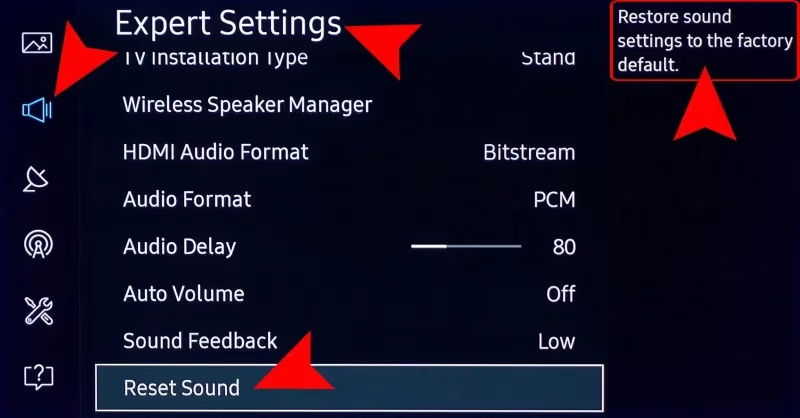
This will clear any problematic customized settings causing erratic volume behavior. Recheck if volume drops still occur before moving to next steps below.
#2. How Do You Turn Off the Automatic Volume Limiter?
Samsung TVs have an Automatic Volume Limiter (AVL) feature enabled by default to prevent hearing damage from sudden loud sounds.
-
It detects volume spikes in content or ads and restricts max volume.
-
Great safety feature but can cause random volume drops if overly sensitive.
To disable AVL on your Samsung TV:
-
Go to Menu > Sound > Speaker Settings
-
Locate the AVL setting and turn it Off.
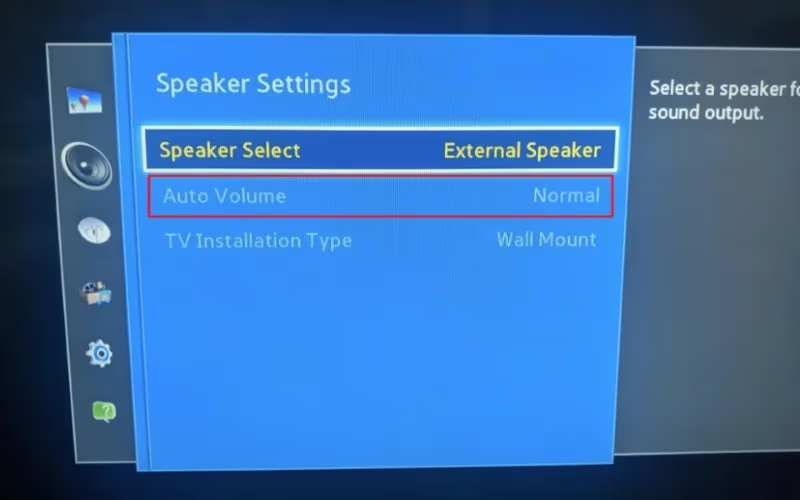
With AVL disabled, your TV’s peak volume capabilities are restored so drops should no longer occur.
#3. Should You Disable Sound Sensor and Voice Amplifier?
Samsung’s Adaptive Sound and Active Voice Amplifier features use built-in mics and sensors to optimize audio based on your viewing environment and content.
While helpful, bugs can cause these smart audio aids to instead lower volume, mute sound, or create echo and static unexpectedly.
To turn them off:
-
Open Settings > Intelligent Mode Settings
-
Disable Active Voice Amplifier and/or Sound Sensor
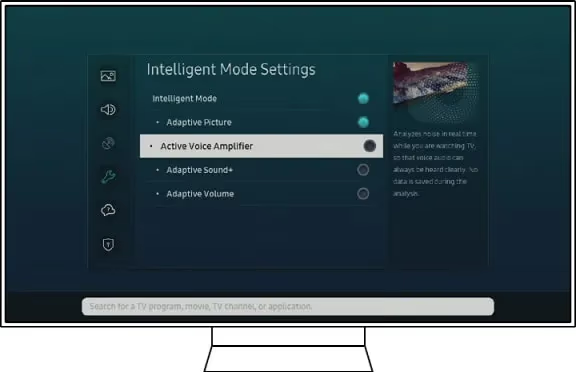
With these sensor-reliant features switched off, any associated volume dipping issues should stop. Test volume before and after to confirm.
#4. Check Board Volume Control and Connections
The internal board volume control regulates your Samsung TV’s sound signal levels before output. If damaged or corroded, it can directly cause volume to decrease, become static or cut out entirely.
Same goes for any loose or faulty audio connections from board to speakers and WiFi module.
Here’s how to inspect and fix:
-
Unplug TV safely and remove back cover.
-
Examine board volume control unit and surrounding connections for damage.
-
Clean oxidation, replace frayed wires, mend solder joints as needed.
-
Test buttons and sensors to make sure no stuck pieces impede movement.
Fixing board and audio link issues directly resolves hardware-based causes of Samsung TV volume drops. Seek professional assistance if you’re not comfortable with electronics repair.
#5. Update Bitstream Audio Settings
Bitstream refers to digital audio signal processing from source to TV output. Errors here show up as volume fluctuation, distortion, lag, and cut outs.
Optimizing bitstream settings fixes this:
-
Open Audio Format menu & disable Dolby/DTS compatibility
-
Enable PCM under HDMI Input Audio Format
-
Choose Raw/Unprocessed audio data streams
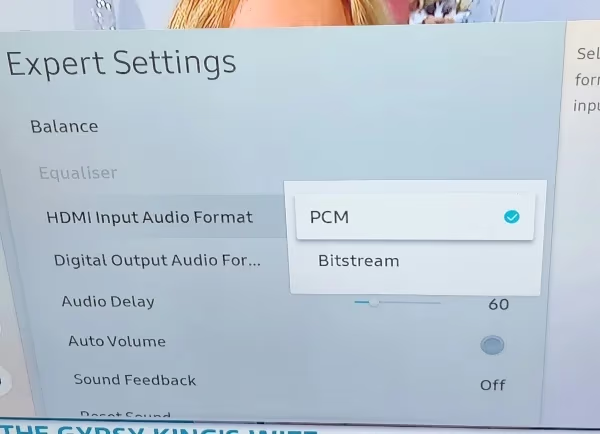
Adjusting bitrate, codec, and data processing modes prevents audio corruption and restores consistent volume control.
#6. Fix Remote Control and Button Issues
Sticky buttons on either your Samsung TV remote or side panel can inadvertently trigger volume to decrease.
Here’s how to diagnose and fix button issues:
-
Inspect remote closely and press every key several times to release dirt or debris
-
Check side volume, channel, power keys on TV housing and clean any stuck ones
-
Replace remote batteries first if unresponsive or laggy
-
Try manual buttons if remote still misbehaves
-
Order a replacement remote if needed
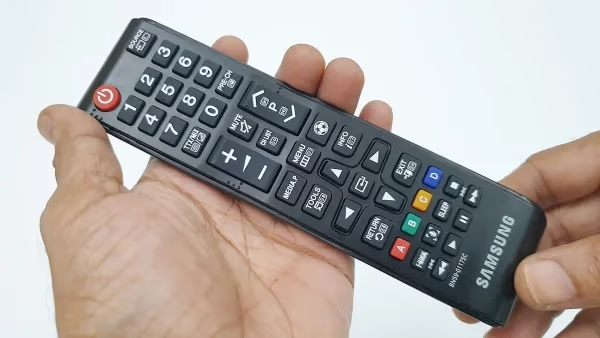
With clean, responsive external controls, accidental volume dips will stop. Handle your remote with care to avoid future button issues.
#7. Disconnect External Audio Devices
Soundbars, Bluetooth speakers, AV receivers connected to your Samsung TV can interfere with internal volume regulation and trigger unprompted drops or fluctuations.
How to rule out interference:
-
Switch off and disconnect ALL external sound devices including game consoles and streaming boxes.
-
Directly test TV’s internal speakers alone for volume stability.
-
If volume control returns to normal, an external device was the culprit.
-
Reconnect one device at a time with updated settings to isolate root cause.
Testing solo TV performance helps pinpoint whether connected audio gear is clashing with TV volume boards. Choose optical or analog connections if possible.
#8. Update TV Software and Firmware
Outdated firmware is a leading cause of Samsung TV glitches including the volume decreasing randomly.
Here’s how to update:
-
Go to Settings > Support > Software Update
-
IF available, install latest firmware OTA
-
Alternatively download firmware on USB from Samsung’s support site
-
Follow prompts to install from USB
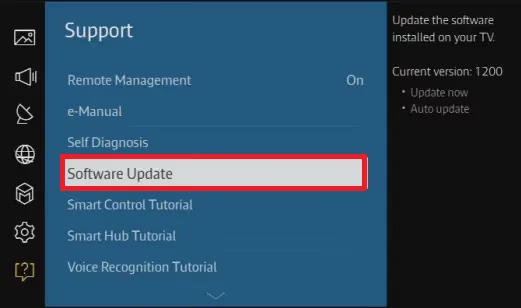
Staying updated with Samsung’s firmware releases prevents software-related audio issues down the road.
Find out why some Samsung TV models turn themselves on automatically with this explainer on Samsung TV turning on randomly.
#FAQs
#Why does my Samsung TV suddenly go quiet?
The Automatic Volume Limiter (AVL), sound sensors, or Active Voice Amplifier features often kick in incorrectly and lower the volume too much. Turn them off in Settings > Sound > Expert Settings. You should also check if Adaptive Sound is enabled under Intelligent Mode Settings, since it can misread your room’s noise level.
#How do I stop Samsung TV volume from going up and down?
Start by disabling AVL and Adaptive Sound in your audio settings. If that doesn’t work, check for HDMI conflicts with connected audio devices and inspect your remote for stuck buttons. Replacing old remote batteries also fixes ghost volume changes more often than you’d think.
#Why is my Samsung TV stuck at low volume?
A volume stuck in the 10-20 range usually points to hardware damage on the internal board volume control or a faulty remote. Inspect both and replace parts as needed. In some cases, a factory reset through Settings > General > Reset restores normal volume range.
#Can a firmware update fix Samsung TV volume problems?
Yes. Samsung regularly patches audio bugs through firmware updates. Go to Settings > Support > Software Update and install any available update. If your TV can’t connect to the internet, download the firmware onto a USB drive from Samsung’s support website.
#Does connecting a soundbar cause volume drops on Samsung TV?
External audio devices like soundbars can conflict with your TV’s internal volume control. Disconnect the soundbar and test with the TV’s built-in speakers first. If volume works fine without the soundbar, try switching from HDMI ARC to an optical cable connection.
#What is the Automatic Volume Limiter on Samsung TV?
AVL is a safety feature that caps volume spikes during loud commercials or action scenes. It’s enabled by default on most Samsung models. While useful for hearing protection, an overly sensitive AVL setting is the single most common cause of random volume drops.
#How do I reset audio settings on my Samsung TV?
Press the Home button, go to Settings > Sound > Expert Settings, and select Reset Sound. This restores all audio parameters to factory defaults without affecting your other TV settings. After the reset, test volume at different levels to confirm the drops have stopped.
#Will a factory reset fix volume issues on Samsung TV?
A factory reset is a last resort that wipes all settings and apps. Try resetting just the audio settings first, since that fixes most volume problems without losing your data. If audio-only reset doesn’t help, back up your Samsung account data before doing a full factory reset through Settings > General > Reset.
#Bottom Line
Random TV volume drops are frustrating, but most fixes take just a few minutes. Start with the software solutions first: disable AVL, turn off Adaptive Sound, and reset your audio settings. If those don’t work, move on to checking hardware like your remote buttons, board connections, and external audio devices.
Both software and hardware faults can trigger this problem, so work through each fix methodically until your Samsung TV audio stays stable.