Has your Samsung TV started freezing repeatedly? It’s frustrating when you’re in the middle of a show and the picture suddenly locks up. I’ll walk you through all the reasons a Samsung TV freezes and show you exactly how to troubleshoot and fix those freezing problems for good.
- Wi-Fi issues cause most freezes — test with an Ethernet cable or mobile hotspot to rule out your network
- Outdated firmware triggers app crashes — go to Settings > Support > Software Update to install the latest version
- Cached data builds up over time — a power cycle (unplug for 2 minutes) clears temporary files causing slowdowns
- Overheating from dust — blocked vents force the processor to throttle, freezing the picture temporarily
- Factory reset is the nuclear option — it fixes software corruption but erases all your apps and settings (PIN: 0000)
#What Causes a Samsung TV to Freeze?
There are a few common culprits for Samsung TV freezing issues:
#Internet Connection Problems
Smart TVs rely on a consistent, fast internet connection. If your Wi-Fi is spotty or drops connection, it can cause freezing. This tends to happen more with streaming apps.
#Outdated Apps and Firmware
Like your smartphone, your Samsung TV needs regular app and firmware updates. Using outdated apps or an older firmware version leads to compatibility issues that manifest as freezing screens.
#Overheating
Dust buildup in vents combined with long streaming sessions can cause some Samsung TVs to overheat, resulting in temporary freezing.
Consider getting a temperature controlled TV enclosure if your Samsung TV is in a hot room like a garage to prevent overheating.
#Faulty Connections
Loose HDMI cables, damaged ports, cable box issues, or using low-quality third party cables can interrupt signal transfer to your TV, causing freezing.
#Too Much Cached Data
Sometimes smart TVs accumulate too much cached data from streaming apps and services which can slow things down and cause freezing issues. A simple power cycle usually clears this.
Now that you know why your Samsung TV keeps freezing, let’s look at how to properly troubleshoot and fix those problems for good.
#How Do You Fix a Samsung TV That Keeps Freezing?
#Check Your Internet Connection
The vast majority of Samsung TV freezing issues stem from internet connectivity problems.
Here’s how to test for and fix internet issues:
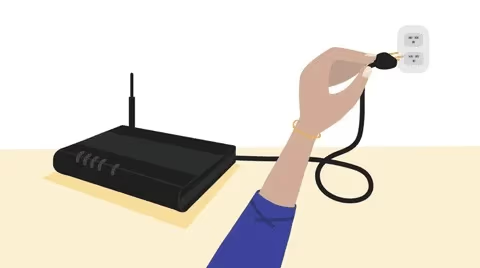
#Reset Your Router
Unplug your router and modem, leave them offline for 60 seconds, then reconnect. This cycling often fixes minor ISP hiccups.
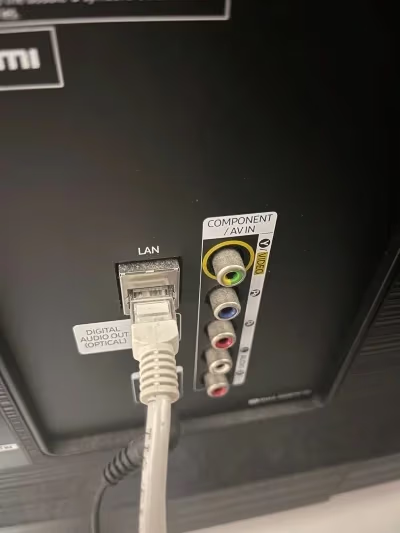
#Connect Your TV via Ethernet
For the most reliable signal, use an Ethernet cable rather than Wi-Fi whenever possible.
#Toggle Airplane Mode On and Off
Turn off the TV’s wireless connectivity for a minute via Airplane mode, then turn it back on to reconnect.
#Connect to a Mobile Hotspot
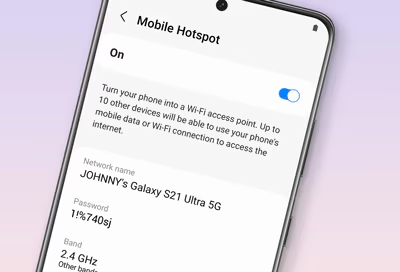
Use your smartphone as a Wi-Fi hotspot to isolate the problem. If TV stops freezing when connected only to your phone, the issue lies with your home internet setup.
#Call Your Internet Service Provider
Contact your ISP to check if they are experiencing service issues in your area. Some connectivity problems originate from them rather than your home network setup.
Once you’ve eliminated internet issues as the culprit, move on to firmware and app troubleshooting.
#Update Apps and Firmware
Like your smartphone operating system, your smart TV platform needs constant firmware updates to fix bugs and improve performance.
App developers also regularly release new versions of apps like Netflix and YouTube to patch issues.
Here’s how to update your Samsung TV’s apps and system firmware:
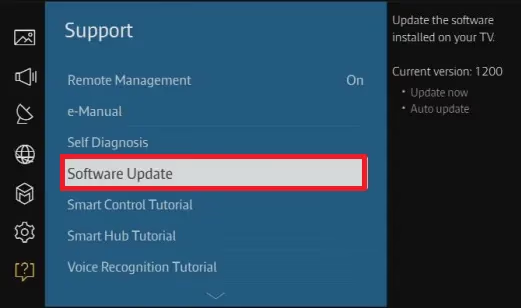
#Check Your Samsung TV’s Firmware Version
From the home screen menu:
-
Select Settings
-
Choose Support
-
Click Software Update
-
Select Update Now to install any available updates
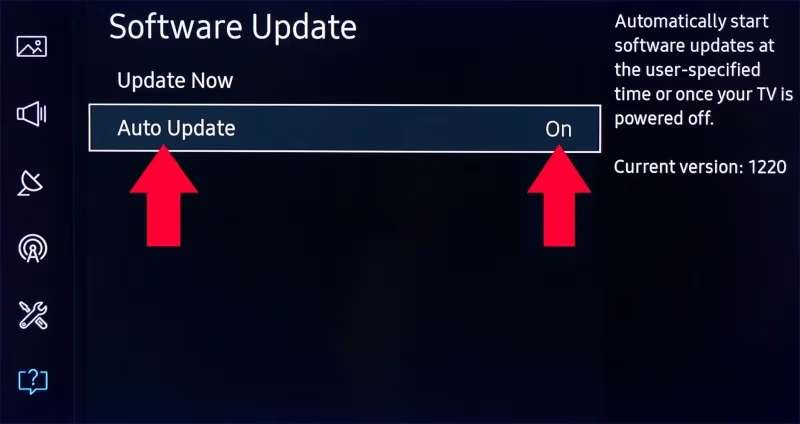
#Enable Auto Firmware Updates
Your TV should automatically check and install updates but toggling this on ensures it:
-
Open Settings
-
Choose Support
-
Select Software Update
-
Click on Auto update to toggle it on
#Update Apps Individually
You can also manually update any app:
-
Highlight the app icon
-
Press and hold Enter button
-
Choose Update
Streaming services like Netflix, Hulu and Disney+ regularly patch bugs and release new app versions you need to install.
Once firmware and apps are updated, check if TV still freezes. If not, problem solved!
If it still freezes after updating, try resetting your TV next.
#Reset Your Samsung TV
Resetting your Samsung TV restores factory default settings which often resolves freezing issues caused by problematic customized configurations.
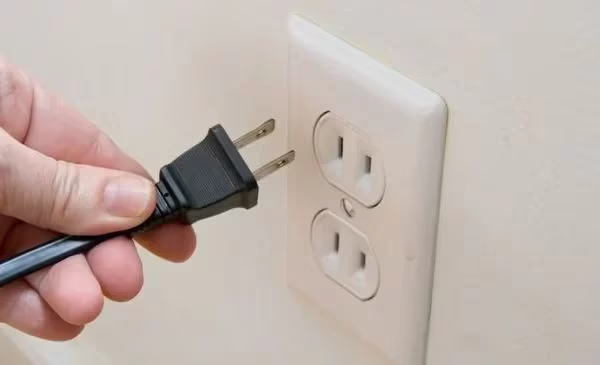
#Soft Reset (Power Cycle)
The fastest way is a soft reset:
-
Press and hold power button on Samsung TV until screen fully turns off
-
Unplug TV power cable and leave unplugged for 2 minutes
-
Plug power back in and turn TV on
#Factory Reset
If a power cycle doesn’t work, do a factory reset:
-
From TV menu, select Settings > General > Reset
-
Enter default PIN code: 0000
-
Choose Reset to restore factory defaults
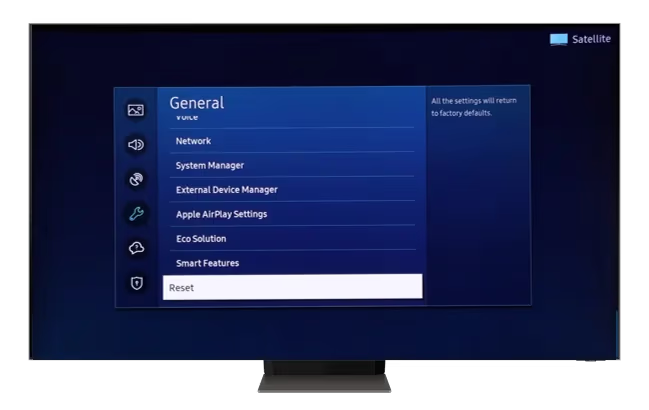
A factory reset deletes all personal data and settings. You’ll have to reinstall apps and reconfigure options afterward. Check if it stopped the freezing problem.
#Check Connections and Cables
Freezing issues can also arise from loose cable connections. Carefully inspect the following:
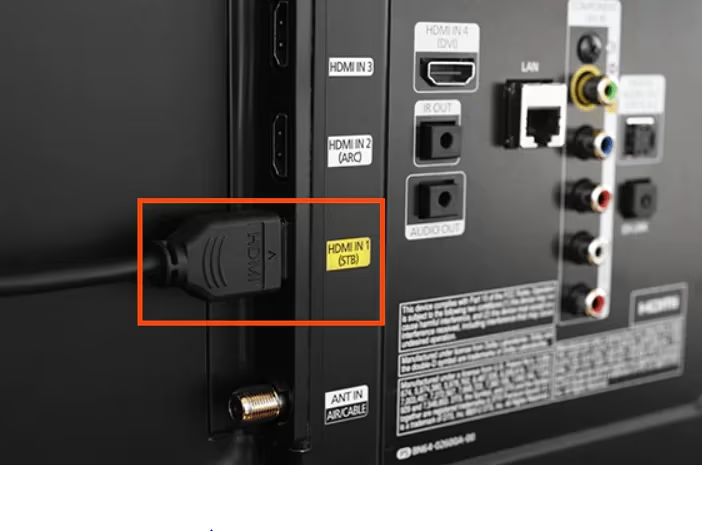
#HDMI Ports
Make sure HDMI cables connecting devices like your cable box, game console, or Blu-ray player are undamaged, firmly plugged in, and inserted in the correct ports.
#TV Power Cable
Ensure power cable is fully inserted into the TV and wall outlet. Try disconnecting and reconnecting.
#Cable Box Cables
If you use a cable box, double check all connections running from box to TV, including HDMI cable and power cord.
#Wi-Fi Router Connection
If using Wi-Fi, make sure your Samsung TV’s connection is strong. If not, connect an Ethernet cable directly from your router to establish a more reliable wired connection.
Check cable connections to isolate the freezing trigger. If problems persist, dust buildup may be causing overheating issues.
#Clean Dust Buildup
Dust accumulation within the TV’s internal components forces the fans to work harder. This overheats the system and causes temporary freezing.
Carefully clean dust using these steps:
-
Unplug the Samsung TV
-
Use a soft brush attachment on a vacuum cleaner to gently remove dust from ventilation openings along the back and sides. Never insert anything into ports!
-
Use a can of compressed air to spray out any remaining dust inside the vents and gaps between components
-
Reconnect and turn on TV to check if overheating freezes are fixed
Avoid blowing air directly at sensitive electronic modules. Be very gentle when handling rear vents.
If you don’t feel comfortable doing this yourself, contact Samsung support for cleaning assistance.
#When Should You Contact Samsung Support?
If you still face freezing problems after trying the above fixes, contact Samsung TV technical support.
Describe the issue and troubleshooting steps you took. Their experts can provide specialized remote troubleshooting, schedule technician visits for motherboard issues, or guide you on replacement options if they determine your older TV is beyond cost-effective fixes.
Samsung TV freezing errors are endlessly frustrating, especially if rebooting and basic steps don’t permanently resolve them. Carefully trying the fixes above should isolate the culprit 95% of the time.
#FAQs About Samsung TV Freezing Issues
#Why does my Samsung TV freeze while watching Netflix or Prime Video?
If your Samsung TV only freezes when using certain streaming apps like Netflix or Prime Video, it likely stems from an outdated app version causing compatibility issues. Follow the app update instructions above to download the newest version. Also check your TV firmware is up to date.
#Why does my Samsung TV freeze when changing channels?
Frequent freezing only when flipping channels points to a cable box issue rather than the TV itself. Inspect all cable box connections and cables. Try unplugging the box, leaving it off for 2 minutes, then reconnect.
#Why does my Samsung TV freeze randomly?
Random Samsung TV freezing generally arises from connectivity problems like a weak Wi-Fi signal or internet service issues. A power cycle (unplug for 2 minutes) fixes most random freezes by clearing cached data and resetting the TV’s memory.
#Why does my Samsung TV freeze when using screen mirroring?
Mirroring your smartphone screen to your Samsung TV wirelessly is convenient but bandwidth-heavy. A weak router signal or older phone OS struggling with the video transmission can trigger freezes. Use a wired connection instead or reduce streaming quality in mirroring settings.
#How do I reboot a frozen Samsung TV?
First, use the power button on your Samsung TV remote to turn the screen off. If it remains unresponsive, unplug the TV power cable for 2 minutes before reconnecting to force a hard reboot. This restart often fixes temporary glitches causing the freeze.
#Does a factory reset fix Samsung TV freezing permanently?
A factory reset resolves freezing caused by corrupted settings or problematic app data, but it won’t fix hardware issues like a failing motherboard or overheating from dust. After resetting (Settings > General > Reset, PIN: 0000), you’ll need to reinstall all apps and reconfigure your preferences.
#Can a weak Wi-Fi signal cause my Samsung TV to freeze?
Yes. A weak or unstable Wi-Fi signal is the single most common cause of Samsung TV freezing during streaming. Move your router closer to the TV, remove physical obstructions between them, or switch to a wired Ethernet connection for a stable signal.