Samsung TVs not showing all channels is a common frustration many users face. Can’t find your favorite sports or news channel anymore? The good news is that in most cases, a quick check of your connections and a channel rescan will bring everything back.
In 9 out of 10 cases, the problem comes from incorrect settings or connections rather than hardware faults. By going through some basic troubleshooting steps, you can get your full channel lineup back in no time.
- Loose coaxial or HDMI cables — the number one cause of missing channels on Samsung TVs
- Auto Tuning scan — found under Settings > Broadcasting, detects newly available stations
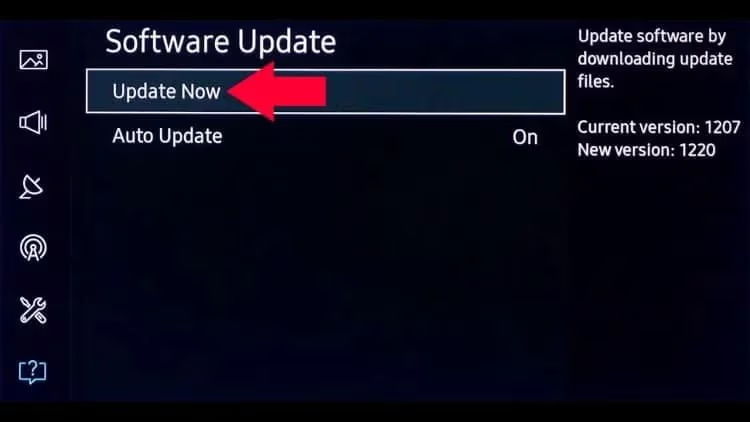
- Firmware updates — outdated software can drop channels; check Settings > Support > Software Update
- Wrong input source — selecting HDMI instead of TV (or vice versa) hides all antenna channels
- Region mismatch — incorrect region settings block local broadcast frequencies from being decoded
#How Do You Verify Signal Connection and Strength?
The first step is always to check your TV’s connections to the signal source – cable, satellite or antenna. Loose cables or faulty coaxial ports can cause intermittent signal issues leading to missing channels.
Carefully examine all physical connections to see if any cables are damaged or disconnected. Securely plug them into the correct ports on the TV and your set-top box/antenna. Faulty cables should be replaced for reliable signal transfer.
If your connections check out, verify if the signal strength is adequate – especially for over-the-air antenna channels. Navigate to the signal diagnostics menu on your Samsung TV to view real-time signal levels.
Antennas require strong signal strength for reliable channel detection. Consider repositioning the antenna or installing a signal amplifier if the levels seem low. Proximity to radio interference and physical obstructions can also impact OTA signals.
If your Samsung TV has connectivity problems that could cause channels to not show properly, check out this guide on fixing Samsung TV Wi-Fi connection issues.
Intermittent signal loss causing the TV to freeze can also result in missing channels. See tips for troubleshooting Samsung TV freezing problems.
#How Do You Perform a Channel Scan?
Once connections are ruled out, initiate a channel scan to re-tune your Samsung TV and update available channels.
You can find the auto-tuning or channel scan option under the Settings > Broadcasting menu. Newer models also include an Auto Channel Update feature that regularly scans for changes to broadcast lineups.
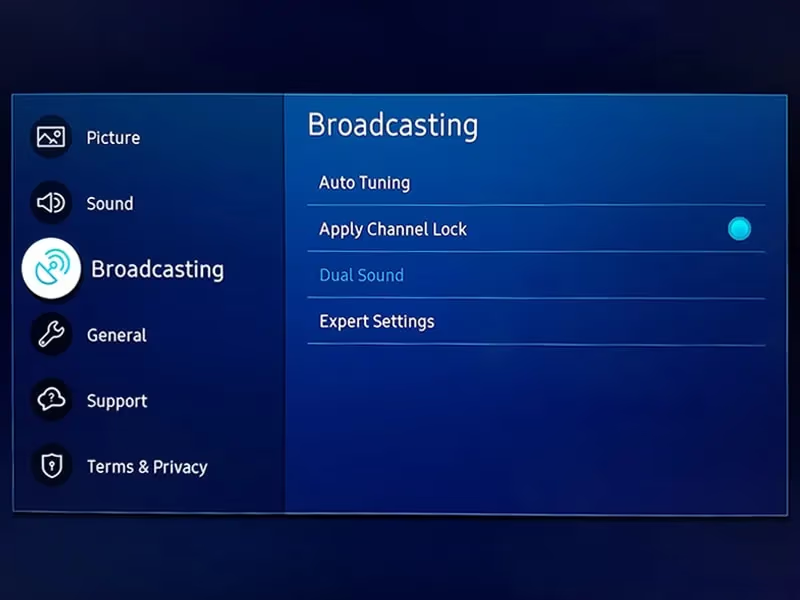
Channel scans systematically go through different frequencies to detect active stations. This can help restore missing channels that may have changed broadcast parameters.
For weak OTA signals, try the manual tuning mode in channel settings. This allows you to directly enter a channel’s frequency to manually force detection. Refer to official broadcast lineups for your area for specific channel frequencies.
Repeated scans may be required after making significant changes to connections, region settings or antenna upgrades.
#Check for Software Updates
Like all smart devices, Samsung routinely rolls out firmware updates for its smart TV models. Installing latest updates is an important maintenance step.
Bug fixes, improvements and new features in updates can positively impact stability and channel detection capabilities. Failure to update periodically can actually result in channels going missing over time.
Navigate to Settings > Support > Software Update and select Update Now to check for and install pending system updates. If your TV is connected to the internet via Wi-Fi or Ethernet, updates will automatically download in the background once available.
#Reset TV to Factory Settings
If you’ve made lots of custom changes and channels have suddenly vanished, consider reverting your Samsung TV to factory out-of-box conditions with a master reset.
Back up settings and data before resetting. Under General system settings, select the Self Diagnosis > Reset option. Confirm twice to erase all personal settings, installed apps, accounts and return to the default configuration.
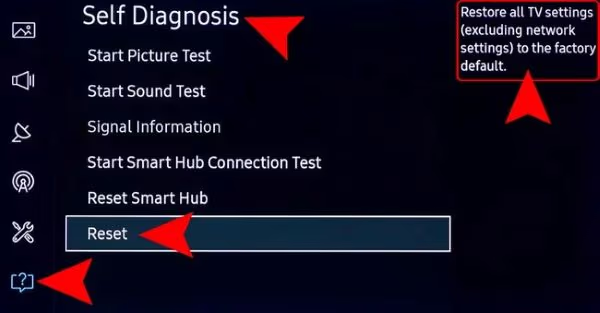
Resetting gives the TV a clean slate eliminating any problematic customization that may be preventing proper channel tuning. Re-configure the basics like region, inputs, connections and scan for channels.
Problems like Samsung TV not turning on prevent accessing any channels altogether until power and connections are restored.
#Contact Service Provider
Before getting into equipment troubleshooting, rule out any service issues by contacting your Pay TV or OTA broadcaster. Wider outages due to maintenance, upgrades and intermittent connectivity can stop channels from coming through.
Inquire if they are aware of any issues in your area and get updates on resolved before continuing equipment troubleshooting.
#Switch Input Source
Accessing antenna/cable channels requires setting both the device input and TV tuner to the correct source. When using a set top box, make sure to change the input on your Samsung TV to match where this device is connected e.g HDMI-1.
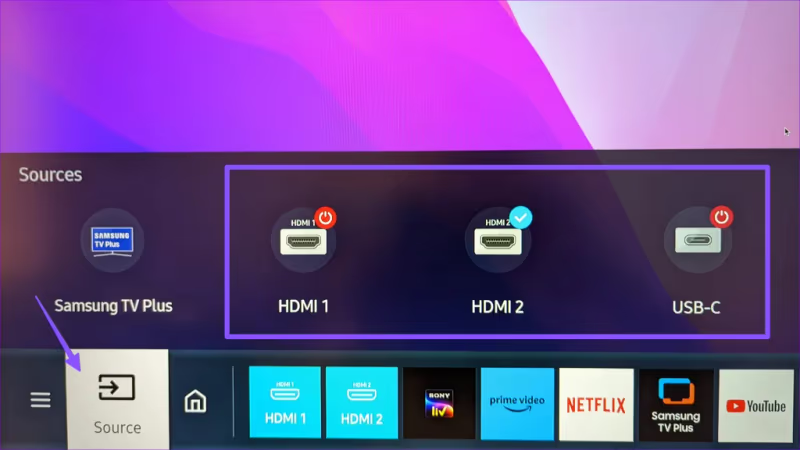
If you have directly connected the coaxial cable from an off-air antenna or wall outlet, the input must be set to TV. When the wrong input is selected, the channels obviously won’t show up regardless of tuning attempts.
#Change Region Setting
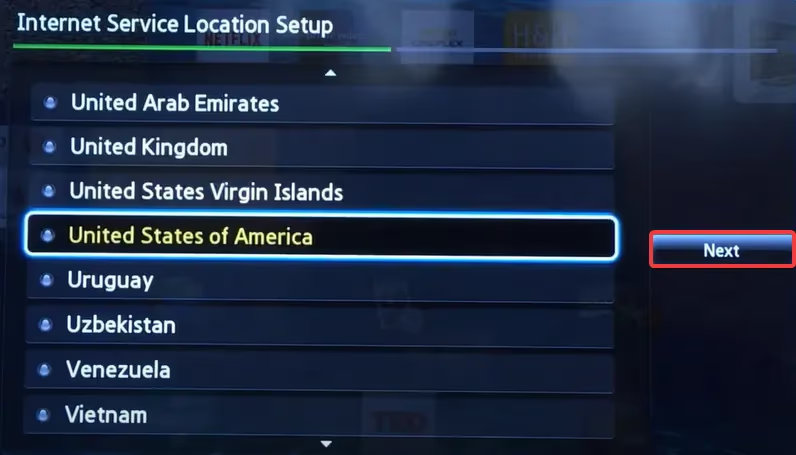
Geographical region settings automatically configure broadcast standards, frequencies and channel numbering conventions. Setting the wrong region can severely impact scanning and signal decoding – leading to missing channels.
If you have recently moved locations or even traveled abroad with your TV, ensure the region matches the Samsung TV’s current physical location for proper channel detection.
#Identify Source of Interference
Electrical devices like cordless phones, microwaves, baby monitors and WiFi routers operating in the 5GHz band can interfere with OTA TV signals and break channel reception.
If you consistently notice certain channels struggling even after scanning/tuning – identifying and keeping such devices away from your Samsung TV can resolve intermittent signal issues.
Upgrading to shielded HDMI/coaxial cables also helps eliminate electromagnetic interference effects.
#Upgrade TV Antenna
Over-the-air channels require a strong antenna system for reliable reception without dropouts. Using older splitter-based antennas with amplifiers daisy chained to multiple TVs can degrade signals.
Upgrading to a newer amplified multi-directional antenna and directly connecting it to just the Samsung TV with the best reception can provide performance benefits.
Place antennas in a high, unobstructed location away from trees/buildings for optimal reception. Installing in the attic also offers protection from weather-related issues.
Issues with the TV randomly powering on by itself can disrupt your viewing experience and contribute to channels not being tuned correctly. Learn what causes Samsung TVs to turn on by themselves unexpectedly.
#FAQ
#Why does my Samsung TV not show all channels?
Loose antenna cable connections, outdated firmware, and incorrect input source settings are the top three causes. Check each of these before assuming a hardware problem. A quick channel rescan after fixing connections restores most missing stations.
#How do I auto tune channels on my Samsung Smart TV?
Go to Settings > Broadcasting > Auto Tuning to start a channel scan. Make sure you have selected the correct input source (TV for antenna, HDMI for set-top box) before starting the scan.
#What should I do when my Samsung TV says no signal during tuning?
Check all physical connections first, paying close attention to the coaxial cable at both ends. If cables are secure, contact your Pay TV or OTA provider to confirm there are no outages in your area. Retry the scan once any service issues are resolved.
#Can the wrong region setting make channels disappear?
Yes. Region settings control broadcast standards, frequencies, and channel numbering. Selecting the wrong country or region blocks the TV from decoding local signals, so channels won’t appear during a scan.
#Why are antenna channels more prone to disappearing?
Over-the-air reception depends on antenna type, placement, cabling, and environmental factors like nearby buildings or weather. Weak or intermittent signals cause the TV to skip channels during scanning. Upgrading to an amplified multi-directional antenna and placing it in a high, unobstructed spot usually fixes this.
#How often should I rescan channels on my Samsung Smart TV?
Rescan every two to three months. Broadcasters occasionally change frequencies or launch new stations, and your TV won’t pick them up without a fresh scan.
#Does a factory reset fix missing channels on a Samsung TV?
A factory reset can help when corrupted settings or software glitches cause channel detection to fail. Back up your preferences first, then go to Settings > General > Self Diagnosis > Reset. After the reset completes, reconfigure your region and input source before running a new channel scan.
#Can nearby electronics interfere with TV channel reception?
Cordless phones, microwave ovens, baby monitors, and Wi-Fi routers operating on the 5 GHz band can all disrupt OTA signals. Keep these devices at least a few feet away from your TV and antenna. Shielded coaxial and HDMI cables also reduce electromagnetic interference.
#Bottom Line
Struggling with some missing channels on your new Samsung Smart TV? Don’t panic and assume its a complex hardware flaw right away. In most cases, the “no channels found” error can be easily fixed using simple troubleshooting techniques.
Carefully going over your connections, cables, input settings, antenna upgrades and firmware updates can get your full programming lineup back up in no time. Pay attention to the exact error messages and cues during failed tuning attempts to zero in on the potential issue.
Stay calm, be patient and methodically try the step-by-step corrective measures outlined in this guide. Have all your settings configured correctly before attempting channel scans.
If problems persist despite following the best practices, your antenna system may need professional servicing – or rarely – the TV’s internal tuner could itself be defective. Schedule repairs at an authorized Samsung service center in such rare cases where DIY fixes don’t work.