Want to enjoy endless entertainment on your LG TV? Adding Roku can transform your LG TV into a streaming powerhouse. This guide covers everything you need to know about using Roku devices with LG TVs, from picking the right model to optimizing your setup.
- Roku works with all LG TVs — 4K, 1080p, LCD, OLED, and even older plasma models connect via HDMI
- Setup takes under 5 minutes — plug in the HDMI cable, connect to Wi-Fi, activate your free Roku account, and start streaming
- Over 200,000 movies and TV episodes are available across thousands of free and paid Roku channels
- Roku Streaming Stick+ is the best value pick — it supports 4K HDR, has fast Wi-Fi, and includes a voice remote
- Enable HDMI UHD Deep Color on your LG TV settings to unlock full 4K HDR quality from your Roku device
#Why Add Roku to Your LG TV?
LG makes fantastic smart TVs packed with great features. But even the best LG TVs can benefit from adding Roku.
Here are 5 key reasons to add Roku to your LG TV:
#1. Access Over 200,000 Movies and TV Episodes
Roku gives you access to over 200,000 movies and TV episodes across thousands of free and paid channels. From the latest hits on Netflix and Hulu, to live news and sports, to niche channels like horror movie marathons, Roku has it all.
#2. Super Fast Interface
Roku devices have a lightning fast interface that loads channels and content quickly. No more waiting for apps to load. Just tap and start streaming instantly.
#3. Advanced Voice Controls
Control your Roku device hands-free with voice commands using LG’s Magic Remote or voice assistants like Amazon Alexa. Quickly search for titles, launch apps, adjust volume and more with just your voice.
#4. Private Listening via Headphones
Plug wireless headphones into your Roku remote to pump up the volume without disturbing others. Roku’s private listening feature is great for late night streaming sessions.
#5. Automatic Updates
Roku devices update automatically in the background so you always have the latest software and features. No need for frustrating manual updates.
Adding Roku supercharges your LG TV and unlocks a world of stellar streaming content.
#Which Roku Devices Are Compatible with LG TVs?
All current Roku streaming devices are compatible with LG smart TVs, including:
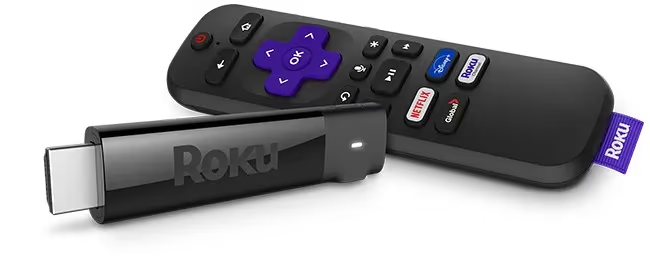 Roku Streaming Stick+
We recommend the Roku Streaming Stick+ for most people. It’s affordable, supports 4K HDR video with fast Wi-Fi, and comes with a voice remote.
Any Roku will work with your LG TV, regardless if it’s 4K, 1080p, LCD, OLED or older.
#How to Connect Roku to an LG TV
Connecting Roku to an LG TV is quick and easy, taking less than 5 minutes start to finish.
Here is an overview of the setup process:
#Step 1: Connect Roku to Your LG TV
Use the HDMI cable included with your Roku player to connect it to an open HDMI port on the back of your LG TV.
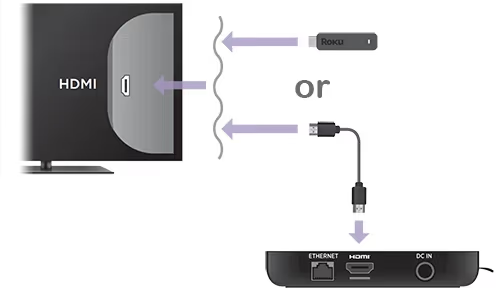
Make sure both devices are on and your LG TV input source is set correctly before starting Roku setup. If your LG TV is stuck on the logo screen, you’ll need to address that first.
#Step 2: Connect Roku to Your Wi-Fi Network
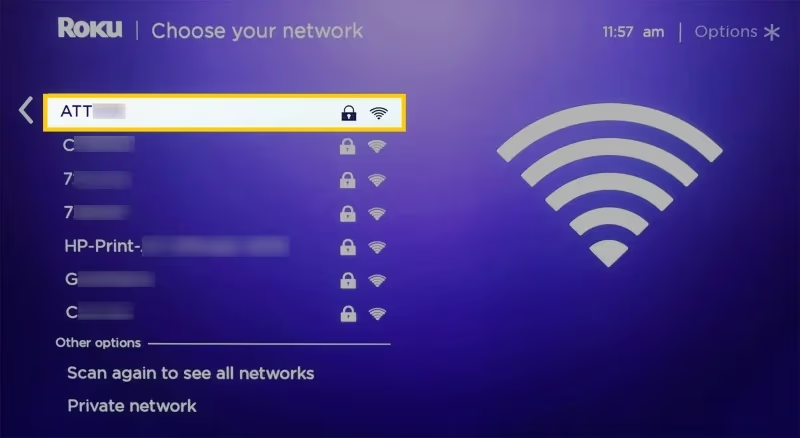
Your Roku will automatically scan for wireless networks. Select your Wi-Fi name and enter the network password when prompted.
#Step 3: Activate Your Roku Account
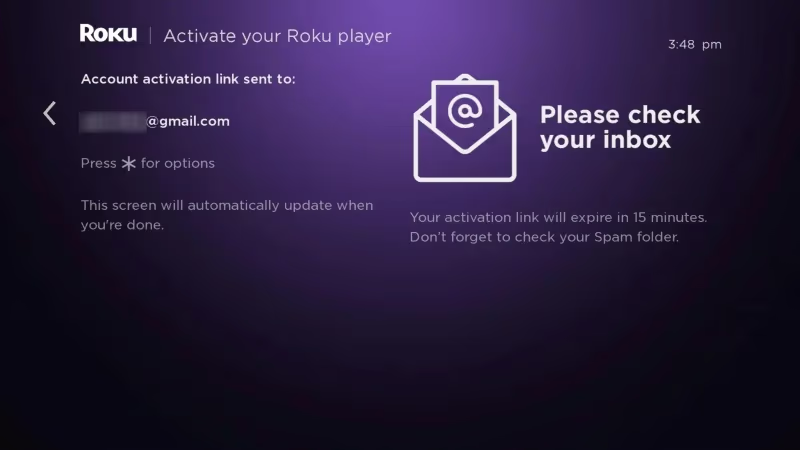
Create or sign into your free Roku account using your email address. This links your Roku player for streaming and enables automatic updates.
#Step 4: Add Streaming Channels
Browse Roku’s Channel Store and add favorite streaming apps like Netflix, Prime Video, Hulu, and more to your Roku home screen.
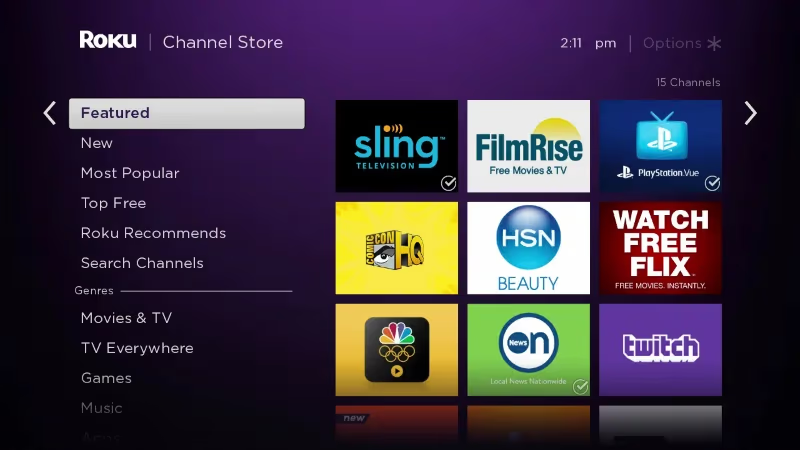
That’s it! With just a few minutes of setup, you can start streaming shows, movies, live TV and more on your LG TV powered by Roku.
#How Do You Get the Best Roku Experience on LG TVs?
Here are 5 tips to maximize streaming enjoyment with Roku on your LG TV:
#1. Place Roku Where Wi-Fi Is Strongest
For 4K and HDR streaming, Roku needs a consistently strong wireless connection. Place your Roku device closer to routers/extenders and away from potential signal disruptors like microwaves. If you frequently deal with LG TV not connecting to Wi-Fi, consider wiring Roku directly to your router.
#2. Enable HDMI UHD Deep Color
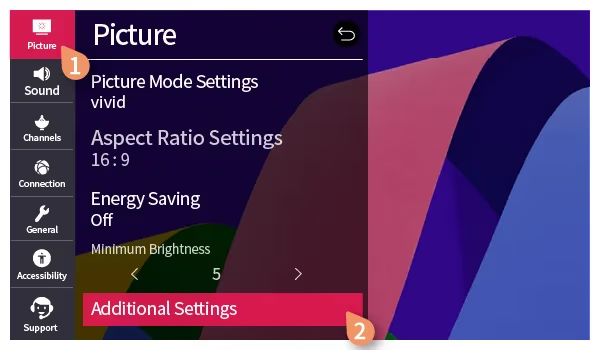
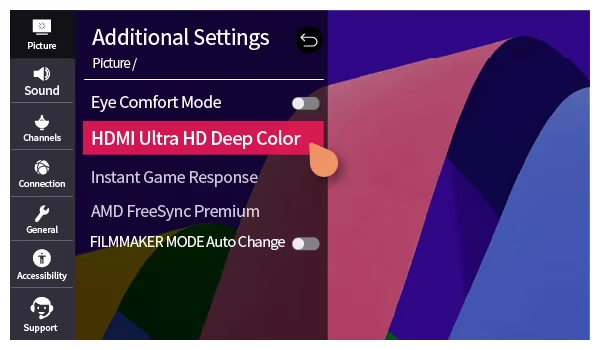
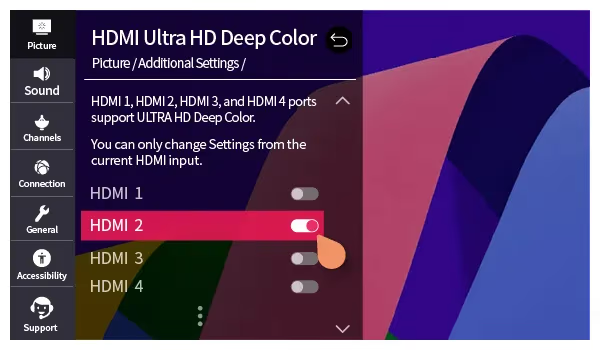
Dig into LG’s TV settings and enable HDMI UHD Deep Color for the input port Roku uses. This allows for full 4K HDR quality.
Settings > All Settings > Picture > Additional Settings > HDMI Ultra HD Deep Color > Change HDMI (connected port) from Off to On.
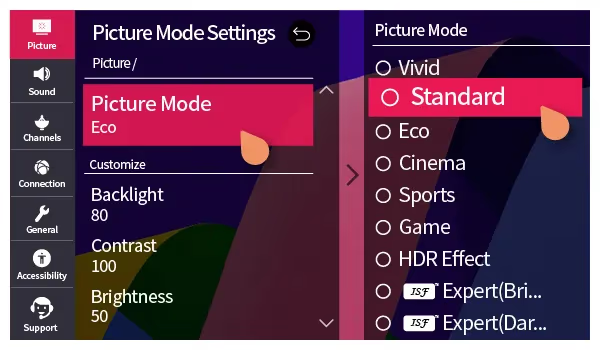
#3. Set TV Mode to Game
Switch LG TV picture mode settings to “Game”. This reduces input lag for smoother streaming and gameplay response when using Roku.
#4. Configure Power Settings
Adjust power settings so LG TV and Roku do not go to sleep when idle. This prevents waiting for devices to reconnect when resuming streaming.
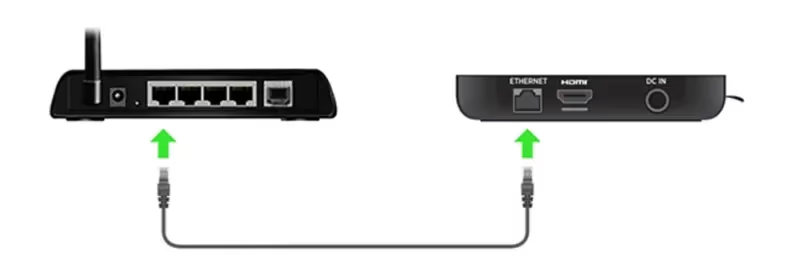
#5. Use Ethernet for Reliable 4K Streaming
For the most reliable 4K HDR streaming, connect Roku Ultra or Streaming Stick+ to your router using an Ethernet cable instead of Wi-Fi.
Optimizing setup goes a long way towards achieving better video quality and responsiveness.
#Best Roku Channels for LG TVs
One of Roku’s biggest strengths is the breadth of streaming entertainment options available.
Here are 8 must-have channels perfectly suited for watching on LG TV displays:
#1. Netflix
Stream hit originals like Stranger Things and Ozark with Dolby Vision HDR for cinematic quality on LG OLED and premium LCD TVs.
#2. Prime Video
Amazon Originals like The Boys pop with High Dynamic Range enabled by connecting Prime Video to Roku on LG televisions.
#3. Hulu
Catch buzzworthy Hulu Originals like The Handmaid’s Tale streamed through Roku players to late model 4K LG TVs.
#4. YouTube

From viral videos to concerts to tutorials, watch YouTube’s massive library of free content on your LG 4K or 8K smart TV.
#5. Red Bull TV

Experience extreme sports like downhill biking, surfing and snowboarding in big screen immersion powered by Red Bull TV on Roku.
#6. Vevo

Blast music videos new and old from pop, hip hop, country and more artists streamed to LG OLEDs, NanoCells and UHD TVs with Roku.
#7. The Roku Channel
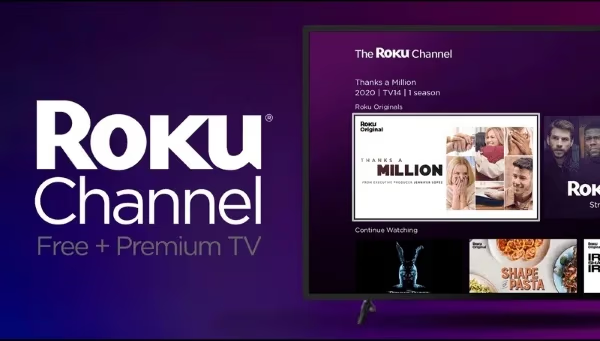
The Roku Channel provides free, ad-supported movies like Zombieland and TV shows like Homeland available instantly on your LG TV.
#8. Plex
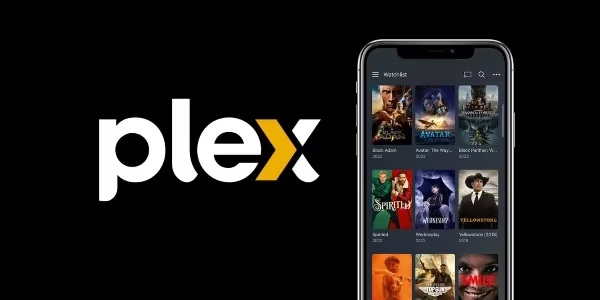
Own a media server? Stream personal video collections with a slick interface using the Plex app through Roku on high-end LG smart TVs.
Note: Channel availability subject to change by region.
Roku streaming players turn LG TVs into versatile entertainment displays with hundreds of viewing options and solid streaming quality.
#Bottom Line
Roku is one of the easiest ways to expand what your LG TV can do. Pick up a Roku Streaming Stick+ for under $50, plug it into an HDMI port, and you’ll have access to thousands of channels within minutes. Enable HDMI UHD Deep Color in your LG settings for the best picture quality, and consider Ethernet if your Wi-Fi is spotty.
#FAQ
#Does Roku replace LG webOS?
No, Roku does not replace or interfere with LG webOS. It runs as a separate input source, so you can switch between webOS and Roku at any time using your TV remote. Both systems coexist on the same TV without conflict.
#Can I control my LG TV with a Roku remote?
Roku remotes can power your LG TV on and off, adjust volume, and mute audio. You can use the included Roku remote or the free Roku mobile app for these functions. The LG Magic Remote still works normally for webOS features.
#Do I need internet for Roku even if my LG TV has webOS?
Yes, Roku requires an internet connection to stream content, just like webOS apps do. Without Wi-Fi or Ethernet, Roku cannot load channels or play anything. Both platforms depend on internet access for their streaming features.
#Is LG webOS or Roku better for streaming?
They serve different purposes. webOS handles LG-specific smart TV features like AirPlay and SimpLink, while Roku focuses entirely on streaming with a larger channel library and faster updates. Many users keep both and switch depending on what they want to watch.
#Will Roku work on older non-4K LG TVs?
All Roku models support older LG TVs with 480p, 720p, or 1080p resolution. The Roku player automatically adjusts its video output to match your TV’s capability. You still get the full Roku channel library regardless of your TV’s resolution.
#How many Roku devices can I link to one account?
You can link up to 5 Roku devices to a single Roku account. Each device connected to a different LG TV will share the same channel lineup and preferences. Streaming is limited to one device per account at a time.
#Can I get live TV channels like ESPN through Roku on my LG TV?
ESPN and similar cable channels require a separate streaming TV subscription. Services like Sling TV, YouTube TV, or Hulu + Live TV are available on Roku and include ESPN in their packages. These cost $35-$75 per month depending on the plan.
#Why won’t Hulu load on my LG TV through Roku?
Check your internet connection on both the TV and router first. If the connection is stable, uninstall the Hulu channel from Roku and reinstall it from the Channel Store. A quick restart of the Roku device also clears temporary glitches that can block apps from loading.