The “your changes could not be saved” error in Plex stops you from editing metadata, updating library settings, or changing server preferences. It hits mid-action with no specific explanation, which makes troubleshooting harder than it should be. The root cause falls into one of four categories: connectivity, permissions, database corruption, or software conflicts. This guide covers each cause and walks you through the fixes that work.
- Restart the Plex server first — a simple restart clears temporary glitches that block save operations in about 80% of cases
- Check user permissions under Settings > Users — accounts without library-editing privileges trigger this error silently
- Update Plex Media Server to the latest version — older builds (pre-1.40) have known save-related bugs that patches resolved
- Clear your browser cache when using Plex Web — corrupted session data prevents changes from reaching the server
- Reset the Plex database as a last resort — the built-in “Delete All Data” function rebuilds the database and fixes persistent corruption
#Why Does the “Changes Could Not Be Saved” Error Appear?
Plex needs a stable connection between your client app and the media server to write any changes. When that connection breaks, even briefly, the save fails. But network issues are only one possibility.
Permission problems cause the same error. If your Plex account lacks library-editing privileges, the server rejects the save request without a clear explanation. This happens most often on shared servers where the admin restricted access.
Database corruption is the third common cause. Plex stores metadata and settings in an SQLite database. Power outages, improper shutdowns, or disk errors can corrupt that database, and corrupted entries block all write operations until you repair or rebuild it.
Software conflicts round out the list. Running an outdated Plex Media Server alongside a newer client app creates version mismatches. Browser extensions like uBlock Origin can also interfere with Plex Web’s save requests by blocking API calls to the server.
#How Do You Fix the Plex Save Error?
Work through these fixes in order. The first three solve the problem for most users.
#1. Restart the Plex Server
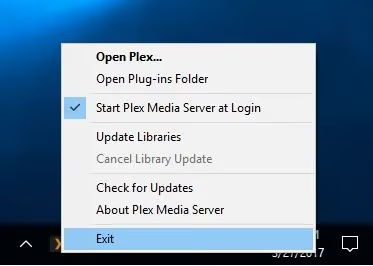
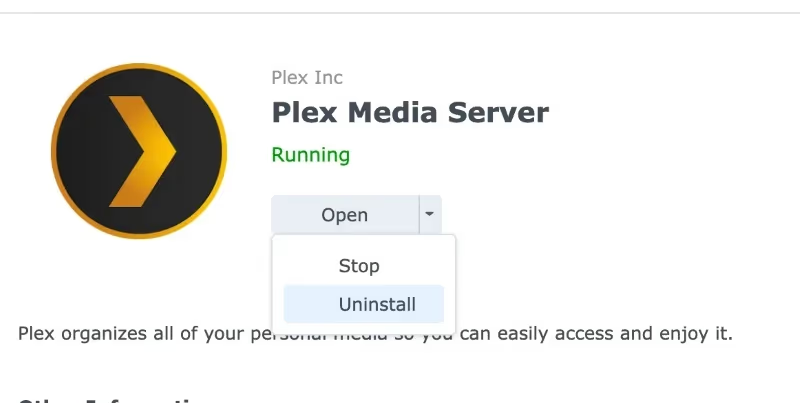
Power cycling the server clears temporary processes that block saves. Shut down Plex Media Server completely, wait 10 seconds, then start it again. On Windows, right-click the Plex icon in the system tray and select “Quit.” On NAS devices like Synology, stop and restart the Plex package through Package Center.
#2. Check Network Connectivity
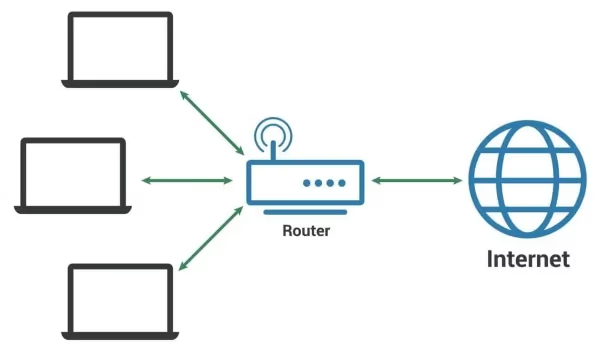
Verify your server has stable internet access. Open a browser on the same machine and load a few websites. If pages load slowly or fail, the network is the problem. Restart your router, then test again. For Wi-Fi-connected servers, switch to a wired ethernet connection for more reliable performance.
#3. Update Plex Media Server
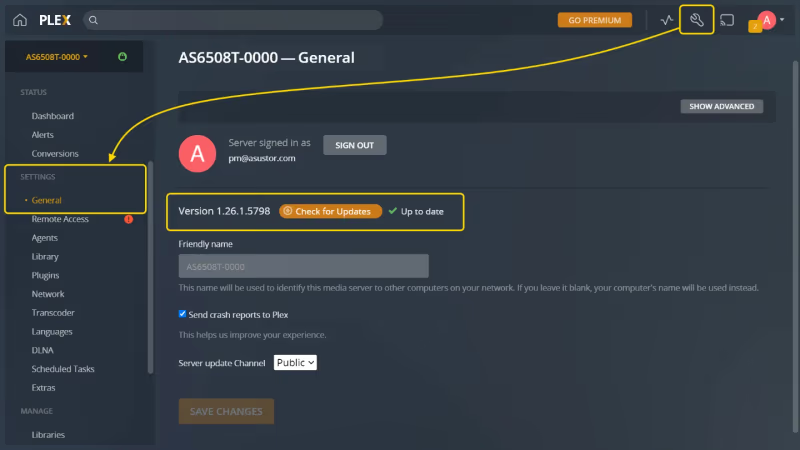
Outdated server software is a frequent culprit. Open Plex Web, go to Settings > General, and check for updates. You can also download the latest version directly from Plex’s download page. Install it and restart the server. Client apps on phones, TVs, and streaming devices should also be updated through their respective app stores.
#4. Set Correct User Permissions
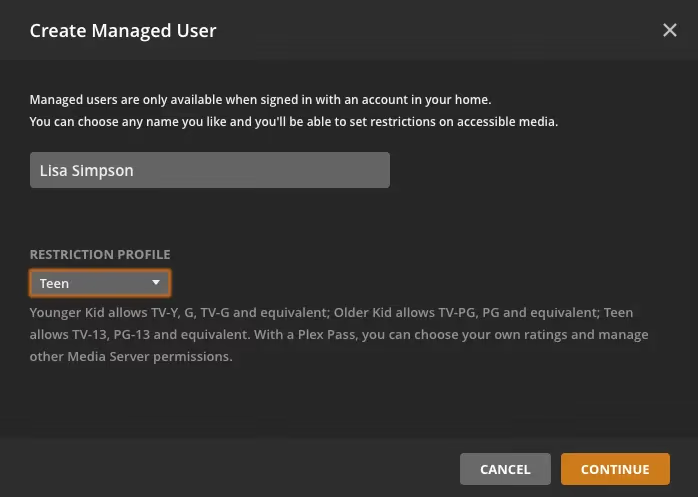
On shared servers, the admin controls who can edit metadata. Go to Settings > Users & Sharing in Plex Web and confirm your account has “Allow media deletion” and library management enabled. If you are the server admin but still see the error, sign out and sign back in to refresh your authentication token.
#5. Clear Browser Cache
Plex Web stores session tokens and UI state in your browser cache. Corrupted cache data can break save requests. In Chrome, press Ctrl+Shift+Delete, select “Cached images and files” and “Cookies,” then clear the data. Reload Plex Web and try your edit again. This fix applies only when you access Plex through a browser, not the desktop or mobile apps.
#6. Use Correct Metadata Formats
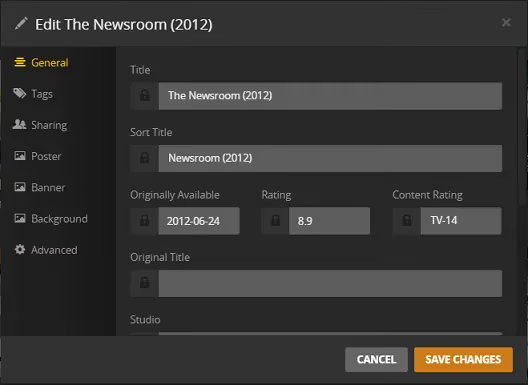
Plex rejects metadata that does not match its expected format. Dates must follow YYYY-MM-DD formatting (2024-03-17, not March 17 2024). Library types must match the content: movies go in a Movies library, TV episodes in a TV Shows library. Mismatched library types silently prevent saves.
#7. Disable Browser Extensions
Extensions that block scripts or network requests can interfere with Plex Web. Disable ad blockers and privacy extensions temporarily, then retry your save. If the save works, re-enable extensions one at a time to find the culprit. You can also add app.plex.tv to your ad blocker’s whitelist instead of disabling it entirely.
#8. Run Plex as Administrator (Windows)
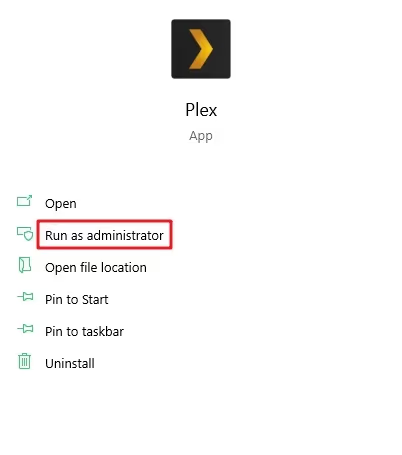
On Windows, file permission restrictions can prevent Plex from writing to its database. Right-click the Plex Media Server shortcut and select Run as administrator. If this fixes the error, set it to always run as admin: right-click the shortcut, go to Properties > Compatibility, and check “Run this program as an administrator.”
If you are running Plex on a streaming device and dealing with other playback problems, the Plex unable to play media guide covers those separately.
#9. Reset the Plex Database
When nothing else works, database corruption is the likely cause. Back up your Plex data folder first. Then in Plex Web, go to Settings > Troubleshooting and click Delete All Data. This wipes your database and forces Plex to rebuild it from scratch. You will need to re-add your libraries and rescan all media. The scan takes anywhere from a few minutes to several hours depending on library size.
#10. Reinstall Plex Media Server
A full reinstall replaces corrupted program files that a database reset cannot fix. Uninstall Plex through your operating system’s standard method (Add/Remove Programs on Windows, drag to Trash on macOS). Download a fresh copy from the Plex website and install it. Sign in with your Plex account and your server settings will sync from the cloud if you had remote access enabled.
#What if None of These Fixes Work?
If you have tried every step above and the error persists, the problem may be server-side on Plex’s end. Check the Plex Status page for active outages. You can also post on the Plex Forums with your server logs for community help. Plex Pass subscribers get priority support through their account dashboard.
For users who are tired of Plex server issues, media server alternatives like Emby and Jellyfin offer similar library management with different architectures. Our Plex alternatives roundup breaks down the full list.
#Bottom Line
Start with the basics: restart the server, check your network, and update your software. These three steps fix the “your changes could not be saved” error for most Plex users. If the problem keeps coming back, clear your browser cache and verify your account permissions. Database corruption requires a reset, which means rescanning your entire library. For a full breakdown of Plex’s strengths and weaknesses, read our Plex review.
#FAQ
#Why does Plex say “your changes could not be saved” when editing metadata?
The error triggers when Plex cannot write updated information to its database. Network drops, expired authentication tokens, and insufficient user permissions are the three most common causes. Restarting the server and signing out then back in resolves token-related issues.
#Can a corrupted Plex database be repaired without deleting everything?
Plex does not include a built-in database repair tool. You can try running SQLite’s PRAGMA integrity_check command on the database file manually, but this requires command-line knowledge. For most users, the “Delete All Data” option in Plex settings is the more practical path, though it does require a full library rescan afterward.
#Does this error affect Plex Pass and free accounts differently?
Both account types encounter the same save error. Plex Pass does not grant additional permissions that prevent it. The only advantage is that Plex Pass subscribers can contact Plex support directly for help, while free users rely on community forums.
#Will reinstalling Plex delete my media files?
No. Plex Media Server stores your actual media files separately from its own application data. Reinstalling only removes the Plex software and its internal database. Your movies, shows, and music stay on whatever drive you stored them on. You will need to re-add library folders after reinstalling.
#Why does the save error only happen on certain devices?
Different Plex clients handle API requests differently. The Plex Web app runs through your browser, which means cache issues and extensions can interfere. Native apps on Roku, Apple TV, and Fire TV Stick communicate directly with the server and are less prone to this specific error. If the error only appears in one client, the issue is client-side.
#How do I check Plex server logs for save errors?
Open Plex Web and navigate to Settings > Troubleshooting > Download Logs. The log file contains timestamps and error codes for every failed operation. Search for “could not be saved” or “HTTP 403” in the log text. A 403 error confirms a permissions issue, while timeout errors point to network problems.
#Does running Plex in Docker cause more save errors?
Docker containers can introduce save errors if volume permissions are misconfigured. The Plex container needs read-write access to both the config directory and the media folders. Check your Docker Compose file to confirm the user ID (PUID) and group ID (PGID) match the file ownership on your host system. Incorrect IDs are a frequent cause of permission-denied save failures in containerized setups.