Want to tap into your full Plex media library while gaming on your Steam Deck? Thanks to Linux compatibility, you can install the Plex app directly on your Deck in just a few quick steps.
- Plex installs through Discover — the built-in Linux app store accessible from Desktop Mode
- No Plex Pass required — the free tier gives you full streaming access to your media library
- Add Plex as a Non-Steam Game — lets you launch it directly from Gaming Mode without switching desktops
- Use Plex HTPC for controller support — this version handles gamepad navigation properly in Gaming Mode
- Preload media for offline use — download content to internal storage before traveling without WiFi
#Why Stream Plex Media on Your Steam Deck?
The Steam Deck is a versatile handheld gaming PC with a large touchscreen that works well for media consumption.
Benefits of using Plex on your Deck include:
-
Stream your personal media anywhere without needing WiFi
-
Save limited storage space on your Deck
-
Enjoy couch gaming and quickly switch to movies/TV between gaming sessions
-
Plex amps up your entertainment options beyond Steam’s offerings
-
Completely free media access once Plex app is installed
Combining Plex as your media server with the Steam Deck provides unlimited on-the-go access to all your movies, TV shows, music, and more.
#How Do You Install Plex on the Steam Deck?
Here’s exactly how to get the Plex app set up on your Steam Deck:
#Switch to Desktop Mode
First, you’ll need to exit the standard gaming UI and enable the Linux desktop environment underlying your Steam Deck.
-
Press the Steam button to open the Quick Access Menu
-
Select Power > Switch to Desktop
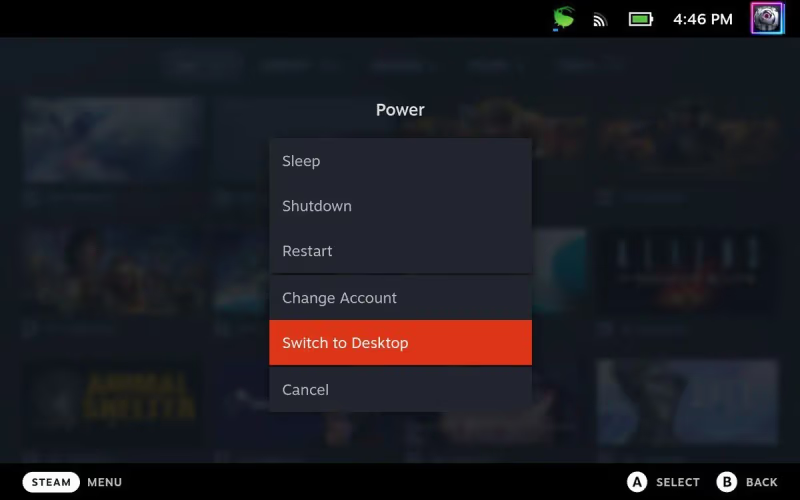
You’ll briefly see a terminal screen before being dropped into the Linux desktop.
#Open Discover and Install Plex
The Steam Deck comes pre-loaded with Discover, Linux’s app store.
-
Click the shopping bag icon in the taskbar to launch Discover
-
Search for “Plex”
-
Select the “Plex Media Server” app
-
Click Install and enter your account password when prompted
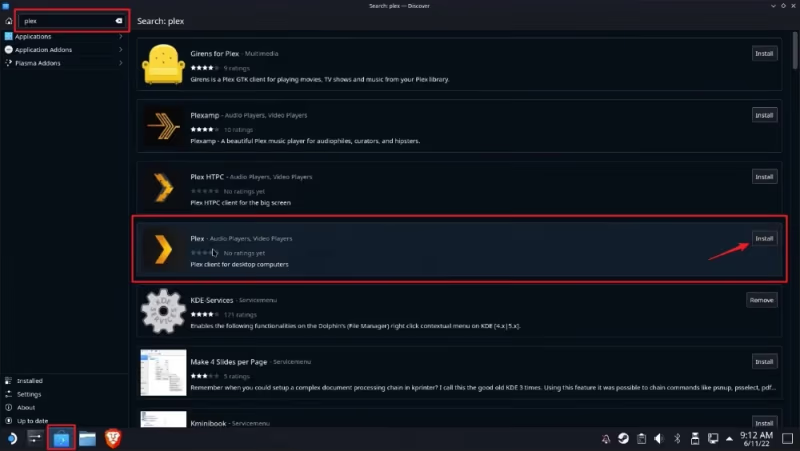
The install only takes a minute. Two versions get added – launch “Plex Media Player” for now.
#Log Into Your Plex Account
If you already have a Plex server with media loaded, logging into your account links this new app install to your libraries.
-
Click Sign In and enter your Plex credentials
-
A Firefox window may appear – log in again to sync your account
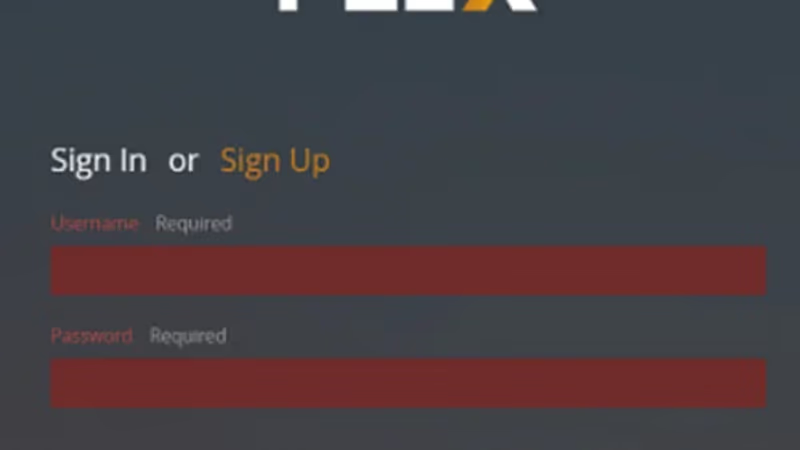
If Firefox does not pop up, run this command in Konsole to fix connectivity issues:
systemctl restart –user xdg-desktop-portal
Now Plex has full access to all your media through your account.
#Adding Plex as a Non-Steam Game
To easily launch Plex within the Steam Deck’s standard gaming interface:
-
Return to the Linux desktop mode
-
Open the Steam app
-
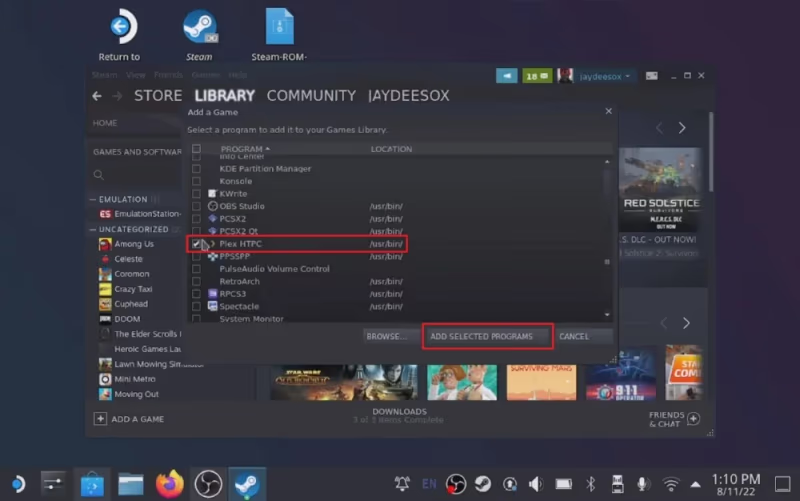
Click Add a Non-Steam Game to My Library
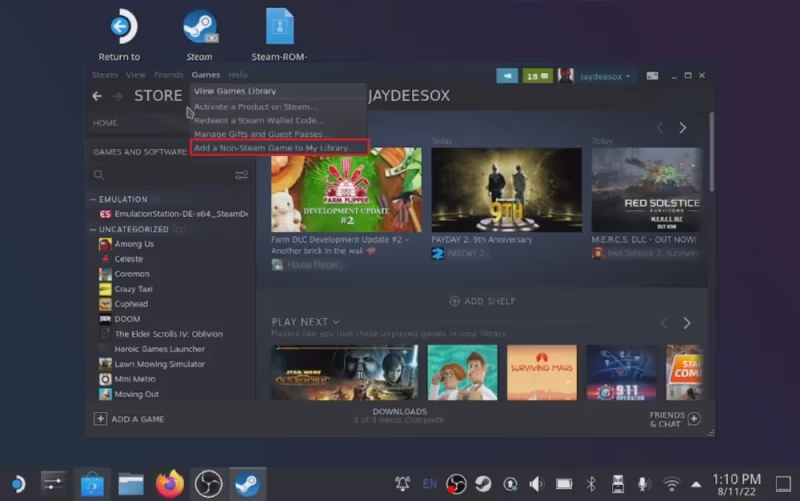
- Choose “Plex HTPC” from the list of installed apps, Click Add Selected Programs
-
Return to gaming mode from the Quick Access Menu
-
Your game library now has a “Plex” app icon
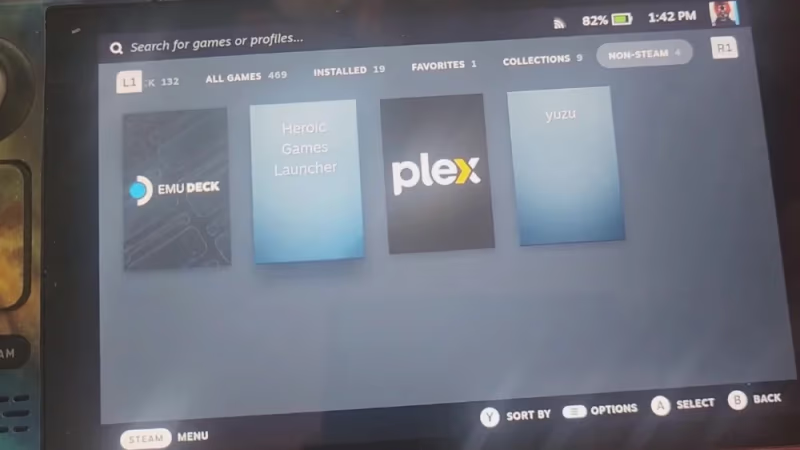
You can now boot directly into Plex without switching back and forth from desktop mode.
Accessing Plex on other popular streaming platforms is easy too – check out guides for Plex on Amazon Fire Stick, Plex on Nintendo Switch, and Plex on Chromebook.
#What Accessories Improve the Plex Viewing Experience?
To get the most out of media consumption on your Steam Deck, consider connecting these accessories:
-
Bluetooth Speakers – For room-filling sound without headphones
-
Portable Monitor – For a larger display to really immerse yourself
-
Tablet Stand – Angles the Deck for easier viewing while freeing your hands
-
USB-C Hub – Allows connecting multiple peripherals over a single Type-C cable
#Pro Tips for Running Plex on the Steam Deck
To get the best Plex performance on your Steam Deck:
-
Use Plex HTPC in gaming mode for proper controller navigation
-
Connect your Deck to strong WiFi or hotspot from your phone
-
Lower video quality settings if buffering (720p recommended)
-
Leave sufficient internal storage available for Plex data cache
-
Monitor CPU temperature – Plex can tax Deck’s processors
-
Keep OS and Plex app updated so fixes roll forward
-
Preload any media you intend to watch offline to the Deck
-
Steer clear of the GPU-intensive PMP app when possible
If you want to expand your streaming options beyond Plex, review these Plex alternatives. Services like Emby, Kodi, Infuse, and Pluto TV offer comparable media management platforms. See how Emby compares to Plex.
#Frequently Asked Questions About Plex on the Steam Deck
#What are the main benefits of using Plex on the Steam Deck?
You get full access to your Plex media library without eating up the Deck’s internal storage. Your Plex server handles transcoding and format support, so playback stays smooth even with large files. You can also download content for offline viewing when you’re away from WiFi.
#Do I need an active Plex Pass subscription?
No, a Plex Pass is not required to stream your media library on the Steam Deck. The free tier covers local and remote streaming just fine. A paid subscription does unlock extras like mobile sync, premium music libraries, and hardware-accelerated transcoding on your server.
#Can the Steam Deck run a Plex media server?
Running a full Plex server on the Steam Deck is technically possible but not practical. The hardware struggles with multiple transcoded streams, and the limited storage makes hosting a media library difficult. You’re better off running the server on a dedicated PC or NAS and using the Deck as a client.
#What is the easiest way to sign into my Plex account?
Open the Plex app on your Steam Deck and click your profile icon in the top right corner, then select Sign In. A Firefox browser window opens automatically to complete the login through plex.tv. If the browser doesn’t appear, restart the xdg-desktop-portal service in Konsole.
#Why should I add Plex as a Non-Steam Game?
Adding Plex as a Non-Steam Game lets you launch it directly from Gaming Mode without switching to the Linux desktop first. It shows up right alongside your Steam library, so jumping between games and media takes one click. This also gives you access to Steam’s controller configuration for Plex.
#Does Plex HTPC or Plex Media Player work better on the Steam Deck?
Plex HTPC is the better choice for Gaming Mode because it supports controller and gamepad navigation out of the box. Plex Media Player relies on mouse and keyboard input, which is awkward on a handheld. Stick with HTPC unless you’re in Desktop Mode with a mouse connected.
#What video quality settings work best on the Steam Deck?
Start with 720p streaming quality for the most reliable playback over WiFi. The Deck’s 7-inch screen doesn’t show a huge difference between 720p and 1080p at normal viewing distances. If you have a strong local network connection, bump it up to 1080p and see if buffering stays minimal.
#Can I watch Plex content offline on the Steam Deck?
Yes, you can download media from your Plex server to the Deck’s internal storage for offline playback. Open the Plex app, find the movie or episode you want, and tap the download button. Keep an eye on available storage since the Deck’s SSD fills up fast with video files.
#Bottom Line
Getting Plex running on your Steam Deck takes less than five minutes. Install through Discover, log into your account, and add it as a Non-Steam Game for quick access from Gaming Mode. With Plex HTPC and a decent WiFi connection, your entire media library travels wherever the Deck goes.