Want to enjoy your media library on the go with your Nintendo Switch? The good news is you can access Plex directly through the hidden web browser on the Switch. Below we cover everything you need to know to set up Plex and get the best streaming experience on your Switch.
Whether you’re a media enthusiast, gamer, or both, this guide will help you unlock the full entertainment potential of your Nintendo Switch with Plex.
- No official Plex app exists for Nintendo Switch — the hidden web browser is the only way to access your media server
- DNS trick takes under 3 minutes — set your DNS to 045.055.142.122 to unlock the browser
- 720p at 2 Mbps delivers the best playback — the Switch’s 6.2-inch screen maxes out at 720p anyway
- Offline downloads save bandwidth on the go — sync content overnight on Wi-Fi for travel
- Screen mirroring from a phone bypasses browser limits — apps like ApowerMirror give you lag-free full-quality streaming
#What is Plex and How Can You Use It on the Nintendo Switch?

Plex is a popular media server platform that lets you store, organize, and stream your personal media library anywhere. We’re talking:
✔️ Movies & TV shows
✔️ Music & podcasts
✔️ Photos & home videos
✔️ Live TV with a Plex Pass
Plex organizes all your media with rich descriptions, posters, metadata, and artwork for a beautiful visual experience across devices.
The Plex ecosystem includes the media server software that runs on your home computer, mobile apps for streaming, along with a vast content library of free movies, shows, news and more.
Plex also makes it easy to download media for offline playback, which is great for gaming on the go.
So how can you access Plex on the Nintendo Switch exactly?
The Switch doesn’t have an official Plex app. However, thanks to a hidden web browser, you can directly access the Plex Web App to browse and stream your entire library.
It works surprisingly well for browsing your collections and watching most content. Just don’t expect full HD or smooth performance at all times. We’ll cover more details on the experience later in this guide.
First, let’s go over how to activate the secret browser so you can use Plex on your Switch.
#How Do You Activate the Hidden Web Browser on Your Nintendo Switch?
Here are step-by-step instructions to activate the hidden browser app on your Switch:
#What You’ll Need
-
Nintendo Switch updated with latest firmware
-
Wi-Fi internet connection
-
Plex login credentials
#Instructions
- On your Switch homepage, open System Settings
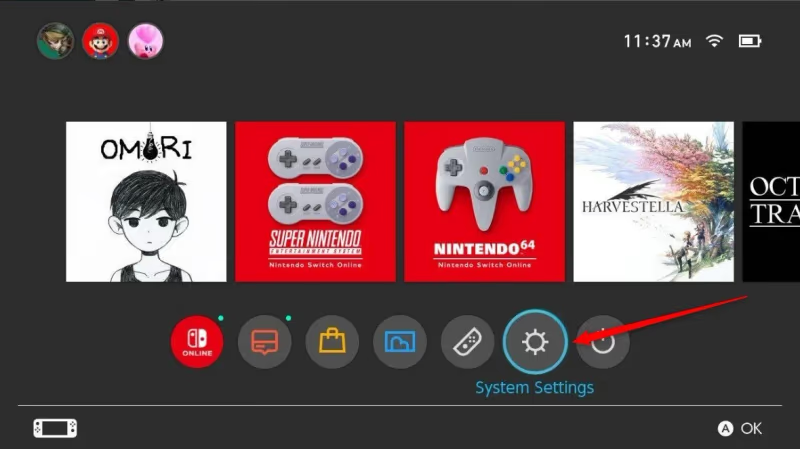
- Select Internet > Internet Settings
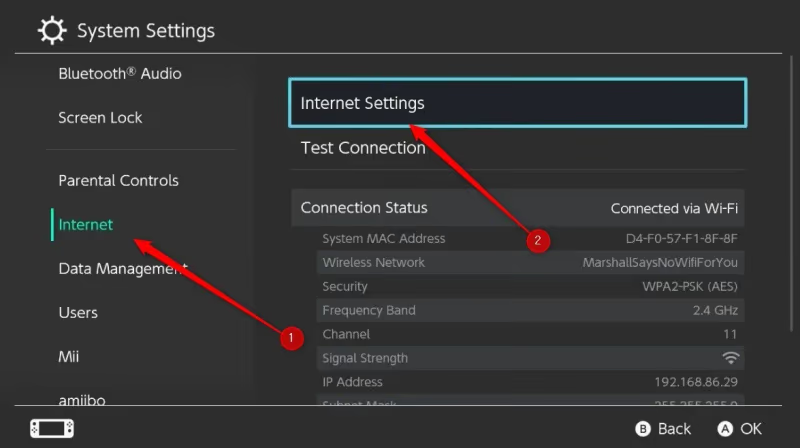
- Choose your connected Wi-Fi Network
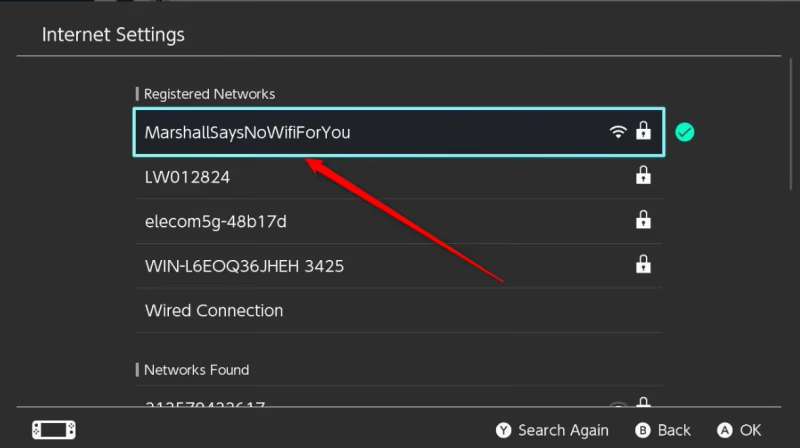
- Select Change Settings
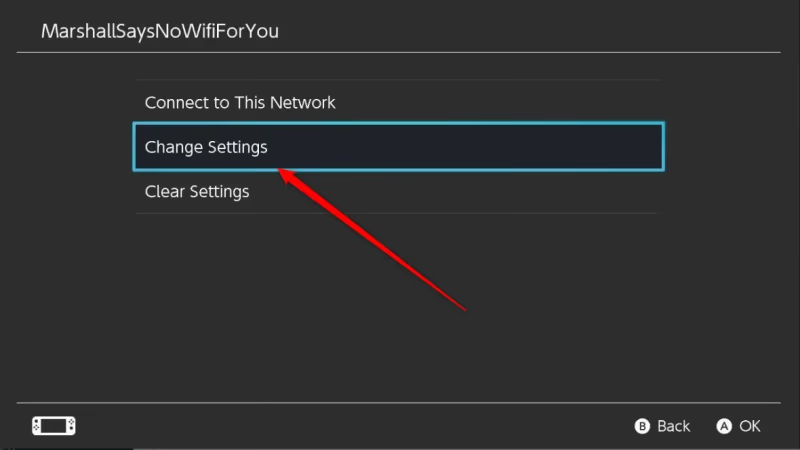
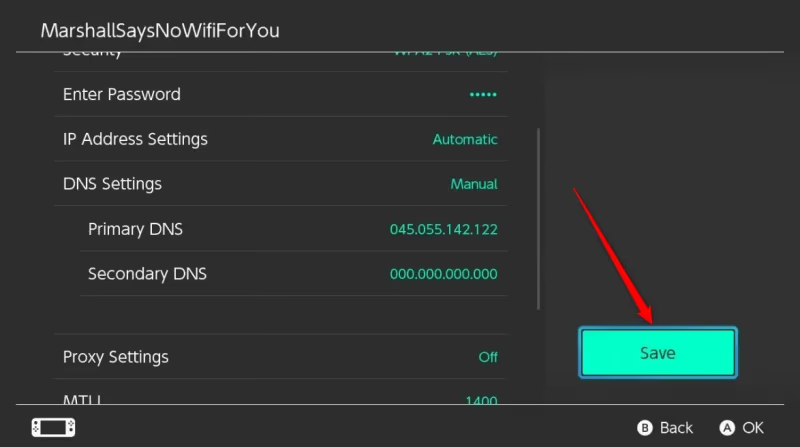
- Change DNS settings from Automatic to Manual
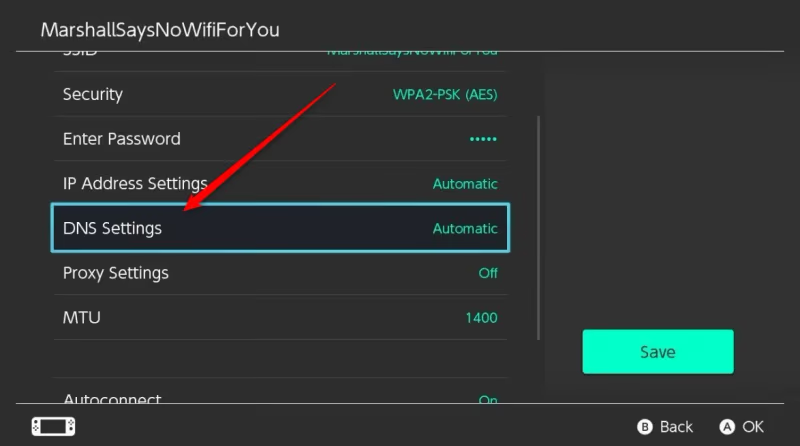
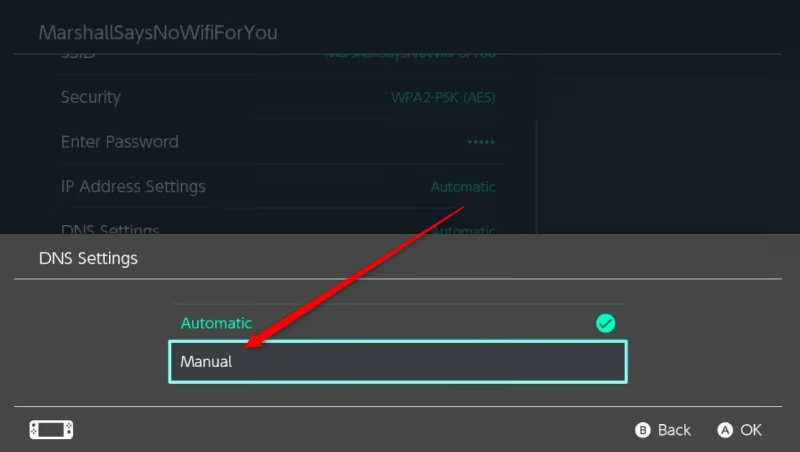
- Enter DNS IP: 045.055.142.122
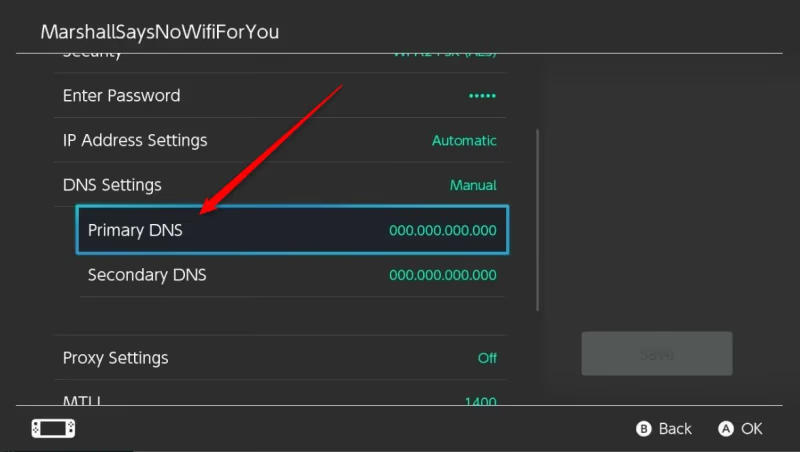
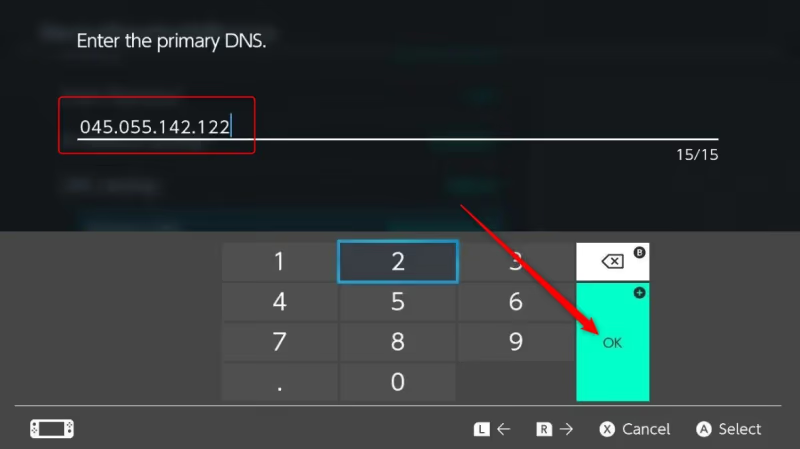
- Select Save then press OK
-
Return to network settings
-
Choose Connect to this Network
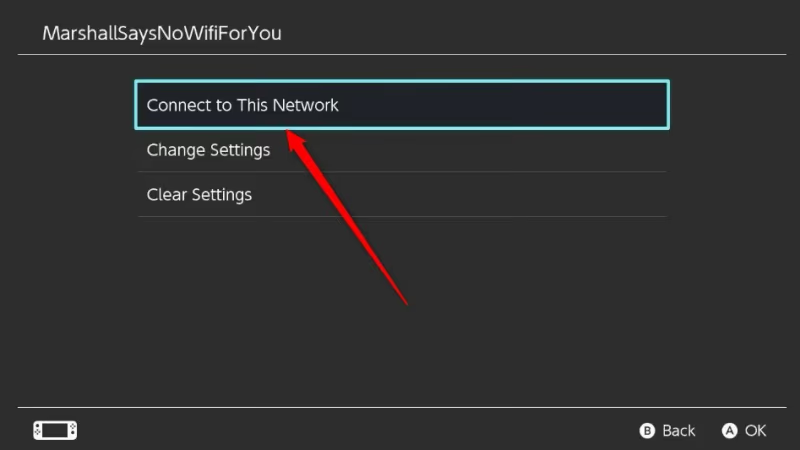
- Confirm connection
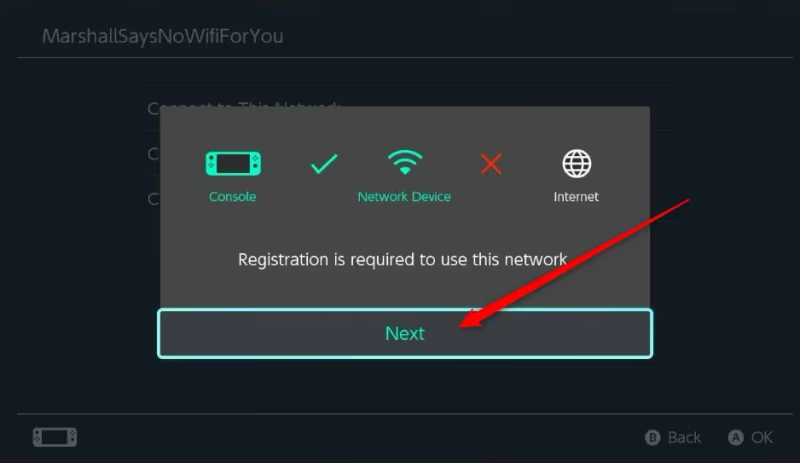
-
You’ll see a SwitchBru DNS screen
-
Select Continue to Google
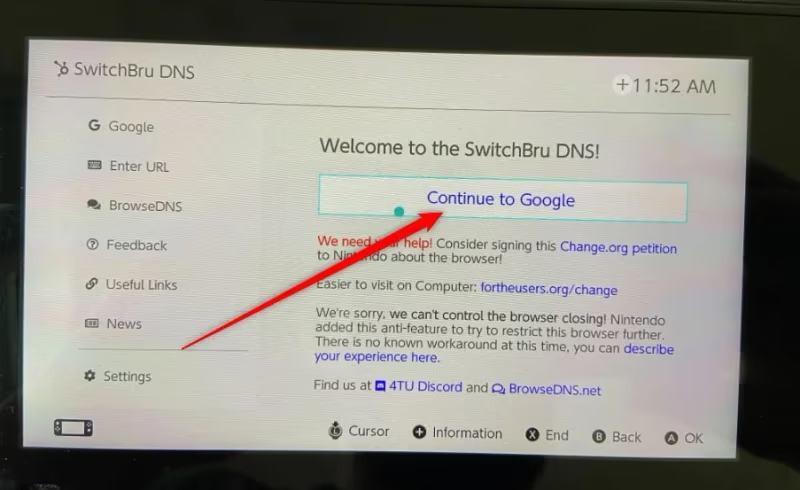
- The hidden browser will launch – you’re ready to access Plex!
It looks complicated but takes less than 3 minutes.
Now when you want to access the web browser again:
-
Open Internet Settings
-
Connect to your saved Wi-Fi Network
-
The browser will launch automatically
Next let’s set up Plex and optimize streaming on your Switch.
#How Do You Set Up Plex and Optimize Performance?
With the hidden browser activated, here’s how to access Plex and tweak settings for the best experience:
-
Launch browser & go to plex.tv
-
Log into your account or create one for free
-
Click Launch to open the Plex webapp
-
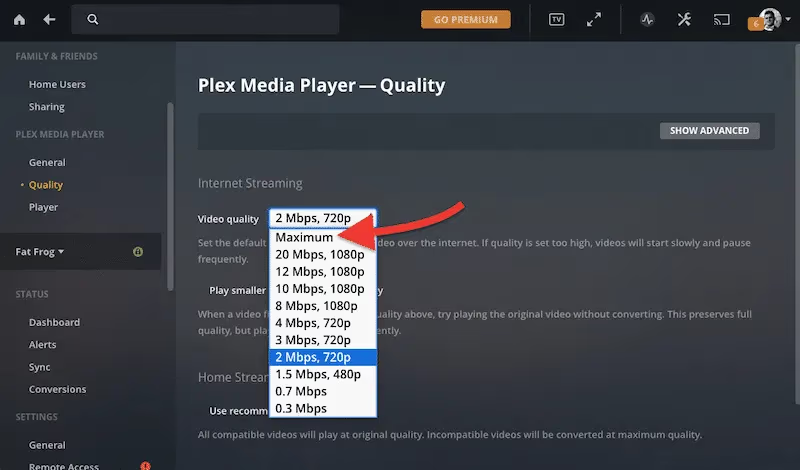
In Plex settings, lower quality to 720p 2Mbps for best performance
-
Enable Downloads so you can save media offline
-
Close other apps on Switch when streaming
-
Reboot Switch before long streaming sessions
-
Clear browser data to keep performance smooth
The Switch only has 720p resolution on its 6.2-inch screen so Plex will downscale higher quality video automatically.
I’ve found 720p 2 Mbps HD video gives smooth, stutter-free performance compared to original quality. Surround sound audio may not work perfectly in the browser but stereo tracks play just fine.
Downloads are handy since you don’t need to stream big media files from your server on-the-go. Just sync content overnight on Wi-Fi so it’s available offline when gaming remotely.
Overall the experience is solid, especially for more casual viewing compared to full-fledged streaming devices. Plus it’s free!
Now let’s go over a couple alternative streaming options…
#Alternate Ways to Enjoy Plex on Your Switch
While the hidden browser works fairly well, what if you want maximum quality and performance for media streaming?
Two easy options are casting directly from your smartphone or mirroring the display.
#Streaming from iOS or Android Devices
The Plex app on iOS and Android allows casting media from your phone over Wi-Fi to supported devices like:
-
Apple TV
-
Android TV devices
You can enable this feature to cast to the web browser on your Switch over the local network.
Simply connect phone and Switch to the same Wi-Fi, open the Cast menu and your Switch should appear as a player option.
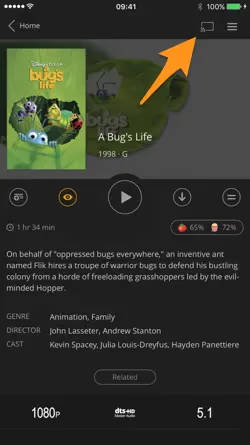
Quality and streaming work reliably this way, so I recommend connecting a Bluetooth controller to your phone and casting for big screen viewing.
If you face buffering issues or audio sync problems, double check your settings.
#Mirror Anything from Your Mobile Device
For more flexibility, a general screen mirroring app like ApowerMirror allows projecting your phone’s display in real time:
-
Mirror mobile games
-
Live camera
-
Any app including Plex!
-
Media playback
-
Web browser
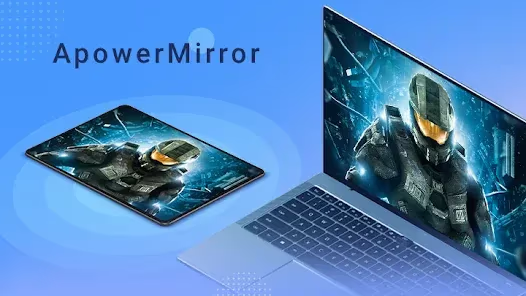
ApowerMirror has the added ability to show your phone on a desktop browser window.
Simply access the matching URL on the secret Switch browser and you can directly mirror your smartphone to the Nintendo Switch screen wirelessly!
There is barely any latency and it works for both iOS and Android devices.
#FAQ
#Can I get Plex as a native Switch app?
No. There is no official Plex app on the Nintendo eShop, and Nintendo has not announced plans to add one. The hidden browser method is your only option right now.
#What if the hidden browser doesn’t launch?
Double check that your DNS is set to 045.055.142.122 exactly. If it still won’t open, reboot your Switch and toggle Airplane mode on and off. Make sure your Wi-Fi connection is active and working before trying again.
#Why does video stutter or buffer on the Switch?
The Switch browser has limited processing power compared to dedicated streaming devices. Lower your Plex quality setting to 720p 2 Mbps, close all background apps, and move closer to your router. Downloading media for offline playback avoids buffering entirely.
#Can I watch Plex in 1080p or 4K on the Switch?
The Switch screen is capped at 720p resolution, so even if you stream at higher quality, the display won’t show more detail. Streaming above 720p just wastes bandwidth and causes more buffering without any visual benefit.
#Does Plex audio work properly in the Switch browser?
Stereo audio tracks play fine. Surround sound formats like 5.1 or Dolby Atmos may not decode correctly in the browser, so you might hear distorted or missing channels. Stick with stereo tracks for the most reliable experience.
#Can I customize my Plex library from the Switch browser?
Yes. When logged into Plex through the browser, you can manage your media libraries, edit metadata, create playlists, and adjust server settings. Bookmark the Plex URL so the browser opens directly to your server each time.
#Is the DNS trick safe for my Nintendo Switch?
The SwitchBru DNS (045.055.142.122) is a well-known community tool that redirects the connection test page to a browser launcher. It does not modify your Switch firmware or void your warranty. You can revert to automatic DNS at any time.
#What are some alternatives if the browser method is too limited?
Cast from the Plex mobile app on your phone to a Chromecast or Roku connected to a TV for better quality. You can also use screen mirroring apps like ApowerMirror to project your phone’s Plex app onto the Switch wirelessly.
#Bottom Line
The Nintendo Switch hidden browser gives you a free, no-accessories-needed way to access your Plex media server on the go. It won’t match the experience of a dedicated streaming device, but for casual viewing on a 720p screen, it works well enough.
Set your DNS to 045.055.142.122, lower your streaming quality to 720p 2 Mbps, and download content for offline use when you can. If you need better quality, cast from your phone’s Plex app or use screen mirroring instead.
For more ways to get the most out of Plex, check our Plex alternatives guide or our Plex vs Infuse comparison.