Plex has become one of the most popular media servers, allowing you to store, organize, and stream your personal media library anywhere. With Plex, you can access your movies, TV shows, music, and photos on all your devices. As this Plex review covers, it uses a client-server model that works well on Chromebooks. This guide walks you through getting Plex running smoothly on your Chromebook.
Whether you’re brand new to Plex or looking to get more out of it, this guide has you covered.
- Android app is the best option — install Plex from the Google Play Store for the fullest feature set on Chrome OS
- Web app works as a backup — access Plex through any browser at plex.tv without installing anything
- Plex Media Server runs elsewhere — Chromebooks lack the processing power to host a server, so use a desktop PC or NAS
- Plex Pass costs $4.99/month — it unlocks offline sync, live TV, DVR, and the Plexamp music app
- Performance depends on your network — use Ethernet over Wi-Fi and enable hardware acceleration for the smoothest playback
#What is Plex and How Does it Work?

Plex uses a client-server model to organize and stream your personal media library. Here are the key components:
-
Plex Media Server: The back-end media server that organizes and hosts your files (video, audio, photos). It can be installed on Windows, Mac, Linux machines or Network Attached Storage (NAS) devices.
-
Plex Clients: The front-end apps and devices you use to access the content hosted on your Plex Media Server. There are Plex apps available for mobile devices, smart TVs, streaming boxes, desktop platforms, web browsers, and more.
-
Plex Libraries: Your personal media libraries of video, music, and photos that are hosted on your Plex Media Server. The Plex server automatically matches metadata (descriptions, posters, genres etc.) to give you a Netflix-like experience.
So in summary, Plex Media Server organizes and hosts your media files, while Plex clients allow you to easily access and stream that content on all your devices.
#Setting Up the Plex Media Server
To get started with Plex, the first step is to set up the Plex Media Server application. This will manage your media libraries.
The Plex Media Server can be installed on Windows, Mac, Linux, or NAS devices. For best performance, it’s recommended to use a dedicated machine or NAS to act as your media server.
Here are guides to setting up Plex Media Server on different platforms:
Once you complete the installation process, the Plex Media Server app will open on that device. This is where you can manage your media libraries, adjust server settings, and more.
Then you’ll want to:
-
Enable remote access so you can stream remotely from Plex clients.
-
Set up libraries for your movies, TV shows, music, and photos.
-
Start adding media and let Plex organize everything automatically!
Now that you have a Plex server running, let’s look at how to access Plex from your Chromebook.
#How Do You Download Plex on Your Chromebook?
There are two easy ways to access your Plex Media Server from a Chromebook – using the Android mobile app or the Plex web app.
#Option 1: Plex Android App (Easiest)
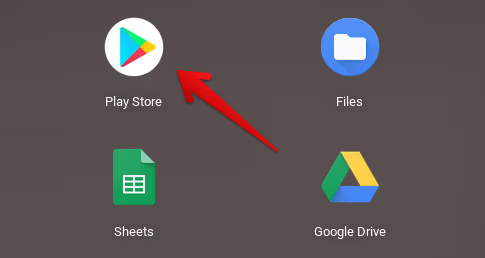
As Chromebooks support Android apps via the Google Play store, this is the simplest way to install Plex.
Just follow these steps:
- Open Google Play Store app on your Chromebook.
-
Search for “Plex” and look for the app published by Plex, Inc.
-
Click Install. The Plex Android app will download just like any other Android app.

-
Once installed, open Plex and log in using your existing account details or create a new free account.
-
Select your Plex Media Server and you’ll have full access to your media!
The Plex Android app offers the best overall experience thanks to Chromebook compatibility. Plus, it is frequently updated with the latest features.
#Option 2: Access Plex Via Web App
Alternatively, you can access Plex directly through your Chrome browser without installing any additional apps:
-
Open your preferred web browser on Chrome OS (Chrome, Firefox etc.)
-
Go to plex.tv and click on “Sign in”
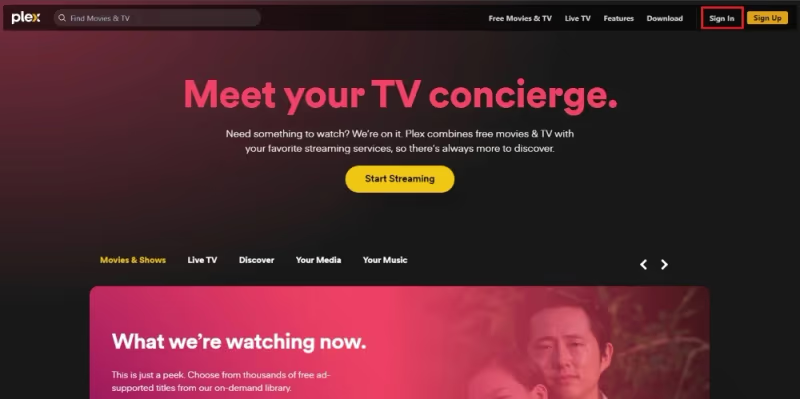
- Log in with your existing Plex account details.
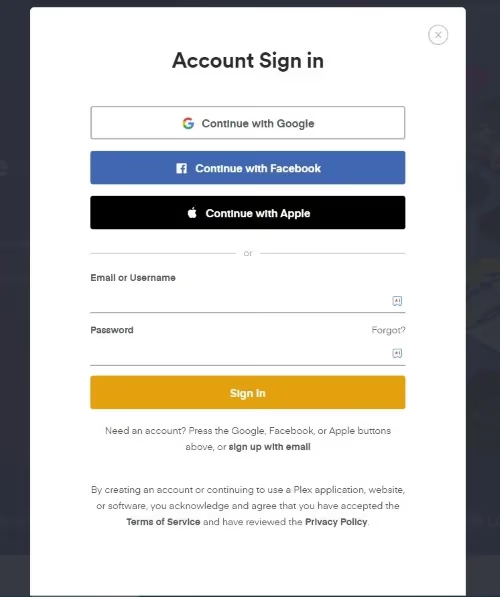
- You’ll have access to your full Plex libraries right within the browser.
The Plex web app doesn’t have all the features or the best performance. But it does provide browser-based access if for some reason downloading the Android app is not an option.
#Getting the Most Out of Plex Pass
While the core Plex application is free to use, upgrading to Plex Pass provides premium features and improved performance for media streaming.
Some of the key perks of Plex Pass include:
-
Unlimited content sync to mobile devices for offline playback
-
Live TV and DVR capabilities
-
Streaming music to smart speakers and Alexa voice integration
-
Plexamp app dedicated to music
-
Mobile sync and downloads
-
Enhanced video playback and streaming
-
Camera upload for photos/videos
-
Preview early alpha builds and new features
-
Discounts on apps and live TV streaming services
Plex Pass is available for $4.99 per month, $39.99 per year, or $119.99 for a lifetime subscription. They occasionally offer discounts too, so keep an eye out.
While the free features may be enough to get started, Plex Pass vastly improves the experience for dedicated Plex users.
#Optimizing Plex Performance on Chromebooks
Here are some tips to maximize performance for Plex on your Chromebook:
#Use Ethernet for Streaming
If available, use wired Ethernet instead of Wi-Fi for the most stable streaming experience. This prevents buffering or lag issues with Wi-Fi signals.
#Adjust Quality Settings
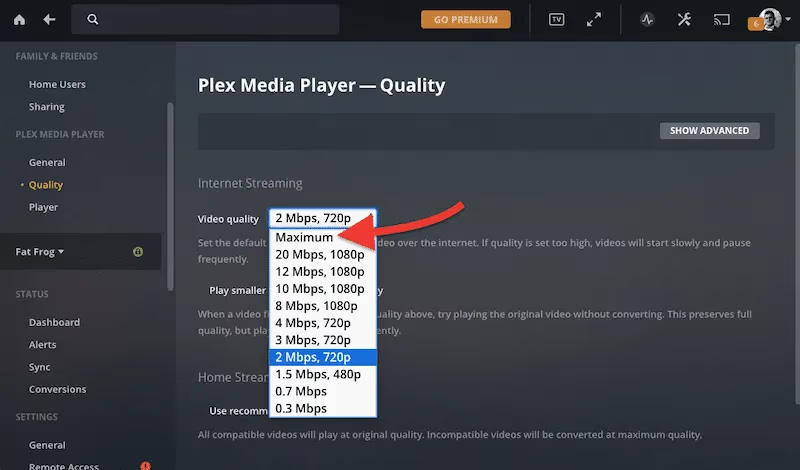
In the Plex app settings, lower the default streaming quality to ease demands on your network connection and server. Automated quality adjusting can also dynamically lower bitrates during peak usage.
#Enable Hardware Acceleration
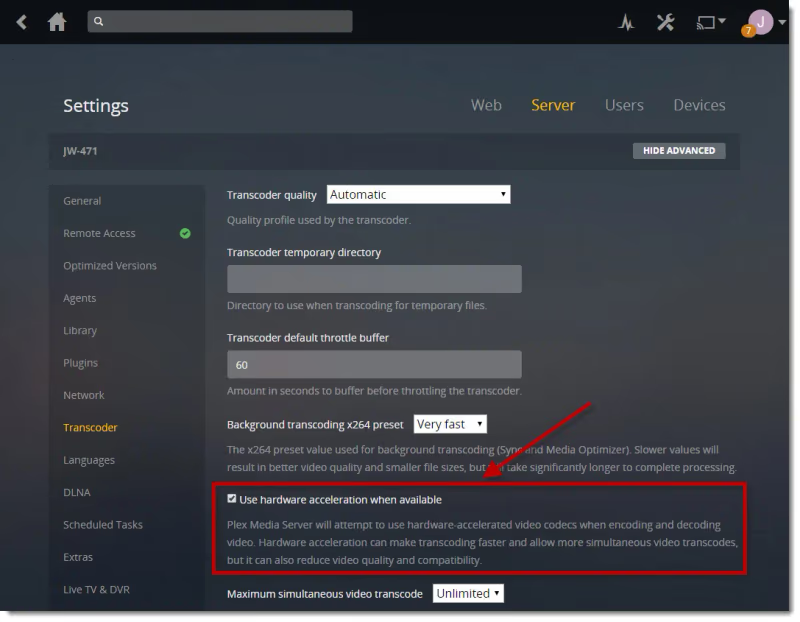
Turn on hardware acceleration in Plex settings to allow video decoding and encoding using your Chromebook’s GPU for smoother performance.
#Close Other Apps
If you experience buffering or lag when streaming Plex, try closing out of other Chromebook apps. This prevents competition for available RAM and resources.
#Check Server Connectivity
Ensure Plex Media Server has enough bandwidth and runs on a high-performance wired network. Use remote access testing tools to identify any connection bottlenecks.
With some optimization tweaks, Plex can run smoothly even on lower-powered Chromebooks. The above steps help maximize client-server communication efficiency for media streaming.
#Troubleshooting Common Plex Issues
Here are solutions to some of the most frequently reported Plex problems on Chromebooks:
#Server Not Found
If you get a “server not found” error, it means your Plex client cannot locate the Media Server. Some things to try:
-
Ensure Plex Media Server is powered on and connected to your home network.
-
Restart both Plex server and Chromebook.
-
Double check Wi-Fi connections are working properly.
-
Verify remote access is enabled on the server.
#Buffering and Laggy Playback
If videos buffer slowly or lag, it’s typically caused by an unreliable network connection between the Plex server and Chromebook client. As covered on how to fix Plex buffering, some fixes include:
-
Connect Chromebook via Ethernet if available.
-
Lower quality/bandwidth settings temporarily.
-
Ensure server does not exceed upload capacity.
-
Close other apps competing for bandwidth on Chromebook.
#Content Won’t Play
If Plex refuses to play a certain media file on your Chromebook, it may be an unsupported codec or corrupted file. You can:
-
Update Plex player app to latest version so newer codecs are supported.
-
Re-encode or replace problematic media file that fails to play.
-
Install VLC Player via Linux to expand format support.
For any other issues accessing Plex or media playback problems, check Plex’s troubleshooting guides which cover many common scenarios.
#Frequently Asked Questions
#Can I install Plex Media Server directly on a Chromebook?
No, Chromebooks lack the processing power to run a Plex Media Server well. You need a separate desktop computer, home server, or NAS to host your media libraries. The Chromebook works only as a client for streaming from that server.
#Does the Plex Android app work on all Chromebooks?
Most Chromebook models released in the past few years support Android apps through the Google Play Store. However, some older or lower-end devices may not have Google Play access. Check your Chromebook’s settings under “Google Play Store” to confirm compatibility.
#Can I use Plex without the Android app on my Chromebook?
Yes. Open any browser on your Chromebook and go to app.plex.tv to access the Plex web app. You get access to your full library, though some features like offline sync are only available through the native Android app.
#How much does Plex Pass cost?
Plex Pass is available at $4.99 per month, $39.99 per year, or $119.99 for a lifetime subscription. Plex occasionally runs 25% off promotions during holidays, so subscribing to their newsletter helps you catch those deals. The free tier covers basic streaming, but Plex Pass adds offline sync, live TV, DVR, and the Plexamp music player.
#What should I do if my Plex server is not found on my Chromebook?
First, confirm the Plex Media Server is powered on and connected to your home network. Then restart both the server and your Chromebook. Also verify that remote access is enabled in your Plex server settings, since this is required for connections outside your local network.
#Does Plex work offline on a Chromebook?
Only with a Plex Pass subscription. Plex Pass lets you sync content to the Android app for offline playback, which is useful for travel or spotty Wi-Fi. Without Plex Pass, you need an active network connection to your server at all times.
#Can I use Plex on an Amazon Fire TV Stick?
Yes, Plex runs well on Fire TV Stick. Install the Plex app from the Amazon App Store, sign in, and you’ll have access to your full media library. Check out our guide for Plex on Fire TV Stick for step-by-step instructions.
#Is Plex free to use on a Chromebook?
The core Plex app is free to download and use on Chromebooks. You can stream your entire media library without paying anything. Plex Pass is an optional upgrade that adds premium features like offline downloads, live TV, and hardware-accelerated transcoding on the server side.