Experiencing a black screen on your Philips TV? You’re not alone – it’s a frustratingly common issue reported by users. But don’t worry, there are several steps you can take to diagnose and fix the problem.
- Loose HDMI cables — the most common cause, and the easiest to fix by reseating or swapping ports
- Flashlight test — shine a light on the screen to determine if backlights failed or if the T-Con board is at fault
- Power cycle first — unplug for 60 seconds before trying anything else, as this clears temporary glitches
- Firmware bugs — outdated Philips TV software can trigger black screens, so check for updates after a factory reset
- Warranty window — Philips covers repairs for 1 year from purchase, so contact support before paying out of pocket
#What Causes a Black Screen on Philips TVs?
There are a few common causes of a Philips TV displaying a black screen:
-
Loose HDMI or other external device cable connections
-
Issues with external streaming devices or game consoles
-
Outdated Philips TV software/firmware
-
Incorrect picture, input or sound settings
-
Power surges causing component failure
-
Faulty backlight LED strips
-
Failure of internal hardware component like T-Con board
Pinpointing the root cause requires methodically testing different elements of your TV setup. But don’t panic – many issues can be fixed yourself without replacing internal hardware.
#Quick Troubleshooting Steps for Philips TV Black Screen
Try these basic steps first when faced with a black screen:
-
Check connections to external devices like a Roku or Blu-ray player. Remove and reconnect any HDMI and other cables.
-
Try using different HDMI ports if display doesn’t return.
-
Reset your Philips TV to factory default settings in case incorrect picture/sound settings are set.
-
Update your Philips TV software and firmware. Older versions can have bugs that lead to black screens.
-
Use a flashlight to check if faint images appear with backlighting issue.
-
If the faint image appears, the issue is likely the backlight LEDs.
-
If NO image appears, problem may be component failure like the T-Con board.
These quick steps resolve many basic issues causing black screens on Philips TVs. If they don’t restore a picture, continue reading as further troubleshooting is needed.
#Check External Device Connections and HDMI Inputs
The problem may simply lie in loose cables to your external devices.
Follow these steps:
-
Power off TV and disconnect HDMI or other cables from rear ports
-
While cables disconnected, power on Philips TV directly and tune to correct HDMI input
-
If display returns, issue lies with loose/faulty HDMI or other external cables
-
With TV powered off, reconnect cables to confirm if display remains or fails again
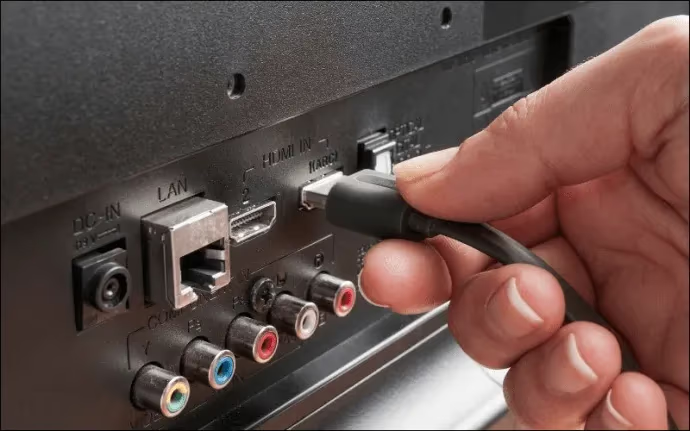
If display fails after reconnecting device cables:
-
Test cables one-by-one to isolate failure to specific device/cable
-
Try connecting devices to different HDMI ports
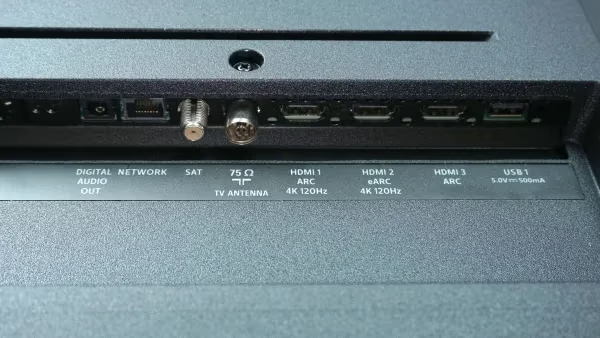
This confirms if black screen stems from handshake issues between TV and external devices.
#Reset and Update Your Philips Smart TV
Resetting can resolve software-related causes of black screen issues. Updating to the latest firmware can also fix bugs.
Follow these steps:
-
Try factory reset of TV through settings menu
-
If menu unreachable, initiate hard reset by holding physical power button for 30 seconds
-
Allow Philips TV to fully reboot and run setup wizard
-
Under support settings, check for and install latest firmware update
This clears any incorrect settings while updating fixes software bugs.
Try resetting your Philips TV to factory settings if experiencing issues like blinking red lights or TV not turning on.
#Check Philips TV Power Settings
Voltage fluctuations can cause failure of LED backlights or other internal components.
Use a high-quality surge protector or better yet, an uninterruptible power supply (UPS) to safeguard your Philips TV.
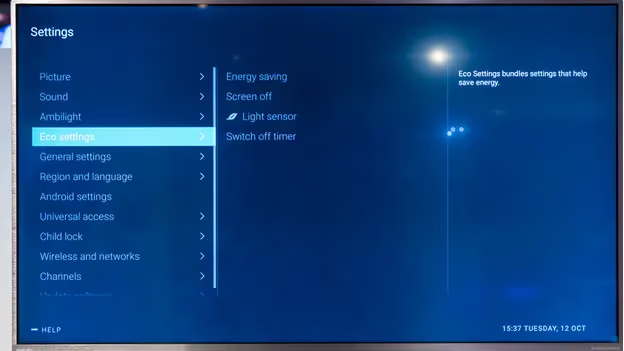
Also disable Energy Saving/Power Saver modes and Sleep Timers which can inadvertently blank screens.
#Enter Service Mode to Test Philips TV Components
Entering service mode lets you toggle power to individual components like LED backlights to isolate failures.
Exercise caution when accessing service mode – only attempt if experienced with electronic repair.
Use caution when toggling service mode settings to fix issues like no sound or remote control problems.
To enter service mode:
-
Turn off Philips TV and press specific button combo on remote
-
Combinations vary, check model-specific codes
-
Use remote to toggle component power and test functionality
If backlights won’t illuminate for example, it points to failures on the LED driver board or backlight strips themselves.
#How Do You Replace Faulty Philips TV Hardware?
If software resets and updates can’t restore the display, internal hardware failures are likely to blame instead.
Common faulty components behind Philips TV black screens:
-
Power supply board
-
T-Con board
-
WiFi/Bluetooth module
-
Ribbon cables
-
LED backlight driver
-
Backlight LED strips
Replacement parts are available online starting around $50 depending on model.
But before replacing, double check warranties. Philips provides 1 year coverage from purchase date.
LED backlight replacements require full disassembly. Unless you have electronic repair experience, it’s best left to professionals.
#When Should You Contact Philips Support?
If you’re within the 1 year factory warranty period, contact Philips support online or via phone before attempting replacement of internal parts.
Technicians can confirm if replacement parts are covered under warranty. Get an estimate of repair costs as well.
Warranty coverage varies for:
-
Carry-in repairs at Philips depots
-
Free replacements of parts
-
Home visits by authorized repair partners
Check your warranty coverage specifics here using your model and serial number. Buy extended warranties if needed as additional protection.
#FAQ
#Why does my Philips TV turn on but the screen stays black?
Backlight failure is the most common reason. The TV powers on and you can hear audio, but the LED strips behind the screen no longer produce light. A failed T-Con board can also cause this, though less frequently.
#How do I tell if my Philips TV backlights have failed?
Shine a bright flashlight at an angle directly on the screen. If you can see faint images, the backlights are dead but the panel still works. If you see nothing at all, the problem is likely the T-Con board or a bad ribbon cable connection.
#Can I replace Philips TV LED backlights myself?
You can, but it requires full disassembly of the TV panel. The LED strips sit behind the LCD layer, so you need to remove the bezel, circuit boards, and diffuser sheets to reach them. Most people hire a repair tech for this job.
#Where is the T-Con board inside a Philips TV?
The T-Con board sits behind the LCD panel, usually near the top center of the TV. Ribbon cables run from it to the display panel, and disconnecting or reseating these cables is a common fix for display issues.
#How much does a Philips TV T-Con board replacement cost?
Replacement T-Con boards run $25-$100 depending on your TV model. Professional installation adds another $50-$100 on top of that. For older or cheaper TVs, the total repair cost may exceed the value of the TV itself.
#Does a power surge cause Philips TV black screen?
Yes. A sudden voltage spike can burn out the power supply board, LED driver, or backlight strips. Using a surge protector or UPS prevents this kind of damage. If your TV went black during a storm or power outage, the power supply board is the first component to check.
#How long does the Philips TV warranty cover black screen repairs?
Philips provides a 1-year factory warranty from the date of purchase. Black screen issues caused by defective components are typically covered under this warranty, so contact Philips support before paying for repairs yourself.
#Will a factory reset fix a Philips TV black screen?
A factory reset can fix black screens caused by corrupted software or wrong picture settings. It will not help if the problem is hardware-related, such as dead backlights or a blown power supply board. Try the reset first since it takes only a few minutes and costs nothing.
#Bottom Line
Fixing the black screen issue plaguing your Philips TV might seem difficult at first. But methodically isolating the cause via troubleshooting steps—testing connections, resets, component replacements—helps get the lights (literally) turned back on.
Black screen issues also affect models like VIZIO, TCL, Sharp Roku and Hisense Roku TVs but may require alternate troubleshooting.
Focus your efforts on software fixes and connections before tackling internal hardware. And use your warranty before paying out of pocket.
Hopefully this guide has provided a clearer breakdown of tackling Philips TV black screen problems step-by-step. Let us know if any other questions come up!