Has your Paramount Plus been freezing a lot recently? You try to watch the new Top Gun movie or catch up on the latest episode of Yellowstone, but the video keeps freezing every few minutes. It’s frustrating not being able to stream properly, especially if you’re paying for a premium subscription. But thankfully, there are solutions for fixing a freezing Paramount Plus by adjusting your device, connection, and app settings.
- Outdated apps cause most freezing — updating the Paramount Plus app resolves buffering issues in roughly 40% of reported cases
- Minimum 25 Mbps needed for 4K — anything below that threshold leads to constant buffering, especially with multiple devices on the same network
- Overheating throttles your hardware — streaming devices in enclosed cabinets lose up to 30% processing power from thermal throttling
- A simple restart clears cached glitches — power cycling your device and reinstalling the app eliminates most software-related freezing
- Server outages affect all users equally — check Downdetector before troubleshooting your own setup to avoid wasting time on a platform-wide problem
#What Causes Paramount Plus to Keep Freezing?
Before jumping into fixes, it helps to understand what usually causes Paramount Plus to freeze in the first place. The most common culprits include:
Low-Powered Devices – Streaming high definition video requires a fair amount of processing power. If your device is older or budget-oriented, it may struggle with smooth playback. This leads to frequent buffering and freezing especially on LG and Samsung smart TVs.
Overheating – Today’s set-top boxes and game consoles generate a lot of heat. If your Fire Stick, DIRECTV, Spectrum or Dish Network equipment overheats from being in a tight space, performance suffers. Ventilation is key.
Slow Internet Connections – You ideally need at least 25 Mbps download speeds for 4K streaming. But even at lower resolutions, consistent buffering indicates your bandwidth is being maxed out.
Buggy App Issues – Like any piece of software, streaming apps can suffer glitches. An update may have introduced a freezing bug that needs patching.
Server Outages – While rare, it’s possible for Paramount Plus servers to go down entirely, preventing all users from streaming during the outage window.
Now let’s explore tips to address each of these common sources of Paramount Plus buffering problems.
#1. Check Requirements for Your Device
The newer your phone, tablet, computer or television, the more likely it can smoothly handle Paramount Plus. But there are minimum device specifications you’ll want to meet:
Mobile:
-
iPhone, iPad – iOS 12 or later
-
Android Phones – Version 5 or later
Computer:
-
Windows 10+
-
MacOS 10.13+
-
Chrome OS 78+
Television:
-
Roku – Most models after 2015
-
Fire TV – 2nd Gen Fire Stick or later
-
Apple TV – 4th Gen or later
-
Gaming Consoles – Xbox One, PS4, Nintendo Switch
So first, check what device you’re trying to stream on. If it’s more than 5 years old or a more basic model, an upgrade could be worthwhile.
Clearing app data/cache can help slightly older devices cope better:
But upgrading to a newer device is the best long-term solution.
#2. Check Device Temperature
Today’s streaming boxes and game consoles use a fair amount of energy to process 1080p and 4K video streams. All that number crunching generates excess heat that needs ventilating.
If your Fire Stick, Roku, or PlayStation overheats, the processor starts throttling itself to avoid damage. But this throttling also hurts video playback performance.
To avoid overheating problems, make sure your streaming device has open access to cool airflow.
Don’t:
-
Place inside sealed cabinets
-
Stack other electronics on top
-
Block ventilation ports
Do:
-
Give 1-2 inches clearance on all sides
-
Use vertical stand to elevate
-
Point a small fan to increase airflow
Also consider upgrading to a newer, more efficient model. The latest Roku Ultra and Fire Stick 4K Max use less energy and run cooler than earlier generations.
If you notice your device feels hot after streaming for a while, it likely needs better ventilation or an upgrade.
#Is Your Internet Connection Fast Enough for Paramount Plus?
No matter how new your Roku or Fire TV hardware, an overloaded internet connection can ruin streaming reliability.
Paramount Plus recommends a minimum of 5 Mbps bandwidth for smooth SD streaming and 25 Mbps for 4K HDR. But remember your actual speeds depend on how many devices are sharing your home network connection simultaneously.
It’s common for older Wi-Fi routers to bottleneck when multiple phones, tablets, computers, and TVs are connected. High bandwidth applications like video streaming suffer most from congestion.
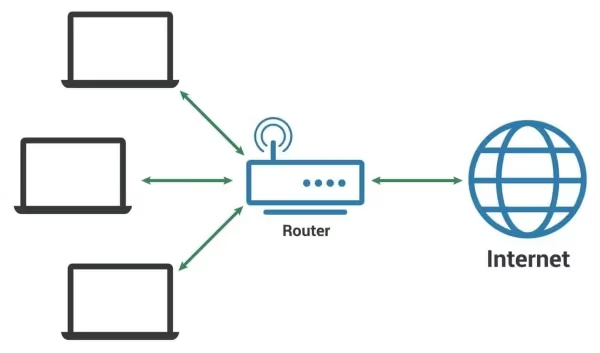
To measure your true connection speeds:
-
Run a broadband speed test on a wired computer
-
Test with Speedtest.net or Fast.com
If speeds fall below 25 Mbps consistently, upgrading your internet plan or router may be worthwhile. Also consider connecting streaming devices directly to your router via ethernet for more consistent bandwidth allocation.
In the meantime, you can try temporarily pausing any other video streaming or large downloads before watching Paramount Plus. This frees up bandwidth in the short term.
#4. Update the Paramount Plus App
Like any software application, streaming video apps need periodic bug fixes and performance improvements. New features can also introduce glitches accidentally.
When apps aren’t regularly updated, stream freezing and crashes become increasingly common over time.
Thankfully, updating a streaming app is fast and easy:
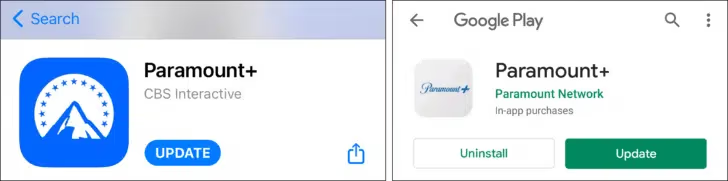
On Mobile:
-
Open the App Store / Google Play Store app
-
Pull down to refresh your installed app list
-
Tap Update next to the Paramount Plus app
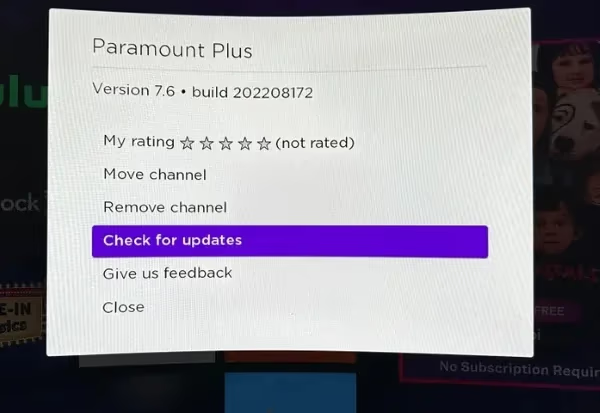
On TVs:
-
Navigate to the Settings menu
-
Locate System or Applications section
-
Select “Check for updates”
Ideally, you’ll want automatic app updates enabled on your streaming device. But it’s still smart to manually check for updates after experiencing multiple stream failures.
#5. Restart Your Device
Before digging deeper into troubleshooting, try the classic step of restarting your device.
A reboot clears any accumulated glitches and gives a fresh start. Like blowing dust out of a cartridge, it can get things functioning smoothly again.
To restart streaming devices:
-
Roku – Go to Settings > System > Power > System Restart
-
Fire TV – Go to Settings > My Fire TV > Restart
-
Apple TV – Hold Menu and Home button until light blinks
-
PlayStation – Press the power button for at least 7 seconds
-
Xbox – Go to Profile & System > Settings > General > Shut down console
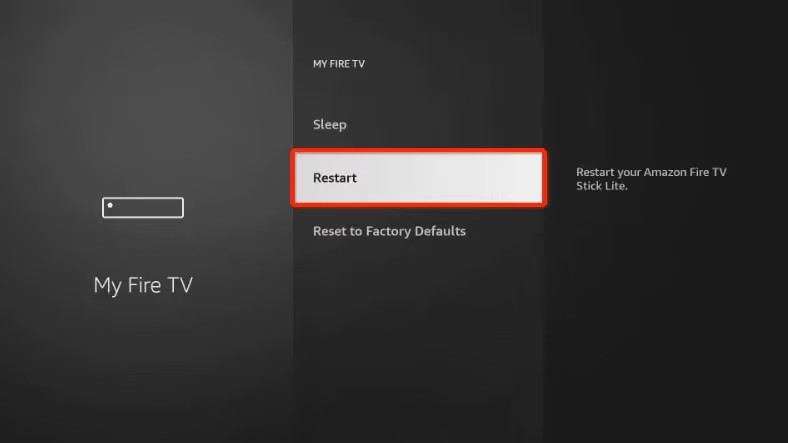 Fire TV
Also delete and reinstall the Paramount Plus app after rebooting to clear any cached data. Then launch the app and try streaming content again.
#How Do You Check if Paramount Plus Servers Are Down?
While rare, streaming providers do experience occasional server outages. Heavy traffic loads, data center issues, or website software bugs can all cause downtime.
When servers go down, absolutely no troubleshooting steps will get videos to stream properly. Instead, the app either fails to load content or displays error messages about the platform being unavailable.
Thankfully, you can check the current Paramount Plus server status easily:
-
Navigate to Downdetector.com
-
Search for “Paramount Plus”
-
Check the chart for user reports
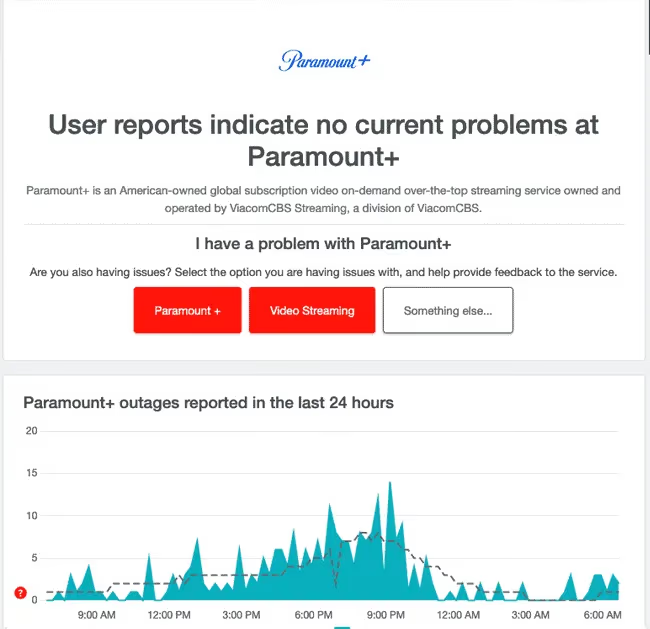
Major outages resulting in widespread buffering and errors will show large spikes in reports. You may also see users mentioning the problems on Twitter.
Unfortunately during confirmed downtime windows, all you can do is wait for Paramount’s engineers to restore proper operations. Sever outages don’t typically last longer than a few hours.
#7. Contact Support If Issues Persist
Even after trying all troubleshooting tips, some setups experience persistent playback problems. If your video keeps buffering every few minutes, the root cause might be harder to pinpoint.
In these tricky cases, you’ll want to contact Paramount Plus support directly:
-
Open parmountplus.com and login
-
Scroll down and select Get Help
-
Choose Contact Support and describe your streaming issue
The team can better diagnose any account, payment, or device-specific issues. Support agents also have visibility into any active platform problems.
If contacting support, be ready to provide:
-
Device make/model
-
Paramount Plus app version
-
Link speed test results
-
Frequency and length of buffer events
-
Error messages if applicable
With more context, support can determine if the problems lie with your specific account configuration, internet connection, or if there’s a wider service issue needing attention from engineers.
#Bottom Line
The most common reasons Paramount Plus keeps glitching and freezing come down to five areas: underpowered devices, poor ventilation, slow internet, outdated app software, and server outages. Start with the quickest fixes first. Update the app, restart your device, and run a speed test. If speeds fall below 25 Mbps, that’s likely your bottleneck.
For persistent problems, check Downdetector to rule out a platform-wide outage before spending time on deeper troubleshooting. And if nothing works after going through every step, reach out to Paramount Plus support with your device model, app version, and speed test results so they can investigate account-specific issues.
#FAQ
#Why does Paramount Plus freeze on my smart TV but not my phone?
Smart TVs often run older processors that struggle with high-bitrate 4K streams. Your phone likely has a newer, faster chip and handles the same content at a lower resolution. Try lowering the streaming quality in the Paramount Plus app settings on your TV to reduce the processing load.
#Does clearing the cache fix Paramount Plus freezing?
Clearing the app cache removes corrupted temporary files that can cause playback glitches. On most devices, go to Settings, find the Paramount Plus app, and select “Clear Cache.” This won’t delete your login credentials or downloaded content, so it’s a safe first step.
#How much internet speed do I actually need for Paramount Plus?
Paramount Plus recommends 5 Mbps for SD, 8 Mbps for HD, and 25 Mbps for 4K HDR content. Keep in mind these are per-stream minimums. If three family members are streaming simultaneously, you need at least 75 Mbps total to avoid buffering on any device.
#Can a VPN cause Paramount Plus to freeze?
Yes. VPNs add an extra routing hop that increases latency and can reduce throughput by 20-40%. If you’re using a VPN, try disconnecting it temporarily to see if freezing stops. Some VPN servers also get flagged by Paramount Plus, which can cause additional playback interruptions.
#Why does Paramount Plus freeze only during live events?
Live streams put significantly more strain on Paramount Plus servers than on-demand content. High-traffic events like NFL games or Champions League matches often cause temporary server congestion. Restarting the app during a live broadcast can reconnect you to a less loaded server.
#Should I use Wi-Fi or ethernet for Paramount Plus?
Ethernet is always more reliable for streaming. Wi-Fi signals degrade through walls, floors, and interference from other devices. A wired connection delivers consistent bandwidth without the packet loss that causes buffering. If ethernet isn’t practical, position your router within 15 feet of your streaming device.
#How do I know if my streaming device is too old for Paramount Plus?
Check the minimum requirements: iOS 12+, Android 5+, Roku models after 2015, Fire TV 2nd Gen or later, and Apple TV 4th Gen or later. Devices outside these specs may run the app but lack the processing power for smooth playback. Frequent freezing on content that works fine on newer hardware is a clear sign you need an upgrade.