Netflix stuck on the loading screen is one of the most common smart TV headaches, and it usually comes down to a handful of fixable causes. Whether you own a Sony, Samsung, LG, Vizio, or another brand, the troubleshooting steps below will help you get back to watching in minutes.
- Restart first — unplugging your TV for 60 seconds clears temporary glitches that cause most Netflix loading freezes
- Speed matters — Netflix needs at least 5 Mbps for HD streaming, and 25 Mbps is ideal for multiple devices
- Ethernet beats Wi-Fi — a wired connection eliminates network congestion that triggers endless buffering
- Keep software current — outdated TV firmware and Netflix app versions are a top cause of loading failures
- Check Netflix servers — Downdetector shows whether the problem is on Netflix’s end before you spend time troubleshooting locally
#Why Does Netflix Get Stuck Buffering on TVs?
Before jumping into fixes, you should know what causes the Netflix app to freeze on the loading screen. Here are the most common culprits:
#Slow Internet Connection Speeds
Netflix recommends a minimum download speed of 5Mbps to stream content smoothly in HD quality. If your internet speeds are slower than that threshold, Netflix often gets stuck buffering as it struggles to load the content. This can happen on any smart TV brand.
#Outages on Netflix’s Servers
Large scale outages on Netflix’s backend servers happen occasionally and cause widespread buffering problems for customers. While rare, when they do happen there is usually nothing you can do except wait for Netflix’s engineers to resolve the outage.
#Outdated/Buggy Netflix App Version
Like any software app, the Netflix app on your smart TV needs periodic updates in order to fix bugs and optimize performance. If you are running an outdated Netflix app version that has software glitches, it can lead to endless buffering.
#Outdated Smart TV Software
Similar to the Netflix app itself, your smart TV’s software also requires periodic updates to squash bugs and improve how well apps run. An outdated smart TV software/firmware version can negatively impact Netflix and other media apps.
#Too Many Devices on One Wi-Fi Network
If you have many devices connected to your home Wi-Fi network simultaneously streaming videos or performing bandwidth-intensive tasks, it can congest the network and degrade Netflix performance on your TV.
#DNS Server Issues
Your TV relies on DNS servers to navigate to Netflix’s content servers quickly. DNS issues like using the wrong DNS server or one that is having problems can interfere with this process and cause Netflix to get stuck.
Now that you know what’s most likely to cause endless buffering of the loading screen on your TV’s Netflix app, let’s go through each troubleshooting step you can take to definitively fix these problems.
Similarly, those with Hisense, Apple, Roku or other branded internet-enabled TVs can reference these specialized guides for Hisense, Apple TV, and Roku TV specific troubleshooting.
#How Do You Fix Netflix Stuck on the Loading Screen?
Follow these 11 DIY troubleshooting tips in order until your Netflix loading problems are solved:
#1. Restart Your Smart TV
As simple as it sounds, restarting your smart TV by unplugging it from power for 1 minute is an effective first step. This reboot clears temporary glitches that may be interfering with Netflix connectivity.
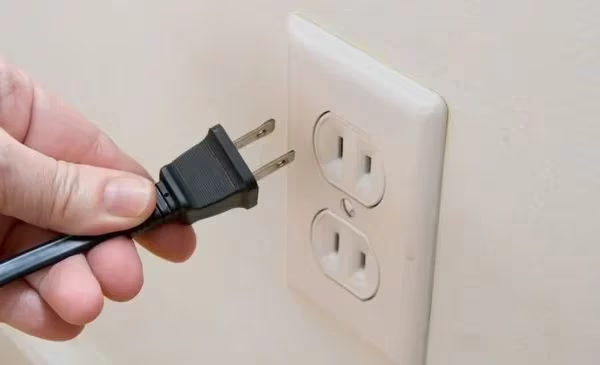
Another way to forcibly reboot some TVs like Vizio is to access advanced menus like the “TV’s secret technical menu” with special remote button combinations.
#2. Force Stop and Re-Launch the Netflix App
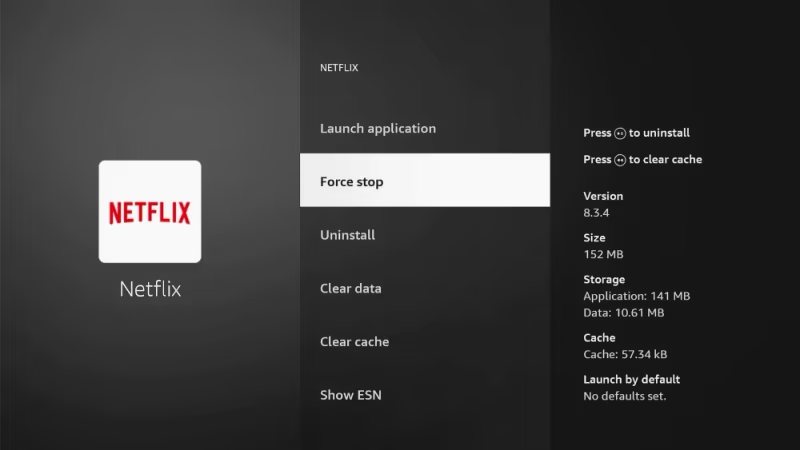
Sometimes the Netflix app misbehaves and needs a force stop reboot. Do this by going to your TV’s App Settings > Netflix > Force Stop. Then re-launch Netflix and see if that cleared any app issues.
#3. Check Internet Connection Speeds
Run a speed test on your smart TV to measure actual speeds, or test on another device connected to the same network. As stated before, you need a bare minimum of 5Mbps download to stream HD Netflix without buffering issues. Up to 25mbps is ideal.
#4. Reset Your Wi-Fi Router and Modem
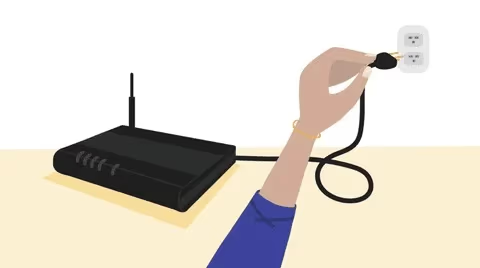
Issues with your networking equipment can negatively impact Netflix streaming reliability to all your devices including smart TVs. Reboot both router and modem by unplugging them from power for 60 seconds to refresh the equipment.
#5. Connect Your Smart TV Via Ethernet
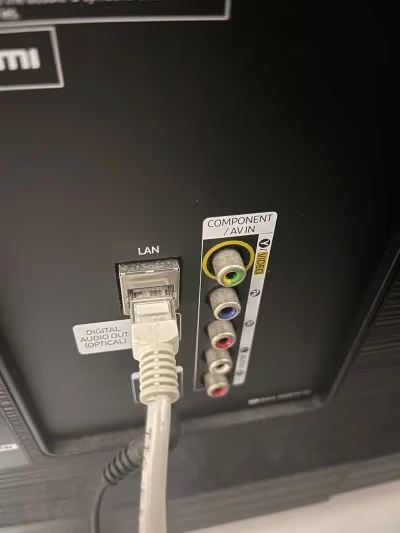
Bypassing Wi-Fi and using a hardwired Ethernet connection directly from your router to TV gives you the most reliable, stable internet connectivity. This eliminates network congestion issues for Netflix streaming.
#6. Adjust Your Router’s Channel Settings
If Wi-Fi connectivity seems to be the root cause, try updating settings on your router like the broadcast channel, 20/40 MHz bandwidth, wireless mode, etc. There may be configuration changes that reduce interference.
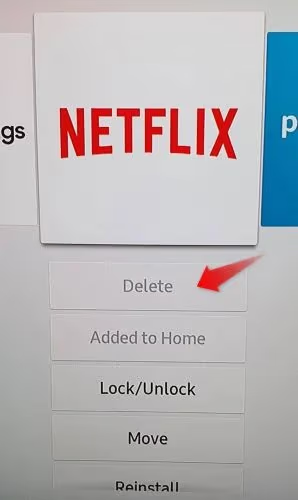
#7. Delete and Reinstall the Netflix App
A corrupted Netflix app with glitches can be fixed by deleting and reinstalling it from your smart TV’s app store. This gives you a clean app install.
#8. Switch Routers or Try a DNS Service
In some cases, the router hardware itself may be faulty and struggling with high traffic levels. Swap in a newer, high-performance router to see if that fixes Netflix buffering problems throughout your home. Using 3rd party DNS servers also helps for some.
#9. Rule Out Problems on Netflix’s End
Despite your best local troubleshooting, the root cause could still be temporary outages or other issues at Netflix’s data centers. Visit Downdetector to check if others are reporting Netflix problems as well.
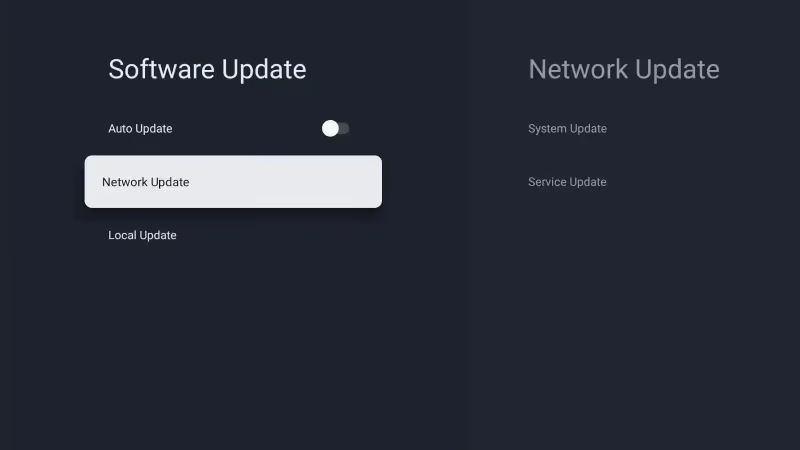
#10. Update Your TV and Netflix App Software
Outdated firmware and apps can creep up over time and degrade Netflix streaming capability. Manually check for and install the latest smart TV software updates, as well as Netflix app updates.
#11. Contact Your ISP Support
If you still see Netflix get stuck loading after trying everything else, the issue may be on your ISP’s end. Contact their tech support team to troubleshoot the incoming internet connection to your home and equipment.
If you own another TV brand like Sony or Phillips, check out these dedicated Netflix troubleshooting tips for Sony TVs and Phillips TVs.
#Bottom Line
Start with the quick wins: restart your TV, force stop Netflix, and reboot your router. If the loading screen persists, test your internet speed and switch to Ethernet. Still stuck? Update your TV firmware and reinstall the Netflix app. Work through these steps in order and you will resolve the issue in most cases without needing to call your ISP.
#FAQ
#What internet speed do I need for Netflix on a smart TV?
Netflix requires at least 5 Mbps for HD streaming and 15 Mbps for 4K Ultra HD. If multiple people in your household stream at the same time, aim for 25 Mbps or higher to avoid buffering.
#Why does Netflix keep buffering on my smart TV?
Slow internet speeds, Wi-Fi interference, outdated TV firmware, and DNS server problems are the most common causes. Peak usage hours can also overload your ISP’s equipment and degrade streaming quality to all devices on your network.
#Does clearing the Netflix app cache fix loading issues?
Yes, clearing the cache removes corrupted temporary data that can cause the app to freeze. Go to your TV’s Settings, find the Netflix app, and select “Clear Cache” or “Clear Data.” You will need to sign in again after clearing data.
#Should I use Ethernet or Wi-Fi for Netflix on my TV?
Ethernet is always more reliable. A wired connection removes variables like signal interference, distance from the router, and network congestion from other devices. If running a cable is not practical, move your router closer to the TV or use a mesh Wi-Fi system.
#How do I check if Netflix servers are down?
Visit Downdetector at downdetector.com/status/netflix and look for a spike in user reports. You can also check Netflix’s official Twitter/X account for outage announcements. If the servers are down, no local troubleshooting will help and you just need to wait.
#Can outdated TV firmware cause Netflix to stop loading?
Outdated firmware frequently causes app compatibility issues, including Netflix freezing on the loading screen. Check for firmware updates in your TV’s system settings and install any available updates before trying other fixes.
#What should I do if Netflix loads on other devices but not my TV?
This points to a problem specific to your TV rather than your network. Uninstall and reinstall the Netflix app, then check for a TV firmware update. If the issue continues, try a factory reset on your TV as a last resort, since this erases all saved settings and apps.