Have you ever sat down ready for a Netflix binge only to find the app isn’t working on your Apple TV? As frustrating as it is, there are some straightforward troubleshooting tips you can try to get Netflix back up and running. Below, we cover the most common reasons Netflix fails on Apple TV and walk through solutions to have you streaming your favorite shows in no time.
- Restart first — force-closing the Netflix app and rebooting Apple TV fixes most temporary glitches in under 2 minutes
- Check your internet speed — Netflix requires at least 5 Mbps for SD and 25 Mbps for reliable 4K streaming on Apple TV
- Update tvOS regularly — outdated system software causes app crashes and playback errors with Netflix
- Factory reset as last resort — resetting Apple TV to defaults clears corrupted data but erases all saved logins and preferences
- Verify your subscription — an expired Netflix plan or invalid payment method will block content access on every device
#Is Netflix Down? Global Outages Can Prevent Apple TV Streaming
Before troubleshooting your Apple TV, first check if Netflix is experiencing widespread technical issues. The Netflix help site has a service status page showing any identified problems impacting streaming.
You can also check sites like Down Detector that track user reports of Netflix outages. If there are no reported issues, the problem likely lies with your local setup.
During a major disruption, you’ll typically see an uptick in outage reports on social media as well.
If Netflix itself is experiencing technical failures, all you can do is wait for their engineering team to implement fixes. Bookmark their Netflix help and troubleshooting page to monitor when streaming is restored globally.
#Is Your Internet Connection Strong Enough for Streaming?
Netflix recommends a minimum download speed of 5 Mbps for smooth streaming, but speeds of at least 25 Mbps are preferred, especially for 4K content.
Testing your network connection is one of the easiest ways to identify issues impacting Netflix on Apple TV.
Here are some key troubleshooting steps related to internet connectivity:
-
Check connectivity status on Apple TV: Navigate to Settings > Network to confirm status shows as “Connected”
-
Evaluate Wi-Fi signal strength: Netflix may buffer or error if experiencing a weak signal.
-
Test internet speeds: Use Speedtest.net or the Velocity app on Apple TV to test. Failures usually trace back to speeds under 25 Mbps.
-
Reset network hardware: If speeds are consistently low, restart your router, modem and any mesh network hardware to refresh the connection.
-
Connect Apple TV via ethernet: For most reliable speeds, connect your Apple TV directly to the router with an ethernet cable rather than using Wi-Fi.
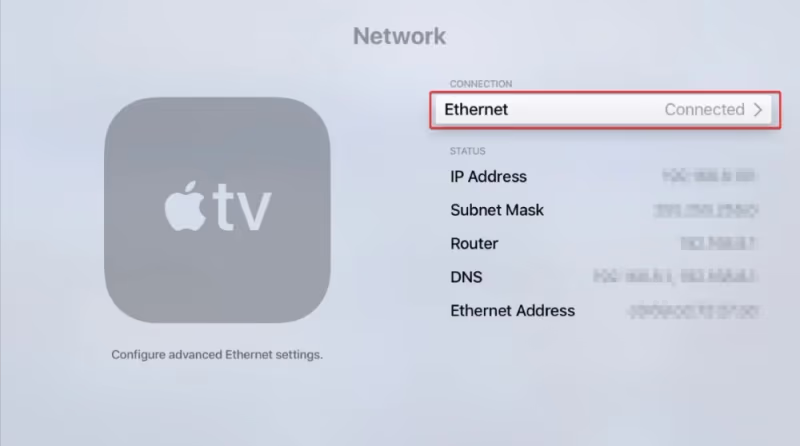
Slow internet connectivity is one of the most preventable causes of Netflix failing to load content. Evaluate Wi-Fi strength or connect Apple TV via ethernet if experiencing frequent Netflix loading issues.
#Restart Your Apple TV and The Netflix App
Another quick fix to try is restarting both the Apple TV device itself and the Netflix app specifically. This clears any temporary glitches and memory issues that could be preventing smooth streaming.
Here are the basic steps:
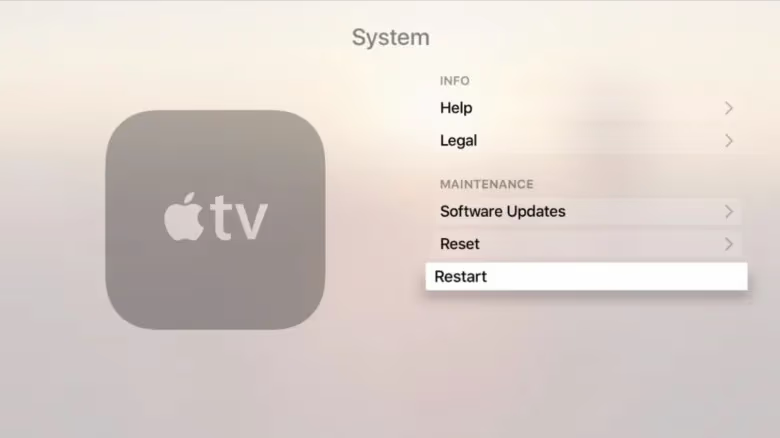
To restart Apple TV:
-
Navigate to Settings > System > Restart
-
Unplug power cable for 30 seconds (hard reset)
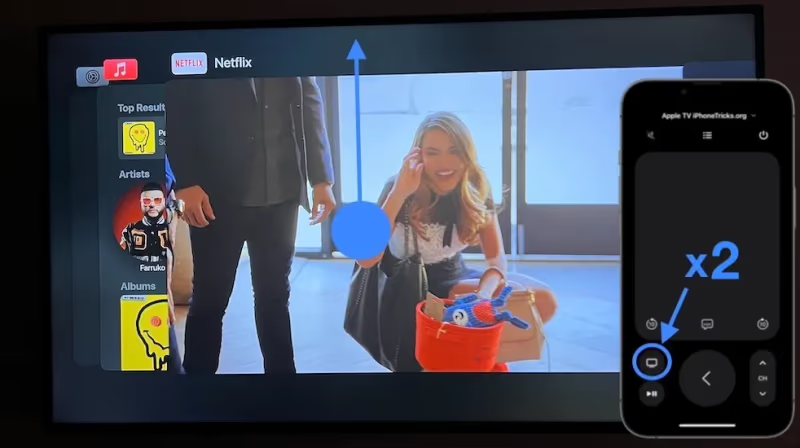
To force close Netflix app:
-
Double tap the home button to show open apps
-
Swipe up on the Netflix preview to fully close
After restarting both the device and app, launch Netflix again to see if the problems persist.
#Update Apple TV Operating System
Failures with Netflix could stem from an outdated Apple TV software version. It’s always wise to install the latest Apple TV update for maximum compatibility across apps.
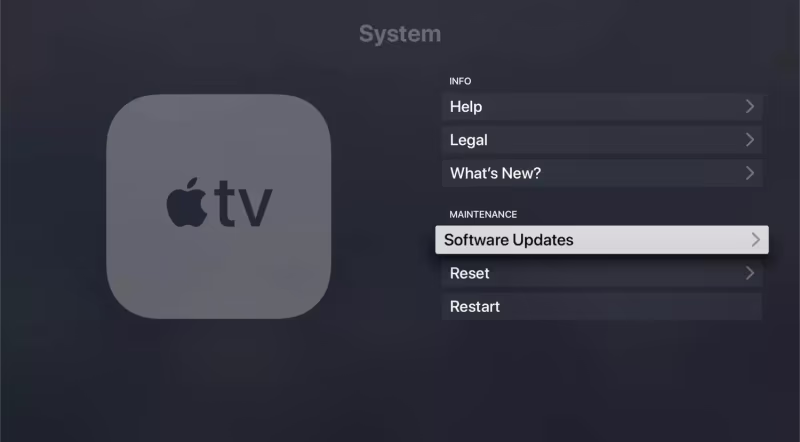
Updating tvOS is simple:
-
Navigate to Settings > System > Software Updates
-
Click “Download and Install” for any available updates
-
Monitor progress and complete installation process
#Reset Apple TV Back to Factory Settings
If Netflix won’t load content and other troubleshooting fails, restoring Apple TV to factory default settings is the last resort:
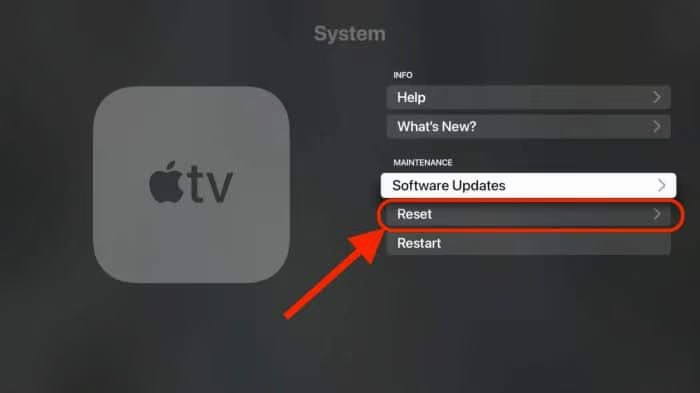
- Navigate to Settings > System > Reset
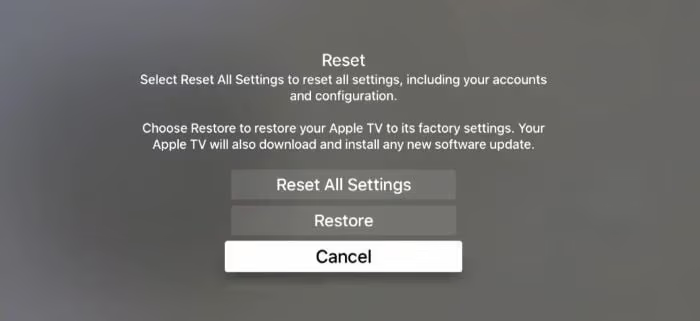
- Choose “Reset All Settings” to clear data and defaults
- Select “Reset and Update” or “Reset” for complete wipe
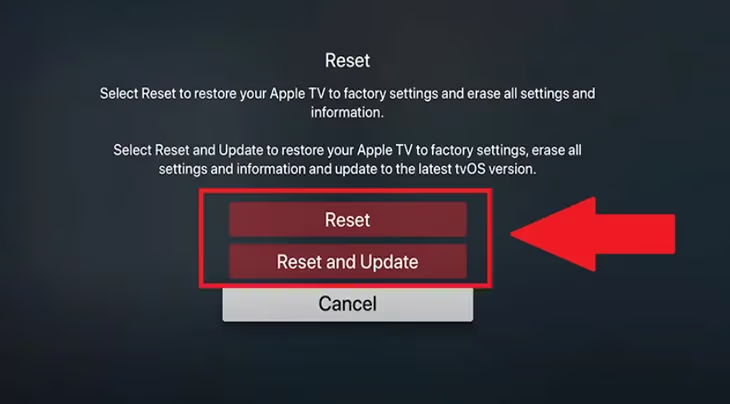
This will wipe all customization, stored app data and login credentials. You’ll have to fully reconfigure Apple TV, re-download apps, sign-in to services etc.
A full factory reset often fixes even the trickiest issues that prevent Netflix and other apps from opening properly on Apple TV.
#Make Sure Your Netflix Subscription Is Active
You won’t be able to access any content if your Netflix subscription expired or the billing details are no longer valid.
-
On a computer or phone browser, visit Netflix Viewing Activity
-
Confirm that your membership status shows an active plan
-
Check expiration date under “billing details”
-
Update payment info if invalid
Once your Netflix account credentials are confirmed working on other devices, re-enter details on Apple TV when prompted.
#Is There an Issue With Your Apple TV Hardware?
Less commonly, the Netflix black screen or infinite loading issues trace back to a hardware defect or connectivity problems with Apple TV itself.
This usually only happens after an extended period of use or a device malfunction.
Here are some indications of an Apple TV hardware failure:
-
Netflix app crashes or won’t open
-
Persistent error messages about connectivity issues
-
Inability to play any video content
If the problems are isolated to just Netflix, software troubleshooting may still resolve it. But if all apps are impacted, your Apple TV may need servicing due to component degradation over time.
In that event, you’ll need to contact Apple support about replacement options depending on the age of your Apple TV.
#Bottom Line
To quickly fix Netflix not working on your Apple TV, follow this prioritized troubleshooting checklist:
-
Confirm Netflix has no reported widespread outages
-
Evaluate your internet connectivity
-
Restart both Apple TV device and Netflix app
-
Install latest Apple TV / tvOS updates
-
Reset Apple TV to factory settings
-
Validate active Netflix account status
-
Check for hardware issues with Apple TV
#Frequently Asked Questions
#Why does Netflix crash or freeze on my Apple TV?
The most common reasons Netflix crashes or freezes on Apple TV include connectivity problems, outdated software or app versions, and data corruption. Restarting the device and app, installing updates, and resetting to factory settings can often resolve software-related crashing. For persistent hardware-level failures, contact Apple support directly.
#Why does Netflix play sound but no video on Apple TV?
If Netflix plays audio but shows a black screen with no video, it usually indicates an internet connectivity issue. Verify connection status under Apple TV network settings. Slow speeds under 25 Mbps can prevent video playback even if audio still works. Switching from Wi-Fi to an ethernet connection often resolves this immediately.
#How can I improve Netflix video quality on my Apple TV?
Close and reopen the Netflix app, restart your device, and connect via ethernet if possible. Make sure your connection meets the recommended 25 Mbps download speed for 4K. You can also select a higher streaming profile under the Netflix app settings to maximize video quality.
#How do I activate closed captions and subtitles on Netflix for Apple TV?
In the Netflix app, select a show or movie then swipe down to open the media playback controller. Select Subtitles > Language to enable closed captions. You can also customize caption appearance (font size, color, background) through Apple TV’s accessibility settings under Settings > Accessibility > Subtitles & Captioning.
#Does Netflix work on older Apple TV models?
Netflix dropped support for Apple TV 2nd and 3rd generation models in late 2019. If you own one of these older units, the Netflix app will no longer function. You need at least an Apple TV HD (4th generation) or Apple TV 4K to run the current Netflix app.
#How do I reinstall Netflix on Apple TV?
Hold down the touch surface on your Siri Remote while hovering over the Netflix app icon until it starts jiggling, then press the Play/Pause button and select Delete. After removal, open the App Store on your Apple TV, search for Netflix, and download it again. Sign in with your credentials and test playback.
#Can a VPN cause Netflix to stop working on Apple TV?
Yes. Netflix actively detects and blocks VPN connections, which can trigger error codes or prevent content from loading entirely. If you are running a VPN on your router, temporarily disable it and restart your Apple TV to confirm whether the VPN is causing the issue. Keep in mind that Apple TV does not have native VPN app support, so the block typically happens at the router level.