The MTV app keeps rejecting your TV provider login, and you’ve already tried the obvious stuff. This is one of the most common streaming app issues on Roku and Amazon Fire TV Stick devices, and the root cause is almost never your password. In most cases, the problem traces back to how your TV provider activated MTV access on your account.
- Expired activation codes — MTV activation codes expire within minutes, so enter them immediately after they appear on screen
- Cache corruption causes 80% of repeat login failures — clearing the MTV app cache and data forces a fresh authentication handshake
- TV provider credentials are case-sensitive — your username, password, and client ID must match your provider’s records exactly
- Cellular data bypass confirms Wi-Fi issues — if MTV signs in over mobile data but not home Wi-Fi, your router is blocking authentication traffic
- Reinstalling the MTV app is the last resort — a clean install resets all stored tokens and fixes persistent authentication loops
#Why Does MTV TV Provider Sign-In Keep Failing?
MTV uses a third-party authentication system to verify your TV provider credentials. When you select your provider and enter your login, the MTV app sends that data to your provider’s servers for verification. If anything breaks in that chain, you get a generic “authentication failed” error.
The most frequent causes break down like this:
- Your MTV access was never activated. Having a cable subscription does not automatically unlock every app. MTV requires separate activation through your provider’s portal.
- The activation code expired. Codes displayed on your TV screen are time-limited. If you waited too long to enter one, it becomes invalid.
- Cached login tokens are corrupted. The app stores authentication data locally. When that data goes stale or gets corrupted, every sign-in attempt fails even with correct credentials.
- Your provider changed your account details. Password resets, plan changes, or account migrations can invalidate stored credentials without warning.
Understanding which cause applies to you saves time. Work through the fixes below in order.
#How Do You Fix MTV Authentication Errors?
#1. Re-Activate MTV Through Your TV Provider
This is the fix most people skip because they assume activation happened automatically. It didn’t.
Go to your TV provider’s website or app. Look for a section called “Manage Apps,” “TV Everywhere,” or “Activate Channels.” Find MTV in the list and complete the activation process. You will need the activation code displayed on your TV screen.
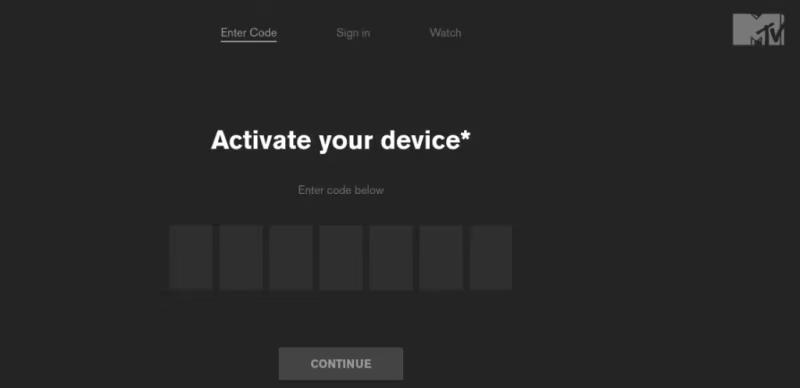
Enter the code immediately. These codes typically expire within 5 minutes. If you see “invalid code,” go back to the MTV app, generate a fresh code, and try again. For provider-specific steps, check our guides for MTV on Spectrum and MTV on Verizon Fios TV.
#2. Verify Your Login Credentials
Wrong credentials are the second most common cause. This sounds obvious, but TV provider logins have quirks that trip people up.
Your username might be your full email address, not just the part before the @. Passwords are case-sensitive. Some providers also require a separate client ID or account number during MTV sign-in.
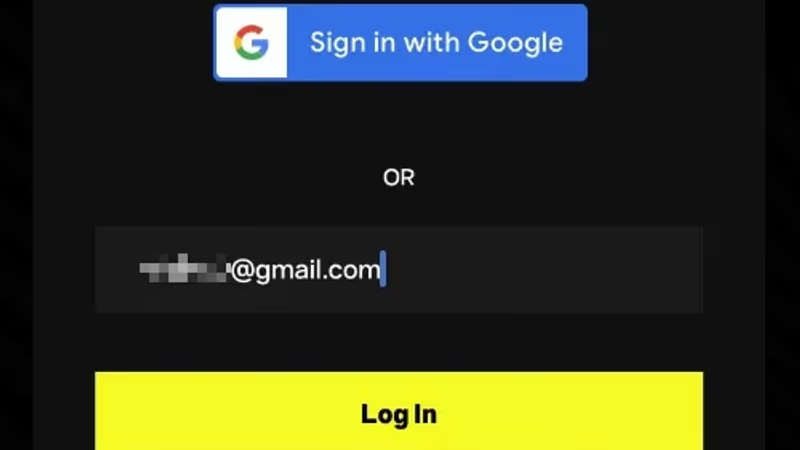
Test your credentials by logging into your TV provider’s own website first. If that login works, use the exact same username and password in the MTV app. Copy-paste if your device allows it.
#3. Clear the MTV App Cache and Restart Your Device
Cached data is the hidden culprit behind most repeat login failures. Even after you fix an activation issue or update your password, the app may keep using old stored tokens.
On Roku devices:
- Open Settings > System > Advanced system settings > Clear cache
- Restart the Roku by going to Settings > System > System restart
- Open the MTV app and try signing in again
On Amazon Fire TV Stick devices:
- Go to Settings > Applications > Manage Installed Applications > MTV
- Select Clear cache, then Clear data
- Unplug the Fire TV Stick for 30 seconds, plug it back in, and retry
Clearing both cache and data wipes all stored authentication tokens. The app will behave as if you’re signing in for the first time.
#4. Update the MTV App
Outdated app versions sometimes lose compatibility with your TV provider’s authentication servers. Paramount (MTV’s parent company) pushes updates that change how the sign-in flow works, and older versions stop functioning.
Check your device’s app store for MTV updates. On Roku, go to the MTV channel, press the star button on your remote, and select Check for updates. On Fire TV Stick, go to Settings > Applications > Manage Installed Applications > MTV > Update.
If the app is already current, skip to the next step.
#5. Test With Cellular Data
This step isolates whether your home network is blocking the authentication request. Some routers, firewalls, or DNS settings interfere with the token exchange between MTV and your TV provider.
Turn off your home Wi-Fi on a phone or tablet. Connect to cellular data. Open the MTV app (or the MTV website) and attempt to sign in with your TV provider. If it works over cellular data but not Wi-Fi, your router’s security settings need adjustment.
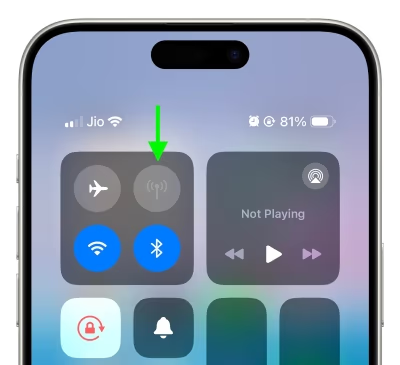
Try switching your router’s DNS to Google (8.8.8.8) or Cloudflare (1.1.1.1). Disable any VPN or ad-blocking software running on your network. Then reconnect your streaming device to Wi-Fi and test again.
#6. Uninstall and Reinstall the MTV App
When nothing else works, a clean install removes every trace of the old app and its stored data.
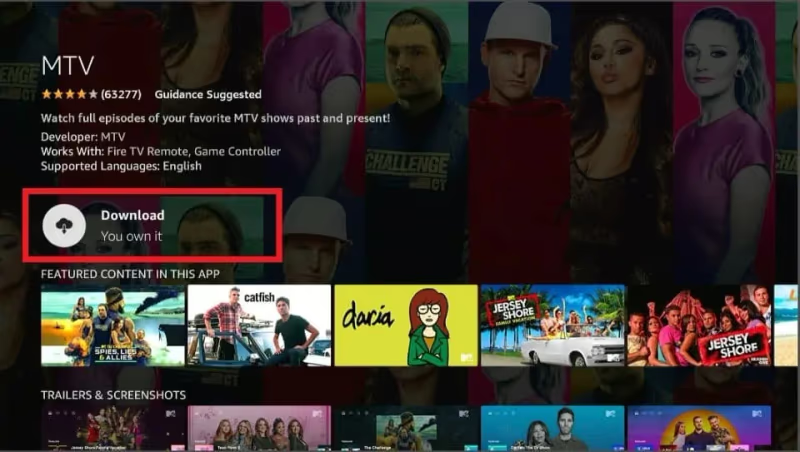
Uninstall the MTV app from your streaming device. Power cycle the device by unplugging it for 60 seconds. Reinstall MTV from the app store, then sign in fresh with your TV provider credentials. This forces the app to build a new connection to your provider’s authentication servers from scratch.
If the problem persists after a clean install, the issue is almost certainly on your TV provider’s end. Contact their support team and ask them to verify that MTV is properly provisioned on your account.
#What If You Don’t Have a Cable TV Provider?
You don’t need a traditional cable subscription to watch MTV. Several live TV streaming services include MTV in their channel lineup and work with the MTV app’s TV provider sign-in:
- Philo starts at $28/month and includes MTV, plus 70+ other channels
- Sling TV carries MTV in the Orange plan starting at $40/month
- fuboTV includes MTV in its base plan at $79.99/month
- YouTube TV and Hulu + Live TV both include MTV
Any of these services will give you credentials that work with the MTV app’s TV provider authentication. Sign up, then select the service as your TV provider when the MTV app asks you to sign in. For help getting MTV running on specific devices, see our guide for MTV on Samsung Smart TV.
#Bottom Line
Start with activation. Most MTV sign-in failures happen because the app was never properly linked to your TV provider account. Re-activate through your provider’s website, clear the MTV app cache, and restart your device. That three-step sequence resolves the issue for the majority of users. If you still can’t sign in after a clean reinstall, call your TV provider directly and have them confirm MTV is active on your account. The problem at that point is on their side, not yours.
#Frequently Asked Questions
#Why does the MTV app keep asking me to sign in every time I open it?
Repeated sign-in prompts point to a cache or storage issue on your streaming device. The app saves your authentication token locally, and if it can’t write to storage properly, it loses your session every time you close the app. Clear the app cache and data, then sign in once more. On older Roku models with limited storage, this happens more frequently because the device aggressively purges cached data to free space.
#Can I use someone else’s TV provider login for the MTV app?
Technically, most TV providers allow a limited number of simultaneous streams and device activations under one account. Using a family member’s credentials will work as long as their plan includes MTV and they haven’t exceeded the device limit. Some providers cap activations at 3-5 devices.
#How long do MTV activation codes last before they expire?
Activation codes displayed on your TV screen typically expire within 5 minutes. If you’re entering the code on a separate device like a phone or laptop, start the process before generating the code so you can enter it quickly. Generating a new code on the TV screen invalidates the previous one.
#Why does MTV say my TV provider is not supported?
MTV’s app doesn’t support every small regional cable company. If your provider isn’t listed, you have two options: contact your provider to ask if they support TV Everywhere apps like MTV, or subscribe to a streaming service like Philo or Sling TV that does appear in the MTV provider list. The streaming service route is often faster and cheaper.
#Does a VPN cause MTV sign-in problems?
Yes. VPNs route your traffic through servers in different locations, which triggers geographic restrictions on TV provider authentication. MTV and your cable provider both check your IP address during sign-in, and a VPN makes it appear that you’re in a different region. Disable your VPN before attempting to sign in, then re-enable it afterward if needed.
#What should I do if MTV works on my phone but not my streaming device?
This confirms the issue is device-specific, not account-related. Focus troubleshooting on the streaming device itself. Factory reset the MTV app by uninstalling and reinstalling it. Check that your streaming device’s firmware is up to date. If you’re using a Roku or Fire TV Stick that’s more than 4-5 years old, the hardware may no longer support current authentication protocols. Paramount’s support page for TV provider sign-in lists compatible devices.
#How do I contact MTV support for sign-in issues?
Visit mtv.com/contact or use the help section within the MTV app. Have your TV provider name, device model, and a description of the error message ready. For provider-side issues like account activation, contact your TV provider’s support team directly since MTV’s team cannot modify your cable account.
#Will resetting my streaming device to factory settings fix MTV login?
A factory reset is overkill for an app-level sign-in issue and will erase all your other apps and settings. Try uninstalling just the MTV app first. Only consider a full factory reset if multiple apps on the same device are having authentication problems, which would suggest a broader system issue rather than an MTV-specific one.