MLB.TV is the official way to watch out-of-market Major League Baseball games, but LG Smart TVs running webOS do not have a dedicated MLB.TV app in the LG Content Store. That gap leaves a lot of baseball fans searching for workarounds. This guide covers every method that works right now, including AirPlay, HDMI streaming devices, and browser-based options so you can catch every pitch on your LG TV.
- No native app exists — LG’s webOS Content Store does not carry MLB.TV as of 2026
- AirPlay works on 2018+ LG TVs — models running webOS 4.0 or later support AirPlay streaming from iPhone and iPad
- HDMI devices fill the gap — a Fire TV Stick or Roku plugged into your LG TV gives you direct access to the MLB app
- Minimum 10 Mbps recommended — MLB.TV streams at up to 60fps, and speeds below 10 Mbps cause buffering on HD feeds
- Blackout restrictions apply — local market games are blacked out on MLB.TV regardless of which streaming method you use
#Why Doesn’t LG Smart TV Have an MLB.TV App?
LG Smart TVs run webOS, a proprietary operating system with a smaller app library than Android TV or Roku. MLB has not released a webOS version of its app. The MLB app is available on Fire TV, Roku, Apple TV 4K, and Android TV, but LG owners need a workaround.
This is not unique to MLB.TV. Several sports-focused apps skip webOS entirely. The good news: multiple alternatives get the job done without sacrificing picture quality.
#How to Stream MLB.TV on LG Smart TV Using AirPlay
AirPlay is the fastest option if you own an iPhone or iPad. LG Smart TVs from 2018 onward (webOS 4.0+) have built-in AirPlay support.

#Step 1: Confirm AirPlay Is Enabled on Your LG TV
Open Settings > General > Apple AirPlay Settings on your LG TV. Toggle AirPlay to On. If you don’t see this menu, check for a firmware update on your LG TV first.
#Step 2: Subscribe to MLB.TV
Go to MLB.TV’s subscription page and pick a plan. Single-team packages and full-league passes are both available. Create an MLB.com account and enter your payment details.
#Step 3: Install the MLB App on Your iPhone or iPad
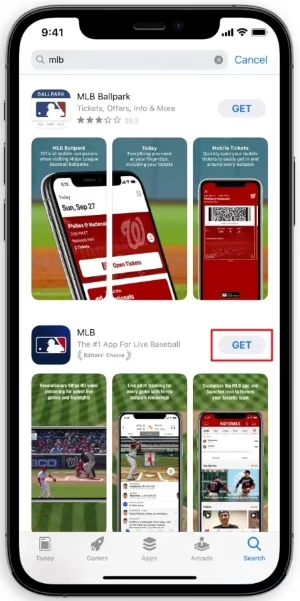
Download the MLB app from the App Store. Sign in with the same MLB.com credentials you created during signup.
#Step 4: Connect and Start Streaming
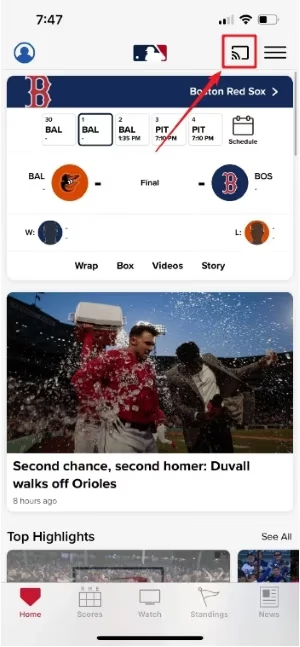
Make sure your iPhone or iPad and your LG TV are on the same Wi-Fi network. Open the MLB app, select a live or on-demand game, then tap the AirPlay icon in the video player. Pick your LG TV from the device list.
The stream transfers to your TV within a few seconds. Your phone acts as the remote, so you can pause, rewind, and switch games from the MLB app.
If AirPlay fails to connect, our LG TV AirPlay not working troubleshooting guide walks through the most common fixes.
#Watching MLB.TV With an HDMI Streaming Device
AirPlay requires an Apple device. If you use Android or don’t want to rely on your phone, an HDMI streaming stick plugged into your LG TV gives you a standalone MLB app.
#Amazon Fire TV Stick
The Fire TV Stick has the MLB app in its app store. Install it, sign in, and you have full access to live games, condensed games, and the MLB archives. The Fire TV Stick 4K supports HDR, which is useful during day games with bright outdoor lighting. You can learn more about MLB.TV on Fire TV Stick in our dedicated guide.
#Roku
Roku devices also carry the MLB app. The setup is identical: plug the Roku into an HDMI port on your LG TV, download the MLB app from the Roku Channel Store, and sign in. Roku’s interface keeps things straightforward, and the app runs reliably on even the basic Roku Express.
#Apple TV 4K
If you already own an Apple TV 4K, it has the best version of the MLB app. Multi-view lets you watch up to four games at once on a single screen. The Apple TV 4K connects to your LG TV via HDMI and supports Dolby Vision and Dolby Atmos on compatible content.
#How to Watch MLB.TV on LG TV Through a Web Browser?
LG Smart TVs have a built-in web browser. Open it and navigate to mlb.com/tv. Sign in and select a game. This works in a pinch, but the browser on webOS is slow, buffering is common, and you lose access to features like multi-view and DVR controls.
The browser method is a backup, not a primary solution. AirPlay or an HDMI device will give you a much better experience with full playback controls and stable video quality.
#Tips for Better MLB.TV Streaming Quality on LG TV
Use Ethernet when possible. A wired connection to your LG TV or streaming device eliminates Wi-Fi interference. This matters during peak evening hours when multiple devices compete for bandwidth.
Set video quality to 720p60fps or 1080p60fps. The 60fps frame rate keeps fast action smooth. If your connection drops below 10 Mbps, lower the resolution in the MLB app settings to avoid buffering mid-play.
Close background apps. On webOS, press and hold the Home button and close unused apps. On streaming sticks, force-stop apps you aren’t using. Freed-up memory reduces lag.
Position your router closer to the TV. If Ethernet isn’t an option, reducing the distance between your router and TV improves signal strength. Walls and floors between the router and TV cut Wi-Fi speed significantly.
#Understanding MLB.TV Blackout Rules
MLB.TV blacks out live games in your local market. If you live in the New York area, for example, Yankees and Mets games won’t be available live on MLB.TV. Blacked-out games become available as on-demand replays about 90 minutes after the final out.
Some viewers try VPNs to bypass blackouts. MLB actively detects and blocks VPN connections. If you run into issues, our guide on MLB.TV VPN not working covers current workarounds and what to expect.
There is no way to avoid blackouts entirely on MLB.TV. For local games, you’ll need a regional sports network through a live TV service like YouTube TV or fuboTV. Check MLB’s website to see which teams are blacked out in your ZIP code before subscribing.
#Bottom Line
LG Smart TVs don’t have a native MLB.TV app, but that doesn’t lock you out of baseball season. AirPlay from an iPhone or iPad is the quickest path for LG TVs made in 2018 or later. If you prefer a dedicated app experience with DVR controls and multi-view, plug a Fire TV Stick, Roku, or Apple TV 4K into an open HDMI port on your LG TV. Pick the method that fits your setup and you’ll be watching live games within minutes. Whichever route you go, make sure your internet connection hits at least 10 Mbps and keep your LG TV’s firmware up to date for the smoothest playback.
#FAQ
#Does LG Smart TV have an MLB.TV app?
No. LG’s webOS app store does not carry the MLB.TV app. You need to use AirPlay, an HDMI streaming device, or the TV’s built-in web browser to watch MLB.TV on an LG Smart TV.
#Which LG TV models support AirPlay for MLB.TV?
LG Smart TVs from 2018 onward running webOS 4.0 or later support Apple AirPlay. This includes OLED, NanoCell, and UHD models from that year forward. Check Settings > General > Apple AirPlay Settings to confirm your model has the feature.
#Can I use Chromecast to watch MLB.TV on LG TV?
Chromecast has limited MLB.TV support and the experience is unreliable. You’re better off using AirPlay or a Fire TV Stick. For more details, see our MLB.TV on Chromecast guide.
#Is MLB.TV free with Amazon Prime?
No. MLB.TV requires its own paid subscription. Amazon Prime does not include MLB.TV access. You can read the full breakdown in our MLB.TV and Amazon Prime article.
#What internet speed do I need for MLB.TV on LG TV?
MLB recommends at least 10 Mbps for HD streaming at 60fps. Speeds of 25 Mbps or higher give a buffer-free experience, especially if other devices in your home share the same connection. For 4K streams on supported devices, aim for 35 Mbps or more.
#Why does MLB.TV keep buffering on my LG TV?
Buffering usually points to a Wi-Fi issue. Switch to a wired Ethernet connection if your LG TV has an Ethernet port. If that’s not possible, move your router closer to the TV, close other apps running on the TV, and make sure no one else on your network is running large downloads during the game.
#Can I watch MLB.TV on multiple devices at the same time?
Yes. MLB.TV allows simultaneous streaming on multiple devices. You can watch one game on your LG TV through AirPlay while someone else streams a different game on a phone or tablet using the same account.
#How do I fix AirPlay lag when streaming MLB.TV to LG TV?
Restart both your iPhone and LG TV first. Then confirm both devices are on the same Wi-Fi network, ideally on the 5GHz band rather than 2.4GHz. If lag persists, check our LG’s AirPlay support page for model-specific troubleshooting steps.