When the AirPlay icon vanishes from your iPhone, iPad, Mac, or Apple TV, wireless streaming comes to a halt. This guide covers the most common reasons the icon goes missing and walks you through step-by-step fixes to bring it back.
- Same network requirement — AirPlay only works when both devices share the same Wi-Fi network or Ethernet segment
- Software updates fix most cases — outdated iOS, macOS, or tvOS versions cause the majority of AirPlay visibility problems
- Control Center toggle — a disabled AirPlay or Screen Mirroring setting is the easiest fix and takes under 10 seconds
- VPN and firewall interference — active VPNs, proxies, or strict firewall rules block the mDNS protocol AirPlay relies on
- Network reset as last resort — resetting network settings on iOS clears misconfigurations that hide AirPlay from the device
#Why Is AirPlay Not Showing Up?
There are several potential culprits behind a missing AirPlay icon on iOS, macOS, tvOS, and audioOS devices:
Outdated Software: Running old versions of iOS, macOS, tvOS, or audioOS can cause compatibility issues and hide AirPlay. Software updates frequently include fixes.
Network Connectivity Issues: AirPlay requires devices to be on the same local Wi-Fi network or Ethernet segment. Connectivity problems will prevent devices from seeing each other.
Disabled AirPlay Settings: The AirPlay toggle could be switched off in iOS Control Center or Mac System Preferences. Double check these settings.
Device Compatibility Problems: Extremely old iPhones, iPads, Macs, Apple TVs, and AirPlay speakers may not support AirPlay or have limited functionality with newer hardware.
If you’re experiencing AirPlay issues with specific smart TV brands, check out our troubleshooting guides for Hisense, TCL, Samsung, LG, and Vizio TVs.
VPN/Proxy Interference: Virtual private networks and web proxies can disrupt local network traffic and block AirPlay discovery. Disable these if encountering issues.
Firewall Restrictions: Strict firewall rules on routers or devices may be blocking mDNS (multicast DNS) used by AirPlay devices to communicate. Check firewall settings.
Router Firmware Bugs: Outdated or buggy router firmware can hinder network performance and cause AirPlay drops. Look for firmware updates from router manufacturer.
Now that we’ve identified the most frequent causes, let’s work through a methodical troubleshooting process to get that AirPlay icon back on your screen.
#How Do You Fix a Missing AirPlay Icon?
Follow these steps in order, testing AirPlay in between each, to efficiently pinpoint and resolve the issue.
#Update All Device Software and Firmware
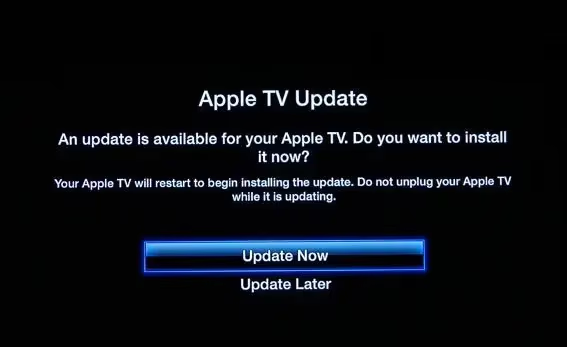
Start by checking for and installing any pending software updates on your iPhone, iPad, Mac, Apple TV, or AirPlay receiver:
-
iOS/iPadOS: Settings > General > Software Update
-
macOS: System Preferences > Software Update
-
tvOS: Settings > System > Software Updates
-
Speakers: Check manufacturer’s app for firmware updates
Even minor point releases can include important bug fixes and AirPlay improvements, so stay up-to-date.
#Check Network Connections and Settings
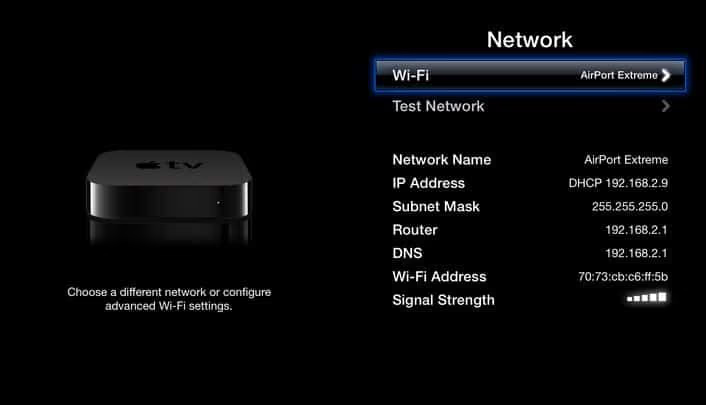
For AirPlay to function, devices must be connected to the same local network via Wi-Fi or Ethernet. To troubleshoot Wi-Fi:
-
Ensure sending and receiving devices are connected to the correct Wi-Fi network
-
Move devices closer to router to boost signal strength
-
Power off VPNs, proxies, firewalls temporarily to eliminate interference
Where possible, connect devices to router with Ethernet instead of Wi-Fi to isolate wireless variables during testing.
#Verify AirPlay Is Enabled
On iOS devices, swipe down from top right to open Control Center. Tap the Screen Mirroring or AirPlay icon and make sure a receiver is selected.
On Macs, open System Preferences > Displays and check “Show mirroring options in menu bar when available.” This enables the AirPlay menu bar icon.
For 3rd party AirPlay receivers like smart TVs, power cycle them off and on. Then recheck for available AirPlay sources under input settings.
For AirPlay issues on Amazon Fire TV devices, refer to our guide on setting up AirPlay on Firestick.
#Reset Network Configurations on iOS
If you’re still not seeing AirPlay on an iPhone or iPad, reset its network settings:
-
Open Settings > General > Reset
-
Tap “Reset Network Settings”
-
Enter device passcode if prompted
-
Tap again to confirm reset
This step erases all saved Wi-Fi networks and passwords, so you’ll need to rejoin the network afterwards. In my experience, this resolves many strange AirPlay quirks.
#Update Router Firmware to Latest Version
Visit your Wi-Fi router manufacturer’s support site and search for the newest firmware release for your model. Updating the router’s operating system can patch AirPlay bugs.
Download and install firmware following the manufacturer’s instructions, which vary by brand and model. Always backup router config before updating.
#Factory Reset Apple TV and Speakers
As a last resort for stubborn AirPlay issues with Apple TVs and compatible speakers, try a factory reset to wipe all settings:
-
Apple TV: Settings > System > Reset > “Reset”
-
Speakers: Consult product manual to enter recovery mode
Resetting returns the device to factory defaults. You’ll need to set it up again from scratch afterwards. This troubleshooting step has saved me many headaches with uncooperative AirPlay devices.
#Contact Apple Support for Further Assistance
If the AirPlay icon still won’t appear after exhausting these troubleshooting steps, it’s time to enlist expert help from Apple Support.
Call, chat, or visit a store, detailing the devices involved, steps you’ve tried, and exact symptoms. Apple’s techs have additional diagnostic tools and repair processes to get your devices playing nicely again.
#How Can You Boost AirPlay Speed and Performance?
In addition to getting AirPlay working consistently, there are several ways to optimize streaming speed and quality:
#Minimize Wireless Interference
Separate Wi-Fi devices from potential interference sources like cordless phones, microwaves, baby monitors, and Bluetooth devices. Minimizing 2.4GHz wireless congestion improves AirPlay reliability.
#Prioritize Bandwidth for Streaming Devices
In your router’s Quality of Service (QoS) settings, give AirPlay devices like the Apple TV high priority to dynamically allocate more bandwidth. Consult your router’s manual for specific steps.
#Free Up System Resources
Before initiating AirPlay, close unnecessary apps and browser tabs on both the sending and receiving devices. This frees up processing power for smoother audio and video.
#Use Wired Ethernet When Possible
Connecting one or both AirPlay endpoints to the router via Ethernet cable provides a faster and more stable link compared to Wi-Fi.
#Upgrade to High-Performance Router
Investing in a router that supports the latest protocols like 802.11ac and Wi-Fi 6 helps meet AirPlay’s bandwidth demands, especially in crowded networks.
#Add Wi-Fi Extenders for Better Coverage
Large homes can benefit from mesh Wi-Fi extender nodes to increase network range and eliminate dead zones where AirPlay drops out.
#Bottom Line
-
Keep iOS, macOS, tvOS and audioOS devices updated to latest versions for AirPlay fixes
-
Connect devices to the same Wi-Fi or Ethernet network
-
Enable AirPlay in iOS Control Center and Mac menu bar
-
Reset network settings on iOS to flush any misconfigurations
-
Update router firmware to patch known AirPlay bugs
-
Factory reset Apple TV and speakers if still unresponsive
-
Contact Apple Support for further diagnostics and hardware service
#Frequently Asked Questions
#Why does AirPlay keep disconnecting from my TV?
Intermittent AirPlay drops are usually caused by network interference or low signal strength. Try relocating your router and connected devices to minimize disruptions. Switching from a 2.4GHz to a 5GHz Wi-Fi band also reduces congestion that causes dropouts.
#Is AirPlay available on Samsung Smart TVs?
Yes, Samsung Smart TV models from 2018 and later support AirPlay 2. Check your TV’s specs page on Samsung’s website to confirm compatibility. For setup help, see our Samsung AirPlay troubleshooting guide.
#Does AirPlay need an internet connection to work?
An internet connection is only needed to initially authenticate devices. Both devices must be on the same local Wi-Fi network or LAN segment to establish the peer-to-peer AirPlay connection. Once authenticated, AirPlay works without active internet access.
#Can I use AirPlay from a Mac to an Apple TV?
Yes. Make sure AirPlay is enabled under System Preferences > Displays, then select your Apple TV as the output source on the menu bar. Both devices need to be on the same Wi-Fi network for the Apple TV to appear as an option.
#Why is AirPlay video choppy or delayed?
Low bandwidth, network congestion, and older hardware all contribute to poor AirPlay playback quality. Close background apps on both devices, connect via Ethernet if possible, and make sure no other device is consuming heavy bandwidth on the same network.
#How do I AirPlay from an iPhone to a Mac?
Open Control Center on your iPhone by swiping down from the top right corner. Tap Screen Mirroring and choose your Mac as the destination. Your Mac must be running macOS Monterey or later and have AirPlay Receiver enabled in System Preferences > Sharing.
#Will AirPlay work on an iPhone 6?
The iPhone 6 and later models running at least iOS 12 support AirPlay. Older devices may experience occasional compatibility issues with newer receivers. For the best results, keep your iOS version updated to the latest release your device supports.
#Can I stream DRM-protected content over AirPlay?
Yes, iTunes movies, TV shows, and music can be streamed to an Apple TV or compatible smart TV via AirPlay. HDCP-encrypted content requires all devices in the chain to be authorized with your Apple ID, and both the sender and receiver must support HDCP.