Having issues with yellow colors appearing greenish on your LG TV? You’re not alone. Many LG TV owners have reported this frustrating discoloration. In this guide, we’ll cover the root causes of the “LG TV yellow looks green” problem and provide actionable solutions to restore accurate colors.
- Color temperature settings: switching from Warm2 to Normal or Cool removes the greenish yellow cast on most LG TVs
- White balance calibration: reducing green offset and boosting red offset under Picture settings corrects skewed yellows
- OLED burn-in: static images degrade red subpixels over time, leaving a permanent green tint on yellow areas
- Built-in protection tools: Pixel Refresher, Screen Shift, and Logo Luminance Adjustment prevent future discoloration
- Panel defects: if settings changes don’t help, a manufacturing defect may require LG warranty service
#Overview
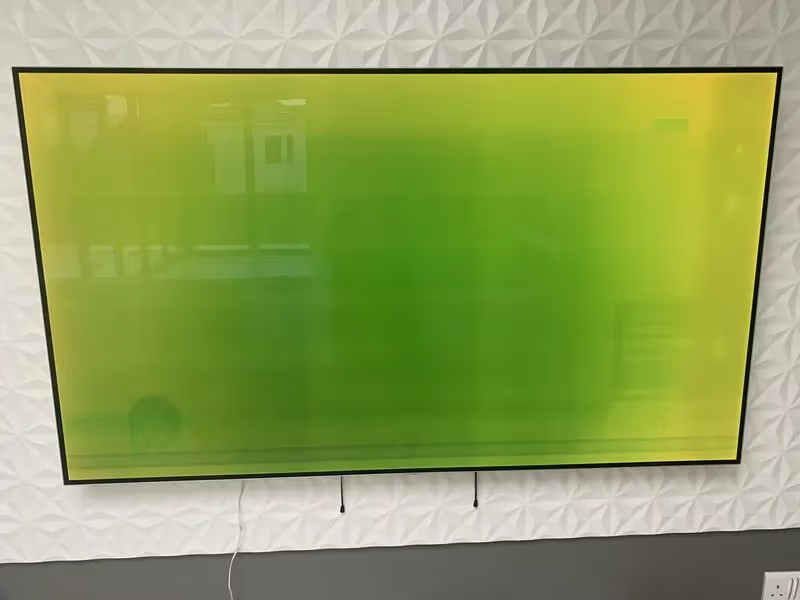
When yellow colors look off on an LG OLED or LED TV, it often comes down to one of these factors:
Incorrect Picture Settings. Faulty color temperature, white balance, or tint controls can skew colors.
Burn-In. Static images damaging OLED pixels over time, creating a permanent yellow-green shadow.
Faulty Panel. Manufacturing defects or mishandling leading to pixel errors.
With a few targeted adjustments, you can usually eliminate the greenish cast and enjoy properly saturated yellows again.
#What Causes the Yellow-Green Tint on LG TVs?
Before digging into solutions, it helps to understand what’s causing the “LG TV yellow looks green” issue in the first place.
#How OLED TVs Work
OLED (Organic Light-Emitting Diode) TVs work differently than standard LCD TVs:
-
Self-Emitting Pixels. Each pixel generates its own light instead of relying on a backlight. This enables perfect black levels.
-
RGBW Configuration. LG OLED TVs add a white subpixel to enhance brightness and accuracy.
-
Vulnerable to Burn-In. Static images can degrade specific OLED pixels permanently if left too long.
So when one color fades disproportionately over time, you get a yellow-green imbalance.
#Key Reasons for the Yellow-Green Effect
Here are the most common triggers for the “LG TV yellow looks green” issue:
Incorrect Color Temperature Setting. Too much blue light in the picture gives a cool, greenish cast.
Poor White Balance Calibration. Throws off the color harmony, which can skew yellows green.
OLED Burn-In. Static yellow graphics degrade red pixels, leaving a green halo.
Faulty Panel. Manufacturing defects or damage leads to uneven pixel wear or failure.
Carefully inspecting the conditions where you notice the issue can help diagnose the cause.
#How Do You Fix the Yellow-Green Tint on an LG TV?
You can usually resolve the “LG TV yellow looks green” problem through some basic troubleshooting and settings tweaks:
Adjust Color Temperature. Lower the setting until yellows look natural.
Recalibrate White Balance. Change offsets until colors are balanced.
Enable Burn-In Protection. Use pixel shift, screen saver, pixel refresher.
Contact Support. If under warranty, request panel inspection or replacement.
Running through these steps methodically should get your LG TV displaying accurate yellows again.
#Detailed Fixes and Settings Adjustments
Here is more detail on calibrating the picture settings to fix greenish yellows:
1. Reset Color Temperature
Navigate to Settings > Picture > Additional Settings > White Balance > Color Temperature.
-
Switch from Warm2 or Warm1 down to Normal or Cool.
-
Cool has the least red emphasis, so yellows appear less green.
-
Try different presets then fine-tune further if needed.
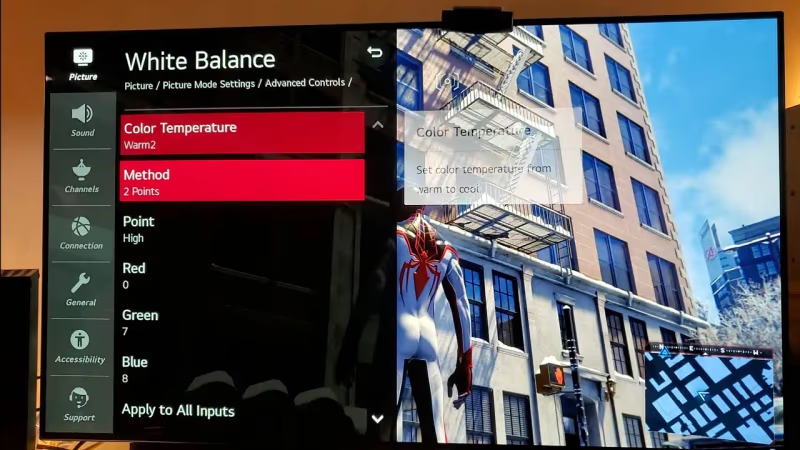
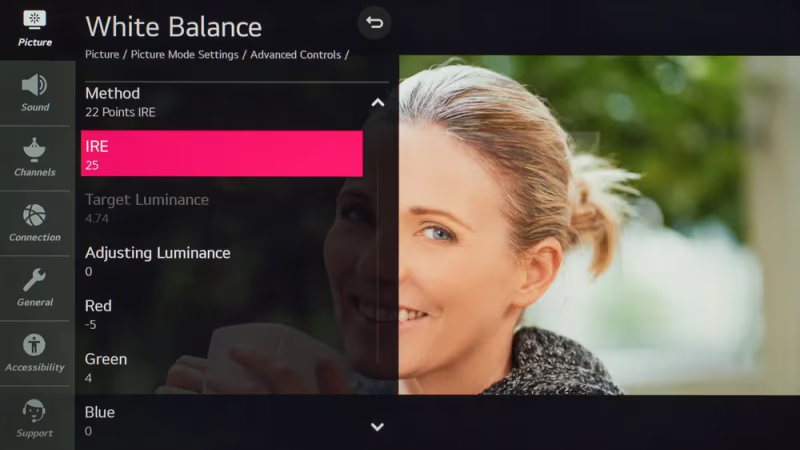
2. Adjust White Balance
Under Settings > Picture > Additional Settings > White Balance:
-
Change color offsets from default.
-
Reduce Green and increase Red levels.
-
Make small incremental changes.
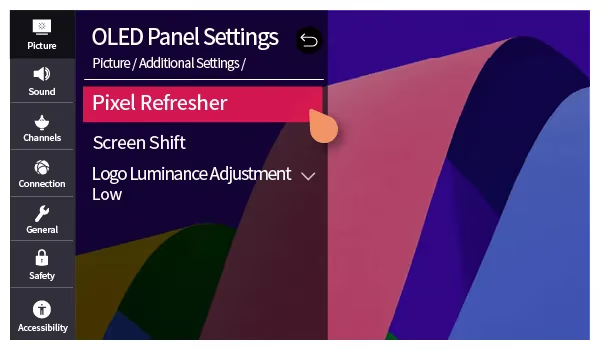
3. Enable Burn-In Prevention
If you suspect OLED burn-in, enable these features under Settings > Picture > OLED Panel Settings:
-
Pixel Refresher. Cleans up degraded pixel wear.
-
Logo Luminance Adjustment. Automatically dims static logos.
-
Screen Shift. Subtly moves images to spread pixel wear.
4. Request Service Repair
For persistent issues, contact LG support to troubleshoot further and arrange service if needed.
Stick to these 4 troubleshooting steps, and you should soon banish any greenish casting from bright yellows on your LG OLED or LED TV.
#How Can You Prevent Yellow-Green Discoloration?
While the fixes covered above should resolve any current green-yellow issues, here are some tips to avoid problems down the road:
-
Accurately calibrate white balance and color temperature.
-
Avoid static imagery whenever possible.
-
Use built-in OLED burn-in prevention features.
-
Keep TV away from direct sunlight and heat.
-
Consider extended warranty for peace of mind.
Taking these basic precautions will help safeguard your LG TV’s picture quality and color accuracy for years to come.
#Related LG TV Issues
#FAQs: LG TV Yellow Looks Green
#Why do yellows look greenish on LG OLED TVs?
The most common reasons are incorrect color temperature or white balance settings. OLED burn-in and faulty panel issues can also cause uneven pixel wear that shifts yellow toward green. Checking your picture settings first is the fastest way to diagnose the problem.
#How do I fix the green-tinted yellows on my LG TV?
Start by adjusting the color temperature under Settings > Picture > Additional Settings. Switch from Warm2 to Normal or Cool, then fine-tune white balance by reducing the green offset. If that doesn’t help, run the Pixel Refresher under OLED Panel Settings.
#What exactly causes OLED burn-in?
Displaying static imagery for extended periods wears down specific OLED subpixels unevenly. Red subpixels tend to degrade faster than green ones, so yellows (which rely on red + green) gradually shift toward green. This creates a shadow-like afterimage in affected areas.
#Should I worry about burn-in with a newer LG OLED TV?
Modern LG OLED TVs have much better resistance to burn-in than earlier models. LG includes Pixel Refresher and Screen Shift features specifically to prevent it. Still, avoiding static content for hours at a time remains a good habit.
#Can a faulty panel cause the yellow-green problem?
Yes. Manufacturing defects or physical damage to the panel can cause uneven pixel performance, producing inaccurate colors like green-tinted yellows. If adjusting settings doesn’t fix the issue, a panel defect is likely and you should contact LG support while under warranty.
#What color temperature setting works best for accurate yellows?
Normal or Cool settings produce the least color skew on most LG TVs. Warm presets add extra red emphasis that can interact unpredictably with white balance, making yellows look muddy or greenish. Start at Normal and adjust from there based on your viewing environment.
#Does the Pixel Refresher actually fix green-tinted yellows?
Pixel Refresher recalibrates OLED subpixels to reduce uneven wear, which can improve color accuracy. It runs automatically after every 4 hours of cumulative use, but you can also trigger it manually under OLED Panel Settings. It works best for mild burn-in rather than severe panel damage.
#Will a factory reset fix the yellow-green tint?
A factory reset restores all picture settings to default, which can help if someone accidentally changed color temperature or white balance. Go to Settings > General > Reset to Initial Settings. Keep in mind this erases all your app logins and preferences too, so try adjusting picture settings individually first.
#Bottom Line
While greenish-yellow issues are common on LG OLED and LED TVs, the fixes are usually straightforward.
Carefully inspect where the problem occurs, then methodically work through adjusting color settings, enabling burn-in protections, and contacting LG if needed.
By understanding what causes the “LG TV yellow looks green” phenomenon and following these tips, you should restore natural, accurate colors across all content. Don’t give up if bright yellows turn dull green on your LG TV. Just follow the targeted troubleshooting steps above and you’ll have stellar picture quality back in no time.