Updating your LG smart TV firmware is an important part of maintaining performance, fixing bugs, enhancing features and improving security. This guide covers both automatic and manual update methods so you can keep your TV running at its best.
- Two update methods — automatic updates through the Settings menu or manual installation via USB stick
- Update frequency — LG releases firmware updates every few months, check at least 2-3 times per year
- Installation time — most firmware updates take 10-20 minutes to download and install
- Power cycle required — always restart your TV after a firmware update completes
- Backup first — save your settings before updating since some updates may reset preferences
#What is Firmware?
Firmware is low-level software that controls your LG TV’s hardware and provides the foundation for higher level apps and interfaces to run on.
Keeping your firmware up-to-date ensures you have the latest features, security enhancements, bug fixes and efficiency improvements.
#Why You Should Update LG TV Firmware
Here are some of the key reasons to regularly check and install LG TV firmware updates:
-
Enhanced Features – Updates often add new apps, capabilities and integrations.
-
Security – Patches vulnerabilities to prevent hacking or data theft.
-
Bug Fixes – Squashes annoying glitches with playback, apps crashing or remote responsiveness.
-
Performance – Boosts speed, lagging, operation smoothness and navigation.
-
Compatibility – Allows connectivity with newer external devices and HDMI inputs.
Failing to update leaves you susceptible to problems down the road like apps crashing frequently or difficulties connecting new devices like the best TV remotes for YouTube TV.
#How to Update LG TV Firmware
You have two options when updating your LG TV firmware:
#1. Automatic Updates
This is the easiest method. Your LG TV will automatically check for the latest firmware and prompt you to install updates as they become available.
To enable:
- Open Settings > All Settings > Support > Software Update > AUTO UPDATE > On
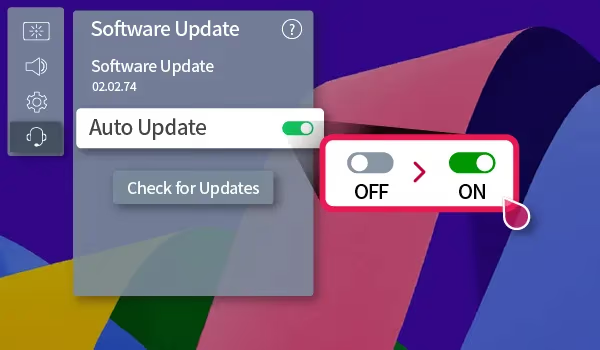
You may need to navigate to General> About This TV > Software Update depending on your LG webOS version.
Once enabled, the update will happen automatically in the background. Just be sure to power cycle your TV after the install.
One downside is that automatic updates can occasionally cause new issues, like apps not functioning or lost settings. Be prepared to troubleshoot or factory reset if your LG TV starts showing a black screen after an update.
#2. Manual Updates
The manual method involves downloading the firmware file from LG’s website and installing it directly via USB stick.
This gives you more control but also requires more effort. You’ll need:
-
USB stick with 1GB+ free space
-
Computer with internet access
-
LG TV model number
To manually update LG TV firmware:
-
Find your exact LG TV model at LG’s support site
-
Download firmware file
-
Extract zip folder
-
Copy BIN file into LG_DTV folder on USB stick
-
Insert into TV’s USB port
-
Select Start/Install update
-
Power cycle TV after completion
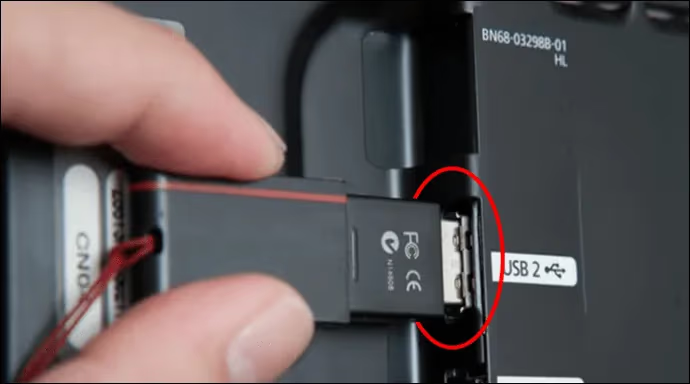
Be sure to carefully follow LG’s step-by-step process for your specific model.
#How Often Should Firmware Be Updated?
Ideally you should install new firmware updates as soon as they become available, usually every few months. Updates are released on an as-needed basis rather than a fixed schedule.
Enabling automatic updates will ensure you never miss an important release. Just be patient as some models can take longer to receive the latest upgrades.
At minimum check manually and install any available updates at least 2-3 times per year.
#Tips for Updating LG TV Firmware
Follow these best practices when installing LG TV firmware:
-
Don’t install during a storm – power fluctuations can corrupt.
-
Use wired internet for faster, more reliable downloads.
-
Delete apps/media if low on storage space.
-
Backup settings if they will be reset after the update.
-
Power cycle TV after installation finishes.
-
Factory reset if experiencing issues after updating.
Be patient as updates take 10-20 minutes. Do not power off TV during the process.
#Bottom Line
Updating takes just a few minutes and is crucial for getting timely security patches, fixes for bugs causing Hulu connection issues, newest apps and features, and better performance with stability fixes to prevent frequent LG TV flickering.
Follow our step-by-step walkthroughs to update firmware on your LG TV without issues. Taking a few minutes just twice a year goes a long way towards extending the lifespan!
#Bottom Line
-
Firmware is critical low-level software that controls hardware and provides core functionalities.
-
Updates enhance features, security, performance and compatibility.
-
LG TVs can update automatically or manually via USB stick.
-
Check for latest firmware every 2-3 months at minimum.
-
Carefully follow all steps and best practices for smooth installation.
#FAQ
#How do I enable automatic firmware updates on my LG TV?
Open Settings > All Settings > Support > Software Update > Auto Update > On. On newer webOS versions, the path may be General > About This TV > Software Update instead. Once enabled, your TV checks for updates whenever it connects to the internet.
#Why does my LG TV say “No Signal” after updating?
Power cycle both your TV and any connected devices like cable boxes or game consoles. Unplug the TV for 60 seconds, then plug it back in. If the problem continues, try a different HDMI port or factory reset as a last resort.
#Does a firmware update delete my apps or settings?
LG firmware updates preserve your apps and settings in most cases. However, major version upgrades occasionally reset picture or sound preferences. Back up your custom settings by photographing them before you start the update.
#How long does an LG TV firmware update take?
Most updates finish within 10-20 minutes depending on your internet speed and the size of the update file. Do not power off or unplug the TV during this process, as interrupting the installation can corrupt the firmware.
#What should I do if my LG TV is stuck on the update screen?
Wait at least 90 minutes before taking action, since some larger updates run longer than expected. If the progress bar has not moved at all during that time, unplug the TV for two minutes and plug it back in. You may need to perform a manual USB update if the automatic process keeps failing.
#Can I downgrade my LG TV firmware to a previous version?
LG does not officially support firmware downgrades on consumer TVs. Once you install a newer version, rolling back typically requires specialized tools and voids your warranty. Test new firmware for a few days before reporting any issues to LG support.
#Do I need to update firmware if my LG TV is working fine?
Yes, firmware updates include security patches that protect your TV from vulnerabilities even when everything appears normal. Skipping updates can leave your TV exposed to known exploits. Updates also improve app compatibility as streaming services release their own changes.
#How do I find my current LG TV firmware version?
Go to Settings > All Settings > General > About This TV and look for the Software Version field. Compare this number against the latest version listed on the LG support page for your model. If your version is lower, an update is available.