AirPlay lets you wirelessly stream content from your Apple devices to a compatible LG Smart TV. Many users run into issues with AirPlay not working properly on their LG TVs, though. If you’re experiencing problems getting AirPlay to connect, there are several troubleshooting steps you can take to resolve the issue.
- AirPlay 2 is required — only LG TVs from 2018 or later with webOS 4.0+ support AirPlay
- Same Wi-Fi network is mandatory — both your Apple device and LG TV must be on the same network
- Power cycling fixes most glitches — unplug your TV for 60 seconds and restart your router
- Software updates matter — outdated firmware on either device can break AirPlay connections
- IPv6 can help — enabling IPv6 in your LG TV network settings has resolved AirPlay issues for many users
#Is Your LG TV Compatible With AirPlay 2?
The first step is to verify that your LG TV model supports AirPlay 2, which is required for compatibility with Apple devices. LG began incorporating AirPlay 2 in 2018 with webOS 4.0. Here are the LG TV series that offer AirPlay 2 functionality:
-
LG OLED (2018 and later)
-
LG NanoCell SM/SK/NANO Series (2018 and later)
-
LG QNED Series (2021 and later)
-
LG UHD UM/UN/UP/UQ Series (2018 and later)
To check your specific model, locate the information sticker on the back of your TV, which lists the model number and year.
If your LG TV isn’t AirPlay 2 compatible, you’ll need to use an alternate streaming method or consider upgrading your television. If you’re experiencing other issues with your LG TV, check out these guides:
#Power Cycle Devices
If your TV passes the compatibility check but AirPlay still isn’t working, the next step is to restart all involved devices:
-
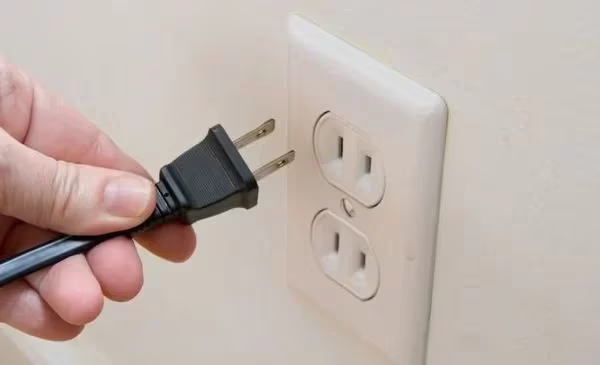
Turn off your LG TV and unplug it from power for 60 seconds.
-
Turn off your Apple device (iPhone, iPad, Mac).
-
Unplug your Wi-Fi router, wait 15 seconds, and plug it back in. Wait a few minutes for it to fully reboot.
-
Turn on your Apple device and make sure it connects to Wi-Fi.
-
Plug in and turn on your LG TV. Verify that it’s connected to the same Wi-Fi network as your Apple device.
A restart can often clear up temporary software glitches interfering with the AirPlay connection. Make sure both the LG TV and Apple device are on the same Wi-Fi network, as this is a requirement for AirPlay.
#How Do You Update Software for AirPlay?
Out-of-date system software on either your LG TV or Apple device could cause AirPlay issues if bugs have been addressed in a newer version. Take a moment to manually check for and install any pending system updates:
On LG TV:
-
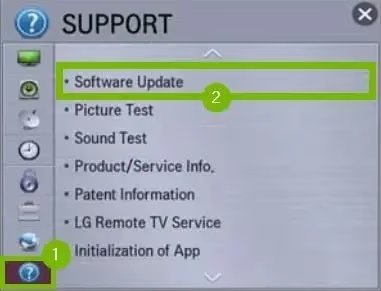
Press the Settings button on the remote
-
Go to All Settings > General > About This TV
-
Select Check for Updates
-
Follow the prompts to install if an update is available
For more information, check out our guide on LG TV Firmware Update.
On iPhone/iPad:
-
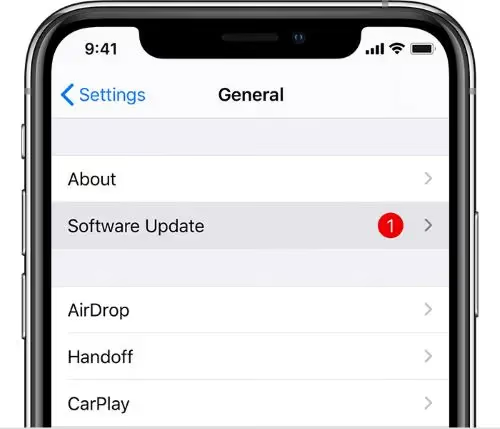
Go to Settings > General > Software Update
-
Tap Download and Install if an update is available
On Mac:
-
Click the Apple icon > About This Mac
-
Select Software Update
-
Click Update Now if one is available
#Verify AirPlay Is Enabled
Another potential cause of this issue is AirPlay being disabled in your LG TV’s settings. Use these steps to make sure the AirPlay toggle is turned on:
-
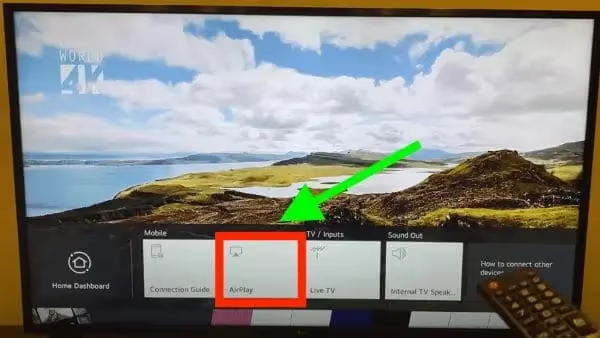
Press the Home or Start button on the LG remote.
-
Navigate to the Home Dashboard.
-
Select AirPlay from the dashboard.
-
Choose AirPlay & HomeKit Settings.
-
Verify that AirPlay is switched On. If not, click to enable it.
#Enable LG TV IPv6 Settings
Some users have reported that turning on IPv6 in their LG TV network settings resolved AirPlay problems. Here’s how to do so:
-
Press the Settings button on the remote.
-
Go to All Settings > Connection > Wi-Fi Connection.
-
Select Advanced Wi-Fi Settings.
-
Locate the IPv6 setting and make sure it’s enabled.
Not all LG TVs have this option, but it’s worth checking. Enabling IPv6 can help establish a better connection between your TV and router.
#Should You Turn Off VPN and Bluetooth?
If a VPN is active on your streaming device, it can interfere with your local network traffic and cause issues with AirPlay. Make sure to disable any VPN apps on your Apple device before trying to use AirPlay.
Bluetooth on your phone or tablet can also cause interference. Go to Settings > Bluetooth and toggle it off on your device before attempting to use AirPlay again.
#Reset LG TV to Factory Settings
If you’ve tried all of the above troubleshooting steps and still can’t get AirPlay working, a factory reset of your LG TV may be needed as a last resort. This will erase all settings and return the TV to factory defaults. Here’s how:
-
Press the Settings button on the remote.
-
Navigate to All Settings > General > Reset to Initial Settings.
-
Enter your passcode (default is 0000).
-
Select Confirm to reset.
-
The TV will restart. Follow the on-screen setup prompts.
-
Re-enable AirPlay in the settings as described earlier.
This will delete any customizations, so only perform a reset if all other options have failed. Make sure you have your Wi-Fi password handy to reconnect. For detailed instructions, see our guide on How to Factory Reset LG TV.
#Bottom Line
-
Ensure your LG TV model supports AirPlay 2
-
Restart your LG TV, Apple device, and router
-
Install any pending software updates
-
Verify AirPlay is enabled in LG TV settings
-
Enable IPv6 in LG network settings if available
-
Disable any active VPNs and Bluetooth on your device
-
Factory reset TV as a last resort
If you try all of these suggestions and still have issues with AirPlay, contact LG Support for your region. Their technicians can provide further assistance and look into any underlying software or hardware problems specific to your LG TV model.
#Frequently Asked Questions
#Why is AirPlay not showing up on my LG TV?
Your LG TV may not support AirPlay 2, which requires a 2018 or newer model with webOS 4.0+. Check the model sticker on the back of your TV to confirm the year. Also make sure AirPlay is enabled in your TV’s settings under AirPlay & HomeKit.
#How do I know if my LG TV has AirPlay 2?
LG began adding AirPlay 2 in 2018. It’s available on LG OLED, NanoCell SM/SK/NANO Series, QNED Series, and UHD UM/UN/UP/UQ Series TVs from 2018 onward. Check the model information on the back of the TV to confirm the year.
#Why can’t I connect my phone to my LG TV with AirPlay?
The most common reasons are: the TV doesn’t support AirPlay 2, the devices are on different Wi-Fi networks, software is out of date, or AirPlay is disabled in settings. Work through each of these possibilities starting with the compatibility check.
#How do I reset my LG TV for AirPlay?
Go to Settings > All Settings > General > Reset to Initial Settings on your LG TV. Enter the passcode (default is 0000) and confirm the reset. After the TV restarts, you’ll need to set it up again and re-enable AirPlay in the Home Dashboard settings. This erases all data, so use it only as a last resort.
#Why does AirPlay keep disconnecting on my LG TV?
AirPlay disconnections usually point to a weak Wi-Fi signal or network congestion. Move your router closer to the TV if possible, or connect the TV via Ethernet. Restarting both devices and your router often stabilizes the connection. Outdated firmware on either the TV or Apple device can also cause drops.
#Does AirPlay work on all LG Smart TVs?
No. Only LG Smart TVs from 2018 or later with webOS 4.0 or higher support AirPlay 2. Older models lack the required software framework. If your TV predates 2018, an Apple TV streaming box is the best alternative for AirPlay functionality.
#Can I use AirPlay on my LG TV without Wi-Fi?
AirPlay requires both devices to be on the same Wi-Fi network, so it will not work without a wireless connection. There is no Bluetooth-based or direct peer-to-peer AirPlay option for LG TVs. If your Wi-Fi is down, use an HDMI cable to connect your Apple device to the TV instead.
#Does a VPN affect AirPlay on LG TV?
Yes. A VPN on your Apple device routes traffic through an external server, which prevents your device from discovering the LG TV on the local network. Disable the VPN before using AirPlay, then re-enable it afterward if needed. This applies to both system-level and app-based VPN connections.
#Related Content
If you’re experiencing AirPlay issues with other TV brands, check out these guides: