Have you seen the message “This app will now restart to free up memory” on your LG Smart TV when using apps like Netflix, YouTube or web browser? You’re not alone. Many LG TV owners face this frustrating issue with apps suddenly closing and restarting. Here are 13 proven fixes to stop your LG TV from repeatedly restarting apps.
- Power cycling fixes most restart loops — unplug the TV for 60 seconds and hold the power button for 30 seconds to clear cached errors
- Quick Start+ drains background RAM — disabling it frees memory that streaming apps need to run without crashing
- Storage limits trigger forced restarts — LG webOS TVs have only 2-4 GB of usable storage, so removing unused apps is critical
- Outdated firmware causes app instability — LG releases webOS patches specifically to fix app crash bugs reported by users
- Wired Ethernet prevents streaming crashes — Wi-Fi interference is responsible for a large share of buffering-related app restarts on LG TVs
#What Causes LG TV Apps to Keep Restarting?
There are a few common triggers for LG Smart TV apps repeatedly closing and showing the “This app will now restart to free up memory” message:
-
Insufficient Storage Space: Too many apps or files filling up limited internal memory can prevent apps from running properly.
-
Faulty App Updates: Buggy app updates like a recent YouTube TV update can cause crashing issues.
-
Outdated LG webOS: Using older TV firmware can lead to app stability problems.
-
Too Many Background Apps/Processes: Lots of apps/processes running simultaneously take up RAM needed to run foreground apps.
-
Weak Wi-Fi Connection: Choppy Internet prevents apps like Netflix from streaming smoothly.
There are some quick troubleshooting steps you can try to stop your LG TV apps from constantly restarting or freezing.
#How Do You Power Cycle an LG Smart TV?
Start troubleshooting by power cycling your LG TV:
-
Unplug TV power cable from electrical outlet.
-
Press and hold power button on TV for 30 seconds (releases stored energy).
-
Wait 1-2 minutes before plugging power cable back in.
-
Turn on LG TV and check if apps keep restarting.
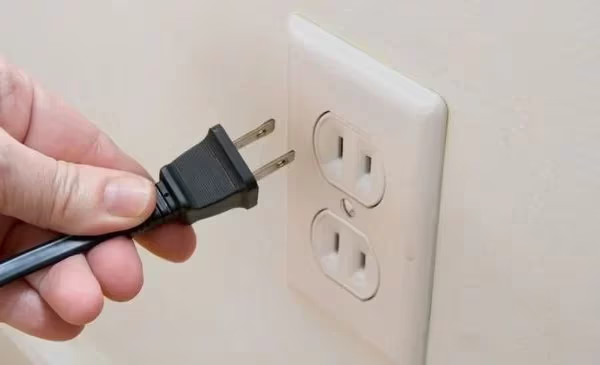
Power cycling forces a hard reboot, clearing any corrupt data or cache files causing app crashes. It works as a “reset button” for your LG Smart TV software.
#Fix 2: Turn Off the “Quick Start+” Feature
LG’s Quick Start+ keeps your TV in a standby low power state so it starts faster when turned on. But this can consume system resources needed to run apps smoothly.
To turn off Quick Start+:
-
Select Settings > All Settings > General
-
Select Power > Quick Start+
-
Change setting from On to Off
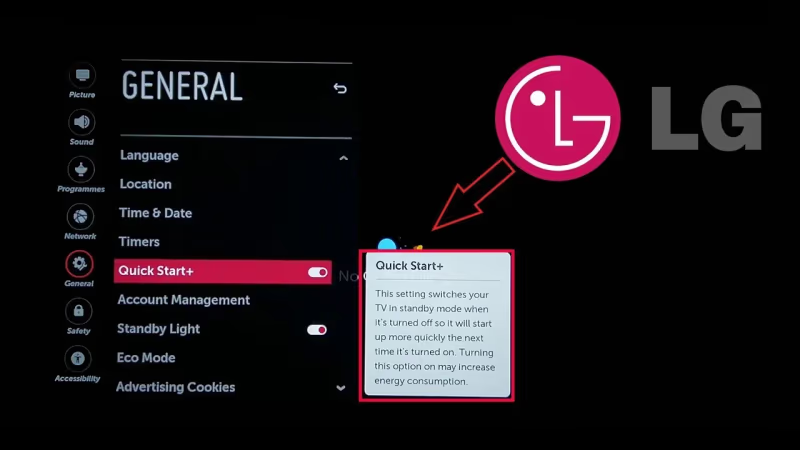
With Quick Start+ disabled, more RAM should be available for streaming apps, reducing restart errors.
You can read more tips on optimizing LG TV performance at this guide to LG TV black screen issues.
#Fix 3: Clear Browser Cache and Data
Large cached data files from the LG web browser can contribute to limited storage space errors:
To clear browser data:
-
Launch web browser app and click top right menu > Settings
-
Scroll down and select Clear Browsing Data
-
Choose cookies, cached images/files and other data > Clear
-
You can also enable Private Browsing mode to prevent caching.
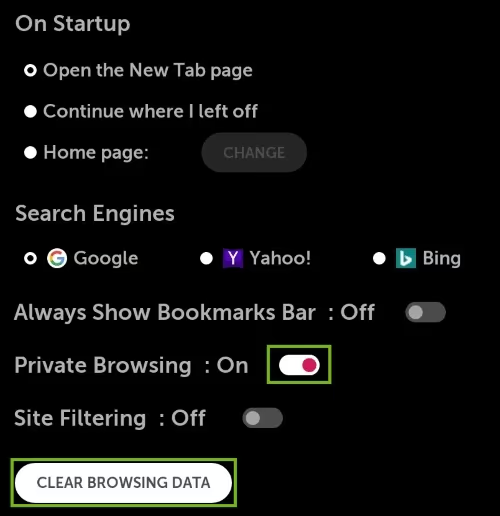
Clearing temporary browser data frees up storage for smooth app performance.
#How Do You Remove Unused Apps on an LG TV?
Too many unused apps wasting storage space can trigger the LG TV restarting apps message.
To uninstall apps:
-
Go to LG TV home screen and select the app icon ribbon.
-
Scroll all the way right to Edit Mode and select the delete X icon on unneeded apps.
-
Confirm uninstall when prompted on each app.
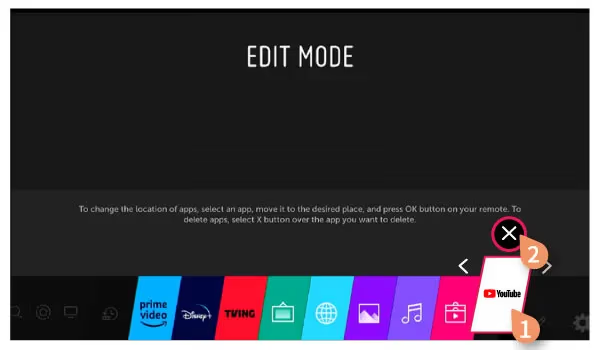
Removing inactive apps gives active streaming/media apps the storage and memory they need.
For instructions on removing apps from your LG Smart TV, check out how to delete apps on LG TVs.
#Fix 5: Check for LG webOS Firmware Updates
App crashing issues are sometimes fixed in LG webOS updates.
To manually check for the latest LG Smart TV firmware version:
-
From Settings, select All Settings > General > About This TV > CHECK FOR UPDATES
-
If an update is available, select download and install.
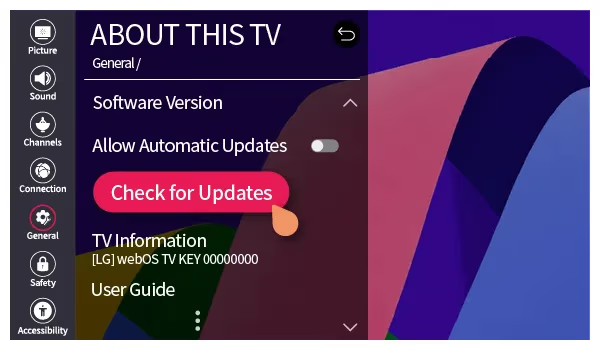
Updating to the newest LG webOS version can resolve app instability problems after changes.
If you need help factory resetting your LG TV to resolve app crashes, this LG factory reset guide covers the process.
#Fix 6: Use LG TV Memory Optimizer
For LG OLED TVs, run the built-in Memory Optimizer for additional app crashing fixes:
-
Go to Settings > All Settings > General > OLED Care > Device Self Care
-
Select Memory Optimizer > Start to clean up junk files
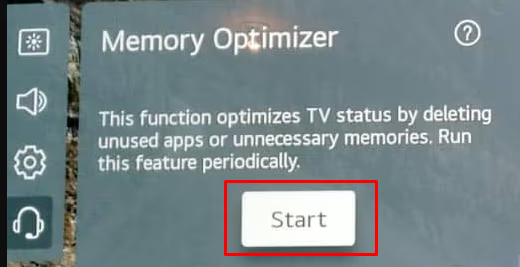
This deep cleans storage by removing temporary unused app files no longer needed.
You can also use an external streaming device like Roku or Fire TV instead of the built-in LG software.
#Fix 7: Reset Your LG TV to Factory Settings
If other troubleshooting steps don’t stop the constant app restarts, a factory reset clears all stored app data:
-
Select Settings > All Settings > General > Reset to Initial Settings > OK to confirm.
-
Complete the initial first-time installation process when powered back on.
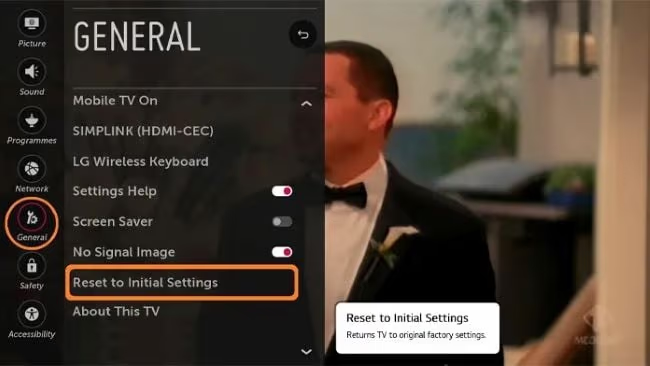
Resetting removes any corrupted data/files that can cause LG TV apps to crash.
#Should You Use Wired Ethernet Instead of Wi-Fi?
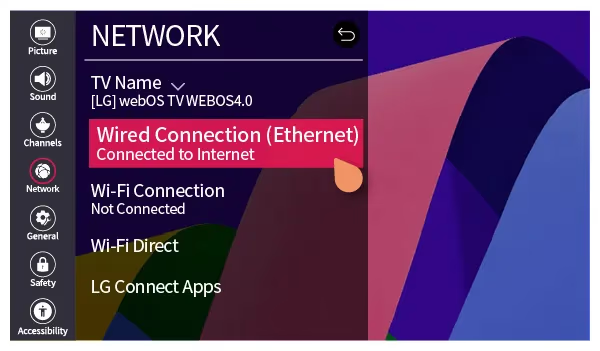
Choppy Wi-Fi connectivity can disrupt video streaming and cause buffering issues that crash apps.
For smoother 4K streaming, connect your LG TV to your modem/router using an Ethernet network cable. This avoids any Wi-Fi interference interrupting app functionality.
#Fix 9: Close Background Apps
Too many apps running at once, especially resource-intensive video streaming apps, can overload available RAM needed for active foreground apps.
Close background apps not in use:
-
While on an active app, press and hold the Home button on your LG Magic Remote.
-
Scroll left/right and select close X on each background app shown.
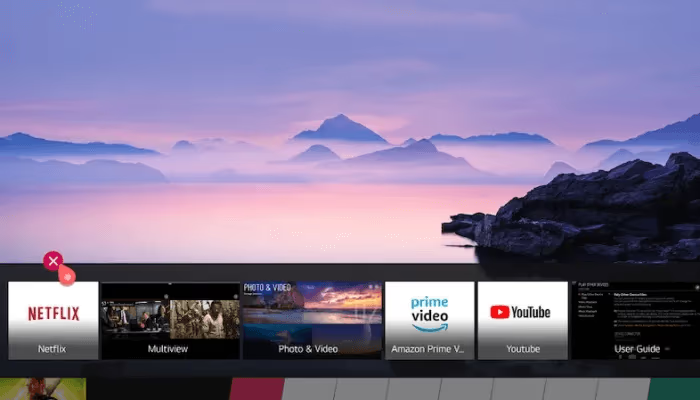
Freeing up RAM allows your active LG TV app enough memory to run without restart errors.
#Fix 10: Disable Auto App Updates
Some app updates that install automatically can occasionally break functionality and cause crashing issues.
Disabling auto updates prevents buggy releases from creating problems:
-
Go to Settings > All Settings > General > System Update
-
Turn Auto Update Apps setting from On to Off
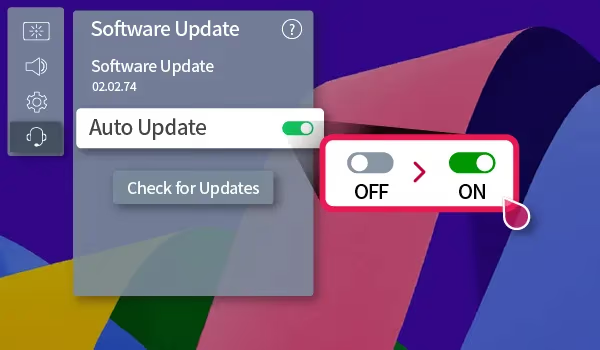
This stops problematic app updates from being applied before they are patched.
#Fix 11: Adjust App Background Refresh Settings
Restricting background app data refresh reduces system resource usage, allowing apps to run better:
-
Go to Settings > All Settings > Apps > Background App Refresh
-
Disable background data refresh completely or select apps to exclude.
Limiting background refresh only to essential apps prevents overloading RAM.
#Fix 12: Contact LG Support
After trying the previous troubleshooting tips, reach out to LG Support if your apps still frequently restart.
LG experts can help diagnose if the recurring app crashes require hardware repairs or replacements under warranty:
-
Phone: Call 1-800-243-0000
-
Online Support Ticket: Visit LG USA Support{rel=“noopener” target=“_blank”}
-
Support Chat: Initiate a live chat session
Getting assistance can uncover additional solutions for fixing constant app restarts.
#Fix 13: LG TV Memory Upgrade
For older LG TV models still seeing frequent app restarts/freezing even after troubleshooting, upgrading internal storage provides more memory:
-
Use a USB flash drive or external SSD connected to your LG TV’s USB port for expanded app/media storage.
-
Install higher capacity RAM memory chips for increased speed/performance.
-
Adding an external storage drive or replacing built-in RAM chips restores smooth smart TV functionality.
Upgrading outdated, limited LG TV storage resources can resolve app crashing issues.
#FAQ
#What is the LG TV “this app will now restart” error message?
This warning appears when an LG TV app forcibly closes itself to clear memory resources. It means the TV does not have enough available storage or system memory to keep the app running. You will usually see this when multiple apps are open or when cached data fills up the internal storage.
#Why won’t Netflix stop crashing on my LG TV?
Constant Netflix crashes on an LG TV usually point to Wi-Fi connection problems, lack of storage space, or too many background apps running. Software bugs in an outdated webOS version can also trigger repeated crashes. Try power cycling the TV and clearing the Netflix app cache first before doing a factory reset.
#Why does YouTube keep restarting on my LG Smart TV?
YouTube app restarts on an LG TV are often caused by buggy software updates that need a rollback. Storage and memory constraints can also force the app to close unexpectedly. Uninstalling and reinstalling YouTube from the LG Content Store fixes this in many cases.
#Will a factory reset stop apps from restarting on my LG TV?
A factory reset erases all app data and custom settings, restoring the TV to its original configuration. This wipes any corrupted data that triggers app crashes, giving apps a clean environment to run in. Keep in mind you will need to sign back into all your streaming accounts afterward.
#How much storage does an LG Smart TV have for apps?
Most LG Smart TVs running webOS have between 2 GB and 8 GB of total internal storage, but the operating system uses a large portion. That leaves roughly 1-4 GB for apps and cached data, which fills up fast if you install many streaming apps.
#Does Quick Start+ cause apps to crash on LG TVs?
Quick Start+ keeps the TV in a standby state that uses background RAM and processing power. Over time, this can reduce available memory for active apps and contribute to restart errors. Turning off Quick Start+ in Settings > General > Power forces a full shutdown that clears memory each time you power off.
#Can a weak Wi-Fi signal cause LG TV apps to restart?
Yes, unstable Wi-Fi causes streaming apps to buffer and eventually crash when the connection drops repeatedly. Apps like Netflix and YouTube need a steady minimum of 5 Mbps for standard streaming and 25 Mbps for 4K. Switching to a wired Ethernet connection eliminates Wi-Fi interference entirely.
#How do I close background apps on my LG TV?
Press and hold the Home button on your LG Magic Remote to open the recent apps tray. Scroll through the open apps and click the X icon on each one you want to close. This frees up RAM immediately and can stop foreground apps from restarting due to memory pressure.
#Bottom Line
-
Common triggers like insufficient storage, faulty updates, too many background apps or Wi-Fi issues cause LG TV app crashes.
-
Power cycle TV, turn off Quick Start+, clear browser data and remove unused apps to free up storage space.
-
Check for LG webOS TV firmware updates, run Memory Optimizer cleaner and reset TV to factory settings to fix software issues.
-
Switch to wired Ethernet, close background apps, disable auto updates and manage background data to optimize performance.
-
As a last resort, upgrade RAM/storage or contact LG Support for replacement options to handle hardware limitations.
Following this 13-step troubleshooting guide will stop annoying app restarts on your LG Smart TV. Share any other fixes that worked for you below!