There are a couple of quick fixes to try if your LG Content Store is not working.In fact, this issue is experienced by many users across the globe, so you are not alone.
That said, the following paragraphs will explain the fixes you should use to fix this error.
- Power cycle first — unplugging the TV for 10 minutes clears cached errors and resolves the issue for most users
- DNS misconfiguration is the #1 persistent cause — switching to Google Public DNS (8.8.8.8) restores Content Store access
- Wrong region or ZIP code blocks the store — LG filters available apps and content by your TV’s location setting
- Outdated webOS firmware breaks store compatibility — LG pushes Content Store updates tied to specific firmware versions
- Factory reset is the last resort — it wipes all apps and settings but fixes corrupted system files that other methods miss
#What is LG Content Store?
LG Content Store is where you can find all the apps that are compatible with LG TVs. It supports more than 200 apps as of this writing. To access those apps, all you need is an internet connection and a remote control.
This collection of apps includes games, streaming apps from various service providers, and educational apps. Also, it includes other varieties of apps like lifestyle.
With only a couple of clicks, you can add those apps to your TV unit. These apps make your LG TV a lot better.
Besides, are you looking for a way to screen mirror from iPhone to Sony TV? Here, let’s figure out how to perform a mirroring task successfully.
#What Makes LG Content Store Not Working?
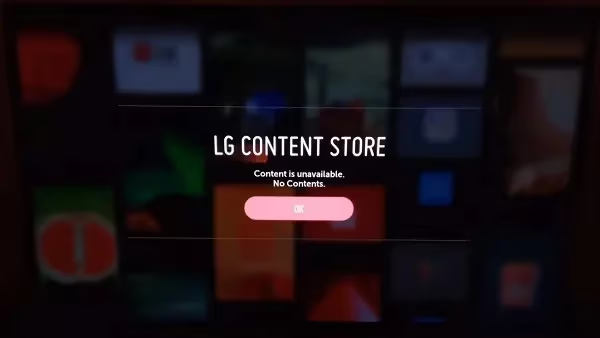
Whenever your LG Content Store is not working, you might start to think of the possible reasons behind it.
Well, as we found out, such errors can occur due to several different reasons. Below are those reasons for your consideration.
-
Network issues
-
Wrong configurations in your DNS
-
Wrong region settings
-
Issues related to software
Depending on the type of issue, you can put different solutions to the test. So, let’s go ahead and learn how to fix your LG Content Store not working.
#Solution 01: Perform a Power Cycle
The very first fix you should try is to perform a power cycle on the TV. In fact, this is the most basic fix you can try, but it shows a great deal of effectiveness.
So, before moving into advanced solutions, you can try this one and see how it works.
You may follow the steps below to power cycle your TV.
-
First, you are supposed to switch off the TV.
-
After that, it should be unplugged from the wall outlet.
-
Now, you are supposed to perform a long press on the power button for about 30 seconds. This will drain out the power remaining in your device.
-
You should also unplug the modem and the router. Then, you should disconnect all USB and HDMI devices.
-
Leave it for about 10 minutes.
-
Now, connect the modem and router.
-
After that, provide a power supply to your TV.
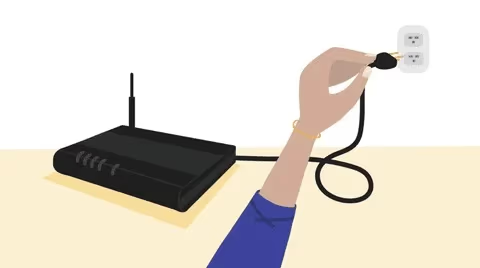
This should fix the error in most cases. However, if it doesn’t work, go to the next step.
#Solution 02: Check for Potential Network Errors
For the data storage to function correctly and be accessible, there must be a strong internet connection.
So, if you are having problems, a poor Wi-Fi network could be to blame. This is why we recommend you switch to an ethernet cable and check if the problem persists.
If the problem is gone once the ethernet cable is plugged in, the problem is definitely on Wi-Fi.
#Solution 03: Change Your DNS Settings
In fact, there are many individuals who experience various issues related to LG’s content store.
If you had the same issue and did not succeed with the previous option, you can try this solution.
All you need is to check the DNS settings of your LG TV. Wrong DNS settings can display an error message saying that there’s no page to load.
Some users say that they receive an error message mentioning the unavailability of the service. Regardless of the message, it is better to follow the steps below and change your DNS settings.
The aim of this process is to change your DNS to Google Public DNS. It should be 8.8.8.8.
-
Press the Home button on the remote of your LG TV.
-
THEN, SELECT “Settings.”
-
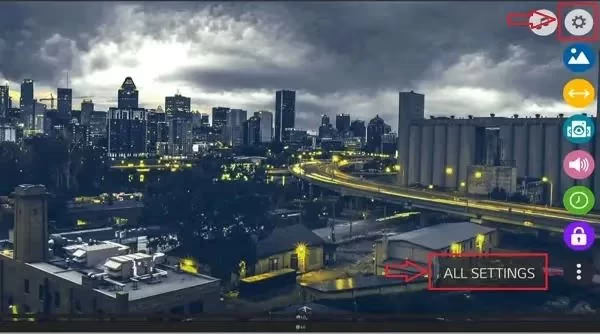
Go to “All Settings” and select “Network.”
- Select any connected network.
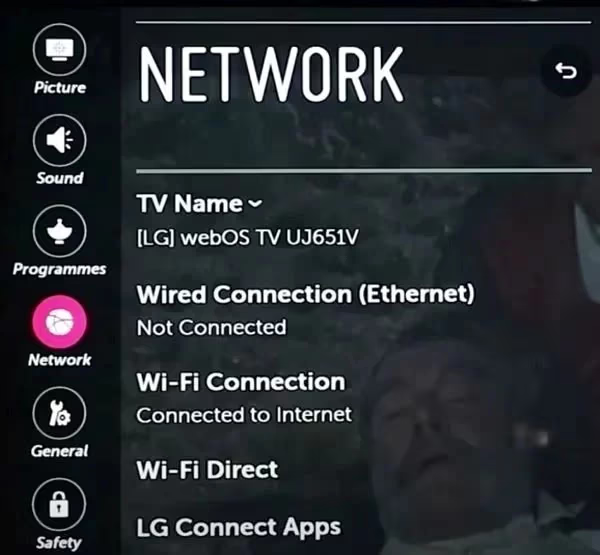
- Then, edit the settings.
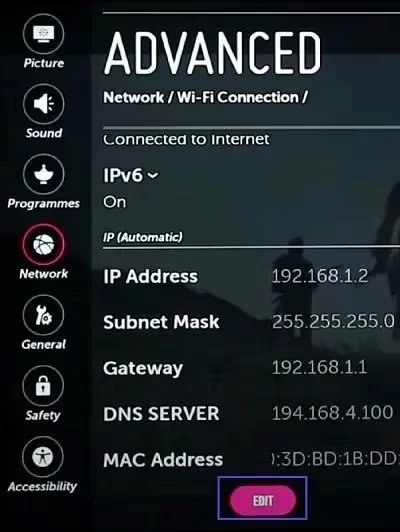
-
Uncheck “Set Automatically.”
-
Change DNS server to 8.8.8.8.
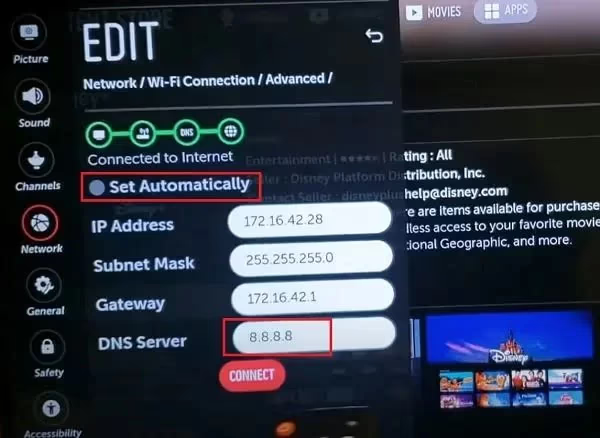
- Tap “Connect.”
This should fix LG Content Store not working issue.
Besides, let’s learn more about how to fix the LG TV black screen of death error with ease.
#Solution 04: Update Your LG TV’s Region Settings
If you still experience the same issue, it may be due to outdated regional settings. If the location is set wrongfully, Content Store may not be able to deliver the correct results.
So, check the regional settings with the following steps.
-
Press “Home/Start” on the TV remote.
-
Click “Settings” and select “All Settings.”
-
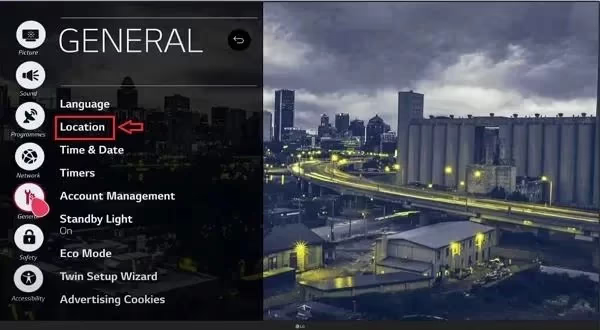
Select “General.”
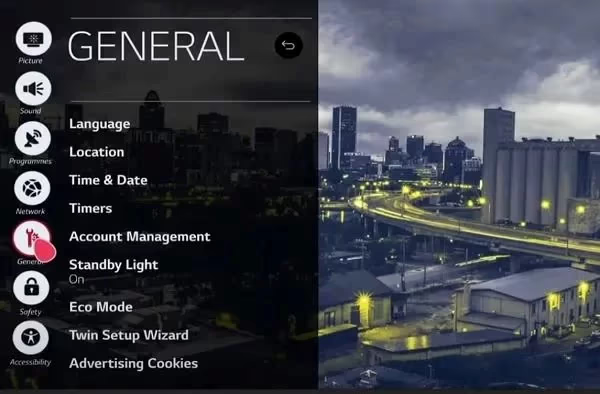
- After that, select Location to proceed.
-
Now, enter the correct ZIP code and hit “Enter.” The location will be updated.
-
In addition to that, select the “Time and Date” option and change it to “Auto.” You can do it under “General.”
#Solution 05: Check for Software Updates
You should know that Content Store works on WebOS. So, if it is outdated, you may experience various errors.
Below is how to fix this issue and update your WebOS.
-
Press the button dedicated to “Home” on the remote control.
-
Then, select “Settings,” located at the top of the window.
-
After that, click on the option called “All Settings.” It can be found at the bottom of the screen.
-
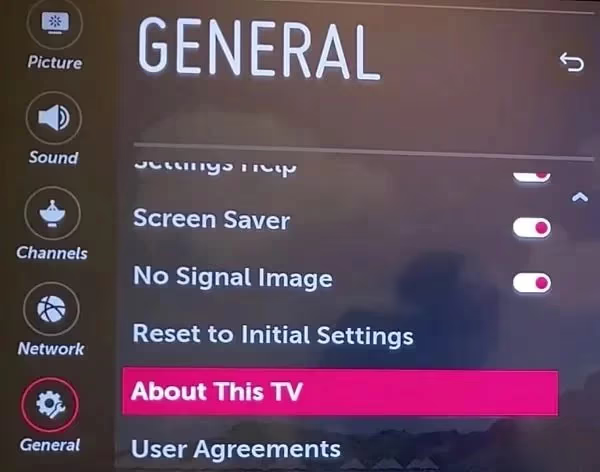
Now, you can go to the “General Tab” and scroll down. You should then see the option called “About This TV.” Just click on it to proceed.
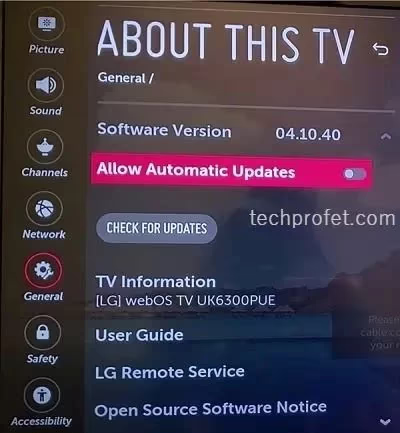
- You can see the current version of the software. Now, you should tap on the option called “Check for Updates.” You are able to activate the option called “Allow Automatic Updates.”
- If you see any updates, just proceed and download it. Then, you should allow it, and it will be installed correctly.
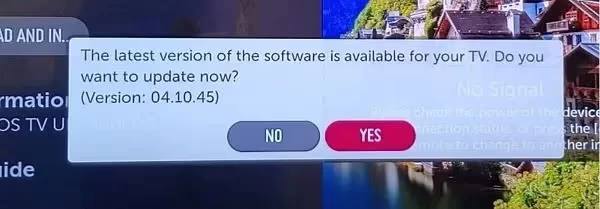
- When the update is installed, the LG TV will be rebooted. Then, check if the TV is functioning as it usually would.
#Solution 06: Reset Your TV
You are reading this section probably because you were not able to fix the error. So, this is a bit of a drastic situation to handle. As per this method, you are supposed to perform a hard reset on your device.
Various files, like cache files, may have changed or been corrupted while you were using the TV. They can still be present in the system. Your TV can be reset to erase all of these files.
Setting the TV to its default configuration from the time of initial setup will also help. Therefore, this will correct any unknown or hidden configurations that may have been changed on the faulty LG TV.
#Below is How to Reset an LG TV
-
Go to “Settings” and select “All Settings.”
-
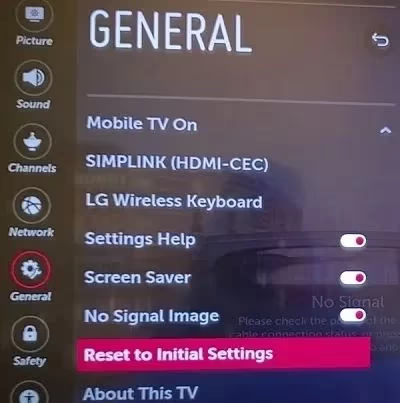
After that, go to the option called “General.”
-
Now, you should select the option called “Reset to Initial Settings.”
- Confirm your action so the device will be reset.
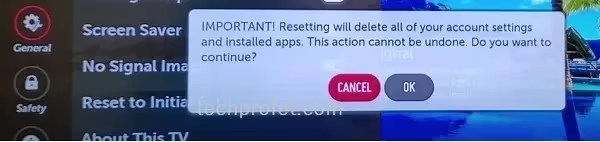
After resetting the TV, you should configure the device from the beginning. Then, the glitches will be fixed. You should ensure that your device is connected to the internet. In most cases, you can overcome pretty much every error on an LG TV simply by resetting it.
#Solution 07: Contact the Support Service of LG
We hope that at least one of the above solutions will solve your issues.
However, if it doesn’t, you have only one solution to rely on; contact the customer support service of LG.
You can either take your LG TV to the nearest authorized service center or contact them online.
#FAQs
#Why does the LG Content Store show a blank page?
A blank Content Store page usually means your TV cannot reach LG’s servers. Check your internet connection first, then switch your DNS to 8.8.8.8. If the page stays blank after both steps, your router firewall or ISP may be blocking LG’s domain.
#Can I install apps on LG TV without the Content Store?
No, the Content Store is the only official way to install apps on LG webOS TVs. You cannot sideload apps like on Android TV. If the store is down, your only option is to fix the connection or wait for LG’s servers to come back online.
#How do I clear the Content Store cache on my LG TV?
LG webOS does not have a direct “clear cache” button for the Content Store. The closest workaround is to power cycle the TV by unplugging it for 10 minutes, which flushes the system cache. A factory reset is the only way to fully wipe cached Content Store data.
#Does LG Content Store work in every country?
LG restricts certain apps and content by region. If you recently moved or bought a TV from another country, the store may show limited apps or fail to load entirely. Updating your ZIP code and region in Settings > General > Location usually resolves this.
#Why does the Content Store load but apps fail to download?
App downloads can fail when your TV storage is full or your internet speed drops below 5 Mbps. Delete unused apps to free up space, then reboot the TV. If downloads still stall, connect an ethernet cable instead of Wi-Fi to rule out signal interference.
#How often should I update LG TV firmware to avoid Content Store issues?
LG releases firmware updates every few months, and the Content Store relies on a compatible webOS version. Enable “Allow Automatic Updates” under Settings > General > About This TV so your TV stays current without manual checks. Skipping multiple updates in a row is one of the most common causes of Content Store failures.
#Will a factory reset delete my downloaded apps?
Yes. A factory reset erases every app, account, and custom setting on the TV. You will need to re-download all apps from the Content Store and sign in to each streaming service again after the reset completes.
#Bottom Line
Well, as you can see, there are several different solutions to try if your LG Content Store is not working. When the Content Store on your LG TV is not working, you cannot download any apps on it.
So, fixing this error at your earliest is required. As we mentioned, there are a few reasons for this Content Store to stop working.
We provided several different solutions to address each of those situations, and they are:
-
Perform a power cycle
-
Check for potential network errors
-
Change your DNS settings
-
Update your LG TV’s Region Settings
-
Check for available software updates
-
Reset your TV
-
Contact the support service of LG
We strongly believe that the above will fix the issue for good and make your TV work again. Which solution worked for you to fix the “LG Content Store not working” issue? Please let us know.
Also, if you know other solutions to address this issue, you can share your experience with our readers.