Kodi is a popular and highly customizable free media center application allowing you to manage and access all your personal media libraries across devices. But is it right for you? This 2026 review covers everything you need to know about Kodi.
- 100% free and open-source — Kodi costs nothing and runs on Windows, Mac, Linux, Android, iOS, and smart TV platforms
- No built-in content — you supply your own media files and connect streaming services through installable addons
- Supports 4K HDR playback — handles up to 8K resolution with HDR10 and Dolby Vision on compatible hardware
- Thousands of addons available — the official repository plus third-party options integrate Netflix, Hulu, YouTube, and hundreds more
- Steep learning curve — setup and configuration take more effort than plug-and-play streaming apps like Roku or Apple TV
#What Exactly is Kodi and How Does it Work?
 Kodi is open-source home theater software that works as a centralized media management system and player.
It provides a unified interface to organize, browse and access your personal media libraries including local video, music, and photos as well as free and paid streaming services. Kodi brings everything together in one place across devices.
Some key features of Kodi:
-
Aggregates media content from local drives as well as online sources
-
Manages and plays video, audio, images, live TV, podcasts
-
Highly extensible via add-ons to enhance functionality
-
Centralized access to personal media and streaming services
-
Available across platforms – Windows, Mac, Linux, Android, iOS
-
Customizable interface with different skins
-
Ability to share media libraries across local network
-
Active community support for troubleshooting help
Kodi is not a streaming service itself but rather connects to existing services and personal media libraries while providing the frontend media player interface.
So you bring your own content collection into Kodi or access integrated streaming services via addons. Kodi essentially organizes everything together, making it easier to browse, search, play and stream from one unified media center.
#Is Kodi Worth Using in 2026?
Kodi can be an extremely useful and versatile media center app if you:
-
Have large personal media libraries across devices
-
Want unified access, organization and sharing
-
Are willing to tinker with some customization
-
Plan to connect streaming services via addons
However, if you want an easier ready-made streaming solution, check out this comparison of Kodi alternatives.
#Kodi Pros:
-
100% free open-source platform
-
Unified access to personal media
-
Highly customizable via skins, addons
-
Large multi-platform device support
-
Feature-rich media management
-
Centralized streaming service access
#Potential Downsides
-
Steep learning curve
-
No built-in streaming content
-
Need to configure streaming addons
-
More hands-on management needed
-
Troubleshooting issues may arise
So Kodi is best suited for savvy cord-cutters with their own media libraries looking to organize and enhanced media management. Casual streamers may be better served by simpler streaming platforms like Netflix or Hulu.
#What Content Can You Access on Kodi?
The Kodi platform itself does not include any streaming media or video content out of the box.
You supply your own personal media libraries of video files, music, photos to manage through Kodi. This can include ripped DVD collections, home videos, downloaded internet video files, mp3 track libraries, personal photo collections among others.
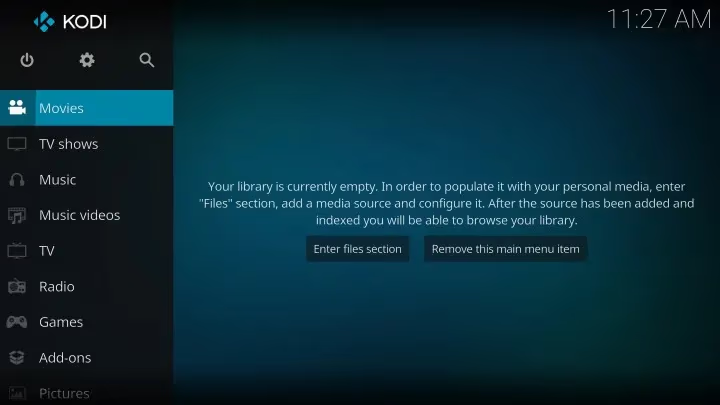
Kodi provides the centralized interface to easily access, organize, browse and play all these disparate personal media files in one place across devices.
Beyond personal libraries, Kodi also allows integrations with many popular free and paid streaming services via addons:
This includes both official Kodi repository addons and third party addons providing access to services like:
-
Crackle
-
Twitch
-
YouTube
-
Hulu
-
Netflix
-
Amazon Prime Video
-
Haystack TV
-
Pluto TV
-
MLB.TV
-
PBS Kids
-
Crunchyroll
-
Plex
-
VRV
-
Tubi TV
-
Disney+
-
HBO Max
And hundreds more streaming services across categories.
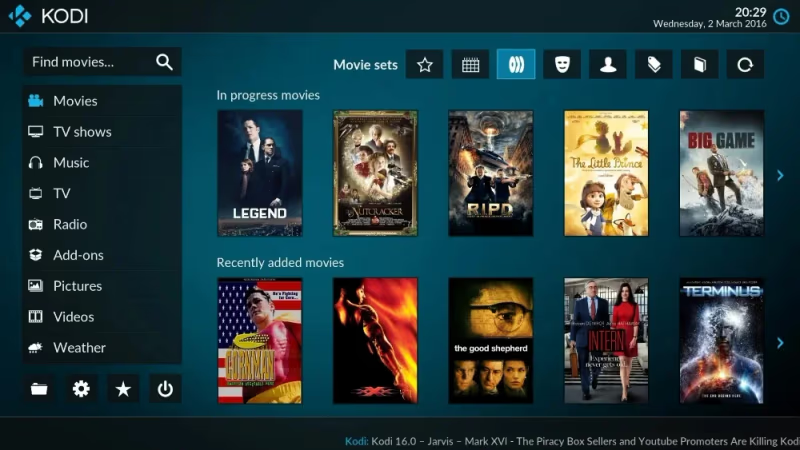
So Kodi provides a unified way to access both your personal media as well as on-demand streaming content without having to switch between different apps.
Do keep in mind that any paid streaming services like Netflix or HBO Go would still require you to login and subscribe separately. Kodi just gives you centralized access.
#How to Get Started with Kodi in 5 Steps
Getting started with Kodi is free and relatively straightforward, although it does involve some initial configuration. Follow these steps:
1. Download Kodi app
Download the Kodi installer from the official Kodi website for your specific platform – Windows, Mac, Linux, Android, iOS etc.
2. Install Kodi app on devices
Run the Kodi install wizard and configure any device specific settings required. See how to install Kodi on Apple TV and Kodi setup on Roku TVs.
3. Import your media libraries
In the Kodi interface, go to settings and add sources to import your personal media folders – videos, music, photos. This will add your media content to the Kodi library.
4. Install useful Kodi addons
Browse the Official Kodi Repository and install some recommended Kodi addons to enhance the experience – skins, library tools, streaming services etc.
5. Access Kodi across devices
Kodi allows you to share libraries across devices on the same home network so you can stream content from a central media server.
And that’s it! You now have Kodi setup as an integrated media center with access to both personal media and streaming services all in one place.
#Kodi Platforms and Devices Supported
A major benefit of Kodi is support for a very wide variety platforms and devices:
Desktop OS
-
Windows 7,8,10+
-
MacOS X 10.11+
-
Linux
-
ChromeOS
Mobile OS
-
Android 5.0+
-
iOS 11.0+ (requires jailbreak)
-
iPadOS 13.0+
TV Platforms
-
Amazon FireTV
-
Android TV
-
Apple TV 4+
-
Chromecast
-
NVIDIA Shield TV
See Kodi on LG TVs and Kodi on Samsung TVs for smart TV setup instructions.
Mini PC & SBC
-
Raspberry Pi OS
-
Zidoo
-
Wetek
-
Minix
-
Asus Tinker Board
And many more niche platforms – check Kodi device compatibility for full details.
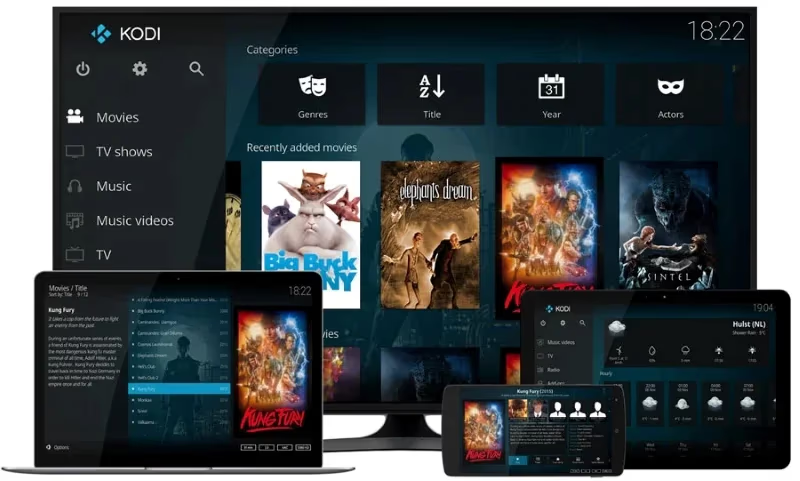
This cross platform support makes it easy to have Kodi working across smartphones, tablets, computers, streaming devices and smart TVs – essentially any device that can install Kodi both in home and on the go for unified access.
Android and Windows/Mac computers tend to be the most straightforward to setup. Platforms like Apple TV or iOS involve some more complex workarounds given App Store restrictions.
#How to Customize the Kodi Interface and Appearance
One of the most powerful features of free and open source Kodi is extreme customizability of the interface.
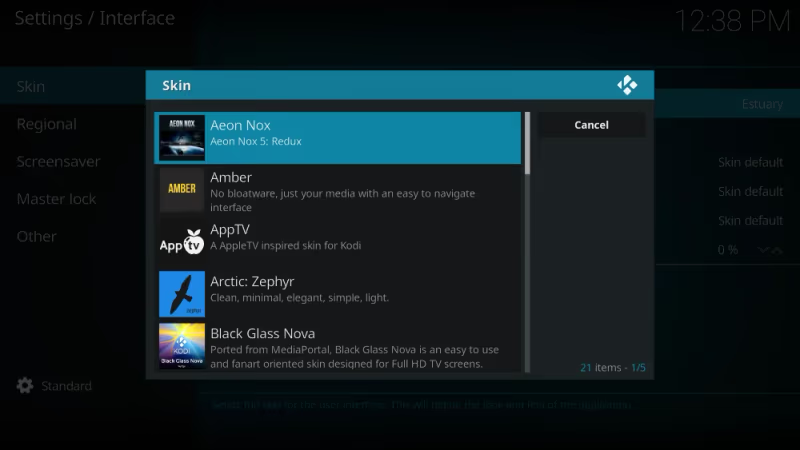
Custom skins allow changing virtually every aspect of layout, widgets, menus via different themes. This includes altering:
-
Overall visual styles
-
Fonts, sizes, colors
-
Main menu items
-
Sidebar menus
-
Header/footer details
-
Features enabled
There are thousands of Kodi skins available grouped into categories:
-
Mimics – clones of Netflix, Plex, Windows Media Center etc
-
Information focused – emphasis on metadata
-
Visual styles – specific aesthetic genres
This allows matching the interface design to personal preferences around info density, color schemes, layout priorities and visual flavor.
Further interface customization is available via addons that provide enhanced:
-
Media browsing
-
Search and filtering
-
Metadata fetching
-
Library management
-
Playback controls and visualizers
So you can really tailor the Kodi experience to exactly the capabilities needed through this flexible combination of skins and interface addons.
#Adding Streaming Services to Kodi via Addons
While Kodi itself does not contain any streaming media or video out of the box, many popular streaming platforms can be added via Kodi addons.
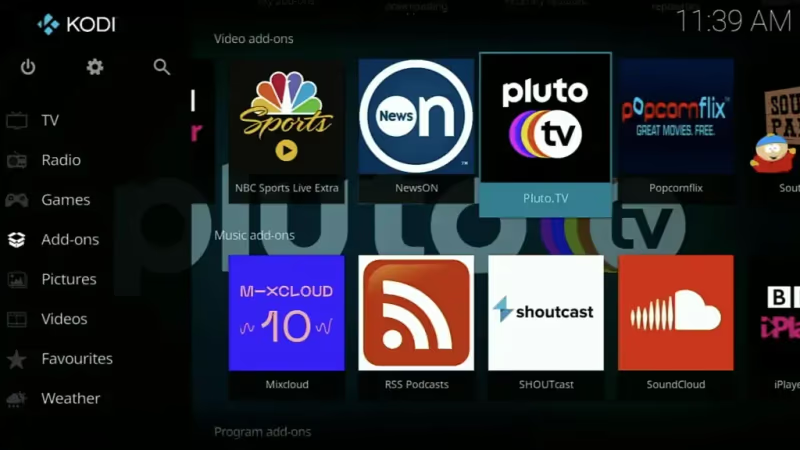
The Official Kodi Repository includes over a hundred verified addons providing streaming service integration like:
-
YouTube
-
Rumble
-
Internet Archive
-
Subtitle services
-
TuneIn Radio
-
Pandora
-
Flickr
-
Reddit support
Beyond official repository addons, there are thousands of community built third party Kodi addons available expanding access to pretty much any major streaming service such as:
-
Netflix
-
Hulu
-
Amazon Prime
-
Disney+
-
HBO Max
-
SlingTV
-
fuboTV
The best Kodi addons post covers popular options to enhance Kodi functionality.
Do keep in mind that while Kodi provides the technical ability to directly bring streaming services into the interface, separate platform subscriptions may still be required.
So having a Kodi Hulu addon lets you watch Hulu content directly in Kodi but doesn’t remove the need for a Hulu account itself. Kodi essentially acts as a unified frontend media player.
#Can Kodi Replace Cable TV?
The ability to directly access streaming platforms makes Kodi a viable cable TV replacement solution given some technical comfort.
Kodi allows integrating live TV streaming from services like YouTube TV, Sling TV and fuboTV that offer replacement cable channel packages.
Kodi also includes PVR and DVR functionality to directly view, record and playback live TV by interfacing to backend TV tuner server software. However, this does require:
-
TV Tuner hardware
-
PVR server software
-
Configuration based on OS
So it is possible to get full live cable TV support working in Kodi to entirely eliminate traditional pay TV subscriptions. But it does need some technical capability to handle the increased complexity vs simple over-the-top streaming replacements.
#Can Kodi Stream in 4K and HDR?
Kodi supports playback of Ultra HD 4K video resolution content along with HDR for wider color gamuts depending on platform and hardware capabilities.
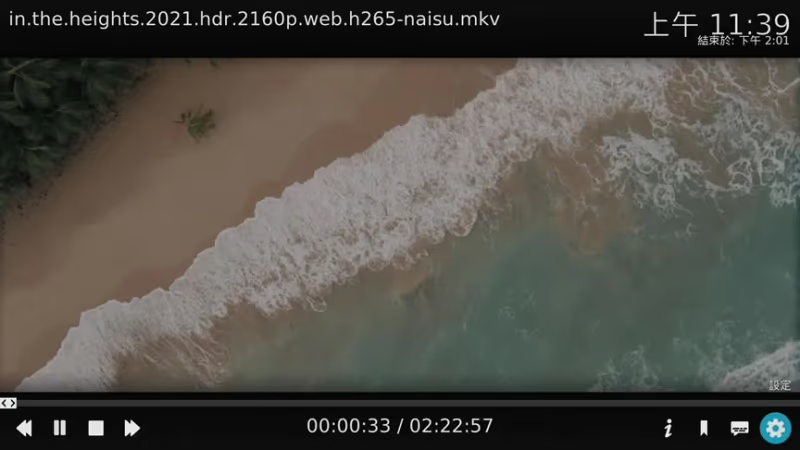
Playback support includes:
-
Up to 8K resolution
-
HDR10 / Dolby Vision
-
10-bit color
-
HEVC/H.265 codec
4K and HDR streaming capability depends on:
-
Display/TV device max resolution
-
HDMI version compatibility
-
GPU video decoding support
-
Kodi version 17+
So you can get full 4K HDR streaming working with Kodi but need capable display hardware and software configuration especially for living room setups.
As always, verify that specific 4K/HDR Kodi addons are selected for highest quality streaming from providers like Netflix, Prime Video, YouTube etc. And adjust Kodi settings to enable 4K playback based on display device detection.
#Kodi Remote Control Options
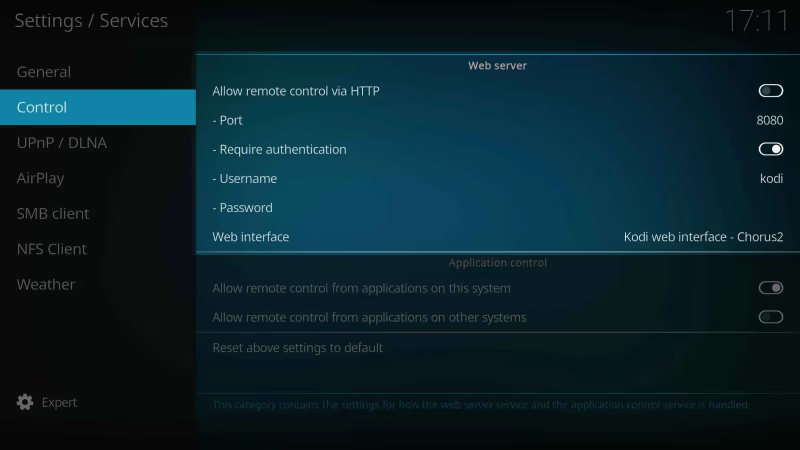
Controlling Kodi via remote in home theater setups improves the user experience. Kodi integrates with hundreds of remote control hardware options including:
-
Smartphone/tablet Kodi remote apps (iOS/Android)
-
Windows Media Center remotes
-
Wireless RF and Bluetooth remotes
-
IR remotes
-
Game console controllers
-
Alexa voice assistants
There are also specialty addons providing advanced remote integrations for control systems like Logitech Harmony Hub.
Smartphones tend to be most convenient for combined control, text entry and navigation. Dedicated remote hardware adds living room convenience. And voice assistants enable handsfree control.
So you can tailor the Kodi control scheme to your exact environment – couch, desktop, mobile etc.
#Is Kodi Legal and Safe to Use?
The Kodi platform itself is 100% legal open source software available for free public download. However, there are some key caveats around content consumption:
-
Accessing pirated copyright media via Kodi is illegal
-
Certain Kodi addons enable piracy sources
-
Using Kodi to share libraries across regions may violate DMCA
Essentially Kodi provides neutral software that can be misused to view copyright content without authorization or licensing. Responsible legal usage is required just like any technology.
Generally if you:
-
Only access legally owned personal media files
-
Use legitimate streaming subscriptions
-
Avoid piracy enabling addons
Then Kodi is fully safe and legal to use. But you are responsible for what content gets accessed and how.
Certain abandoned Kodi addons have enabled easier piracy leading to some PR troubles but Kodi itself simply remains neutral aggregation software.
#Getting Help and Support with Kodi
The large, mature and active open source Kodi ecosystem provides several support channels:
-
Official Kodi Forum – very active community forum covering all issues
-
Reddit Kodi Community – unofficial but helpful discussions
-
Kodi Wiki – extensive documentation guides
-
YouTube tutorials – video walkthroughs for visual learners
-
Facebook groups – several topic-specific groups
So between highly detailed Wiki documentation, forum technical support, Reddit discussions, YouTube tutorial and active social groups – multiple free community support channels exist.
Professional paid Kodi support is also available from various home theater installation services companies though generally not required.
There are also dedicated communities for troubleshooting specific issues like Kodi not working on Firestick.
And be sure to check out this Kodi vs Stremio comparison if evaluating media center alternatives.
#Bottom Line
-
Kodi is extremely versatile free and open source home media center software for managing all your personal media libraries across devices in one place.
-
However, Kodi does not contain any streaming content itself – you supply your own media files and integrate separate streaming services via addons.
-
Highly customizable via skins and a wealth of plugins make Kodi potentially infinitely extensible but requires comfort tinkering under the hood.
-
For DIY cord cutters with large personal media libraries willing to handle complexity, Kodi provides unified organization and strong functionality.
-
But for casual streaming consumers wanting simplicity, standalone services like Netflix or Plex may be easier and more intuitive.
-
Kodi ultimately offers prosumer grade control over your media ecosystem given requisite technical skills. Extremely powerful but not the most accessible.
Overall, Kodi delivers a top tier configurable media center platform consolidating access across all your owned media, recordings and streaming subscriptions for the DIY hacker. But simpler all-in-one streaming services may suit everyday viewers looking to avoid complexity.
#Frequently Asked Questions
#Is Kodi free to download and use?
Yes, Kodi is completely free and open-source software licensed under the GPL. There are no subscription fees, no premium tiers, and no hidden costs. You download it directly from kodi.tv for any supported platform.
#Does Kodi work on smart TVs?
Kodi does not run natively on most smart TV operating systems like LG webOS or Samsung Tizen. You can run it on Android TV devices, Amazon Fire TV Stick, or NVIDIA Shield TV and connect those to your television. Apple TV 4K also supports Kodi through sideloading.
#Can Kodi play local files from a USB drive?
Kodi handles local media playback from USB drives, external hard drives, and network-attached storage. It automatically scrapes metadata, downloads cover art, and organizes files into a browsable library. You just point Kodi to the folder location and it does the rest.
#What are the best Kodi addons for beginners?
Start with the Official Kodi Repository addons like YouTube, Twitch, and Pluto TV since they install with one click and stay updated automatically. Skin addons like Arctic Horizon give Kodi a modern Netflix-style look without any technical setup. Avoid third-party repositories until you understand how addon sources work.
#Is it legal to use third-party Kodi addons?
Third-party addons themselves are legal to install, but some provide access to pirated content which is illegal. Stick to addons that connect to legitimate services where you hold a subscription. Kodi’s developers actively distance the project from piracy-enabling addons and do not support them.
#How much storage space does Kodi need?
The Kodi application itself requires roughly 200 MB of storage space on most platforms. Your actual storage needs depend entirely on your personal media library size since Kodi streams from wherever your files are stored. If you use network storage or streaming addons, the local footprint stays minimal.
#Can you use Kodi without an internet connection?
Kodi works fully offline for local media playback from USB drives or internal storage. You lose access to streaming addons, metadata scraping, and library artwork downloads without internet. For a cabin or RV setup, load your media library and artwork while connected, then take it offline.