Looking to install Kodi on your LG TV? LG smart TVs run webOS instead of Android, so there is no native Kodi app in the LG Content Store. You need an external device or casting method to get Kodi on the big screen.
- LG TVs run webOS, not Android — Kodi is not available in the LG Content Store and cannot be sideloaded
- Casting from an Android phone — the fastest zero-cost method, though it drains your battery and depends on Wi-Fi strength
- Fire TV Stick 4K is the top streaming device option — it supports sideloading the Kodi APK and outputs up to 4K resolution
- Raspberry Pi gives the best performance — running LibreELEC or OSMC turns a $35-75 board into a dedicated Kodi box
- Always use a VPN with third-party addons — it hides your IP address and prevents ISP throttling or DMCA notices
#Overview
 Kodi is a popular free media center app that gives you access to tons of video add-ons and streaming options.
However, since LG TVs run on WebOS instead of Android, you can’t install Kodi directly from the LG Content Store.
So how do you get Kodi on an LG smart TV? The main options are:
-
Cast Kodi from an Android phone using screencasting
-
Use Roku, Firestick or Chromecast to install and mirror Kodi
-
Connect a device like Raspberry Pi to run KodiOS directly
I’ll compare the pros and cons of each method below. You’ll also learn:
-
How WebOS differs from regular Android smart TVs
-
The best Kodi add-ons and apps for LG TVs
-
Using a VPN on your LG TV to access more Kodi add-ons
-
Fixing common Kodi errors on LGs
Plus I’ll answer some frequently asked questions about using Kodi on WebOS.
So read on to become a pro at installing Kodi on your LG smart TV!
#Why Is Getting Kodi on an LG TV Trickier?
First, what makes getting Kodi on an LG TV trickier than other brands?
The key difference lies in the operating system.
Most smart TVs today use some version of Android as their base OS. This allows you to add apps from the Google Play Store, including Kodi.
As LG smart TVs use WebOS instead, you’ll need to use alternatives like Roku TVs or Apple TV to install Kodi. So you can’t simply install Android apps directly.
Here’s a quick rundown of how WebOS differs:
-
Created by LG specifically for their smart TVs
-
Built using Linux and web technologies like JavaScript
-
Has its own LG Content Store instead of the Play Store
-
Allows casting but doesn’t support Android screen mirroring
As Kodi isn’t available on WebOS’s content store, you need workarounds like streaming sticks to install and mirror the app over to your LG TV.
#Method 1: Cast Kodi from an Android Phone
One easy way is to install Kodi on your Android smartphone, then cast the screen to your LG TV.
#Setup Checklist
-
LG TV with WebOS 3.0 or later
-
Android phone running 7.0+
-
Both devices on same Wi-Fi network
#Steps to Cast Kodi
-
Install Kodi from the Google Play Store on your Android phone
-
Open the app and select a video addon like The Crew or Seren
-
Enable casting in Kodi’s settings if prompted
-
Go to your Android notification panel and tap the Screen Cast icon
-
Choose your LG TV from the target device list
-
Kodi on your phone will now be casted to the big screen!
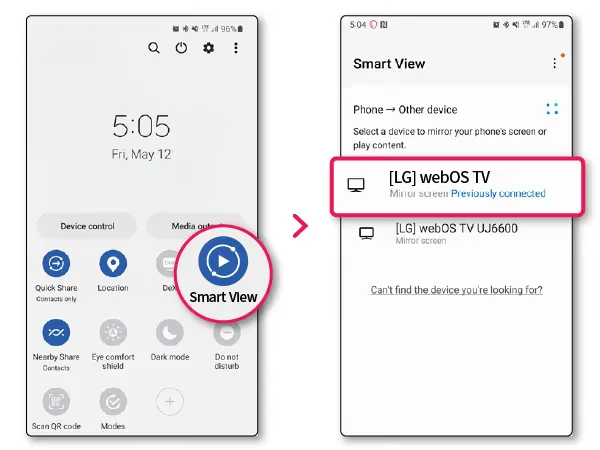
That’s all there is to it. Just pick your shows on the Android smartphone and stream away!
#Casting Pros and Cons
Pros
-
Don’t need any extra equipment
-
Easy to set up and get running
-
Convenient way to test Kodi quickly
Cons
-
Can be laggy, depends on Wi-Fi strength
-
Must keep phone screen on entire time
-
Battery drain unless plugged into power
So phone casting works nicely for casual Kodi use. But for heavier streaming, you’ll want a dedicated device instead.
#Method 2: Use Streaming Media Devices
Another popular way is connecting an external streaming device like Roku or Fire TV Stick to your LG.
These options work similarly – you install Kodi on the streaming stick, then mirror it over to view on your TV.
Here are some choices for streaming devices:
Roku: Cheapest option but can be slow, only 480p streaming unless you get the $100+ Roku Ultra.
Fire TV Stick: Great value as the Stick 4K is only $50. User-friendly interface with Alexa voice remote.
Chromecast: Super affordable and easy casting. But no remote, must cast content from other devices.
Apple TV: Great if you’re deep in the Apple ecosystem with other iOS devices and services.
I’ll briefly cover the steps to install Kodi using the two most popular options – Fire TV and Roku:
#Using Amazon Fire TV Stick
-
Plug your Fire Stick into the LG TV’s HDMI port
-
On first setup, choose to mirror Fire OS on your TV
-
Install Kodi app from the Amazon store or sideload the APK
-
Open Kodi on the Fire TV Stick, with video display mirrored to TV
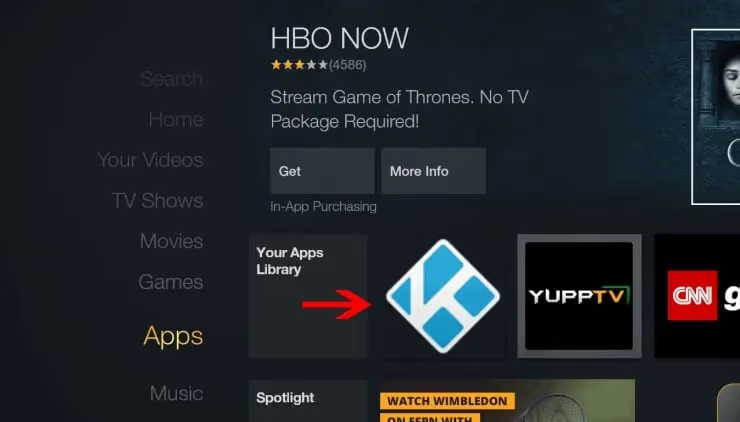
Pro tip: Use Downloader app on Fire Stick to easily install Kodi 18.9 APK for best performance.
Fire Stick Pros
-
Snappy interface with support for 4K
-
Access to more apps like VPNs
-
Hands-free Alexa controls
Fire Stick Cons
-
Pricier than Roku or Chromecast
-
Heavy Amazon ecosystem push
-
Remote feels cheap
#Using Roku Express
-
Connect Roku Stick to LG TV HDMI
-
Enable screen mirroring in Roku settings
-
Install Kodi app on smartphone or computer
-
Mirror Kodi over to TV using Roku app
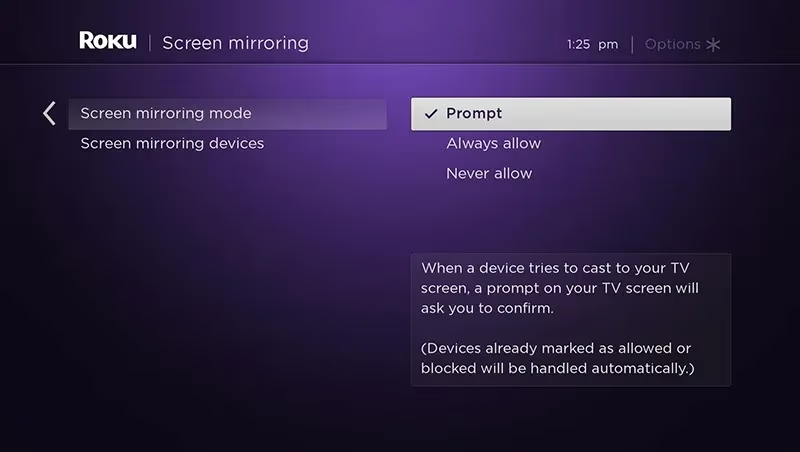
Note: Cannot directly install Kodi on Roku itself unlike Fire devices.
Roku Pros
-
Cheap to pickup even the 4K model
-
Simple interface, easy to mirror Kodi
-
Universal search across other apps
Roku Cons
-
Can be slow, limits streaming quality
-
No digital assistant features
-
Less apps support compared to Fire
#Method 3: Kodi Using Raspberry Pi
More experienced users can install Kodi directly onto a Raspberry Pi board, then hook it up to your LG TV.
Raspberry Pi is a popular single board computer used by hobbyists and tinkerers. Setting up Kodi on Pi requires more effort but gives you the most control.
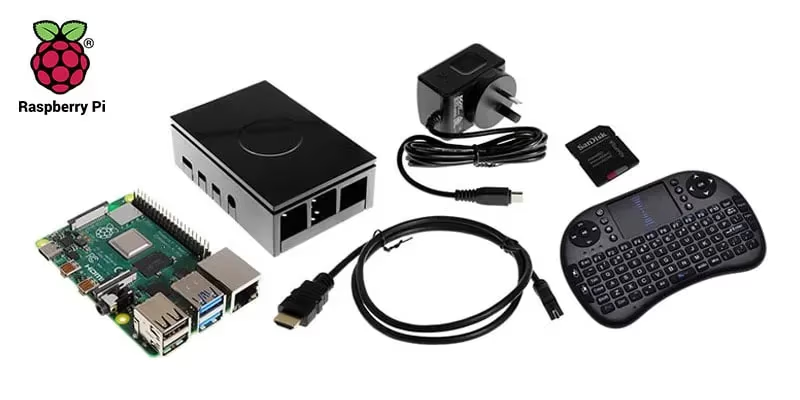
#Preparation List
-
Raspberry Pi 4 board, 8GB RAM recommended
-
MicroSD card loaded with Pi-compatible KodiOS
-
HDMI cable to connect Pi to LG TV
-
USB power supply for Raspberry Pi
-
Compatible keyboard, mouse and remote
#Steps to Setup Kodi on Pi
Here’s an overview of what’s needed:
-
Get Pi board and accessories
-
Flash the OS – Use LibreElec or OSMC Kodi optimized OS
-
Insert SD card loaded with Kodi OS into Pi
-
Connect Pi to LG TV using HDMI cable
-
Power on Pi using USB-C cable and wait for Kodi load
-
Pick addons and streaming options directly within Kodi interface on TV
Using a Pi gives you tighter integration between hardware and software, allowing Kodi to run faster compared to screen mirroring methods.
It does require more specialized gear and Linux admin skills. But you get a ton more customization options as well to build your ideal Kodi box.
Raspberry Pi Pros
-
Lightning fast performance with Kodi addons and streams
-
Customize Kodi skin and apps to your needs
-
Choose extra accessories like gaming controllers
Raspberry Pi Cons
-
Steeper learning curve to setup
-
Need additional compatible accessories
-
More expensive than streaming sticks
So the Raspberry Pi method is best suited for tinkerers who are comfortable with Linux administration and hacking boards for homebrew projects.
#What Are the Best Kodi Addons for LG TV?
Once you have Kodi set up on your LG Smart TV through one of the above methods, it’s time to install some video addons!
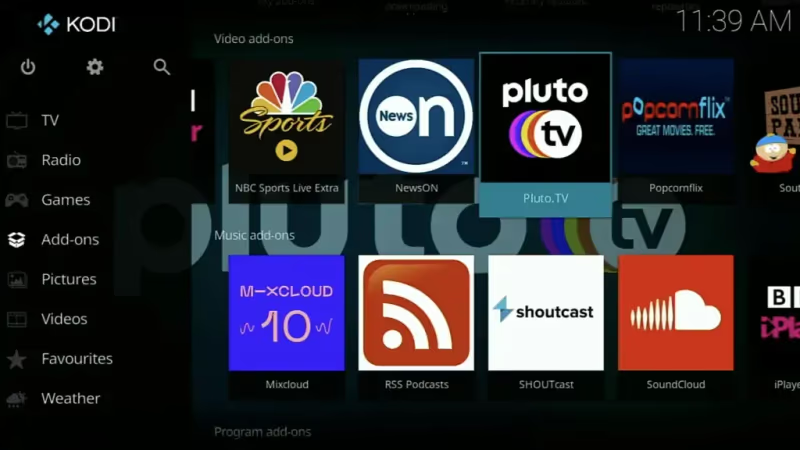
The addons below have been tested and work decently:
-
The Crew – Movies/TV shows, great quality
-
The Oath – Nice 4K streams
-
Seren – Find high quality torrent streams
-
Venom – Large media library
-
Tempest – All-in-one option
I suggest trying out a few to see which Kodi addons perform best on your LG. The Crew and Seren are good starts.
Make sure to enable unknown sources in Kodi settings when installing third-party addons:
Kodi Settings -> File manager -> Add source -> https://repo.kodiaddon.com
Finally, keep your addons updated as developer support and scrapers can change.
#Using a VPN on Your LG TV Kodi Setup
After setting up Kodi, I highly recommend installing a good VPN service as well:
Why is a VPN so crucial?
Some Kodi addons provide streams from dubious sources. Using them without a VPN risks getting DMCA notices from your ISP.
A VPN shields your identity by encrypting traffic and masking your IP address. It also lets you:
-
Access geographically restricted Kodi addons
-
Improves speed by routing streams through faster pathways
-
Adds security on public Wi-Fi hotspots
Thankfully, you have a few good options for running a VPN directly on an LG TV:
-
NordVPN – user-friendly apps, works on WebOS
-
ExpressVPN – fast speeds, MediaStreamer DNS service
-
CyberGhost – dedicated IP allowlisting feature
I use NordVPN since it has reliable speeds and is straightforward to setup on LG. Plus they allow 6 multi-logins so you can secure all your home devices.
Use code GHOST at checkout to grab the Christmas deal and get 68% OFF plus 3 months FREE.
#Steps to Getting a VPN on Your LG Smart TV:
-
Choose a top VPN like NordVPN and create an account
-
Download the NordVPN app for LG from the LG Content Store
-
Login using your VPN credentials within the LG app
-
Connect to a server – I suggest US or UK for best speeds to Kodi
-
Enjoy private browsing and regional unlocking!
It only takes a few minutes to install a VPN app on your WebOS based LG TV. Having that extra encryption and anonymity takes your Kodi setup to the next level!
#Common Kodi Errors and Fixes
Occasionally you may run into issues with Kodi freezing, crashing or throwing error codes on an LG TV:
-
Buffering/lag – Use a wire connecting to router. Or install a debrid service addon
-
Can’t install addons – Enable unknown sources in Kodi settings
-
Crash on launch – Reauthorizing TV’s Trakt account in Kodi often fixes
-
Account login failures – Clear addon cache and saved credentials
For freezing issues, also try Jellyfin or Stremio as alternatives to Kodi on your LG TV.
Fixing these common problems typically requires adjusting settings within Kodi on your LG TV:
-
Enable debug logging in Kodi settings to pinpoint source
-
Completely uninstall then reinstall the problem add-on
-
Wipe Kodi cache in app management
-
Factory reset if all else fails
Getting familiar with Kodi’s settings and documentation will help troubleshoot any weird issues.
I also suggest browsing Kodi’s forums or r/Addons4Kodi on Reddit which have detailed fixes for almost every error code.
Resetting your TV to factory settings should be a last resort. But it can cleanly remove any corrupted data as a “clean slate”.
#FAQ
#Is Kodi legal to use on an LG TV?
Kodi itself is a free, open-source media player and 100% legal. The app does not host any content on its own. Third-party addons that stream pirated material can get you in legal trouble, so stick to official repositories or use a VPN if you install unverified addons.
#Can I install Kodi on an LG TV without an external device?
No. LG TVs run webOS, which does not support Android APKs or have Kodi in the LG Content Store. You need to cast from a phone, plug in a streaming stick, or connect a Raspberry Pi to run Kodi on your LG TV.
#Which streaming device works best for Kodi on LG TV?
The Fire TV Stick 4K is the strongest option for most people. It has a fast processor, 2 GB of RAM, and supports sideloading the Kodi APK directly. Roku works too, but you can only mirror Kodi from another device rather than running it natively on the stick.
#What VPN should I use with Kodi on my LG TV?
NordVPN is a solid choice because it works well on webOS and allows up to 6 simultaneous device connections. ExpressVPN and Surfshark are two other reliable options. All three encrypt your traffic and help you avoid ISP throttling while streaming through Kodi addons.
#Do I need a Raspberry Pi 4 or will an older model work?
A Raspberry Pi 4 with at least 2 GB of RAM is recommended. Older models like the Pi 3B+ can run Kodi, but they struggle with 4K content and high-bitrate streams. The Pi 4’s faster CPU and USB 3.0 ports make a noticeable difference in menu speed and buffering.
#How do I fix Kodi buffering on my LG TV?
Switch from Wi-Fi to a wired Ethernet connection first, as that eliminates most buffering. If the problem continues, install a Real-Debrid or Premiumize addon to pull from faster, less crowded servers. Clearing Kodi’s cache through the maintenance tools can also help.
#Can I use Alexa voice commands with Kodi on an LG TV?
Yes, but only if you connect an Amazon Fire TV Stick. The Fire TV remote has a built-in Alexa button that lets you open addons, pause playback, and adjust volume by voice. LG’s own webOS remote does not support Alexa or direct Kodi voice control.
#What are the best Kodi addons for movies and TV shows?
The Crew and Seren are two popular choices that pull from multiple sources and support 4K streams. The Oath and Venom also have large media libraries. Keep your addons updated regularly because scrapers and sources change without warning.
#Bottom Line
webOS on LG TVs does not support Android apps, so you cannot install Kodi directly. A Fire TV Stick 4K plugged into an HDMI port is the easiest path for most users. If you want maximum performance and customization, a Raspberry Pi running LibreELEC turns your LG TV into a dedicated Kodi media center.
Pair any setup with a VPN to keep your streaming private and avoid throttling from your ISP.