Jellyfin is a free, open-source alternative to paid media streaming services like Plex and Emby. It allows you to stream your personal media library to devices around your home.Getting Jellyfin on a Samsung Smart TV used to be complicated, involving development environments and command line changes. But thanks to an ingenious Docker container, you can now install Jellyfin on your Samsung TV with just one simple command!
So read on to transform your Samsung TV into a stunning Jellyfin media hub for all your movies, TV shows, music, and more!
- Jellyfin is 100% free and open source — no subscriptions, no paid tiers, and no data collection unlike Plex or Emby
- One Docker command installs Jellyfin on Samsung TVs — the georift container automates the entire Tizen app deployment
- Developer Mode is required first — enable it through Apps > Settings using password 12345, then restart
- Direct playback eliminates buffering — streaming over your local network delivers full-quality video without transcoding delays
- Plugins extend functionality — add live TV, DVR recording, automated collections, and custom themes directly on your TV
#What is Jellyfin? A Free, Open-Source Alternative to Plex

Jellyfin is self-hosted media server software that lets you aggregate all your video, music, and photo libraries in one place. You can then stream this content to phones, tablets, smart TVs, media players, and more across your home network.
Key features include:
-
Free and open source (MIT license)
-
Streams various media formats
-
Mobile apps for Android and iOS
-
Desktop apps for Windows, Mac, Linux
-
Chromecast support
-
User management and sharing
-
Attractive themes and interfaces
-
Extensive plugin system
-
Regular updates from a passionate community
Jellyfin is similar to Plex, Emby, and Kodi. But unlike Plex, Jellyfin is entirely free and open source rather than a freemium service. This gives you full control over your media without worrying about future paid tiers or subscription models.
#Why Put Jellyfin on Your Samsung TV?
Running Jellyfin directly on your Samsung Smart TV provides several advantages:
Flawless streaming performance – No buffering or quality concerns across your home network. Direct playback gives you the best experience.
Intuitive viewing – Browse and play your libraries using your TV’s interface and remote instead of casting from a phone.
Save resources – Avoid keeping another device like a NAS or PC running just to serve media. Use your TV instead.
Enhanced features – Enjoy Jellyfin’s full capabilities like live TV, DVR, image viewers, and plugins right on your TV.
Simple setup – With Docker installing the Jellyfin app on Samsung televisions is now super quick and easy.
Now let’s look at how to enable Developer Mode and install Jellyfin using the brilliant Docker container method.
Some popular alternatives besides Plex include other Jellyfin alternatives like Emby and Kodi. Compare Jellyfin vs Kodi here.
#Step 1: How to Enable Developer Mode on Samsung TVs
The first step is to put your Samsung TV into Developer Mode so you can install unofficial apps like Jellyfin.
Here’s how:
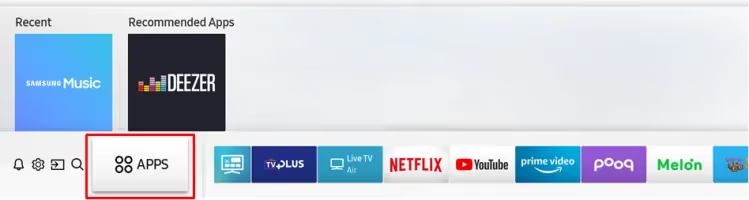
- From your TV’s home screen, select Apps > Settings
-
Scroll down and select Support > Contact Samsung > Remote Management
-
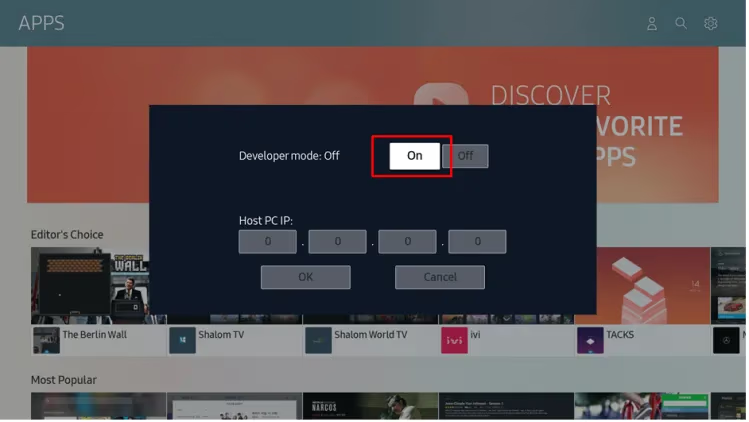
Enter password 12345
-
In the pop-up, enable Developer Mode
-
When prompted, read and agree to any disclaimers
-
Your TV will automatically restart into Developer Mode
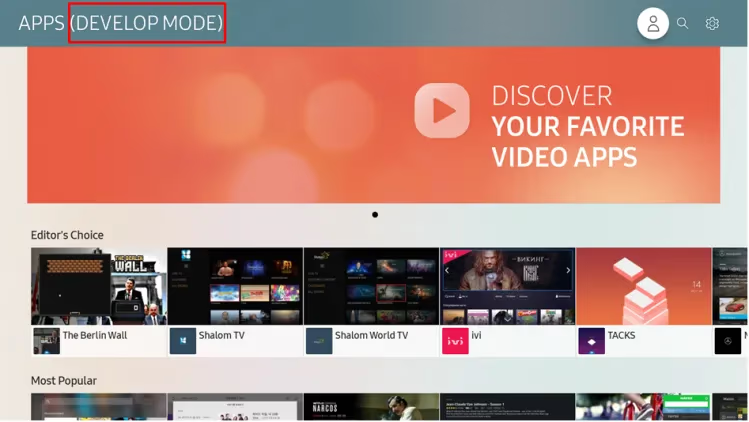
You’ll know it worked if you see a Developer Mode notice at the top of the app menu.
#Step 2: Install Jellyfin Using Docker CLI Command
Thanks to an open source Docker container from babagreensheep, getting Jellyfin running on Samsung televisions is wonderfully simple:
-
Ensure your TV and computer are on the same local network.
-
Open the command line on your computer.
-
Type ipconfig and note your TV’s IP address.
-
Enter this single Docker command with your TV’s IP:
**docker run —rm georift/install-jellyfin-tizen
When first launching, you’ll go through Jellyfin’s setup wizard to create an admin account, add media libraries, connect devices, and customize settings.
And remember Jellyfin is continually evolving, so be sure to keep your Docker container and TV app updated:
**docker pull georift/install-jellyfin-tizen docker run —rm georift/install-jellyfin-tizen
#What Are the Best Tips for Running Jellyfin on Samsung TVs?
Beyond the basics, here are some powerful tips for customizing Jellyfin to perfection on your Samsung set:
Install plugins – Expand capabilities with Jellyfin plugins like enhanced statistics, webtools, and automated collections.
Customize themes – Change the background, colors, metadata, and more by applying a custom theme.
Set a static IP – Stop breakages from IP address changes by assigning a fixed internal IP address in your router admin console.
Enable automatic sign in – Skip manually entering credentials by enabling automatic login under Settings > Users.
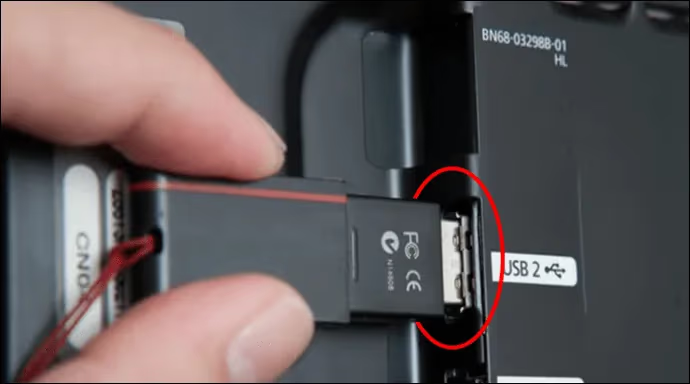
Mount a USB drive – Add massive media storage instantly by connecting an external USB drive to your Samsung TV.
Connect Bluetooth headphones – For private listening, pair Bluetooth headphones to your Samsung TV for direct sound straight from the Jellyfin app.
Enable remote access – Allow streaming outside the home network by setting up remote connectivity.
And if you run into playback issues or lag, first try restarting both Jellyfin and your TV. Samsung also provides a handy built-in app optimizer under Settings > General > Smart Features > App Diagnostics that can clear caches and fix problems.
Jellyfin is also available on other streaming devices like Jellyfin for Roku and Jellyfin on Firestick.
#FAQ
#Why does the Jellyfin Docker installation fail on my Samsung TV?
The most common cause is an incorrect IP address format in the Docker command. Double-check your TV’s IP by going to Settings > General > Network > Network Status on the TV itself. Your computer and TV must also be connected to the same local network for the installation to succeed.
#How do I fix video stuttering in Jellyfin on Samsung TV?
Close any background apps running on the TV first, then try lowering the playback quality within Jellyfin settings. If buffering continues, connect your TV to the router with an Ethernet cable instead of Wi-Fi. A wired connection typically eliminates streaming lag entirely for local media playback.
#Can I update the Jellyfin app on my Samsung TV?
Yes. Run docker pull georift/install-jellyfin-tizen followed by the original install command with your TV’s IP address. This pulls the latest Jellyfin Tizen build and redeploys it to your TV without losing any existing library data or user settings.
#Does Jellyfin on Samsung TV support 4K HDR playback?
Samsung TVs with Tizen OS can play 4K HDR content through Jellyfin, but actual performance depends on your TV model and the media codec. Newer Samsung models handle HEVC and VP9 natively, while older sets may require Jellyfin to transcode the stream on your server.
#How do I uninstall Jellyfin from my Samsung TV?
Navigate to the Apps panel on your Samsung TV, highlight the Jellyfin app, and select Delete or Remove. Your media libraries and server settings remain untouched on the host machine. To reinstall later, just run the Docker command again.
#Is Jellyfin on Samsung TV safe to use?
Jellyfin is open-source software with its code publicly available on GitHub for anyone to audit. The Docker container from georift is also open source and widely used in the Jellyfin community. Enabling Developer Mode does not void your Samsung TV warranty.
#Can I use Jellyfin on Samsung TV without a dedicated server?
You need a computer or NAS running the Jellyfin server software to serve media files. The Samsung TV app is only a client that connects to your server over the network. A basic laptop or even a Raspberry Pi 4 can handle server duties for a small library without transcoding.