#What Is Jellyfin and Why Use It on FireStick?

Jellyfin is a free, open-source alternative to paid media center platforms like Plex and Emby. It lets you set up your own personal streaming server to organize, manage and stream movies, TV shows, music, photos, and other media files.
Benefits of using Jellyfin on FireStick:
-
Stream your own media collection instead of relying only on streaming services
-
Consolidate media files in one place for easy access
-
Manage and view media metadata like descriptions, posters, ratings
-
Stream media to multiple devices like Apple TV, Samsung TVs, phones, tablets, smart TVs
-
Available for free with no subscription or in-app purchases
-
Open-source so you know exactly how your data is handled
As a long-time Fire TV user myself, I find Jellyfin great for centralizing all my downloaded or ripped media. The streaming quality is excellent, it connects without issues to my Chromecast, and the interface is easy to navigate.
Below, I’ll walk through exactly how to get Jellyfin set up on your FireStick in just a few steps.
- Two installation methods — Amazon App Store (fastest) or sideloading via Downloader app for more control
- Completely free — no subscription, no in-app purchases, and no data tracking since it is open-source
- Cross-device sync — watch history and media libraries stay synced across Fire OS, Android, iOS, Windows, macOS, Linux, and Roku
- Offline playback supported — download titles to a USB drive or microSD card for watching without internet
- Trakt integration available — linking your Trakt account pulls in extra metadata like trailers, actor info, and ratings
#How Do You Install Jellyfin on FireStick?
Before we get into the installation, here are the prerequisites:
-
Fire OS 5 or higher
-
Stable internet connection
-
Amazon account credentials
-
MicroSD card (optional but recommended)
There are two main methods for installing Jellyfin on FireStick:
-
Directly through the Amazon App Store
-
Sideloading via Downloader app
Both methods are covered below.
#Method 1: Install Jellyfin from the Amazon App Store
This is the easiest way to install Jellyfin on FireStick.
- From your FireStick home screen, select the Find option
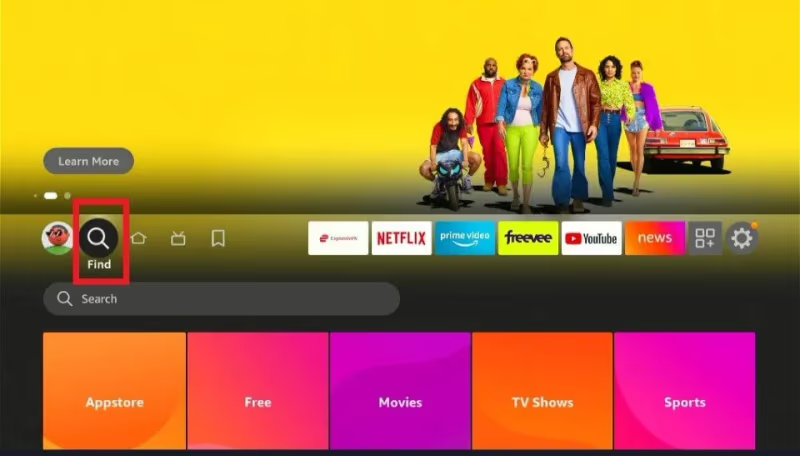
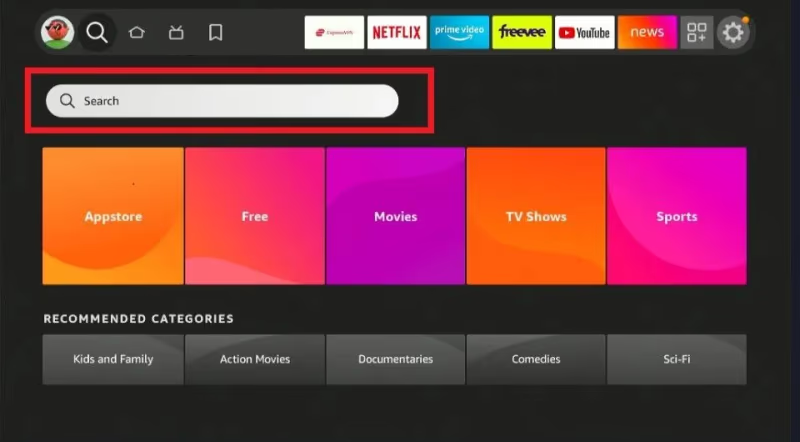
- Click on the Search magnifying glass icon
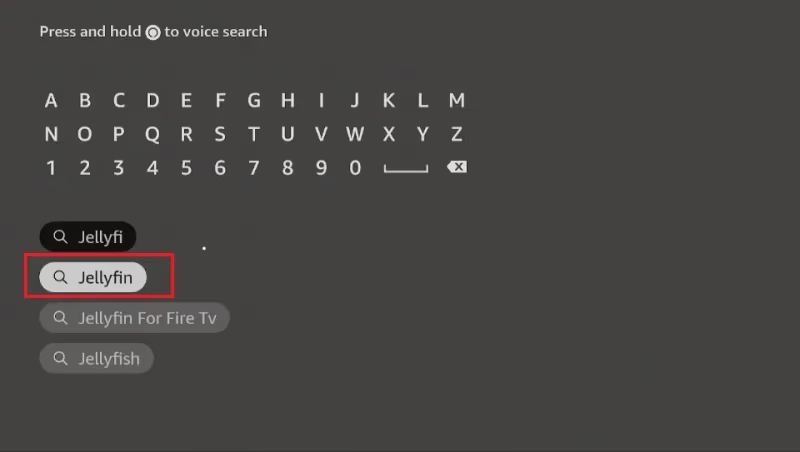
- Type in “Jellyfin” and select it from the search results
- Click the Jellyfin icon
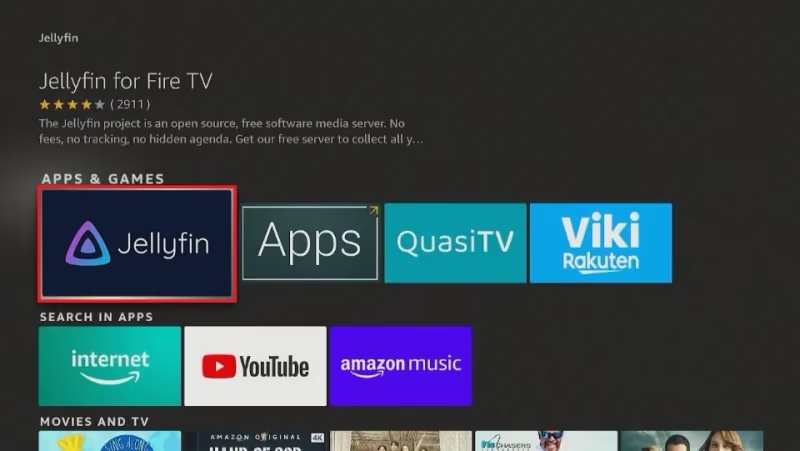
- Select Download or Get (button varies)
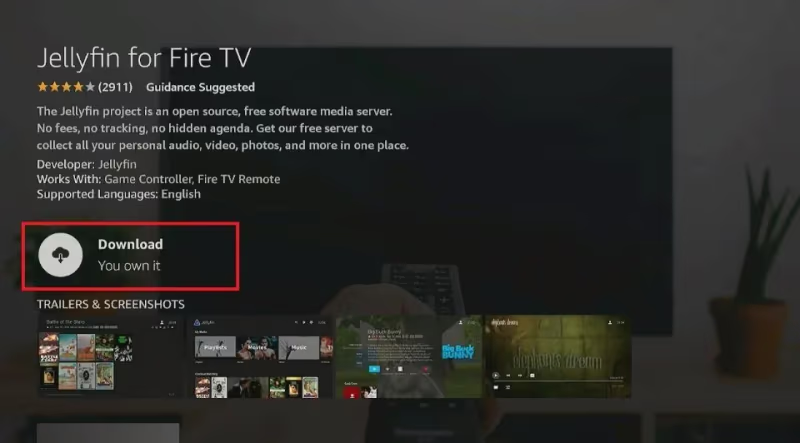
- Wait for the app to download and install
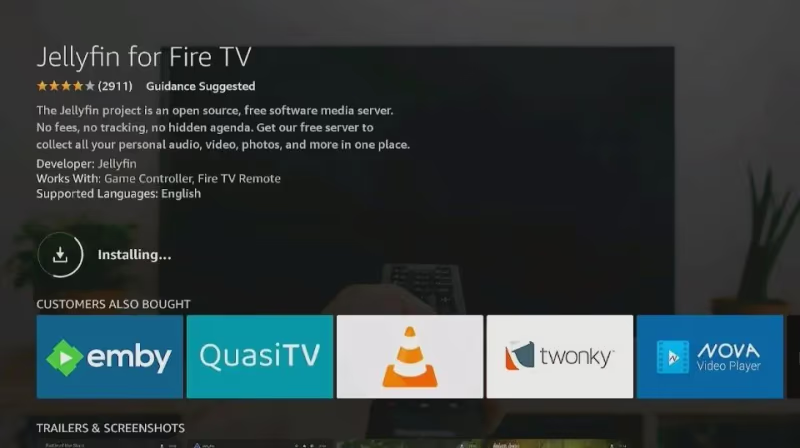
- You can now open Jellyfin from the FireStick home screen
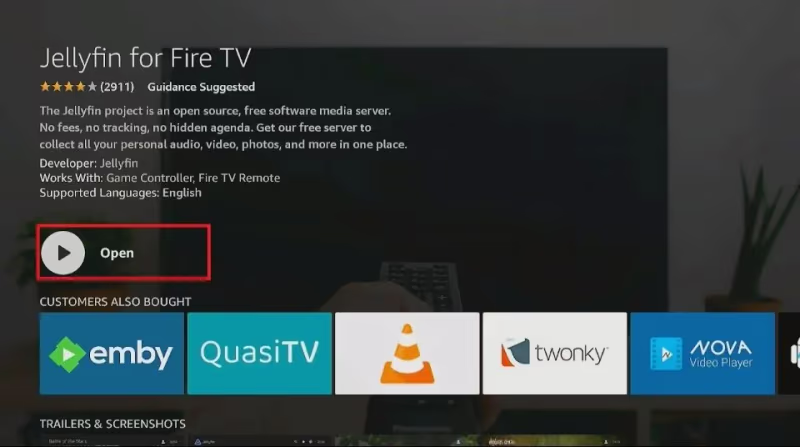
That’s all there is to it. Jellyfin is now installed on your Fire TV Stick through the official App Store.
#Method 2: Sideload Jellyfin APK Using Downloader
If you’d prefer more control or want to sideload an older version of Jellyfin, use this method.
You’ll need the Downloader app first:
- From the FireStick home screen, select Apps
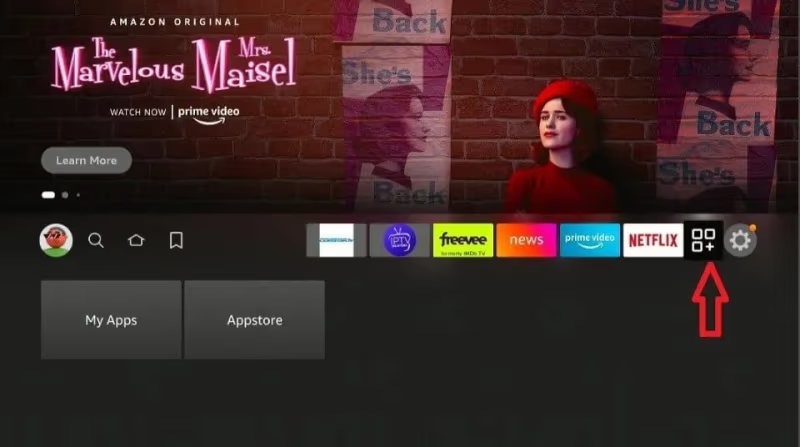
- Select Downloader
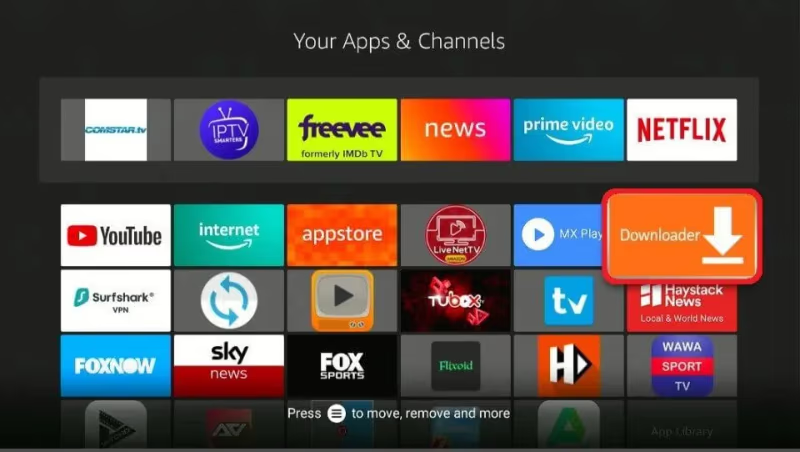
- Grant the needed permissions when prompted
Now to install Jellyfin:
- Open Downloader and enter firesticktricks.com/jellyfinapk
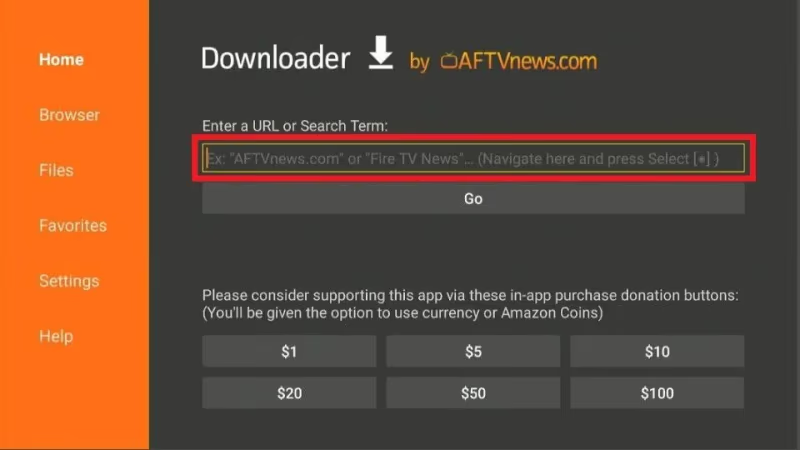
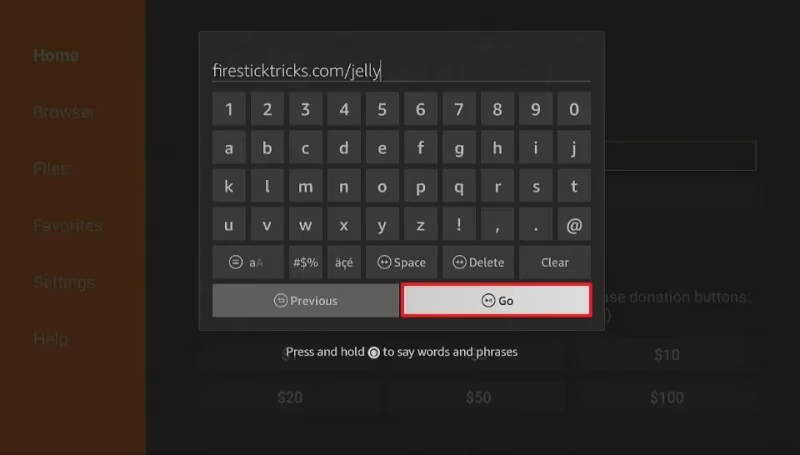
- Select Go and wait for the APK download
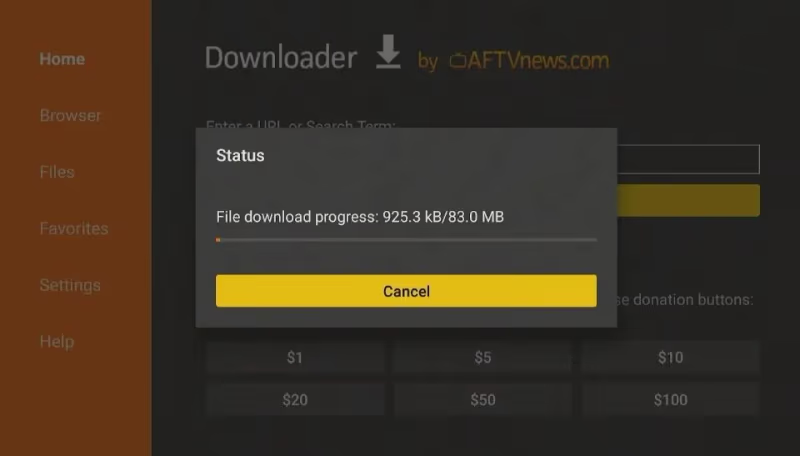
- Select Install once finished
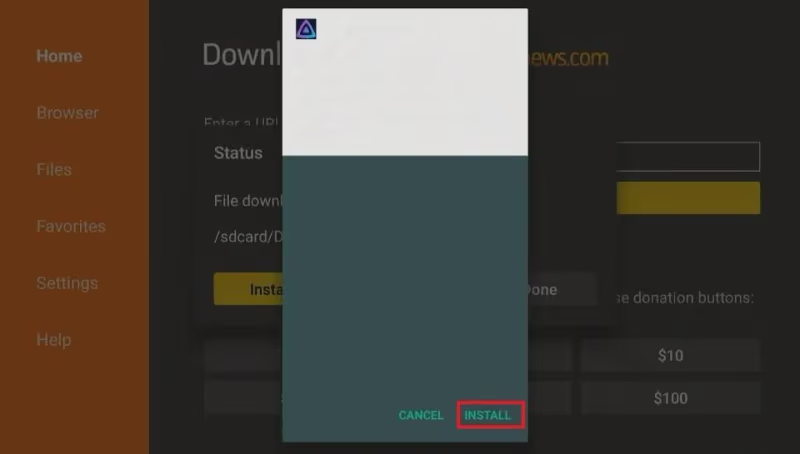
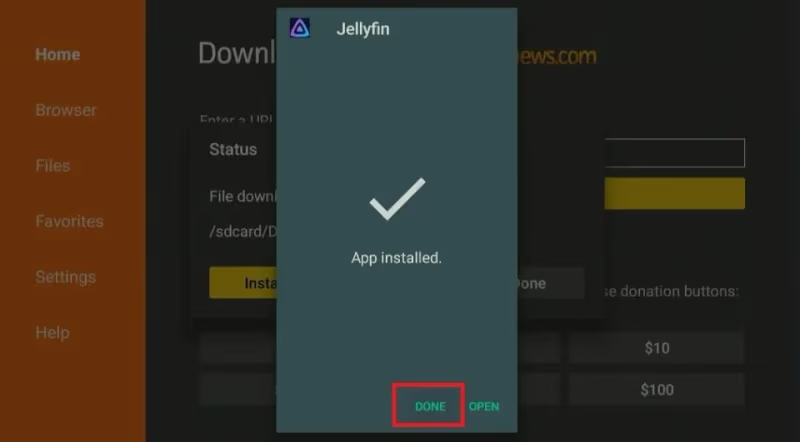
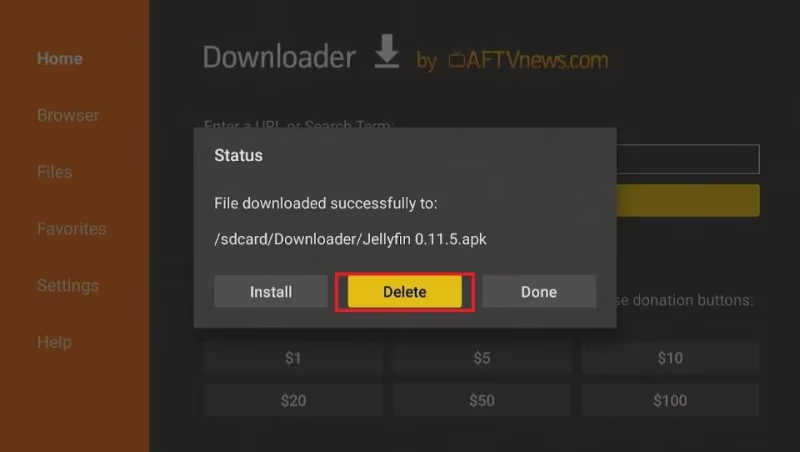
- Choose Delete when asked about the downloaded file
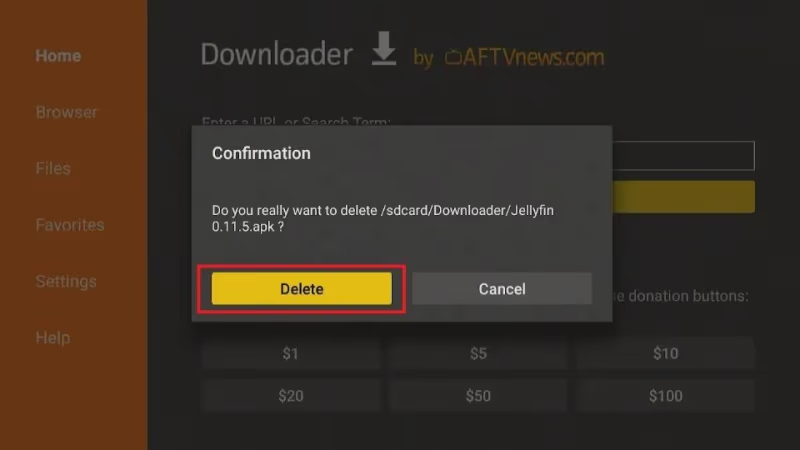
- You’ll now find Jellyfin ready to open on your FireStick home screen
That covers sideloading Jellyfin onto FireStick.
#Connecting to Jellyfin Server
Whichever method you used to install Jellyfin, you’ll next need to connect it to the Jellyfin server you’ve set up.
Here are the steps:
-
Launch Jellyfin on your Fire TV
-
Enter the correct server address and port
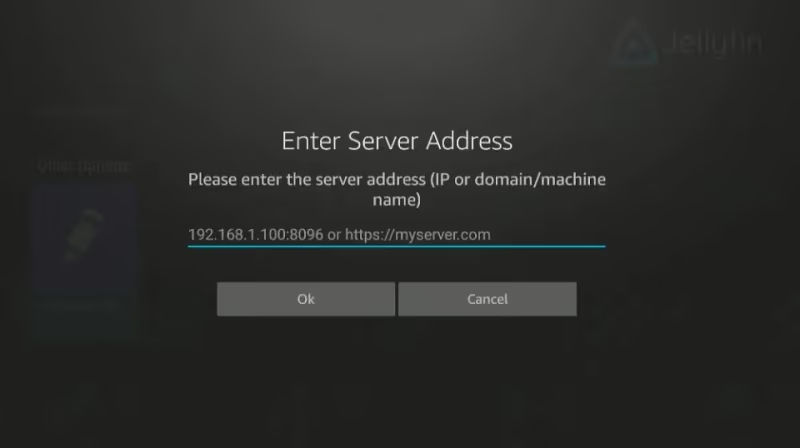
- Select the user you want to sign in with
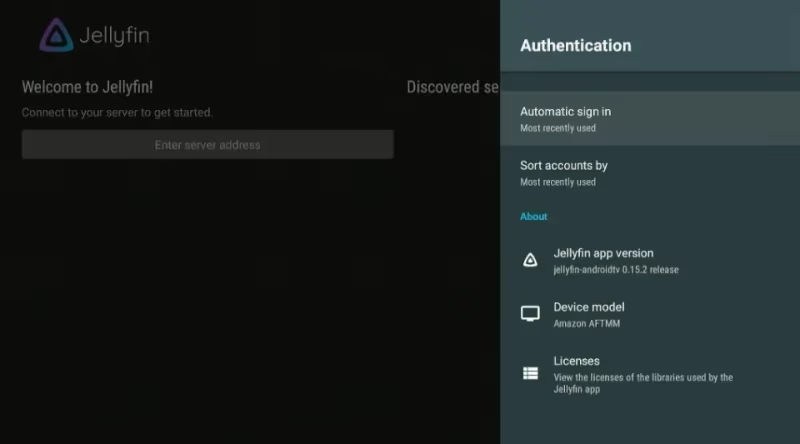
-
Enter password if prompted
-
Your media library will now sync and you’ll have access to all your files
Important note: You’ll need to have already set up a Jellyfin server on a computer or network attached storage drive on your local network. That is the central repository holding your actual media files.
The Jellyfin app on FireStick is just the client that streams from that backend server. You can visit Jellyfin’s site for details on getting a server running.
#How Do You Use Jellyfin on FireStick?
Now that you have Jellyfin set up, here’s how you can use it and get the most out of its features.
#Navigating the Interface
The Jellyfin interface on FireStick is straightforward with just a few main areas:
-
Home: Shows your media library organized into Movies, TV Shows, Music, etc.
-
Favorites: Quick access to media you favorite for fast playback later
-
Search: Find specific movies, shows, albums
-
Settings: Change options like theme, subtitle language, cache location
You can browse through categories or use the built-in search to quickly pull up a certain title. Select any show, movie or album to start playback.
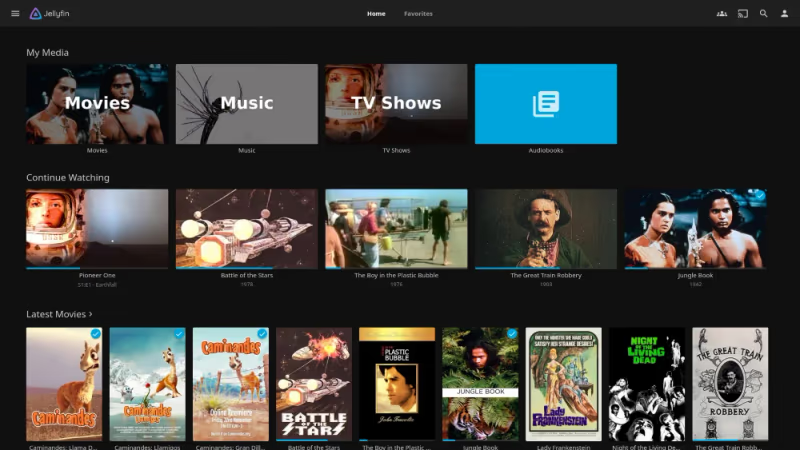
Tip: Long press the play icon to access handy options during media playback like subtitles, aspect ratio adjustment, and more.
#Sorting and Filtering Your Library
Jellyfin automatically downloads rich metadata for your media and gives you powerful ways to sort and filter. From any media category (Movies, TV Shows) you can apply filters like:
-
Recently added
-
Highest rated
-
4K titles
-
Featuring a certain actor
-
By genre
-
Release year
-
Parental rating
You can also change the view style to show boxes, compact list view, or poster view.
Every movie and show has detailed information like ratings, cast, crew, descriptions, images, trailers and more pulled in automatically. These filters make it easy to slice and dice your library to quickly find what you want.
#Offline Media Playback
If you’ll be without internet or want to save data, Jellyfin lets you download titles for offline playback.
First, make sure external storage is mounted:
-
Go to Settings > Device > Storage
-
Select your connected USB drive
-
Choose Mount
Now to make titles available offline:
-
Highlight a movie, show or album
-
Press menu button on remote
-
Select Download
-
Choose download quality
-
Wait for download to finish
The title will now have a green arrow indicating it’s available for offline playback even without internet.
#Using Jellyfin on Multiple Devices
Your entire media library and watch status stays synced across all devices connected to your Jellyfin server. Start watching a movie on your tablet and pick up right where you left off on your home theater system.
Jellyfin apps are available for all major platforms:
-
Fire OS
-
Android
-
iOS
-
Windows
-
macOS
-
Linux
Browser-based apps also let you stream from any laptop or desktop. All your devices stay in sync regardless of where you watch your media.
#Customizing and Optimizing Jellyfin on FireStick
Here are some tweaks to customize Jellyfin to your needs and preferences.
#Changing Server Settings
In the app settings you can modify advanced server options by selecting Advanced under the Video, Audio, Subtitles sections.
Here you can alter:
-
Maximum playback bitrates
-
Encoding priorities
-
Default subtitle selection
If you run into buffering or stability issues, adjusting these server-side settings is a good troubleshooting step.
#Altering Client Settings
There are also a number of client settings accessible directly on your FireStick Jellyfin installation:
-
Go to Settings from Jellyfin home screen
-
Select options like:
-
Toggle theme between light and dark mode
-
Set cache location
-
Change subtitle appearance
-
Enable auto play of next episode
-
Adjust max streaming bitrate
Experiment with these to find your preferred setup.
#Linking Trakt Account
Linking your Trakt account adds extra metadata to your Jellyfin library. When connected, Jellyfin automatically pulls in trailers, images, ratings, actor info, summaries, and other metadata from Trakt.
To link accounts:
-
Go to Settings > Users
-
Enter your Trakt credentials
-
Authorize permission to share data
Your Jellyfin library will now sync more metadata from Trakt to supplement the information already scraped from TheMovieDB and TheTVDB.
#Troubleshooting Problems with Jellyfin on FireStick
Jellyfin is generally quite stable, but here are some solutions for common issues you may encounter:
Can’t sign into my server
-
Double check server address and port
-
Verify your user credentials
-
Make sure Jellyfin server is running on the backend
-
Check firewall and router configuration
Choppy playback and buffering
-
Lower maximum streaming bitrate in app settings
-
Adjust encoding priorities on server
-
Check internet speeds with speedtest
-
Reboot router and FireStick
Missing descriptions, metadata, posters
Link your Trakt account to pull in extra scraped data as covered above.
Subtitles not working
-
Enable subtitle support on server
-
Confirm SRT files are named identically and in same folder as media
-
Adjust subtitle settings on player and confirm language selected
Can’t find Jellyfin app
-
Re-run Downloader with updated URL for latest APK
-
Uninstall and fresh install Jellyfin
-
Restart FireStick
Those tips cover the most common problems, but Jellyfin’s forum is another great resource.
#Bottom Line
Getting Jellyfin running on your FireStick takes just a few minutes. Once it is set up, you have a full private media server with no recurring fees.
The key next steps:
-
Get a Jellyfin server installed on local network storage
-
Stock it with your personal media collection
-
Install the Jellyfin app on all your streaming devices
-
Link your Trakt account for richer metadata
-
Use sorting and filtering to browse your library faster
-
Set a few titles to be available offline
Jellyfin combined with Kodi for added streaming sources gives you a powerful private media center that rivals any paid service.
#FAQ
#Can you install Jellyfin on any Fire TV Stick model?
Jellyfin works on all Fire TV Stick models running Fire OS 5 or later. This includes the Fire TV Stick Lite, Fire TV Stick 4K, and Fire TV Stick 4K Max. Older first-generation models may struggle with 4K transcoding, but standard 1080p playback runs fine.
#Is Jellyfin really free or are there hidden costs?
Jellyfin is 100% free with no premium tiers, in-app purchases, or feature gates. The only cost is the hardware you use to run the server, such as an old laptop or a NAS drive. Unlike Plex, there is no paid “Pass” to unlock features like hardware transcoding or offline sync.
#Does Jellyfin work without an internet connection?
Yes, but only for titles you’ve already downloaded to local storage. The initial server connection requires your FireStick and server to be on the same local network. Once you download a movie or show to a USB drive or microSD card, you can watch it with no network connection at all.
#How much storage do you need for a Jellyfin server?
That depends entirely on your media collection. A single 1080p movie averages 4-8 GB, while a 4K movie can reach 20-60 GB. Most users start with a 1-2 TB external hard drive plugged into a computer or NAS.
#Can multiple users stream from the same Jellyfin server at once?
Yes. Jellyfin supports multiple user profiles, each with their own watch history, favorites, and parental controls. The limiting factor is your server hardware. A modern Intel or AMD processor can handle 2-3 simultaneous transcoded streams without issues.
#What is the difference between Jellyfin and Plex?
Plex has a polished interface and a larger ecosystem of official apps, but it locks features like hardware transcoding and offline downloads behind a paid Plex Pass ($5/month or $120 lifetime). Jellyfin is fully open-source and includes all features for free. The trade-off is that Jellyfin’s apps receive updates less frequently and the setup process requires more hands-on configuration.
#Do you need a VPN to use Jellyfin on FireStick?
No. Jellyfin streams your own media files from your own server, so there is nothing to hide from your ISP. A VPN is only useful if you access your Jellyfin server remotely over the internet and want to encrypt the connection between your FireStick and your home network.