Want to access your Jellyfin media library right on your Apple TV? Since there’s no native Jellyfin app for Apple TV, you’ll need to use AirPlay screen mirroring. This guide will show you step-by-step how to set up screen mirroring and stream Jellyfin to your Apple TV.
- No native Apple TV app — Jellyfin does not offer an official tvOS app, so AirPlay screen mirroring from an iPhone or iPad is the primary workaround
- Same Wi-Fi required — Both your Apple TV and iOS device must be on the same local network for AirPlay to connect
- Setup takes under 5 minutes — Install the free Jellyfin iOS app, enable AirPlay on Apple TV, and start mirroring
- 5 GHz Wi-Fi recommended — A 5 GHz connection or wired Ethernet to the Apple TV reduces buffering and improves video quality
- iOS device stays active — Your iPhone or iPad must remain powered on throughout playback since it acts as the streaming source
#How Do You Watch Jellyfin on Apple TV?
While there is no official Jellyfin app available in the App Store for Apple TVs currently, you can still enjoy your Jellyfin library on the big screen.
By using AirPlay screen mirroring, you can display and control the Jellyfin mobile app running on your iPhone/iPad directly on your Apple TV, similar to Jellyfin on Firestick and other streaming devices.
Here’s a quick overview of how it works:
-
Install Jellyfin mobile app on your iOS device
-
Connect both iOS device and Apple TV to same WiFi network
-
Enable screen mirroring on Apple TV
-
AirPlay Jellyfin mobile app to Apple TV
-
Control playback using iOS device (or Apple TV Remote app)
This does require keeping your iPhone or iPad on to act as the streaming source. But it works well for occasional Jellyfin viewing sessions.
Below are more detailed instructions on setting up screen mirroring with Jellyfin step-by-step.
#Step-by-Step Guide to Screen Mirroring Jellyfin
Follow these steps to set up screen mirroring for Jellyfin on your Apple TV:
#1. Install Jellyfin Mobile App
First, install the free Jellyfin app from the iOS App Store on your compatible iPhone, iPad or iPod Touch. You’ll use this as the streaming source.
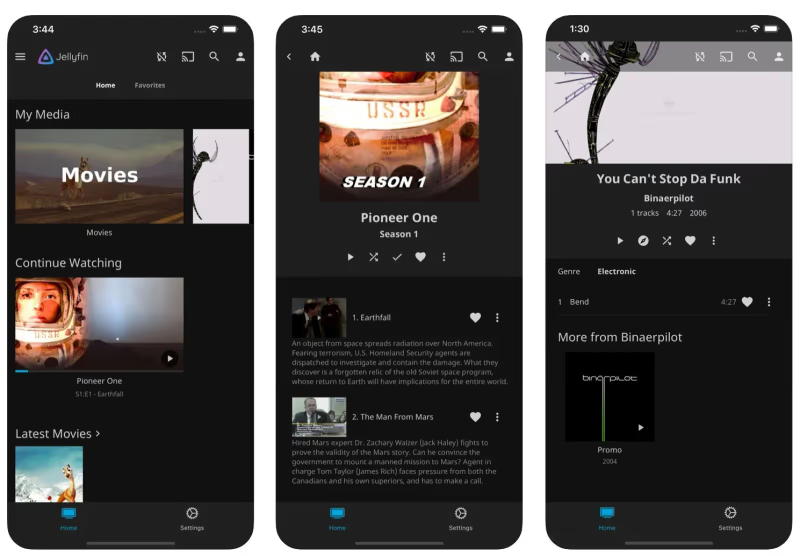
See this Jellyfin review for more on the platform’s capabilities.
#2. Connect Devices to Same WiFi
Ensure both your Apple TV and iOS device are connected to the same local WiFi network. AirPlay connectivity requires both to be on the same network.
#3. Enable Screen Mirroring on Apple TV
From the Apple TV home screen:
-
Open Control Center
-
Select AirPlay
-
Choose Turn On
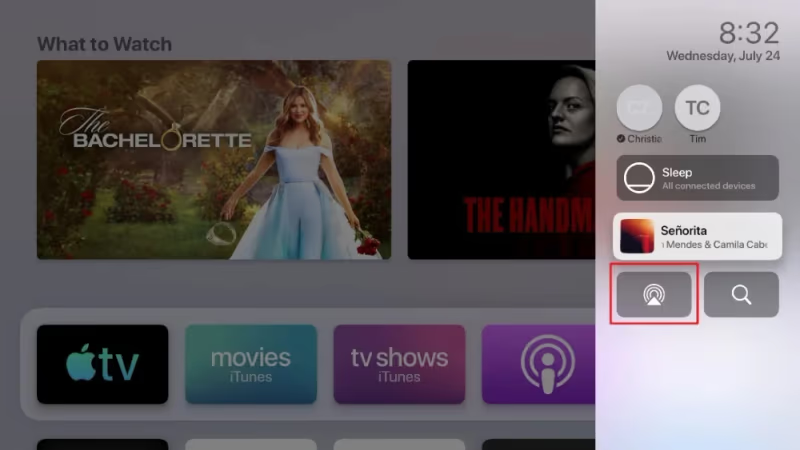
This makes your Apple TV discoverable for AirPlay streaming sources.
#4. Begin Playback in Jellyfin Mobile App
Launch the Jellyfin app on your iPhone/iPad. Browse and begin playing a video from your Jellyfin media library. Jellyfin allows managing a full media collection like Plex vs Jellyfin.
#5. Swipe Down and Select Screen Mirroring
In the Jellyfin mobile app, swipe down from the top to reveal the iOS media playback menu. Then tap AirPlay and select your Apple TV to begin screen mirroring.
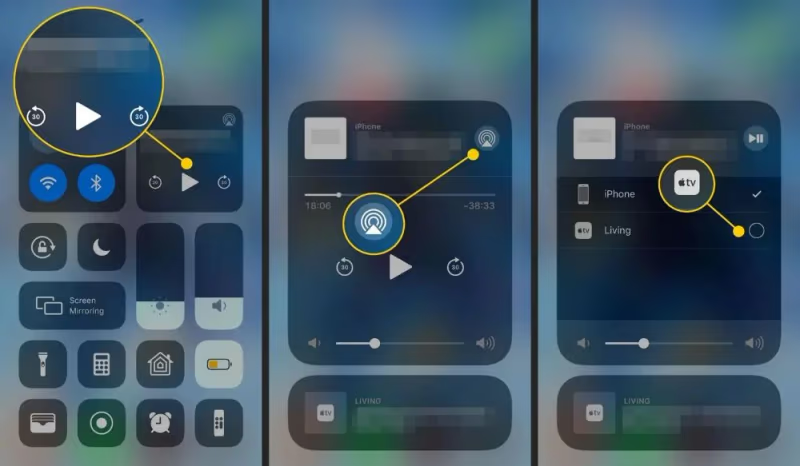
#6. Control Playback from iOS Device or Apple TV Remote App
Once mirroring begins, you can control playback using the Jellyfin mobile app or Apple TV Remote app.
Enjoy your personalized Jellyfin media on the big screen! Just remember your iPhone/iPad must stay powered on to keep streaming the video source.
#How Can You Improve Jellyfin Streaming Performance?
For best results:
-
Use 5GHz WiFi connection if available
-
Keep iOS device charged to prevent interrupted streaming
-
Use wired Ethernet connection to Apple TV if possible
-
Lower Jellyfin streaming quality settings if buffering occurs like adjustments required for Jellyfin on Roku
#Frequently Asked Questions
#Is there a native Jellyfin app for Apple TV?
No, Jellyfin does not have an official tvOS app in the Apple TV App Store. The Jellyfin project is open source and community-driven, so development priorities depend on volunteer contributors. AirPlay screen mirroring from an iPhone or iPad remains the most reliable way to get Jellyfin content on your Apple TV.
#Does screen mirroring reduce video quality?
AirPlay uses video compression during transmission, so you may notice a slight drop compared to direct playback on your iOS device. Connecting your Apple TV via Ethernet and using a 5 GHz Wi-Fi band on your iPhone minimizes this. You can also lower the streaming quality inside the Jellyfin app settings to reduce buffering on slower networks.
#Can I use a third-party app instead of AirPlay?
Apps like Reflector and AirScreen offer alternative mirroring paths from iOS to Apple TV. However, using built-in AirPlay keeps everything inside the Jellyfin app so you can browse your library and control playback without switching between apps.
#Does my Jellyfin server need to stay running during playback?
Yes. Your Jellyfin server is the source of all media files, so the host computer must remain powered on and connected to the network. If the server goes offline mid-stream, playback stops immediately on your Apple TV.
#Can I mirror Jellyfin from an Android phone to Apple TV?
AirPlay is exclusive to Apple devices, so Android phones cannot mirror directly to an Apple TV. You could use an HDMI adapter cable to physically connect your Android device to a TV instead. Alternatively, a Chromecast or Fire TV Stick with the Jellyfin app installed gives Android users a wireless option without needing Apple hardware.
#Will my iPhone battery drain quickly while mirroring?
Screen mirroring keeps your iPhone display active and transmitting data, which does consume battery faster than normal use. Plugging your iPhone into a charger during longer viewing sessions prevents unexpected shutdowns. A Lightning or USB-C to HDMI adapter is another option that offloads some processing from the wireless radio.
#Do I need a specific Apple TV model for AirPlay mirroring?
AirPlay screen mirroring works on Apple TV HD (4th generation) and all Apple TV 4K models. Older Apple TV units (2nd and 3rd generation) support AirPlay audio and basic video streaming but lack full screen mirroring from the Control Center. Check your Apple TV model in Settings > General > About to confirm compatibility.
#Bottom Line
While an official Apple TV app would be nice, this simple AirPlay screen mirroring method works quite well for wirelessly streaming Jellyfin to your Apple TV. Setting it up takes just a few minutes.
Now you can comfortably access your entire Jellyfin media library on your television thanks to this handy screen mirroring capability built into Apple devices. No need to jailbreak or install any additional software.
Jellyfin brings media organization and streaming similar to Kodi but with some unique capabilities. Review Jellyfin alternatives like Emby and Plex as well for other open source media server options.
Enjoy your personalized media streaming experience! Let us know if you have any other questions.