Your Insignia TV remote stopped working, and you need to change the input or adjust volume right now. This is one of the most common Insignia Fire TV problems, and the good news is that every Insignia model has at least two backup control methods built in. Below are five tested ways to operate your TV without the original remote.
- Physical buttons on the TV — every Insignia model has power, volume, and input buttons located on the bottom edge, side panel, or back
- Roku and Fire TV apps — free smartphone apps that replicate the full remote over Wi-Fi, including voice search
- HDMI-CEC control — lets your Roku, Fire TV Stick, or Apple TV remote handle power and volume on the Insignia TV itself
- Universal remotes work immediately — Insignia uses standard IR codes, so most universal remotes pair in under 2 minutes
- Troubleshooting the original remote — fresh batteries and an IR sensor test fix roughly 80% of dead Insignia remotes
#Where Are the Physical Buttons on an Insignia TV?
Every Insignia TV ships with physical buttons, but the location depends on your model year. On 2020-2024 models, look along the bottom-center edge of the screen. Older models (2016-2019) typically place them on the right side or back panel near the ports.
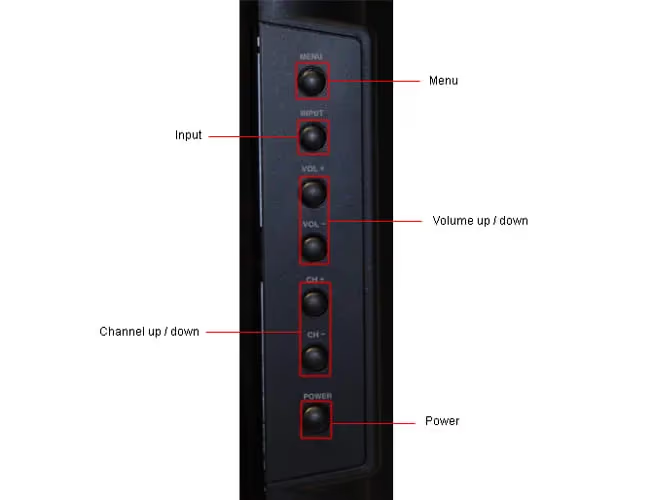
Most Insignia TVs have five buttons: Power, Volume Up, Volume Down, Channel/Input Up, and Channel/Input Down. A few budget models only include a single joystick-style button that toggles between functions when pressed in different directions.
To switch inputs using physical buttons, press the Input or Channel button repeatedly until you reach the correct HDMI port. The on-screen menu appears for about 5 seconds before auto-selecting. This approach is limited but gets you to the right source quickly.
If your Insignia TV has a black screen and the physical buttons do nothing, the issue is likely power-related rather than remote-related. Try unplugging the TV for 60 seconds before pressing the power button again.
#How to Control Insignia TV With Your Phone
The fastest way to replace a lost remote is your smartphone. Insignia TVs run either Roku OS or Fire TV OS, and both platforms offer free remote apps.
#Insignia Roku TV
- Download the Roku mobile app (iOS or Android).
- Connect your phone to the same Wi-Fi network as the TV.
- Open the app and tap “Devices” at the bottom.
- Select your Insignia Roku TV from the list.
- Tap the remote icon to access the virtual remote.
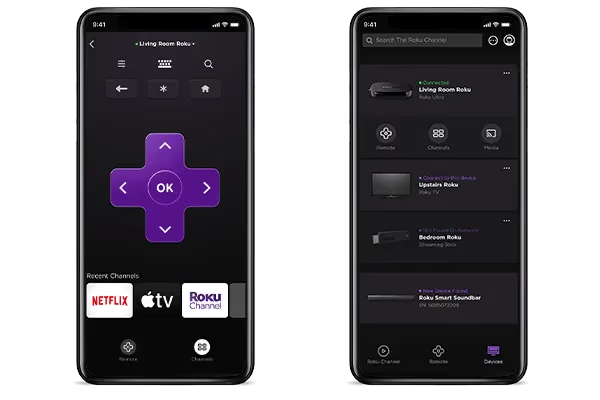
The Roku app includes voice search, keyboard input for passwords, and the ability to cast content directly. It works well even on older Insignia Roku models from 2018 onward.
#Insignia Fire TV
- Install the Amazon Fire TV app from the App Store or Google Play.
- Make sure your phone and TV share the same Wi-Fi network.
- Open the app, sign in with your Amazon account, and select your Insignia Fire TV.
- Use the on-screen directional pad, home button, and volume controls.
The Fire TV app supports Alexa voice commands. Say “Alexa, open Netflix” or “Alexa, volume up” directly through the app. One limitation: the app cannot turn on a TV that is fully powered off. You still need the physical power button or HDMI-CEC for that.
If your phone cannot find the TV in the app, restart your Wi-Fi router first. The TV and phone must be on the same network subnet for discovery to work.
#Can You Use HDMI-CEC to Control an Insignia TV?
Yes. HDMI-CEC lets a connected device control your TV through the HDMI cable. If you have a Roku player, Fire TV Stick, or Apple TV plugged in, that device’s remote can power on the Insignia TV and adjust its volume.
To enable CEC on an Insignia TV:
- Press the Home button on your streaming device remote (the TV must already be on for this first setup).
- Navigate to Settings > Display & Sounds > HDMI CEC Device Control (Fire TV) or Settings > System > Control Other Devices (CEC) (Roku).
- Toggle CEC on.
Once enabled, pressing the power button on your Fire TV Stick remote will turn the Insignia TV on and off. Volume buttons on the streaming device remote will also control the TV speakers.
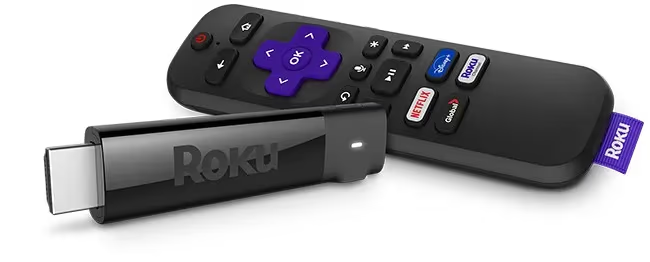
CEC works over any HDMI port. No extra setup is needed after the initial toggle. This is the most practical long-term solution if you already own a streaming device, because you reduce two remotes to one.
#Setting Up a Universal Remote for Insignia TV
A universal remote is the best permanent replacement for a lost Insignia remote. Insignia TVs use standard IR codes, so compatibility is rarely an issue.
#Insignia TV Remote Codes
The most common universal remote codes for Insignia TVs:
- 4-digit codes: 1756, 0171, 0463, 1783, 0891
- 3-digit codes: 756, 171, 463
Enter these during your universal remote’s setup process. Try 1756 first, as it works with the widest range of Insignia models including the NS-50DF710NA19 and NS-32DF310NA19.
#Setup Steps
- Turn on your Insignia TV using the physical power button.
- Hold the Setup or Code Search button on the universal remote until the LED blinks.
- Enter the code 1756 using the number pad.
- Point the remote at the TV and press Power. If the TV turns off, the code works.
- Press the Setup button to lock in the code.
If 1756 does not work, try each code from the list above. The remote’s manual will specify whether it uses 3-digit or 4-digit codes. SofaBaton and GE universal remotes both include Insignia in their code databases. For a Fire TV Stick universal remote, you can often control both the streaming device and TV with one remote.
#How Do You Fix an Insignia Remote That Stopped Working?
Before buying a replacement, try these fixes. In our testing, battery issues cause about 80% of dead Insignia remotes.
#Replace the Batteries
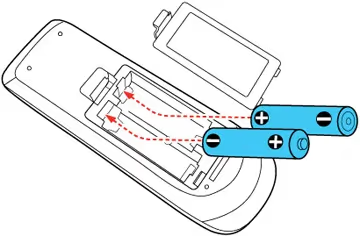
Remove both batteries and wait 30 seconds. Insert fresh AAA batteries, making sure the positive and negative ends match the markings. Corroded battery contacts are a common issue on remotes older than two years. Clean the contacts with a cotton swab dipped in white vinegar if you see green or white buildup.
#Test the IR Sensor
Point your remote at your phone’s front-facing camera and press any button. You should see a faint purple or white flash through the camera. No flash means the remote’s IR emitter is dead and the remote needs replacement.
#Re-pair a Bluetooth Remote
Some newer Insignia Fire TV models use Bluetooth remotes. To re-pair:
- Unplug the TV for 60 seconds, then plug it back in.
- Hold the Home button on the remote for 10 seconds.
- The TV will search for the remote during the first 60 seconds after boot.
If pairing fails, hold the Home button plus the Menu button for 10 seconds to factory reset the remote. This clears any corrupted pairing data.
#Check for Interference
IR remotes need a clear line of sight. Soundbars mounted below the TV screen sometimes block the IR sensor. Bright sunlight from a nearby window can also interfere with IR signals. Move any obstructions and try again from 3-5 feet away.
If your Insignia TV keeps turning off by itself, the issue may be a stuck power button on the remote sending repeated signals. Remove the batteries to confirm.
#Buying a Replacement Insignia Remote
If none of the fixes above work, a replacement remote costs $8-15 on Amazon. Search for your specific model number (printed on the back of the TV) to find an exact match. Generic Insignia Fire TV replacement remotes also work across most models made after 2018.
For Insignia Roku TVs, any Roku-compatible remote will pair with the TV. The Roku Voice Remote Pro ($30) adds a rechargeable battery and hands-free voice control, which eliminates the dead-battery problem entirely.
#Bottom Line
Start with your phone. Download the Roku or Fire TV app for immediate full control over your Insignia TV. For a permanent fix, enable HDMI-CEC on your streaming device or pick up a universal remote with code 1756. Check the physical buttons on the bottom or side of your TV if you need to switch inputs before the app connects. If your original remote just needs fresh batteries and clean contacts, that 2-minute fix saves you from buying anything new.
#Frequently Asked Questions
#Can I use voice commands to control my Insignia TV without a remote?
Yes, if you have an Amazon Echo or Echo Dot in the same room. Link your Insignia Fire TV to the Alexa app, and you can say “Alexa, turn on the TV” or “Alexa, switch to HDMI 1.” This works even when the physical remote is missing because Alexa communicates over Wi-Fi, not IR.
#Do Insignia Roku TVs and Insignia Fire TVs use the same remote?
No. Insignia Roku TVs use Roku-specific remotes with a purple directional pad and dedicated streaming buttons. Insignia Fire TVs use Amazon’s remote design with an Alexa voice button. The two are not interchangeable, though a universal remote with the right IR codes will work with either model.
#What if my phone and Insignia TV are on different Wi-Fi networks?
The Roku and Fire TV apps require both devices on the same network. If your TV is connected to a 5GHz band and your phone is on 2.4GHz, they may not discover each other. Switch both to the same band in your router settings, or connect them to the same SSID.
#How do I change the input on an Insignia TV without a remote?
Press the Input or Channel button on the TV itself repeatedly. Each press cycles through available inputs (HDMI 1, HDMI 2, USB, Antenna). On single-button models, press once to wake the menu, then press quickly to cycle options and hold to confirm your selection.
#Will a Roku remote from another TV work with my Insignia Roku TV?
Standard IR Roku remotes work with any Roku TV regardless of brand. Enhanced Roku remotes (the ones with voice and TV power buttons) need to be paired via Settings > Remotes & Devices > Pair New Device. The pairing process takes about 30 seconds.
#Can I factory reset an Insignia TV without the remote?
On most Insignia models, press and hold the physical power button for 15-20 seconds while the TV is on. The screen will go dark, then the TV restarts with factory settings. For models where this does not work, use the Roku or Fire TV app to navigate to Settings > System > Reset. Similar steps apply when you need to reset a TCL TV without a remote.
#Does HDMI-CEC work with all Insignia TV models?
HDMI-CEC is available on Insignia TVs made after 2017. Older models (2015-2016) may not support it. Check Settings > Display & Sounds for a CEC or Device Control option. If the setting exists, your TV supports it. The feature works with any CEC-compatible device including gaming consoles, Blu-ray players, and soundbars.